How to Switch ChatGPT Accounts on iPhone and Android
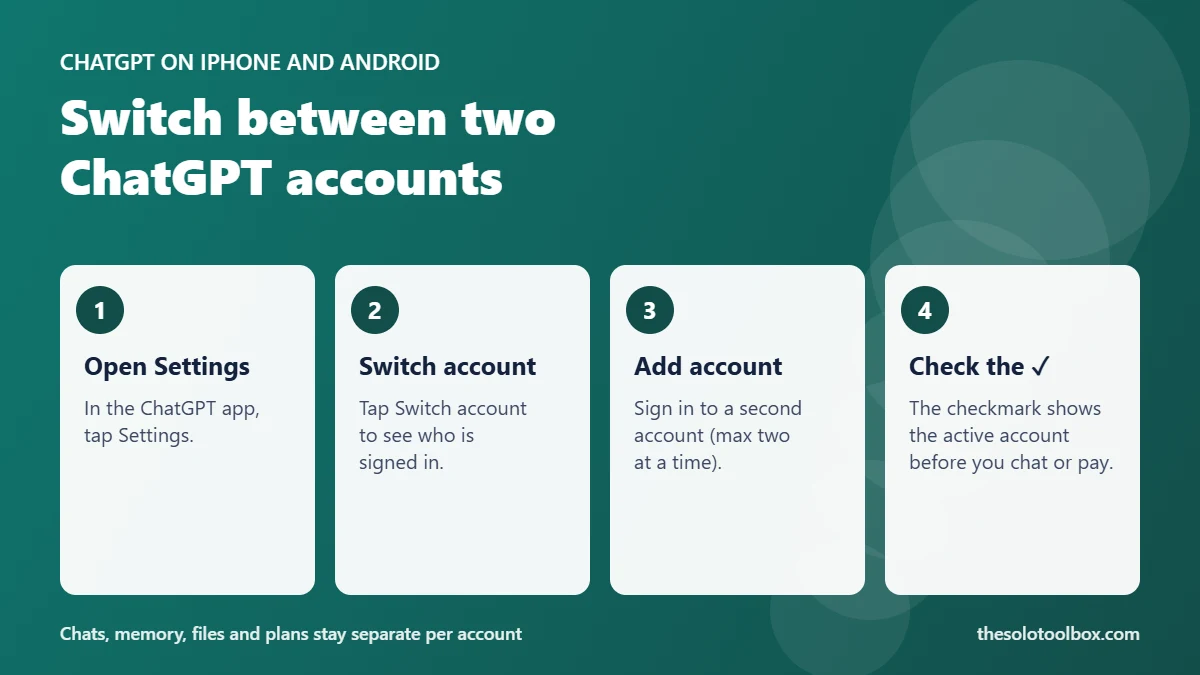
To switch ChatGPT accounts on iPhone or Android, open Settings, tap Switch account, then pick the other account or tap Add account to sign in to a second one. You can stay signed in to two accounts at once, and each keeps its own chats, memory, files and subscription. OpenAI says the feature is still rolling out on mobile, so some people won’t see the option yet.
This guide covers the exact steps on mobile and the web, what switching does and doesn’t share, how to remove an account, and how to avoid paying twice when you have a personal and a work login.
Before you start
- Works on: the ChatGPT app for iOS and Android, plus chatgpt.com on the web
- Limit: two signed-in accounts at a time (you can own more than two)
- Rollout: mobile is still rolling out; if Switch account is missing in Settings, update the app and check again later
- Work accounts: an Enterprise workspace owner can turn account switching off
- Checked: November 3, 2026, against OpenAI’s help article
What changed
Until now, using a personal and a work ChatGPT account on one phone meant signing out and back in every time. OpenAI’s help article Using multiple ChatGPT accounts on web and mobile (updated November 2, 2026) now lists account switching for the web and for the iOS and Android apps. Coverage of the mobile rollout appeared on November 2, and OpenAI’s help page still says the feature “is rolling out on iOS and Android.”
Only one account is active at a time. A checkmark in the switcher marks which one you’re using.
How to add a second ChatGPT account on iPhone or Android
- Open the ChatGPT app and go to Settings.
- Tap Switch account.
- Tap Add account.
- Sign in to the other account, or create a new one. A new account starts on the Free plan and doesn’t need payment.
If Add account isn’t there, you’re probably already signed in to two accounts. The app hides the button until you log out of one of them.
How to switch between accounts
On iPhone or Android: Settings > Switch account, then tap the account you want. On the web: open the account menu and select the account.
After you switch, your chat list, memory, files and settings change to that account. If your account has workspaces, those are scoped to the active account too. Before you start a conversation that contains client or company information, look at the checkmark so it lands in the right account.
How to add an account on the ChatGPT website
- Open the account menu on chatgpt.com.
- Select Add account.
- Sign in or create a new account.
If two accounts are already signed in, select Add another account, choose the account to log out of, then select Log out and continue. OpenAI says account switching works with all plan types on the web.
What switching shares and what it doesn’t
| Item | Shared between accounts? |
|---|---|
| Chats and conversation history | No |
| Memory | No |
| Files and uploads | No |
| Plan, billing and subscription | No |
| Workspaces | No, scoped to each account |
| Mobile notifications | Both accounts can notify you; tapping one switches to that account |
Switching does not merge accounts and can’t move a chat from one account to another. If you want an old personal chat available in your work account, you’d have to copy the text over yourself, and you should check your employer’s policy before doing that.
How to log out of one account
On iPhone or Android
- Open Settings and tap Switch account.
- Tap the more options menu (•••) next to the account you want to remove.
- Tap Log out and confirm.
Logging out of the active account opens the other signed-in account. Logging out of the last one takes you back to the sign-in screen.
On the web
Open the account menu, select Log out, choose which account if two are signed in, and confirm if prompted.
If you want to sign out of ChatGPT on every device at once, for example after losing a phone, that’s a different setting. See how to log out of ChatGPT and Claude on all devices.
Avoid paying for Plus twice
Each account keeps its own plan, and a subscription on one account doesn’t carry over to the other. The most likely mistake with two accounts on one phone is tapping Upgrade while the wrong account is active.
- Check the checkmark in Switch account before any purchase.
- If you paid but can’t see your plan, switch to the other account first. OpenAI’s help article says to check the account that owns the subscription before buying again.
- App Store and Google Play subscriptions are billed through your Apple or Google account, so check there too if you’re unsure which ChatGPT login you bought it on.
Work and Enterprise accounts
For Enterprise workspaces, a workspace owner controls this in the Admin Console: select the workspace, open Workspace settings, and turn Enable account switching on or off. That setting applies on the web and in the mobile apps. If the option is missing for your work login, ask your IT admin.
Switching doesn’t change which rules apply. Data in a company-managed account stays governed by your organization’s policies, and your administrator may be able to access it. Keep personal chats in your personal account.
While you’re tidying up two accounts, it’s a good moment to protect each one with two-step verification on the Google or Microsoft login you use to sign in, and to lock sensitive chats with a PIN if your app has that option.
Switch account missing? What to check
- Update the app from the App Store or Google Play. OpenAI hasn’t published a minimum version number, so the latest version is the safest bet.
- Wait for the rollout. OpenAI says the option may not be available to you yet on mobile.
- Two accounts already signed in. Add account is hidden until you log out of one.
- Enterprise policy. Your workspace owner may have turned it off.
- Use the web meanwhile. Account switching is already listed for all plan types on chatgpt.com.
FAQ
Can I be signed in to more than two ChatGPT accounts?
Not at the same time. You can own more than two accounts, but only two can be signed in on a device. Log out of one to add another.
Does switching accounts share my ChatGPT Plus subscription?
No. Each account keeps its own plan and billing. A second account needs its own subscription if you want paid features there.
Will my chats move to the other account when I switch?
No. Chats, memory and files stay with the account they were created in. Switching only changes which account is active.
Is switching accounts the same as switching workspaces?
No. Switching accounts changes which ChatGPT login you use. Switching workspaces changes the workspace inside one account.
Limitations of this guide
We checked the steps and labels against OpenAI’s help article on November 3, 2026. We haven’t confirmed which app version first includes the feature, and OpenAI hasn’t said when the mobile rollout will finish. Menu labels can change between app updates.
Next step
Open ChatGPT on your phone now and go to Settings > Switch account. If it’s there, add your second account and check the checkmark before your next chat. If it isn’t, set the app to update automatically and use account switching on the web for now.
If ChatGPT shows “Device limit reached” when you sign in, here’s what OpenAI’s card and device limits mean.
Sources
- OpenAI Help Center: Using multiple ChatGPT accounts on web and mobile (updated November 2, 2026)
- Mixed: ChatGPT lets you switch between two accounts on your phone without signing out (November 2, 2026)
- OpenAI Help Center: ChatGPT release notes