How to lock chats in ChatGPT with a PIN or Face ID

To lock chats in ChatGPT, open a conversation, select the ••• menu, choose Lock chat, confirm, and create a 4-digit PIN. The chat disappears from your history, pinned chats and search, and only opens again with that PIN or Face ID, Touch ID or your phone’s unlock. Find it later under Projects > Locked chats.
OpenAI started rolling the feature out on October 20, 2026. This guide covers locking and unlocking, setting up biometrics, what a lock does not protect, and the PIN reset that deletes everything.
Before you start
- You’ll need: ChatGPT on the web, the iPhone or Android app, or the new ChatGPT desktop app for Windows or macOS
- Time: About two minutes
- Before you start: Pick a PIN you won’t forget. Resetting it permanently deletes every locked chat, and OpenAI Support can’t recover them
What’s new: locked chats in ChatGPT
OpenAI’s release notes list locked chats on October 20, 2026, for Free, Go, Plus and Pro users. The Help Center adds Business, Enterprise and Edu; ChatGPT for Healthcare is excluded. The rollout is gradual, so if Lock chat isn’t in your ••• menu yet, it hasn’t reached your account.
It’s a privacy screen, not encryption. OpenAI says locking does not add end-to-end encryption, does not change how long chats are kept, and does not change the Improve the model for everyone setting.
How to lock a chat in ChatGPT
- Open the conversation you want to hide.
- Select the ••• (more options) menu and choose Lock chat.
- Select Lock chat again to confirm.
- The first time, select Create a PIN, enter four digits and confirm them. After that, enter your existing PIN.
The PIN belongs to your OpenAI account, not to one device or workspace, so it works anywhere you’re signed in. Search results and your other open devices can take a little while to catch up. On the web, the tab you locked from stays open; other tabs lose access.
Start a new chat that’s locked from the beginning
Go to Projects > Locked chats, enter your PIN or use device authentication, and send a message. The conversation is created inside the locked area.
How to open, relock and unlock a chat
- Open: go to Projects > Locked chats, enter your PIN, and pick the chat. Titles are hidden in the sidebar until you do.
- Relock right away: select Lock now. Otherwise the web and desktop apps relock when you leave or refresh the tab or window, and the phone apps relock after one minute in the background.
- Unlock permanently: open the chat, select ••• > Unlock chat (just Unlock on iOS) and confirm. It returns to regular history, not to any project it came from.
Turn on Face ID, Touch ID or fingerprint unlock
On iPhone, go to Settings > Security and login > Account PIN in ChatGPT and turn on Use Face ID or Use Touch ID. On Android, choose Use device unlock when ChatGPT prompts you. Biometrics apply only to that device and don’t replace the PIN; you still need it to change or reset the PIN.
What you can’t lock, and what locking doesn’t stop
| Situation | What happens |
|---|---|
| Temporary, archived or group chats | Can’t be locked |
| Chats with scheduled tasks | Delete the tasks first, including paused ones |
| Codex and local Work conversations | Can’t be locked |
| A chat that already has a share link | The link keeps working with the old content; delete it separately |
| A chat inside a project | Leaves the project and stops using its files, instructions and memory |
| Archive, pin, move or share | Not allowed while locked; unlock first |
| Voice in the desktop app | Not available in locked chats (works on web and phones) |
| Enterprise and Edu accounts | Still included in compliance logs; admins can’t unlock your chats or reset your PIN |
Two more limits matter in practice. Anyone who gets past your PIN can copy the chat. And Memory still runs: locked chats can use your regular memories, and what you say in them can be remembered for other locked chats, though not for regular ones. If you’d rather your conversations weren’t used for training at all, that’s a separate switch; see how to stop AI companies training on your chats. Ads may also appear in locked chats on plans that show them, covered in our guide to ChatGPT ad settings.
Change your PIN, or what happens if you forget it
To change it, go to Settings > Security and login > Account PIN and select Change (web and desktop) or Change PIN (phones). You need the current PIN even if you use Face ID. Your locked chats stay put.
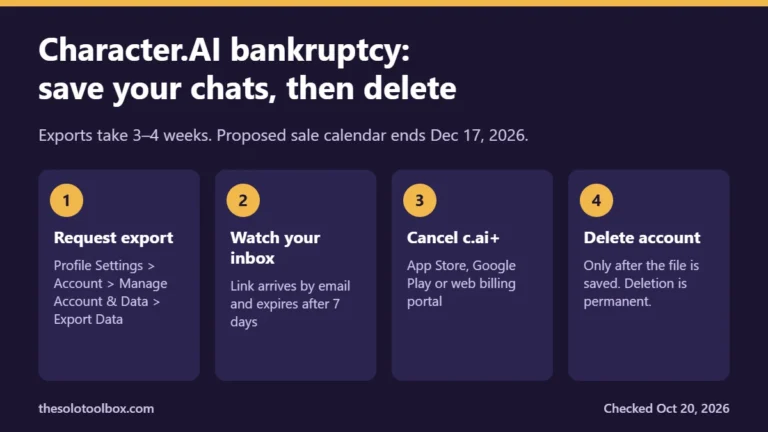
If you forget it, the same screen offers Reset or Reset PIN. OpenAI is blunt about the cost: resetting permanently deletes all locked chats, memories stored only in them, and files protected only by the old PIN. Support can’t undo it. Before locking anything you can’t afford to lose, export a copy; our guide to exporting AI chats explains why keeping your own backup is worth the minute.
FAQ
Does locking a ChatGPT chat encrypt it?
No. OpenAI says locked chats don’t get end-to-end encryption, and retention and training settings stay the same. It hides the chat from anyone using your unlocked account or device.
Why don’t I see Lock chat in ChatGPT?
The rollout is gradual. On desktop you also need the new ChatGPT app for Windows or macOS. Temporary, archived and group chats never show the option.
Can my workspace admin read my locked chats?
Admins can’t unlock them, reset your PIN or turn the feature off. On Enterprise and Edu, locked chats are still included in message logs available through OpenAI’s Compliance Platform.
What happens to files in a locked chat?
Files uploaded or created there are protected too and are hidden from Space until you permanently unlock the chat. They only open inside their own chat.
Next step
Lock one test chat now, then open it from Projects > Locked chats on a second device to confirm your PIN works there before you lock anything sensitive.
Related guides
Sources
Checked on October 26, 2026, against OpenAI’s Help Center article and ChatGPT release notes. Menu labels can differ slightly while the feature rolls out; we have not tested every platform.
- OpenAI Help Center: Using locked chats in ChatGPT
- OpenAI: ChatGPT release notes (October 20, 2026 entry)
- Releasebot: ChatGPT updates, October 2026