How to keep client data out of AI training in ChatGPT, Claude, Gemini and Copilot
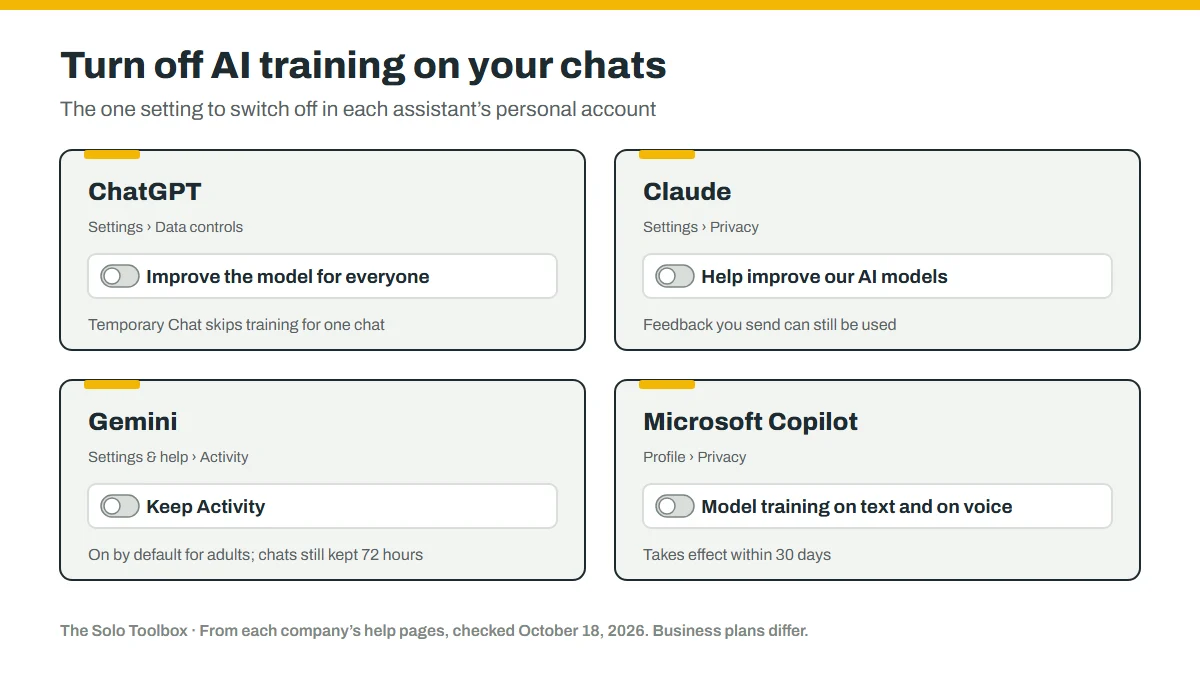
If you paste client emails, contracts or project details into an AI assistant on a personal account, each of the big four, ChatGPT, Claude, Gemini and Microsoft Copilot, has a setting that lets the company use your chats to improve its AI models. Turning that setting off takes a minute per assistant. It doesn’t delete anything or switch off safety checks, so the safest habit is still to share only what the task needs.
Before you start
- You’ll need: to be signed in to each AI assistant you use, on the web or in its app.
- Applies to: personal accounts of ChatGPT, Claude, Gemini and Microsoft Copilot. Business plans are covered separately below.
- Time: about 2 minutes per assistant.
- How we checked this: setting names and policies come from each company’s own help and privacy pages, checked October 18, 2026, and re-checked with the memory settings added on October 20, 2026. ChatGPT and Claude screenshots taken October 19, 2026. These settings change often, so check the linked pages if a menu looks different.
The settings at a glance
| Assistant | Setting to turn off | Where to find it |
|---|---|---|
| ChatGPT | Improve the model for everyone | Settings > Data controls |
| Claude | Help improve our AI models | Settings > Privacy |
| Gemini | Keep Activity | Settings & help > Activity |
| Microsoft Copilot | Model training on text, and Model training on voice | Profile > Privacy |
| Perplexity | AI data retention | Account settings > Preferences |
Training, memory and storage are three different things
These assistants handle your chats in three separate ways, and the training switch only controls the first:
- Training means your conversations can be used to build future versions of the AI model. This is what the settings in the table above turn off.
- Memory means the assistant saves details from your chats, such as a client’s name or a project you mentioned, and brings them into later conversations. All four assistants now have some form of it, with its own on/off controls.
- Storage means the company keeps your chat history on its servers until you delete it, and sometimes for a while after. Turning off training or memory doesn’t delete anything.
For client work, memory is the one people tend to overlook. A detail you shared once while drafting an email can resurface weeks later in an unrelated chat, or in front of anyone who uses the same account. The sections below cover all three for each assistant.
ChatGPT
- On the web, open your account menu and select Settings. In the mobile app, open the sidebar and tap your profile icon.
- Select Data controls.
- Turn off Improve the model for everyone.

OpenAI says this applies to new conversations. For a single sensitive conversation, you can also use Temporary Chat: those chats don’t appear in your history, don’t update ChatGPT’s memory and aren’t used to improve OpenAI’s models, though OpenAI says it may keep them for up to 30 days for safety purposes.
ChatGPT memory
Open Settings > Personalization > Memory. There you can review and delete saved memories, and turn off Reference saved memories and Reference chat history. Turning off saved memories also turns off chat history references. OpenAI says that when you turn off Reference chat history, the information drawn from past chats is scheduled for deletion within 30 days, while the chats themselves stay in your history.
Two details matter for client data. Deleting a chat doesn’t necessarily delete a memory created from it, so remove both. And sending feedback with the thumbs up or down buttons can make the whole conversation eligible for training, even with Improve the model for everyone switched off. Temporary Chats don’t create or update memories.
Claude
- Select your name in the settings menu, then Settings.
- Select Privacy.
- Turn off Help improve our AI models.
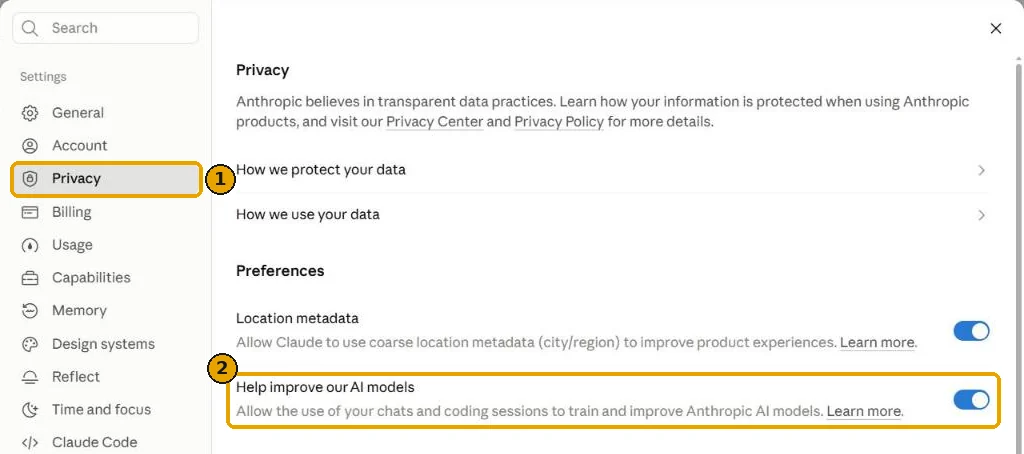
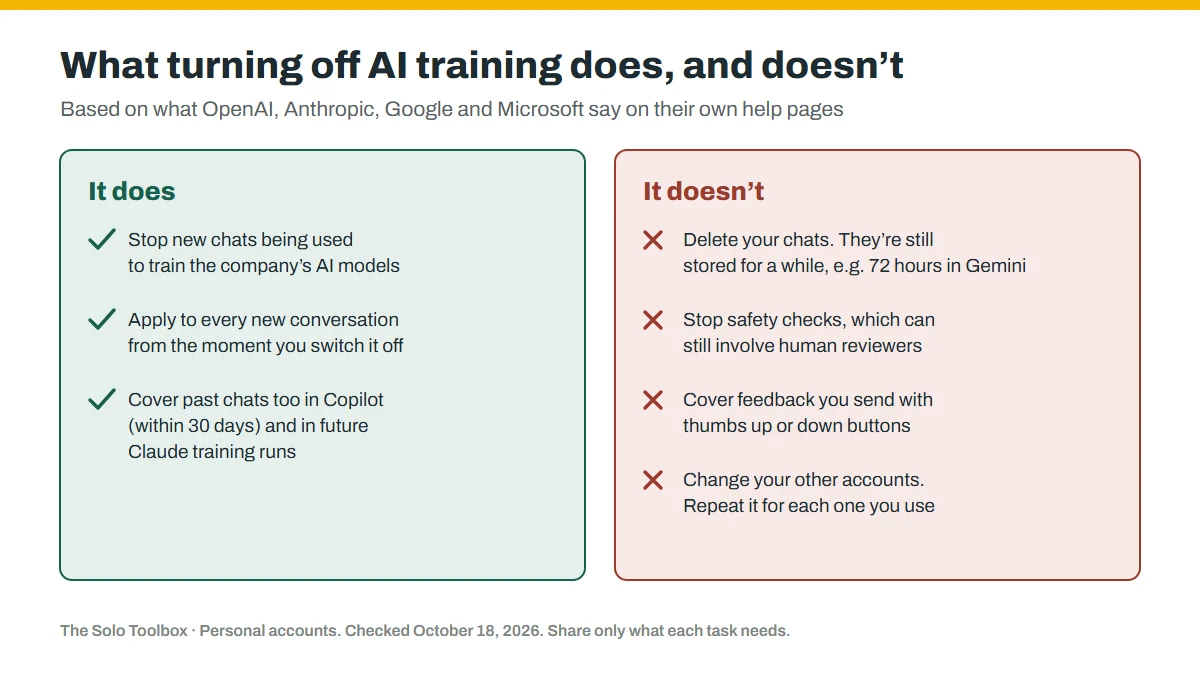
Anthropic says turning this off means new chats and coding sessions won’t be used for future training, and previously stored chats won’t be used in future training runs either. Data already used in training that has started can’t be removed. Conversations flagged by its safety systems may still be used for trust and safety purposes.
Claude memory and storage
Claude’s memory is on by default on the Free, Pro and Max plans. Open Settings > Memory to see what it has saved, listed by topic, where you can edit or delete each one. The Generate memory from chats switch pauses new memories, and resetting deletes them all. On paid plans, Search and reference chats controls whether Claude can look through your earlier conversations.
For a one-off sensitive conversation, start an incognito chat with the ghost icon at the top right of a new chat. Anthropic says incognito chats aren’t saved to your history or memory and aren’t used to improve Claude.
On storage, Anthropic says deleted conversations leave your history immediately and its back-end systems within 30 days. If you leave model improvement on, chats can be kept in de-identified form for up to five years in its training pipeline, and feedback you send is kept for five years either way.
Google Gemini
- In the Gemini app, open Settings & help, then Activity. You can also go to myactivity.google.com/product/gemini.
- Turn off Keep Activity.
This one matters more than most, because Google says Keep Activity is on by default for users aged 18 and over, and that when it’s on, Google uses your activity to improve its services, “including training generative AI models.” Google also says a subset of chats is read by human reviewers, and reviewed chats are kept for up to three years, even if you later delete your activity.
With Keep Activity off, Google says future chats won’t be used to train its AI models unless you send feedback, but they’re still kept with your account for up to 72 hours so Gemini can respond and Google can protect its services. Turning it off also makes some connected apps unavailable.
Gemini memory
Gemini’s memory draws on your Gemini Apps Activity, so turning off Keep Activity also limits what it can remember. Details you’ve asked Gemini to keep, such as preferences or facts about your work, are listed separately on the Saved info page, where you can delete them or stop saving new ones.
Microsoft Copilot
- On copilot.com, select your profile icon, then your profile name, and open Privacy. In the Windows or Mac app, go to your profile icon, then Settings > Privacy. In the mobile app, open the menu, tap your profile icon, then Account > Privacy.
- Turn off Model training on text and Model training on voice.
Microsoft says opting out excludes your past, present and future conversations from AI model training, and the change should take effect across its systems within 30 days. It doesn’t stop Microsoft using your data for other purposes it lists, such as product improvement, advertising, security and compliance.
Copilot memory
In the same Privacy menu, the Personalization switch controls what Copilot remembers about you. Turning it off makes Copilot forget everything it has remembered from your conversations, while your past chats stay visible. To remove just one detail, ask Copilot “What do you know about me?” and then ask it to forget the specific item.
Perplexity and other assistants
If you use Perplexity for research, it has the same kind of switch. Perplexity says AI data retention is on by default on its Free, Pro and Max plans, which means your activity may be used to train its models. To opt out:
- Open your Account settings.
- Go to Preferences.
- Turn off AI data retention.
Perplexity says the opt-out only covers data collected after you switch it off, and that its Enterprise plan is never used for training.
For any other AI tool, including assistants built into apps you already use, look in its settings or privacy policy for words like “improve the model,” “training” or “data retention.” If you can’t find a way to opt out, treat it as a public space: rewrite the request without client names and details, or use one of the assistants above with training turned off.
Clean up what’s already there
Switching training off protects future chats. If you’ve already pasted client material into an assistant, take ten minutes to tidy up:
- Search your chat history for client names and delete the conversations you don’t need. Deleting them removes them from your history right away, though the company may keep a copy for a limited time, such as Anthropic’s 30 days.
- Open the memory settings for each assistant you use and delete anything that mentions a client.
- Check any files you uploaded. OpenAI’s memory FAQ lists Library files among the places saved information can live, so remove client documents you no longer need.
- Decide on a rule for the future, such as using Temporary Chat in ChatGPT or incognito in Claude whenever a task involves a client’s details.
| Assistant | Memory setting | Private one-off chat |
|---|---|---|
| ChatGPT | Settings > Personalization > Memory | Temporary Chat |
| Claude | Settings > Memory | Incognito chat (ghost icon) |
| Gemini | Saved info page, plus Keep Activity | Turn off Keep Activity |
| Microsoft Copilot | Privacy > Personalization | Ask it to forget specific items |
Business plans work differently
If you regularly handle client data, a business plan gives you stronger defaults. Each company says it doesn’t use business customers’ data for training by default:
- ChatGPT Business, Enterprise and Edu: OpenAI says it doesn’t use content from these workspaces to train its models by default.
- Claude’s commercial products (such as Claude for Work and the API): Anthropic says it won’t use your inputs or outputs for training by default, unless you send feedback or otherwise opt in.
- Gemini in Google Workspace: Google says Workspace doesn’t use customer data for training models without the customer’s permission or instruction, and your content isn’t reviewed by people.
- Microsoft 365 Copilot with a work account: Microsoft says prompts and responses covered by its enterprise data protection aren’t used to train its foundation models.
If you’re already paying for Google Workspace or Microsoft 365 for your email, check whether its built-in assistant is included in your plan before signing up for a separate personal AI account. Our guide to getting a professional email address compares those plans.
Habits that protect client data on any plan
- Share only what the task needs. To improve the tone of an email, you rarely need the client’s name, address or account numbers. Replace them with placeholders like [Client].
- Check your contracts. Some client agreements and NDAs restrict sharing their information with outside services at all, whatever the AI company’s settings say.
- Be careful with feedback buttons. Anthropic and Google both say chats you send as feedback can be used to improve their models, even with training otherwise turned off.
- Remember that “no training” isn’t “no storage.” Each company still keeps conversations for some period to run the service and for safety, as described above.
If it doesn’t work
- You can’t find the setting: the menus move between app updates. Use the company page linked in the Sources section below, which is kept up to date.
- The option is missing on a work or school account: your organization’s administrator controls it. Google, for example, says Workspace administrators manage Gemini activity settings for work and school accounts.
- You use more than one account: the settings are per account, so repeat the steps for each one you sign in with.
For more practical setups like this, browse our AI tools guides.
Compare the free plans of ChatGPT, Claude, Gemini and Grammarly.
Related guides
Sources
- OpenAI: Data controls FAQ
- Anthropic: How do I change my model improvement privacy settings?
- Anthropic: Is my data used for model training?
- Google: Manage your Gemini Apps activity
- Google: Gemini Apps Privacy Hub
- Google: Generative AI in Google Workspace Privacy Hub
- Microsoft: Microsoft Copilot privacy controls
- Microsoft Learn: Enterprise data protection in Microsoft 365 Copilot
- OpenAI: Memory FAQ
- Perplexity: Data collection at Perplexity
- Anthropic: How long do you store my data?
- Anthropic: Chat search and memory in Claude
Update, October 20, 2026: added memory and storage settings for each assistant, Perplexity’s training setting, a clean-up checklist, and OpenAI’s note that feedback can make a conversation eligible for training.
Last checked: October 20, 2026. AI companies update these settings and policies often. If something here no longer matches what you see, let us know.