How to turn on two-step verification for your Google and Microsoft accounts
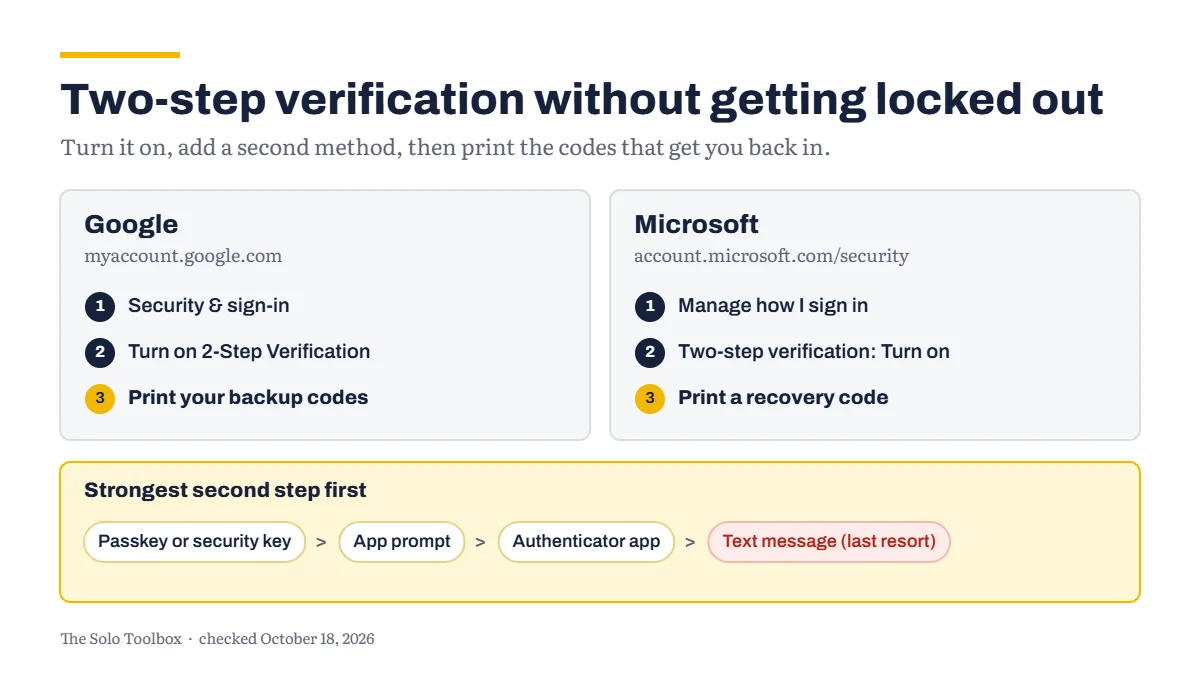
Turn on two-step verification at myaccount.google.com under Security & sign-in, and at account.microsoft.com/security under Manage how I sign in. For the second step, use an app prompt, an authenticator app or a passkey rather than text messages. Then do the part most people skip: print your Google backup codes and your Microsoft recovery code. When your whole business runs through one email account, losing your phone without those codes can lock you out of your mail, your files and every service that resets its password by email.
Before you start
- You’ll need: your phone, your current passwords, and somewhere safe to keep a printed page, such as with your passport or business papers.
- Applies to: personal Google and Microsoft accounts. If your email is on Google Workspace or Microsoft 365, see the section for business accounts.
- Time: about 15 minutes for both accounts.
- How we checked this: based on Google’s and Microsoft’s own help and admin documentation, checked October 18, 2026. Both companies change these screens often, so yours may look slightly different.
Choose your second step
Both companies offer several ways to confirm it’s you. Google ranks them in its help pages, and the order is a good guide for any account:
- Passkeys and hardware security keys: use your fingerprint, face or screen lock, or a physical key. Google says these give the most protection against phishing.
- App prompts: a notification on your phone asks whether you’re trying to sign in. Google recommends its prompts if you don’t use a passkey. Microsoft’s equivalent is the Microsoft Authenticator app.
- Authenticator apps: generate one-time codes, and work without a phone signal or internet connection.
- Text message or voice call codes: Google calls these the least secure option, because attackers can target phone numbers.
Set up at least two methods on each account. If one of them is your phone, the second shouldn’t depend on the same phone.
Turn on 2-Step Verification for your Google account
- Go to myaccount.google.com and select Security & sign-in.
- Under How you sign in to Google, select Turn on 2-Step Verification.
- Follow the steps to add your phone and choose your method.
When you sign in on your own computer, Google offers to skip the second step next time on that device. Only accept this on computers and phones you use regularly and don’t share.
Print your backup codes
Backup codes let you sign in when your phone isn’t available.
- In your Google Account, open Security & sign-in, then 2-Step Verification.
- Find Backup codes and continue to the codes screen.
- Generate a set of codes, then print or download them.
Google issues ten codes at a time, and each one works only once. Generating a new set cancels the old one, so if you ever create new codes, replace the printed page too. Google suggests keeping them somewhere secure, such as with your passport. Never share them: Google says it only asks for a backup code when you’re signing in.
Turn on two-step verification for your Microsoft account
- Go to account.microsoft.com/security and sign in.
- Select Manage how I sign in.
- Under Additional security, find Two-step verification and select Turn on.
- Follow the prompts. If you use Microsoft Authenticator, you’ll scan a QR code with your phone.
Microsoft strongly recommends having three pieces of security info on your account, such as your phone number, the Authenticator app and a second email address. Its warning is worth taking seriously: with two-step verification on, your password alone never gets you in, and if you lose access to your security info, recovery can take up to 30 days and may fail entirely.
Print a recovery code
A Microsoft recovery code, which Microsoft describes as a 25-digit code, helps you get back in if you forget your password or lose your security info.
- Sign in at account.live.com/proofs/manage/additional.
- Scroll to Recovery code and select Generate a new code.
- Print it.
Only the newest code works, and you can’t view an existing code again. Microsoft advises against storing it on a device you use to sign in to the account, so a printed copy kept with your backup codes is the safest option.
If your email is on Google Workspace or Microsoft 365
When you run a business on your own, you’re usually the account’s administrator as well as its only user. That makes two-step verification more important, and losing access more serious, because one locked account can cut you off from the mailbox and the admin settings together.
- Google Workspace: Google is gradually requiring two-step verification for all administrator accounts. Super admins are warned about 90 days ahead. Admins who still haven’t enrolled after the deadline lose access to Workspace apps on mobile devices after 15 days, and to web apps after 30, though Google says the timing can vary. Set it up now, on your own schedule.
- Microsoft 365: new business accounts have Microsoft’s free security defaults turned on, which require every user to register for multifactor authentication with Microsoft Authenticator. To check yours, sign in to the Microsoft Entra admin center and go to Entra ID > Overview > Properties > Manage security defaults.
In both cases, the backup-code advice above still applies. Print your codes before you need them.
If you’re still choosing between the two for your business email, our guide to getting a professional email address on your own domain compares the options.
Check your setup before you need it
Run through this once both accounts are protected:
- Each account has at least two sign-in methods, and they don’t all depend on one phone.
- Your recovery phone number and recovery email address are current.
- Your printed Google backup codes are from the newest set.
- Your printed Microsoft recovery code is the one you generated most recently.
- The printed page is stored somewhere other than your laptop bag.
While you’re in your account settings, it’s also worth checking what your AI assistants do with your chats. Our guide to keeping client data out of AI training covers ChatGPT, Claude, Gemini and Copilot.
If it doesn’t work
- An email app says your Microsoft password is wrong after you turn on two-step verification: some older apps and devices can’t handle the second step. Microsoft’s fix is to create an app password for that app, under Additional security options. The option only appears once two-step verification is on.
- Text message codes don’t arrive: use your authenticator app, an app prompt or a backup code instead. This is why a second method matters.
- You lost your phone: sign in with a Google backup code or your Microsoft recovery code, remove the lost phone from your security info, add your new phone, and generate fresh codes.
- These steps don’t match a work account: if someone else manages your organization’s account, your administrator controls these settings. If that administrator is you, use the Google Admin console or the Microsoft Entra admin center.
For more step-by-step setups like this one, browse our how-to guides.
Next step: pick a free password manager.
Related guides
Sources
- Google: Turn on 2-Step Verification
- Google: Sign in with backup codes
- Google Workspace: About 2SV enforcement for admins
- Microsoft: How to use two-step verification with your Microsoft account
- Microsoft: How to get a Microsoft account recovery code
- Microsoft Learn: Security defaults in Microsoft Entra ID
Last checked: October 18, 2026. Google and Microsoft update their sign-in settings often. If something here no longer matches what you see, let us know.