YouTube Subscriptions tab gone? Where to find it now
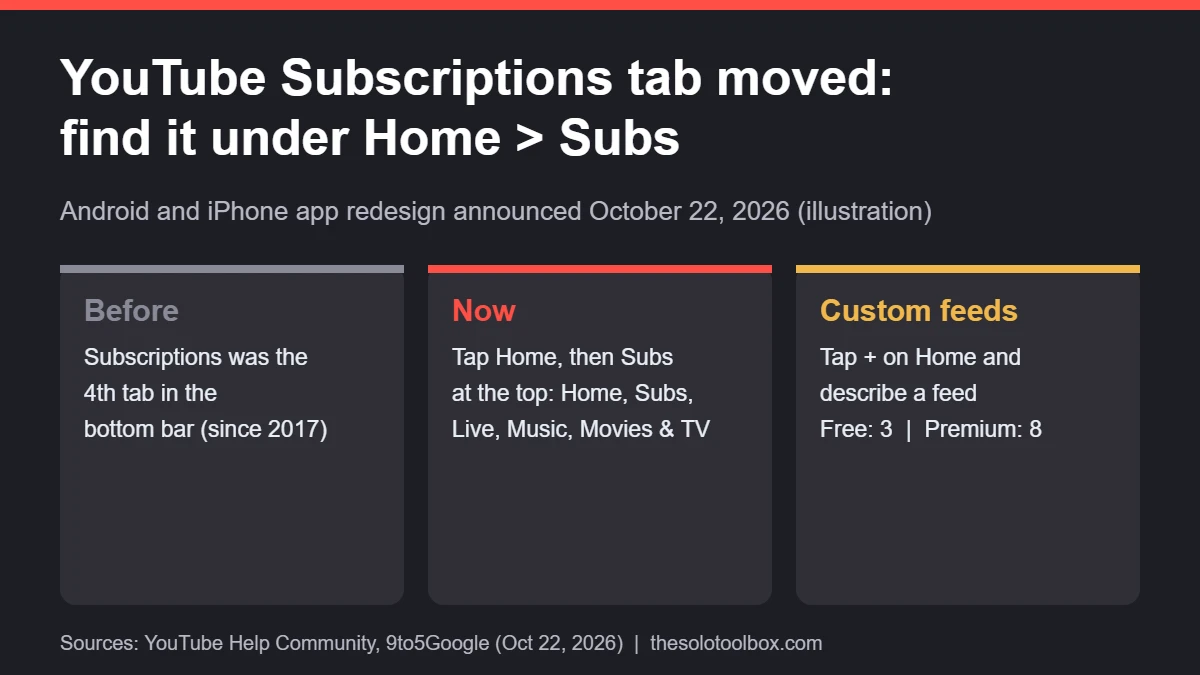
The YouTube Subscriptions tab hasn’t disappeared; it has moved. On the Android and iPhone apps, it is no longer in the bottom bar. Open the Home tab and look at the row of tabs across the top: Subscriptions now sits there as Subs, second from the left, right after Home.
YouTube announced the redesign on October 22, 2026, ending a bottom-bar spot Subscriptions had held since 2017. Below: exactly where everything went, how the new custom feeds work, and how to make sure you still see new uploads from the channels you follow.
Before you start
- You’ll need: The YouTube app on Android or iPhone, updated from Google Play or the App Store
- Time: 2 minutes
- Good to know: YouTube rolls out layout changes gradually, so your phone may switch over days after someone else’s.
Where is the YouTube Subscriptions tab now?
- Open the YouTube app.
- Tap Home in the bottom bar.
- At the top of the screen, tap Subs. It sits second in the row, directly after Home, and is underlined in red when selected.
- Swipe or tap between Home and Subs to switch between recommended videos and uploads from channels you subscribe to.
However, your subscriptions themselves haven’t changed. The Subs feed shows the same uploads the old tab did; only the entry point moved. According to 9to5Google, the redesign also removes YouTube’s slide-out navigation drawer.
What changed in the YouTube app
YouTube detailed the changes in a Help Community post titled “New ways to explore YouTube from your Home page”. 9to5Google first spotted the Subscriptions move in a test back in May 2026, when YouTube described it as testing “a shift in the placement of the Subscriptions feed.” The October update makes it the default.
| Before | Now | |
|---|---|---|
| Subscriptions | Fourth tab in the bottom bar | “Subs” tab at the top of Home |
| Top of Home | Topic chips (filters) | Home, Subs, Live, Music, Movies & TV, plus your custom feeds |
| Movies & TV | No dedicated tab | Its own top tab, shown only if you have active subscriptions such as Primetime Channels |
| Navigation drawer | Present | Removed |
| Custom feeds | Not available | Create up to 3 (free) or 8 (Premium) |
One thing we could not confirm from YouTube’s post or the reporting: what, if anything, permanently takes over the empty fourth slot in the bottom bar. Check your own app after it updates rather than relying on early screenshots.
How YouTube custom feeds work
Meanwhile, custom feeds are the other half of this update. Instead of picking a topic chip, you describe what you want in plain language and YouTube builds a feed from it.
- On the Home tab, tap the + button at the top.
- Type a description. YouTube’s own example is “help me unwind after work with guided meditations under 10 minutes.”
- Save it. The feed appears as a new tab after Home and Subs.
- To change it later, open the feed and edit the prompt box at the top.
Free accounts can keep up to 3 active custom feeds; YouTube Premium members get up to 8. Feeds sync across devices signed in to the same Google account, so a feed made on your phone also shows up on youtube.com on desktop.
For now, though, YouTube has limited availability. YouTube says custom feeds launch first in English for signed-in viewers in the United States, on mobile and desktop, with more countries to follow. As a result, outside the U.S. you may see the Subs tab move without the + button.
Make sure you still see new uploads
If the Subscriptions tab was how you caught every new video, moving it one tap deeper means you may check it less. Three ways to compensate:
- Turn on the bell for channels you never want to miss. Open the channel, tap the bell next to Subscribed and choose All. You’ll get a notification for each upload instead of relying on the feed.
- Use the web shortcut. In any browser,
youtube.com/feed/subscriptionsopens your subscription feed directly. Add it to your phone’s home screen from the browser’s share menu for one-tap access. - Keep a copy of your subscription list. Google Takeout exports your YouTube subscriptions as a file, which is handy if you ever switch accounts. Our guide to backing up your Google account with Takeout walks through it.
Can you move the YouTube Subscriptions tab back?
No. There is no setting to restore Subscriptions to the bottom bar; YouTube’s servers control the layout, not your app version. Rolling back to an old APK on Android won’t reliably bring it back and leaves you without security fixes. If you dislike the change, tell YouTube directly: tap your profile picture or the You tab, then Help & feedback > Send feedback.
FAQ
Why is my YouTube Subscriptions tab still in the bottom bar?
The change is rolling out in stages. Update the app from the Play Store or App Store, then force-close and reopen it. If you still have the old bottom bar, your account hasn’t received the change yet.
Did YouTube delete my subscriptions?
No. Your subscribed channels stay the same; only the button that opens the feed moved.
Does this change YouTube on TV or desktop?
The Subscriptions move covers the Android and iOS apps. Custom feeds also work on desktop, and none of the announcements or reporting we checked mention the TV app. If you watch on a big screen, our guide to the new Instagram app for Apple TV covers another social app that just landed there.
Set it up in two minutes
First, open YouTube, tap Home, then Subs, and turn on the bell (set to All) for the two or three channels you care about most. That way the layout change costs you nothing. If you’re in the U.S., try one custom feed with a narrow prompt, such as a skill you’re learning, to see whether it beats the default Home feed.
Related guides
Sources
- YouTube Help Community: New ways to explore YouTube from your Home page (Oct 2026)
- 9to5Google: YouTube removing Subscriptions bottom bar tab on Android, iOS (Oct 22, 2026)
- 9to5Google: YouTube tests moving the Subscriptions tab (May 18, 2026)
- Android Headlines: YouTube is removing Subscriptions from the bottom bar (Oct 2026)