How to find a lost Siri Remote with Find My in iOS 27.2
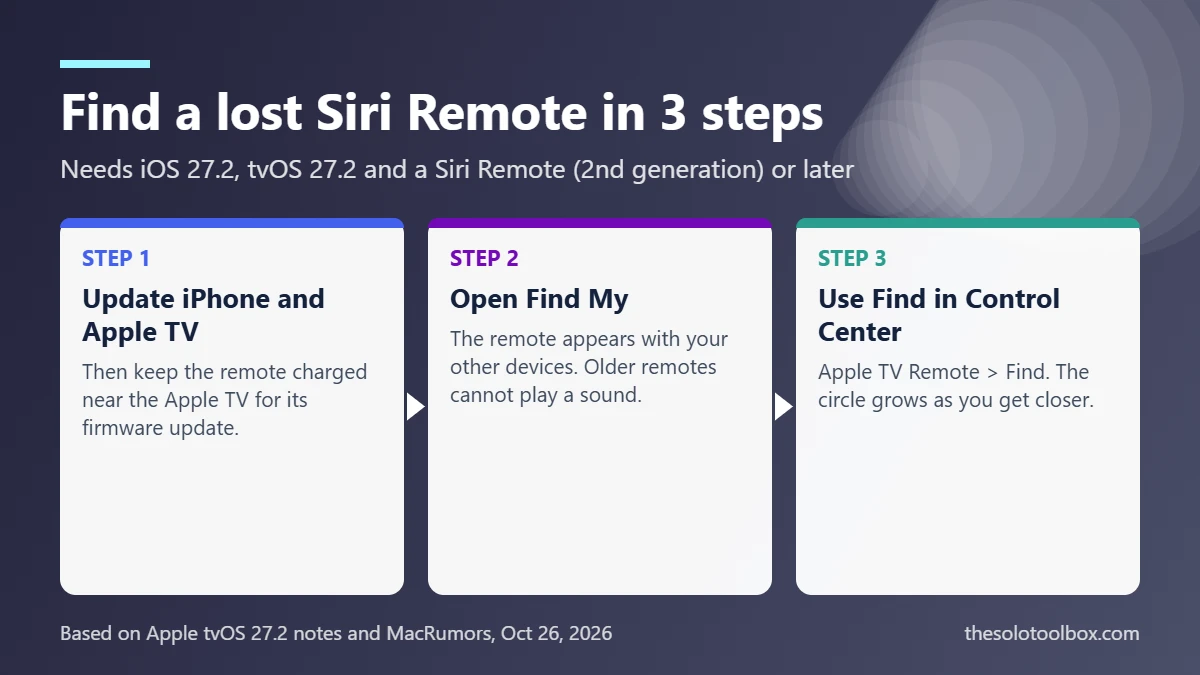
To find a lost Siri Remote with Find My, update your iPhone to iOS 27.2 and your Apple TV to tvOS 27.2, then open the Find My app: a second-generation or later Siri Remote now appears there alongside your other devices. Older remotes can’t play a sound and don’t support Precision Finding, so for the last few feet use the Find view in the iPhone’s Apple TV Remote control.
Below: which remotes work, how to tell yours apart, the exact steps for both methods and what to try if the remote doesn’t show up. Details were checked on October 27, 2026 against Apple’s tvOS release notes and MacRumors. Apple hasn’t published a dedicated support article for remotes in Find My yet, so some screen labels below may differ slightly on your iPhone.
Before you start
- You’ll need: An iPhone on iOS 27.2, an Apple TV 4K on tvOS 27.2 and a Siri Remote (2nd generation) or later
- Time: About 5 minutes, plus update downloads
- Watch out: After the tvOS update, the remote may need a firmware update before it appears in Find My
Which Siri Remotes work with Find My
Apple’s tvOS 27.2 notes say: “Find My support lets you locate your Siri Remote (2nd generation) or later using your iPhone.” That leaves out the original model.
| Remote | How to recognise it | Shows in Find My | Plays a sound | Precision Finding |
|---|---|---|---|---|
| Siri Remote (1st generation, 2015) | Black, glass touch surface on top, Menu button | No | No | No |
| Siri Remote (2nd generation, 2021) | Silver aluminium, clickpad ring, power button, Lightning port | Yes | No | No |
| Siri Remote (3rd generation, 2022) | Same design as 2nd generation, USB-C port | Yes | No | No |
| Siri Remote (4th generation) | Comes with Apple’s upcoming 4th-generation Apple TV 4K | Yes | Yes (built-in speaker) | Yes |
tvOS 26.6.1 also added support for the 4th-generation remote on the Apple TV HD and first-generation Apple TV 4K, so the new remote will also work with those older boxes.
Step 1: Update your iPhone, Apple TV and remote
- On your iPhone, go to Settings > General > Software Update and install iOS 27.2.
- On your Apple TV, go to Settings > System > Software Updates > Update Software and install tvOS 27.2.
- Keep the remote charged and near the Apple TV for a while after the update. MacRumors reports the remote may need to receive new firmware before it shows up. Apple hasn’t said how long that takes or offered a way to force it.
Not sure whether to move from iOS 26? Our iOS 26.7.2 vs iOS 27.2 comparison covers the trade-off. Find My for remotes needs iOS 27.2.
Step 2: Find the remote in the Find My app
- Open Find My on your iPhone.
- Look for the Siri Remote in your list of devices. MacRumors reports supported remotes appear “with your other devices.”
- Tap the remote to see where it was last located on the map.
This gets you to the right room or tells you the remote left the house, for example in a bag. Because 2nd- and 3rd-generation remotes have no speaker, there’s no sound to play once you’re close.
Step 3: Narrow it down with the Apple TV Remote control
For the last few feet, the proximity finder in Control Center works better. It needs iOS 17 or later, tvOS 17 or later and a 2021 or 2022 Apple TV 4K, according to MacRumors.
- Open Control Center: swipe down from the top-right corner (Face ID iPhones) or up from the bottom (Home button iPhones).
- Tap the Apple TV Remote button. If it’s missing, add it from the Control Center editor.
- Tap the arrow next to the remote’s name at the top.
- Tap Find next to the missing remote.
- Walk around. The circle grows as you get closer and turns into a solid white orb when your iPhone is next to the remote.
- Tap X to close it.
MacRumors compares its accuracy to finding an AirTag. Check between couch cushions and under furniture, where the Bluetooth signal can be partly blocked.
If the remote doesn’t show up
- Check the model. A 1st-generation remote with a black glass top isn’t supported.
- Confirm both updates installed. On Apple TV, Settings > System > Software Updates shows the current version.
- Give the firmware time. Leave the Apple TV on with the remote nearby and check again later.
- Restart the Apple TV from Settings > System > Restart.
- Check your Apple Account. Find My lists devices signed in to the same account as your iPhone, so make sure the Apple TV uses the same one under Settings > Users and Accounts.
While you search, the Apple TV Remote control in Control Center works as a full remote, including the touch area and volume. It’s handy for apps that need a lot of typing, such as the new Instagram app on Apple TV, because you can use the iPhone keyboard.
FAQ
Can I make my Siri Remote beep?
Only the 4th-generation Siri Remote, which has a speaker. MacRumors reports older remotes “are not able to play a sound.”
Does Find My work with the first Siri Remote?
No. Apple’s notes cover the Siri Remote (2nd generation) or later.
Do I need iOS 27.2, or is tvOS 27.2 enough?
You need both. MacRumors lists iOS 27.2 and tvOS 27.2 as requirements.
Can I find the remote without Find My?
Yes, with the Find view in Control Center’s Apple TV Remote, described in step 3. It has worked since iOS 17 with a 2021 or 2022 Apple TV 4K.
What to do next
Install tvOS 27.2 now, before the remote goes missing, so the firmware update has time to arrive. Our iOS 27.2 overview lists the other changes in this release.
Sources
- Apple Support: About Apple TV 4K and Apple TV HD software updates
- MacRumors: Older Siri Remotes now show up in Find My with iOS 27.2 (Oct 26, 2026)
- iClarified: tvOS 27.2 release notes (Oct 26, 2026)
- MacRumors: How to find a lost Siri Remote with your iPhone
- MacRumors: tvOS 26.6.1 and other Oct 26 updates (Oct 27, 2026)