How to update Microsoft Office (and what Office 2021’s end of support means)
To update Microsoft Office on Windows, open Word or Excel, go to File > Account > Update Options > Update Now, and let it finish. On a Mac, open any Office app and choose Help > Check for Updates. It’s worth doing this week: Microsoft’s October 13, 2026 updates fixed several critical Outlook flaws, and Office 2021 stopped getting security updates on October 14, 2026. This guide shows how to check which version you have, how to update on Windows and Mac, what to do when the update button is missing, and your options if you’re on Office 2021.
Before you start
- You’ll need: a Windows PC or Mac with Office installed and an internet connection.
- Applies to: Microsoft 365 apps, Office 2024, Office 2021 and older on Windows and Mac.
- Time: 5 to 15 minutes, depending on the size of the update.
- How we checked this: steps come from Microsoft Support’s update and version articles; dates come from Microsoft’s lifecycle and Microsoft 365 Apps security update pages, plus Patch Tuesday analysis from Rapid7 and SOCRadar. All were read on October 19, 2026; update channels, repair steps and Office 2024 dates were added on October 20, 2026, and channel information was rechecked on October 26, 2026. Save your open files before you start, because updating closes Office apps.
Why update Office now
On October 13, 2026, Microsoft’s monthly Patch Tuesday included five critical remote code execution flaws in Outlook, each rated 9.8 out of 10. In an analysis for iTWire, Rapid7’s Adam Barnett notes the preview pane is an attack vector for these Outlook bugs, meaning a malicious email might do harm just by being displayed. SOCRadar lists the preview pane vector for at least two of them, plus a critical PowerPoint flaw. The fix for all of them is the same: install the latest Office update.
Office updates usually install automatically in the background, but only when Office has a chance to close and restart. If you keep Outlook and Excel open for weeks, an update can sit waiting. Running Update Now forces the check.
Step 1: Check which version of Office you have
Microsoft’s version guide says to look in the Account page:
- Open Word or Excel and select File > Account. (In classic Outlook, select File > Office Account.)
- Under Product Information, note the product name, such as “Microsoft 365 Apps for business” or “Office Home & Business 2021”.
- Check the version and build number shown next to About Word or About Excel.
On a Mac, open Word and choose Word > About Word. The dialog shows the version and whether you have a subscription or a one-time purchase.
If you’re on Microsoft 365’s Current Channel, the October 13, 2026 security release is Version 2609, Build 20430.20182, according to Microsoft’s Microsoft 365 Apps security updates page. Anything at or above that has the October fixes. Later builds will replace it over time.
Step 2: Update Microsoft Office on Windows
These are the steps from Microsoft’s How to update Microsoft 365 or Office for Windows:
- Save your work. Open any Office app, such as Word, and start a blank document.
- Select File > Account (or Office Account in classic Outlook).
- Under Product Information, select Update Options > Update Now. If you don’t see Update Now, select Enable Updates first, then try again.
- Wait for the check and install to finish. Office may ask you to close open apps.
- Close the window when it says You’re up to date! or Updates were installed.
To make sure future updates install on their own, leave Update Options set to enabled (the menu offers Disable Updates, which you shouldn’t use on a work PC). You can also select View Updates to see what’s been installed.
If there’s no Update Options button
If the Account page only shows an About button, Microsoft says your copy is probably a volume-licensed version or your organization manages updates through Group Policy. In that case, run Windows Update (Settings > Windows Update > Check for updates) with “Receive updates for other Microsoft products” turned on under Advanced options, or ask whoever manages your PCs. If no Office app will open at all, repair Office from Settings > Apps > Installed apps.
If the update fails or an Office app won’t open
A failed update usually means some Office program files are damaged. Repairing replaces them without touching your documents. From Microsoft’s repair guide:
- Right-click the Start button and select Installed apps.
- Find your Microsoft 365 or Office entry, select the three dots next to it, and choose Modify.
- Choose Quick Repair and select Repair. Then run Update Now again.
- If that doesn’t help, repeat the steps and choose Online Repair, which Microsoft recommends when you want to make sure everything gets fixed.
Microsoft notes that a repair covers the whole suite, even if only Word or Outlook is misbehaving, and you may need to restart afterwards. Online Repair takes longer than Quick Repair, so save it for when the quick option hasn’t worked.
Step 3: Update Microsoft Office on a Mac
Microsoft’s Mac update guide covers the Microsoft AutoUpdate tool used by copies downloaded from Microsoft:
- Open Word, Excel or Outlook and choose Help > Check for Updates. This opens Microsoft AutoUpdate. If the menu item is missing, download and run the latest Microsoft AutoUpdate, then try again.
- Turn on Automatically keep Microsoft apps up to date.
- Select Update to install everything available. To pick individual apps, select the arrow next to Update.
If you installed Office from the Mac App Store, update it in the App Store instead: open App Store > Updates and select Update All.
The Office apps on your phone or tablet update separately, through the App Store on an iPhone or iPad and Google Play on Android. If you read work email in the Outlook phone app, check that automatic app updates are on there too.
How often Office updates, and which channel you’re on
Microsoft 365 delivers updates through update channels, which decide how quickly you get new features. Security fixes arrive monthly on all of them, on the second Tuesday of the month when there are any. Microsoft’s channel overview describes three:
| Channel | New features | Security fixes |
|---|---|---|
| Current Channel | About once a month, as soon as they’re ready | Monthly, on Patch Tuesday |
| Monthly Enterprise Channel | Once a month, on Patch Tuesday | Monthly, on Patch Tuesday |
| Semi-Annual Enterprise Channel | Merged into Monthly Enterprise Channel on July 14, 2026; PCs that were on it now get monthly updates | Monthly, on Patch Tuesday |
Microsoft 365 Apps for business, the version in most small-business plans, uses Current Channel by default, and you don’t need to change it. The channel name appears next to the version number on the File > Account page, which is also the quickest way to confirm you’re getting monthly updates at all. If it showed “Semi-Annual Enterprise Channel” before July, it should now say Monthly Enterprise Channel; Microsoft says existing update policies keep working without changes (Microsoft Learn).
One-time purchases such as Office 2024 don’t get new features. They receive security and quality fixes until their support ends, then nothing.
If you have Office 2021: your options
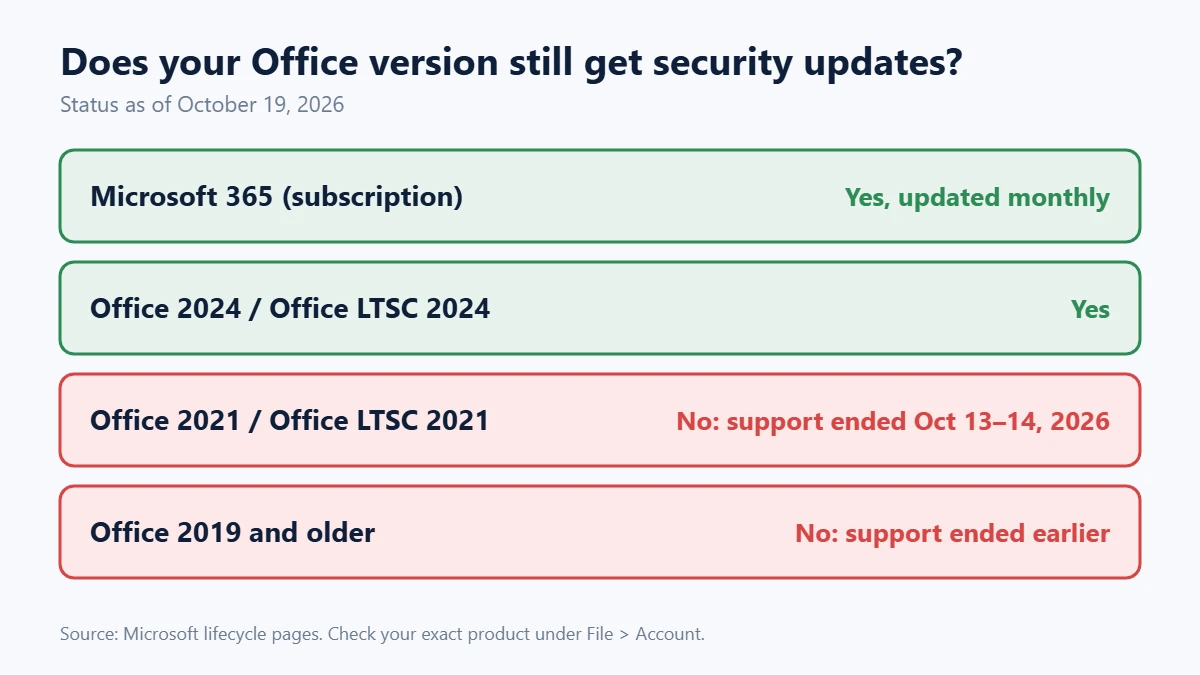
Microsoft’s lifecycle page for Office 2021 lists a retirement date of October 14, 2026, covering Home & Student, Home & Business (Windows and Mac) and Professional. Office LTSC 2021 retired on the same schedule. Your apps keep working and your files are fine, but no new security fixes are coming, which matters most for Outlook because it opens content from strangers every day.
| Option | What it means | Good fit if |
|---|---|---|
| Move to Microsoft 365 | Subscription with monthly feature and security updates | You want Outlook, OneDrive and business email together |
| Buy Office 2024 | One-time purchase that gets security updates until October 10, 2029 | You use Word and Excel offline and dislike subscriptions |
| Keep Office 2021 for now | No more security fixes | Only as a short stopgap; at least switch email to Outlook on the web or another supported client |
If you choose Office 2024, Microsoft’s lifecycle page lists the Home and Home & Business editions for Windows and Mac as supported until October 10, 2029, so you’ll face the same decision again then. Microsoft 365 has no end date as long as the subscription is active.
Office 2016 and Office 2019 lost support a year earlier, on October 14, 2025, so if you’re on either, the same advice applies with more urgency.
FAQ
Do I need to update Office if Windows Update says I’m up to date?
Usually yes, check both. Microsoft 365 and retail Office use their own updater (Click-to-Run), separate from Windows Update. Run Update Now in Office even when Windows reports no updates.
How often does Office update?
Microsoft 365 on the default Current Channel gets feature updates roughly monthly, plus security fixes on Patch Tuesday, the second Tuesday of each month.
Will updating Office delete my files or settings?
No. Updates replace program files, not your documents. Still, save and close open files first, because the updater may close Office apps.
Next step
Once Office is current, make sure Windows patches install without catching you mid-project: see how to stop Windows 11 restarting for updates during work hours. If you’re considering a move to Microsoft 365 for business email, our guide to getting a professional email address on your own domain compares the options.
Related guides
Sources
- Microsoft Support: How to update Microsoft 365 or Office for Windows
- Microsoft Support: Update Office for Mac automatically
- Microsoft Support: What version of Office am I using?
- Microsoft Learn: Office 2021 lifecycle
- Microsoft Learn: Microsoft 365 Apps security updates
- iTWire (Rapid7): Microsoft October Patch Tuesday reveals 1,413 vulnerabilities (October 14, 2026)
- SOCRadar: October 2026 Patch Tuesday (October 14, 2026)
- Microsoft Learn: Overview of update channels for Microsoft 365 Apps
- Microsoft Support: Repair an Office application
- Microsoft Learn: Office 2024 lifecycle