How to stop fake meeting invites in Google Calendar and Outlook

Fake meeting invites are a growing phishing trick: a scammer sends a calendar invitation about an unpaid invoice or a “credit note”, and it appears on your calendar even if your email provider has already moved the message to spam. In Google Calendar, you can stop most of them by going to Settings > Event settings > Add invitations to my calendar and choosing Only if the sender is known. For any fake invite that’s already there, don’t click its links and don’t reply to it; report it as spam or delete it. Here’s how to do each step, what to do in Outlook, and what to check if you’ve already clicked.
Before you start
- You’ll need: access to your Google Calendar or Outlook settings on a computer, or your iPhone for iCloud calendars.
- Applies to: personal Google accounts, Google Workspace, Outlook.com, Microsoft 365 and iCloud Calendar. Work accounts may have some options locked by an administrator.
- Time: about 5 minutes.
- How we checked this: setting names come from Google’s, Microsoft’s and Apple’s help pages; attack details come from Sublime Security’s research. Checked October 19, 2026; iPhone and iCloud steps added October 20, 2026.
Why fake calendar invites are suddenly everywhere
Email security company Sublime Security says calendar-based phishing has grown fast this year. In its September 17, 2026 report, it measured increases of 282% from May to June, 338% from June to July and 1,216% from July to August, and projected a rise of roughly 33,000% from May to September. That last figure is a projection based on what Sublime sees, not an industry-wide count, but the direction is clear.
The trick works because a meeting invite takes two routes. One copy arrives as an email; another is added to your calendar by the calendar service itself. Your spam filter can catch the email while the event still shows up on your calendar. Sublime says most of these invites are sent through Google Calendar and Gmail, with Microsoft second, using free accounts. Because they’re sent through genuine Google or Microsoft services, they typically pass the sender checks that catch forged email.
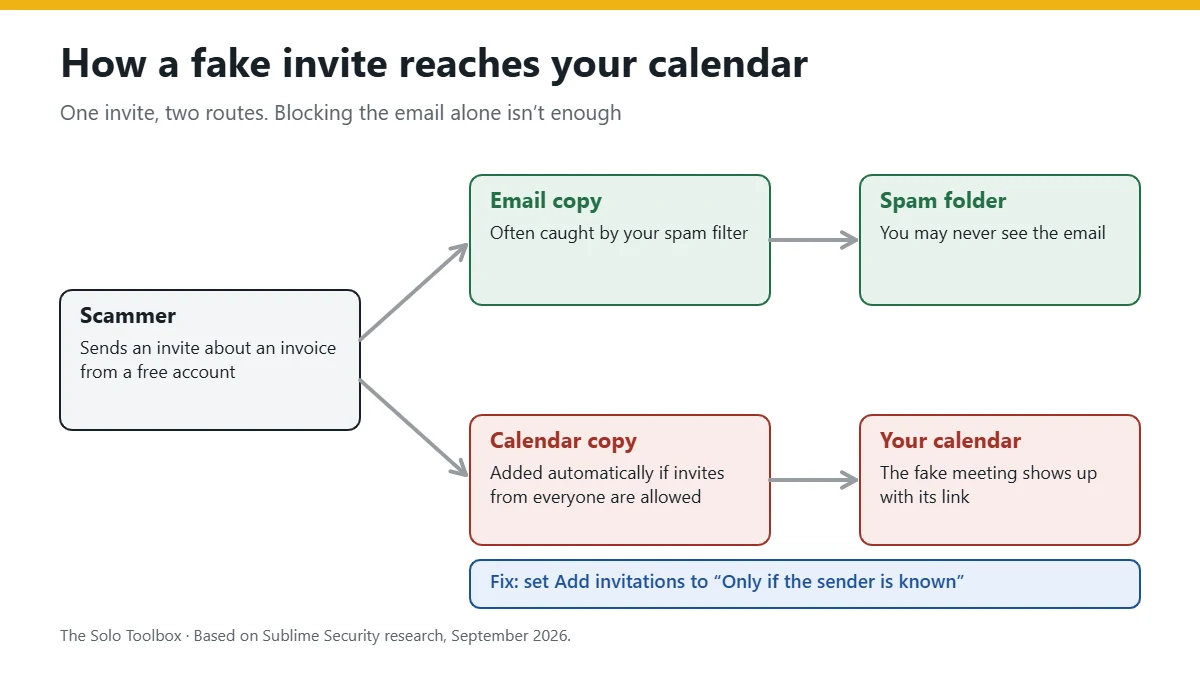
In the example Sublime analyzed, a link in the invite led to a page offering a “credit note”. Clicking it downloaded ScreenConnect, a legitimate remote-access tool that the attackers had set up to give them control of the victim’s PC. Sublime also notes that Google Calendar rewrites links through a google.com redirect, which hides the real destination when you hover over it.
How to spot a fake meeting invite
Treat an invite as suspicious if it shows several of these signs:
- You don’t know the sender, or it’s a free Gmail or Outlook address claiming to be a company, bank or payment service.
- It’s about money: an invoice, refund, payment of an odd exact amount, account suspension or a “credit note”.
- It pushes you to act now with a “View here” link, a QR code or an attached file.
- You never arranged it. A real client meeting usually follows an email or call.
- The guest list is long and random, or you’re one of many hidden recipients.
If an invite seems to come from someone you know but feels off, check with them by phone or a separate message rather than replying to the invite.
How to remove a fake invite safely
Don’t click anything in the event, and don’t accept, decline or reply. As TechSpot’s summary of the research points out, even declining can signal to the sender that your account is active. Then:
- Google Calendar: click the event, select More actions (three dots) at the top right, then Report as spam. Google says this removes the event, and the whole series if it repeats. It only works for invites sent from Google Calendar; for others, use Delete event. (Google’s instructions)
- Outlook: delete the event, and if Outlook asks whether to send a response, choose not to. Then find the original email (check Junk too) and report it as phishing or junk so Microsoft can learn from it.
- Unknown calendars: while you’re there, check the list of other or subscribed calendars in the sidebar and remove any you didn’t add yourself, a cleanup step Malwarebytes recommends.
Stop fake invites in Google Calendar
This one setting does most of the work. From Google’s help page:
- Open Google Calendar on a computer.
- Click the Settings gear at the top right, then Settings.
- Under General on the left, click Event settings.
- Under Add invitations to my calendar, choose Only if the sender is known.
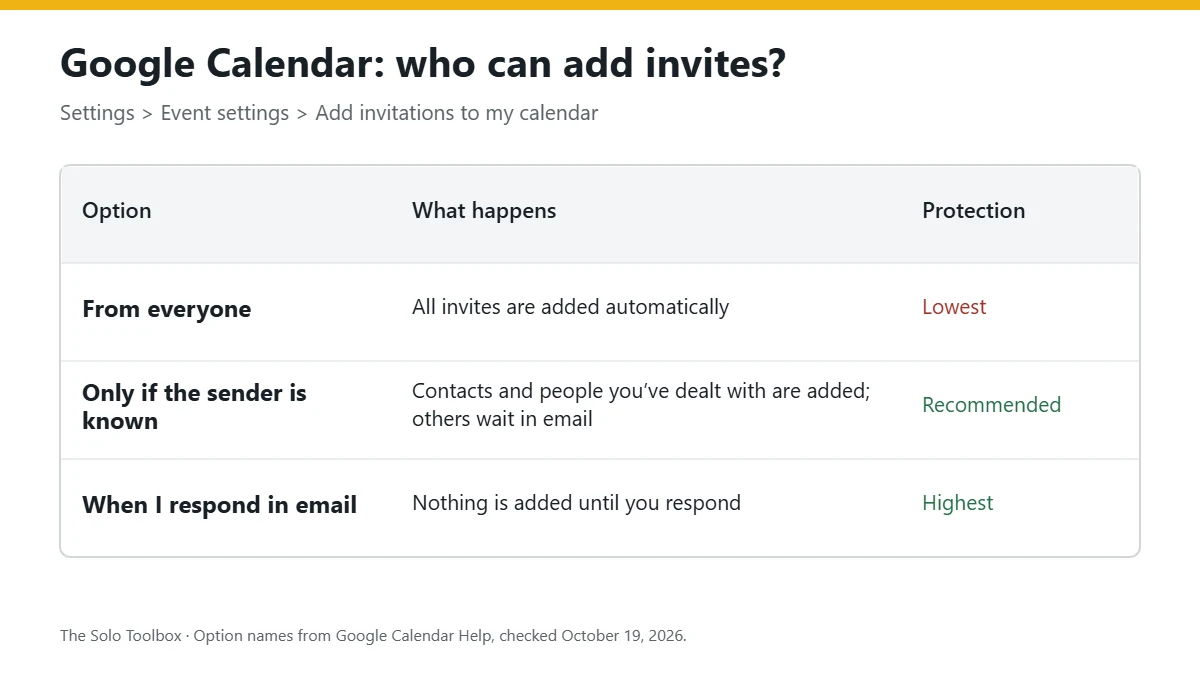
Google’s three options work like this:
| Option | What happens | Best for |
|---|---|---|
| From everyone | Every invitation goes straight onto your calendar | Not recommended now; it’s what fake invites rely on |
| Only if the sender is known | Invites from contacts, people in your organization and people you’ve interacted with are added; others stay as an email until you respond | Most freelancers and small businesses |
| When I respond to the invitation in email | Nothing is added until you respond to the email | Maximum control, if you don’t mind accepting every invite by hand |
Two things to know before you switch. First, Google says this change applies to new invitations only, so existing fake events need removing by hand. Second, Google warns that choosing Only if the sender is known may let a sender see that they’re not in your contacts.
If you choose one of the stricter options, Google also offers Let others see all invitations if they have permission to view or edit my events. Turn it off if you share your calendar with an assistant or partner and don’t want them to see invites you haven’t accepted.
Make sure real clients still get through
Adding regular clients and collaborators to Google Contacts is the most reliable way to keep their invites flowing in automatically. Invites from new people still arrive by email, where you can accept them with one click.
If you send invites through a booking tool such as Calendly, the same setting affects your clients. Calendly’s help page says first-time bookers whose Google Calendar uses this setting may see an “Unknown sender” banner and need to click I know the sender before the event appears. Adding a short line about this to your booking confirmation page avoids missed meetings.
You may also see a separate setting called Show events from Gmail under Google Workspace smart features. It covers flights, hotel bookings and tickets that Gmail detects in your email, not meeting invites, so you can leave it on. (Google’s explanation)
Handle fake invites in Outlook and Outlook.com
Microsoft doesn’t document an equivalent “known senders only” switch for meeting invitations in Outlook.com, and people in a long-running Microsoft Q&A thread describe the problem as unresolved as of August 2026. What you can do:
- Block repeat senders: in Outlook on the web, go to Settings > Mail > Junk email and add the address or domain under Blocked senders and domains.
- Report every fake invite email as phishing or junk rather than just deleting it.
- Review Events from email: under Settings > Calendar > Events from email, you can choose which detected bookings Outlook adds to your calendar. The event types Microsoft lists for this feature are reservations, deliveries and bills found in your email, not meeting invitations, so treat it as tidying rather than protection.
- On Microsoft 365 business plans, ask whoever manages your account about anti-phishing policies. Admin-level filtering can catch invites that personal settings can’t.
Handle fake invites on iPhone and Apple Calendar
If your calendar lives in iCloud, the fixes are on your iPhone or iPad. According to Apple’s instructions:
Remove a fake invite
- Open the event in the Calendar app.
- If it’s from someone who isn’t in your contacts, tap Report Junk, then Delete and Report Junk. Otherwise tap Delete Event and confirm.
Reporting is better than deleting when you have the choice, for the same reason as with Google: it helps Apple filter the sender for everyone.
Remove calendars you didn’t add
A different trick adds a whole spam calendar rather than a single event, usually after someone taps a “subscribe” or “allow” prompt on a website. Its events can keep appearing however many you delete. To remove it:
- In the Calendar app, tap Calendars.
- Find the calendar you don’t recognize and tap the info button next to it.
- Tap Delete Calendar or Unsubscribe, then tap it again to confirm.
If a calendar won’t delete, Apple suggests hiding it by removing its checkmark in the same list.
Get iCloud invitations by email instead
iCloud can send invitations to your email inbox rather than straight onto your calendar, which gives your spam filter a chance to catch them first. On an iPhone or iPad, go to Settings > your name > iCloud > Show All > iCloud Calendar > Send & Receive, tap Receiving, and choose Email. Invitations then arrive as messages you can accept or ignore.
If your iPhone shows a Google or Microsoft calendar rather than iCloud, the setting that matters is the one on that service, covered in the sections above. The Calendar app only displays what the service puts there.
If you already clicked a link in a fake invite
- Don’t enter a password or payment details on the page it opened. Close it.
- If something downloaded, don’t run it. If you did run it, disconnect from the internet and check Settings > Apps > Installed apps for remote-access tools you didn’t install, such as ScreenConnect or AnyDesk. Remove them and run a full scan with Microsoft Defender or your antivirus.
- From a different, trusted device, change the password for any account you entered on the fake page, and turn on two-step verification.
- Tell your bank straight away if you entered card or bank details.
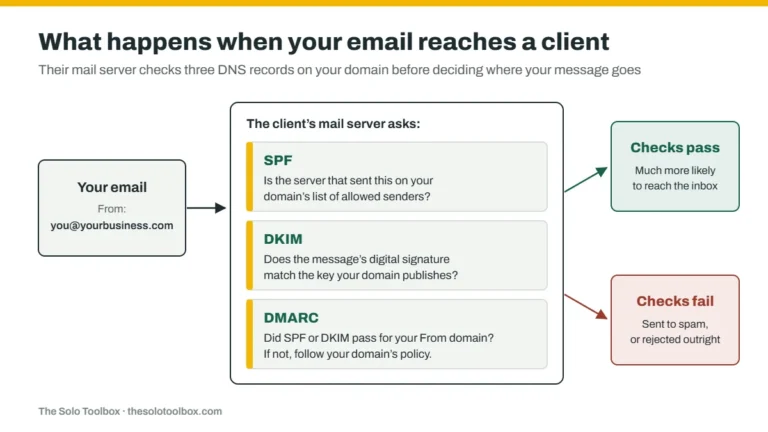
Because these invites are sent through real Google and Microsoft services, they usually pass email authentication checks such as SPF and DKIM. If you want to understand those checks, and make sure your own invoices don’t land in clients’ spam folders, see our guide to fixing SPF, DKIM and DMARC.
Related guides
Sources
- Sublime Security: massive uptick in ICS phishing and calendar-based malware attacks (September 17, 2026)
- TechSpot: The calendar invite is the new phishing vector (October 17, 2026)
- Google Calendar Help: Manage invitations in Calendar
- Google Calendar Help: Report inappropriate calendar invitations and events
- Google Calendar Help: Manage your events from Gmail
- Microsoft Support: Automatically add events from your email to your calendar
- Calendly Help: Allowing Google Calendar invitations from unknown senders
- Malwarebytes: Fake calendar invites are spreading
- Apple: Delete calendars and events on iPhone
- Apple: Receive calendar invitations as notifications or email
Next step: open Google Calendar settings now and switch Add invitations to my calendar to Only if the sender is known, then scroll through the next two weeks of your calendar and report anything you don’t recognize.