
Why your emails land in clients’ spam folders (and how to fix SPF, DKIM and DMARC)
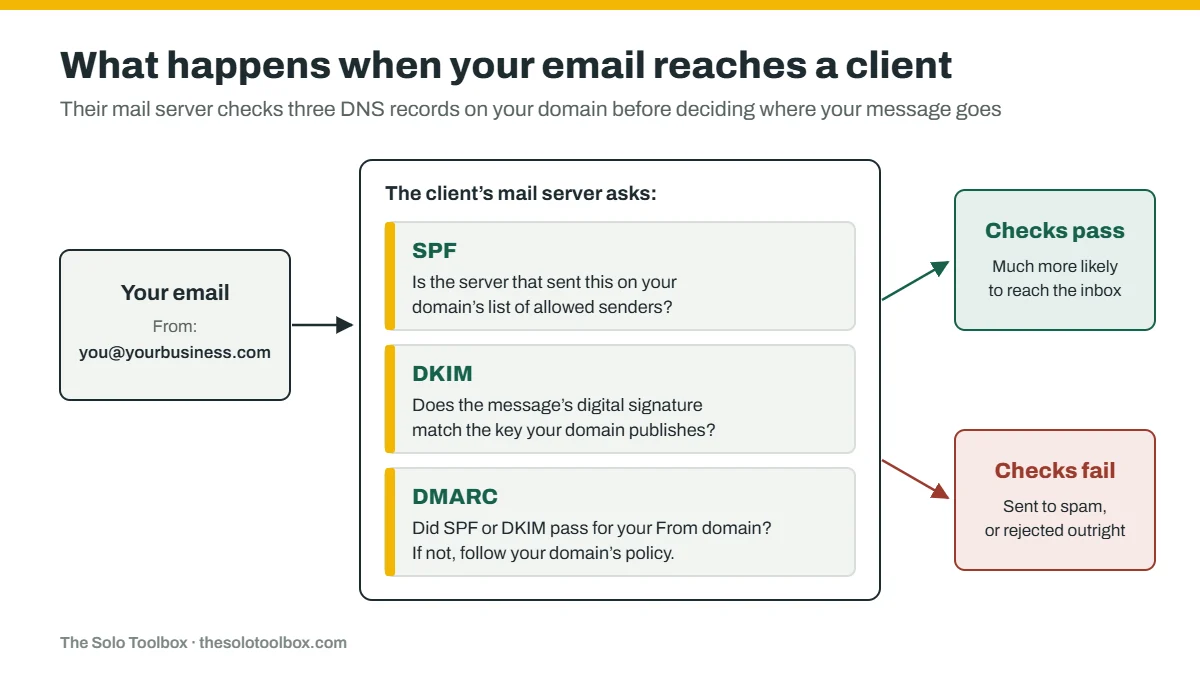
If clients keep finding your emails in their spam folder, the most likely cause for a small business is that your domain can’t prove the mail really came from you. Three DNS records handle that proof: SPF, DKIM and DMARC. You can check whether they’re working in about two minutes, and fixing them usually means adding or editing a few records at your domain host.
Before you start
- You’ll need: access to your domain’s DNS settings (at your registrar or web host) and admin access to your business email account.
- Applies to: email sent from your own domain through Google Workspace, Microsoft 365, Hostinger’s Titan email and similar providers.
- Time: about 30 minutes of work, plus up to 48 hours for DNS changes to take effect.
- How we checked this: based on the official documentation from Google, Yahoo, Microsoft and Hostinger and on the SPF standard, checked October 17, 2026. We haven’t tested every provider hands-on, so your admin screens may look slightly different.
Don’t have an address on your own domain yet? Start with our guide to getting a professional email address, then come back here to set up authentication.
Check whether authentication is the problem
The quickest test uses a free Gmail address, because Gmail shows the result of each check.
- From your business address, send a short, ordinary email to a personal Gmail address you can open.
- Open the message in Gmail on a computer. Next to Reply, click More (the three dots), then Show original.
- Near the top of the page that opens, find the lines for SPF, DKIM and DMARC. Each one should say PASS.
What the results tell you:
- All three say PASS: authentication isn’t your problem. Skip to Still landing in spam?
- SPF fails: your SPF record doesn’t list the service that sent the message, or the record is broken.
- DKIM fails or doesn’t appear: your email provider isn’t signing messages for your domain yet.
- DMARC fails: neither SPF nor DKIM passed for the domain shown in your From address.
If a client gets a bounce message instead of a spam-folder delivery, the error code points the same way. Gmail uses 5.7.26 for unauthenticated messages, and Outlook.com rejects high-volume senders that fail its checks with 550 5.7.515.
What Gmail, Yahoo and Outlook require from a small sender
Since 2024, the big mailbox providers have published rules for anyone sending to their users. Most coverage of those rules is aimed at newsletter senders. Here’s how they split for someone sending ordinary business email:
| Provider | Every sender | Senders of 5,000+ messages a day |
|---|---|---|
| Gmail | SPF or DKIM, and a spam-complaint rate below 0.3% | SPF and DKIM, DMARC, and one-click unsubscribe for marketing mail |
| Yahoo | SPF or DKIM, and a spam rate below 0.3% | SPF and DKIM, a passing DMARC policy, and one-click unsubscribe |
| Outlook.com | Its 2025 rules only cover senders of 5,000+ messages a day | SPF, DKIM and DMARC; failing mail is rejected |
So strictly, a one-person business needs only SPF or DKIM. In practice, set up all three: each covers a gap the others leave, none of them costs anything, and Yahoo strongly urges every sender to publish DMARC. If you send thousands of marketing emails a day, the bulk-sender rules need their own guide; this one covers everyday business email.
Find every service that sends email as you
Your mailbox is rarely the only thing sending email with your name on it. Invoicing apps, booking tools, newsletter services and website contact forms can all send messages, and the ones using your domain need to be covered by your records.
For each app, check one thing: which address do its emails come from? Send yourself an invoice, a booking confirmation or a newsletter, and look at the From line.
- It comes from the app’s own address (something like no-reply@the-app.com): your domain’s records aren’t involved. If those messages land in spam, contact the app’s support, or ask the client to mark the message as not spam.
- It comes from your address (you@yourbusiness.com): the app is sending as your domain. It needs to be added to your SPF record and, ideally, set up with DKIM. Look in the app’s settings or help center for “domain authentication” or “custom sending domain.”
Write the list down. You’ll need it for the next step.
Set up SPF
SPF is a single line of text in your domain’s DNS that lists the services allowed to send email for your domain. A receiving server checks the server that delivered a message against that list.
Your email provider tells you what the line should say. Three common examples:
- Google Workspace:
v=spf1 include:_spf.google.com ~all - Microsoft 365:
v=spf1 include:spf.protection.outlook.com -all(Microsoft recommends ending with-all) - Hostinger’s Titan email:
v=spf1 include:spf.titan.email ~all(the record already in place on our own domain, which is hosted at Hostinger)
To authorize another sender, add its include: to the same line rather than creating a new record. Before and after adding an app:
v=spf1 include:_spf.google.com ~all
v=spf1 include:_spf.google.com include:sendingapp.example ~all
Here sendingapp.example stands in for the value your app’s help page gives you.
The two mistakes that break SPF
- Two SPF records. A domain can have only one TXT record that starts with
v=spf1. With two, SPF fails for all your mail, not just the app’s. If an app’s setup guide says to “add a TXT record” and you already have one, merge the two instead. - Too many lookups. Each
include:(and a few other terms) makes the receiving server look up more records, and the total can’t exceed 10, counting the lookups inside each include. Past 10, SPF fails. If you use several apps, run your record through a free SPF checker after editing it.
Turn on DKIM
DKIM adds a digital signature to every message, which receiving servers check against a public key published in your DNS. Unlike SPF, it has two halves: you publish the key, and you switch on signing in your email provider. Publishing the record alone does nothing.
- Google Workspace: in the Admin console, go to Apps → Google Workspace → Gmail → Authenticate email. Generate a 2048-bit key if your DNS host supports it, add it as a TXT record named
google._domainkey, then click Start authentication. Google says to allow up to 48 hours. - Microsoft 365: custom domains aren’t signed by default. In the Microsoft Defender portal, open Email authentication settings, choose the DKIM tab and enable your domain. Publish the two CNAME records it shows (
selector1._domainkeyandselector2._domainkey), then turn on signing. - Hostinger (Titan) email: Hostinger says Titan signs outgoing mail with a default key. To publish a DKIM record for your domain, open Emails in hPanel, then Mailboxes → Email Reputation, and copy the DKIM host name and value into a new TXT record.
- Other providers: search your provider’s help center for “DKIM.” The pattern is the same: generate a key, publish it, switch on signing.
If an app on your list sends as your domain, set up DKIM in that app too, using the records it gives you.
Add DMARC in monitoring mode
DMARC ties the other two together. It tells receiving servers what to do when a message claiming to be from your domain doesn’t pass SPF or DKIM for that domain, and where to send reports about it.
Add it last: Google advises waiting 48 hours after SPF and DKIM are working. Then create a TXT record named _dmarc with this value, using an address you control:
v=DMARC1; p=none; rua=mailto:dmarc-reports@yourbusiness.comp=none means “don’t block anything yet, just report.” The rua address receives daily summary reports from the big providers. Google recommends a separate mailbox or a reporting service, because the reports can pile up, and they arrive as XML files, so a free DMARC report reader makes them easier to follow.
Check for an existing record first, because some hosts add one automatically. Ours already had one: our Hostinger-hosted domain came with a DMARC record set to p=none but no rua address, which means nobody receives the reports. Adding rua= is what makes monitoring actually work.
Once your reports show every legitimate sender passing, you can move to p=quarantine, which sends failing messages to spam, and later to p=reject. Tightening before every sender passes is the fastest way to send your own invoices to spam.
Test again
After your DNS changes have had time to take effect, repeat the Gmail check from the first section. You want PASS on all three lines. If you can, also send a test to an Outlook.com or Hotmail address, since Microsoft runs its own filters.
Still landing in spam?
If all three checks pass, authentication isn’t the problem, and the cause is more likely the message itself or your sending reputation. For a small sender, the usual suspects are:
- A brand-new domain with no sending history yet.
- Link shorteners or bare, pasted URLs in the message.
- Large attachments. Linking to a file is safer than attaching it.
- Recipients who previously marked your messages as spam.
- Your domain, or your email provider’s sending server, on a blocklist. Free blocklist checkers will tell you.
If it doesn’t work
- Nothing seems to change: DNS updates can take up to 48 hours. Also make sure you’re editing DNS where your domain actually points. Hostinger, for example, notes that its DNS zone only applies when the domain uses Hostinger’s nameservers.
- SPF shows “permerror”: you have two SPF records, or more than 10 lookups.
- DKIM still fails after publishing the record: signing isn’t switched on in your provider, or the record name was doubled (for example
google._domainkey.yourbusiness.com.yourbusiness.com) because your DNS host adds the domain automatically. Enter just the part before your domain. - Clients get error 5.7.26 from Gmail: your messages are failing authentication. Go back to the first check.
Sources
- Google: Email sender guidelines
- Google Workspace: Set up SPF
- Google Workspace: Set up DKIM
- Google Workspace: Set up DMARC
- Google: View the original message in Gmail
- Yahoo: Sender best practices
- Microsoft: Outlook.com requirements for high-volume senders
- Microsoft: Set up SPF for Microsoft 365
- Microsoft: Set up DKIM for Microsoft 365
- Hostinger: Add DKIM records for Titan Email
- Hostinger: Add a DMARC record for Hostinger Email
- RFC 7208: Sender Policy Framework (SPF)
Last checked: October 17, 2026. Email providers change their rules and admin screens often. If something here no longer matches what you see, let us know.
