How to recover an unsaved or overwritten Word document
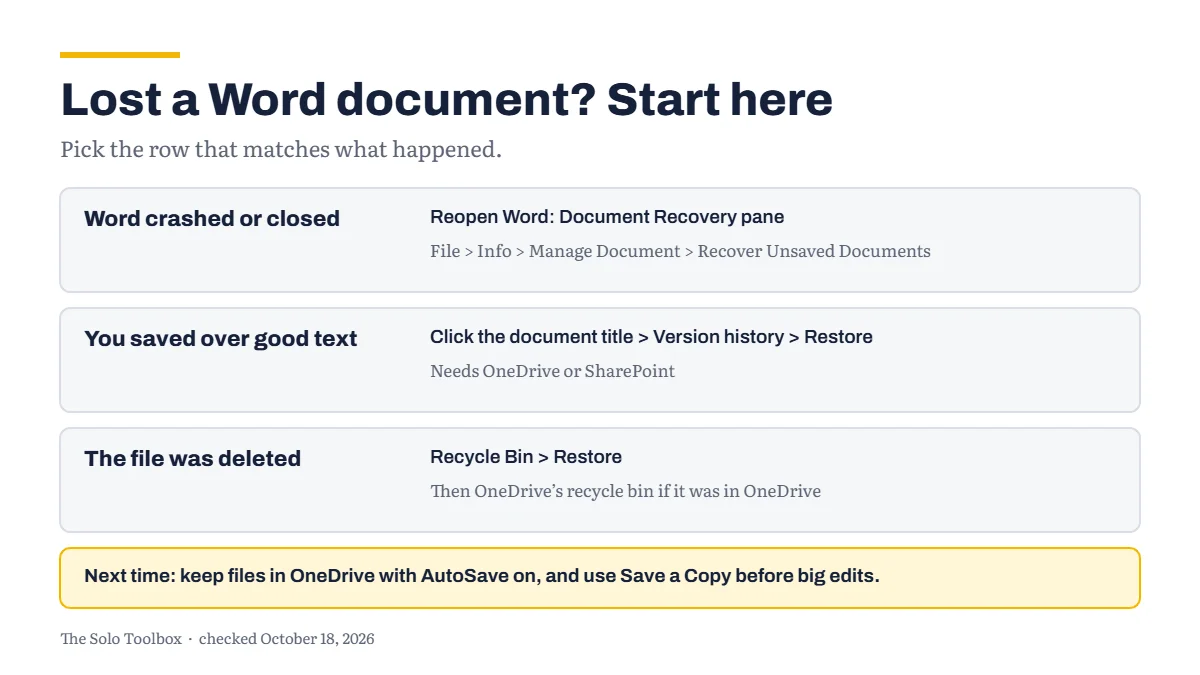
How you get a lost Word document back depends on what happened. If Word crashed or closed before you saved, reopen Word and look for the Document Recovery pane, or use Recover Unsaved Documents. If you saved over good text, the file’s Version history can take you back, but only if the document lives in OneDrive or SharePoint. If it was on your computer’s own drive and you saved over it, your options are much more limited, so the last section explains how to set Word up so the next mistake is recoverable.
Before you start
- You’ll need: Word for Windows. Some steps need a Microsoft 365 subscription or a file stored in OneDrive.
- Applies to: Word for Microsoft 365 and recent versions of Word on Windows.
- Time: 5 to 15 minutes, depending on which method works.
- How we checked this: based on Microsoft’s support pages, checked October 18, 2026. Some steps come from an older Microsoft troubleshooting article that Microsoft has archived, and we say so where they appear. Menus change between Word updates, so yours may look slightly different.
If Word closed before you saved
Open Word again. If Word shut down unexpectedly, Microsoft says the Document Recovery pane opens automatically and lists the files it saved for you, each with the time it was saved.
- In the Available Files list, select the newest version of your document. If there are several, the one with the latest time has your most recent changes.
- Check that it’s the version you want, then save it under a new name with File > Save As.
- Close the pane once you’ve saved everything you need.
If you select Close before you’ve checked every file, Word asks what to do with them. Choose Yes, I want to view these files later, which Microsoft labels the safest option, so you don’t lose a recovered file by accident.
Use Recover Unsaved Documents
If the pane didn’t appear, or you closed a new document and chose not to save it, try Word’s own list of unsaved files. Microsoft’s archived troubleshooting article gives the path as File > Info > Manage Document > Recover Unsaved Documents. Open the file you find there and save it straight away.
Search for AutoRecover files
Word’s AutoRecover saves temporary copies with the extension .asd. Microsoft’s archived article lists two places to look, where YourName is your Windows user name:
C:\Users\YourName\AppData\Roaming\Microsoft\WordC:\Users\YourName\AppData\Local\Microsoft\Office\UnsavedFiles
If nothing is there, select Start, search for *.asd, and look for a file dated around when you last worked on the document. To open one, go to File > Open > Browse in Word, change the file type to All Files, and open it. Save it as a normal Word document as soon as it opens.
If you saved over a good version
When the problem is changes you saved, not changes you lost, version history is the fix. It works only for files stored in OneDrive or SharePoint, not for files saved only on your computer’s drive.
- Open the document and select its title at the top of the window.
- Select Version history.
- Select an older version to open it in a separate window and check it.
- Select Restore to make it the current version again.
You can do the same from the OneDrive website, or in File Explorer if you use the OneDrive app: right-click the file, select Version history, then select the three dots next to a version and choose Restore. The version you replace isn’t lost; it moves into the list of older versions.
Don’t wait. Microsoft’s Office help says personal accounts keep the last 25 versions, and its OneDrive help says version history is kept for 30 days. On a work or school account, an administrator decides.
If the file was deleted
Open the Recycle Bin on your desktop, look for the document, right-click it and select Restore. If the file was in OneDrive, check OneDrive’s own recycle bin on the website as well.
Set up Word so this doesn’t happen again
- Keep working files in OneDrive and use AutoSave. For Microsoft 365 subscribers, Microsoft says AutoSave saves your changes every few seconds and is on by default for files in OneDrive or SharePoint. Look for the AutoSave switch in the top-left corner of the Word window. It doesn’t work for files saved only on your computer’s drive.
- Use Save a Copy before big edits. With AutoSave on, changes go straight into the original. To keep the original as it is, use File > Save a Copy first, then edit the copy.
- Check AutoRecover. For files that aren’t in OneDrive, AutoRecover is your safety net after a crash. In File > Options > Save, make sure it’s on and set the interval to five minutes or less, as Microsoft’s archived article recommends.
- Turn on backup copies. In File > Options > Advanced, under Save, tick Always create backup copy. According to Microsoft’s archived article, Word then keeps a “Backup of” file with the previous saved version.
If Windows keeps restarting for updates and closing Word with your work open, our guide to stopping Windows 11 restarting for updates during work hours shows how to control when that happens.
If it doesn’t work
- There’s no Version history option: the file is probably saved only on your computer. Version history needs OneDrive or SharePoint. Move your working files there so it’s available next time.
- There’s no AutoSave switch, or it’s greyed out: Microsoft says AutoSave is off for files on your own drive, for older formats such as .doc, and when OneDrive sync is paused.
- The search for .asd files finds nothing: AutoRecover may have been off, or Word may have removed the file after a normal close. Check the Recycle Bin and, if the file was ever in OneDrive, its version history.
- A recovered file opens but looks wrong: save it under a new name anyway, then compare it with any other copy you have before deleting anything.
For more fixes like this one, browse our how-to guides.
Related guides
Sources
- Microsoft: Recover your Word files and documents
- Microsoft: View previous versions of Office files
- Microsoft: Restore a previous version of a file stored in OneDrive
- Microsoft: What is AutoSave?
- Microsoft Learn (archived): How to recover a lost, unsaved or corrupted Word document
Last checked: October 18, 2026. Microsoft changes Word’s menus regularly. If something here no longer matches what you see, let us know.