Gmail AI Inbox: who gets it and how to show or hide it
Gmail AI Inbox is a new Gemini-powered view in Gmail that lists your suggested to-dos and topics to catch up on, pulled from your recent email. Google began rolling it out to paid Google Workspace accounts on October 12, 2026, with a second wave starting October 26. It’s US English only for now. You open it from AI Inbox in Gmail’s left panel, and you can hide it at any time in Settings > See all settings > Inbox > Show AI Inbox. Below: who gets it, how to turn it on, what it reads, and how to hide it.
Before you start
- You’ll need: Gmail on a computer or the Gmail mobile app.
- Applies to: eligible paid Google Workspace accounts and some personal accounts with a Google AI plan, in the US with the language set to English (US).
- Time: 2 minutes to show or hide it; first results can take up to 7 days to appear.
- How we checked this: details come from Google’s Workspace Updates announcement (October 15, 2026) and Google’s Gmail Help page for AI Inbox, read on October 19, 2026. AI Inbox is labeled beta, so menus and eligibility may change.
What is Gmail AI Inbox?
AI Inbox sits beside your normal inbox; it doesn’t replace it. Google’s help page describes two sections:
- Suggested to-dos: high-priority items from incoming email, with key deadlines in bold, such as a bill due date or a client asking for a file by Friday.
- Topics to catch up on: short summaries of updates spread across several threads, such as a project, a trip or a run of order confirmations.
Google first previewed AI Inbox in January 2026 as part of “Gmail is entering the Gemini era”. The October rollout brings it to business accounts.
Who gets AI Inbox, and when
According to Google’s October 15 Workspace Updates post, AI Inbox is rolling out gradually to paid Workspace editions, and each wave can take up to 15 days to reach every account:
| Domain type | Rollout starts | Notes |
|---|---|---|
| Rapid Release | October 12, 2026 | Up to 15 days for the feature to appear |
| Scheduled Release (the default for most businesses) | October 26, 2026 | Up to 15 days for the feature to appear |
The post lists Business Starter, Standard and Plus; Enterprise Starter, Standard and Plus; AI Pro for Education; and Frontline Plus. It also says Starter and Education editions get it “in the coming months,” so if you’re on Business Starter you may wait longer. Google’s help page separately lists personal accounts on Google AI Plus, Pro or Ultra plans as eligible. There’s no admin switch for AI Inbox, Google says, so a one-person business owner can’t turn it off for the whole domain from the Admin console.
Two limits apply everywhere for now: you need to be in the US, and your account language must be English (US).
How to turn on Gmail AI Inbox
If AI Inbox doesn’t appear once your domain is in the rollout, the usual cause is that Gmail’s smart features are off. Google’s help page says both need to be on:
- In Gmail on a computer, select Settings (gear icon) > See all settings.
- On the General tab, find the smart features section (select Manage Workspace smart feature settings if you see it) and turn on Smart features in Google Workspace and Smart features in other Google products. Save your changes. Wording can vary slightly between accounts.
- Wait. Google says it can take a few hours after you turn on smart features, and your first to-dos and topics can take up to 7 days.
- In Gmail’s left panel, select AI Inbox. Select Refresh at the top to load the latest updates.
On the Gmail app, AI Inbox appears in the menu, per Google’s announcement.
What AI Inbox reads, and what it ignores
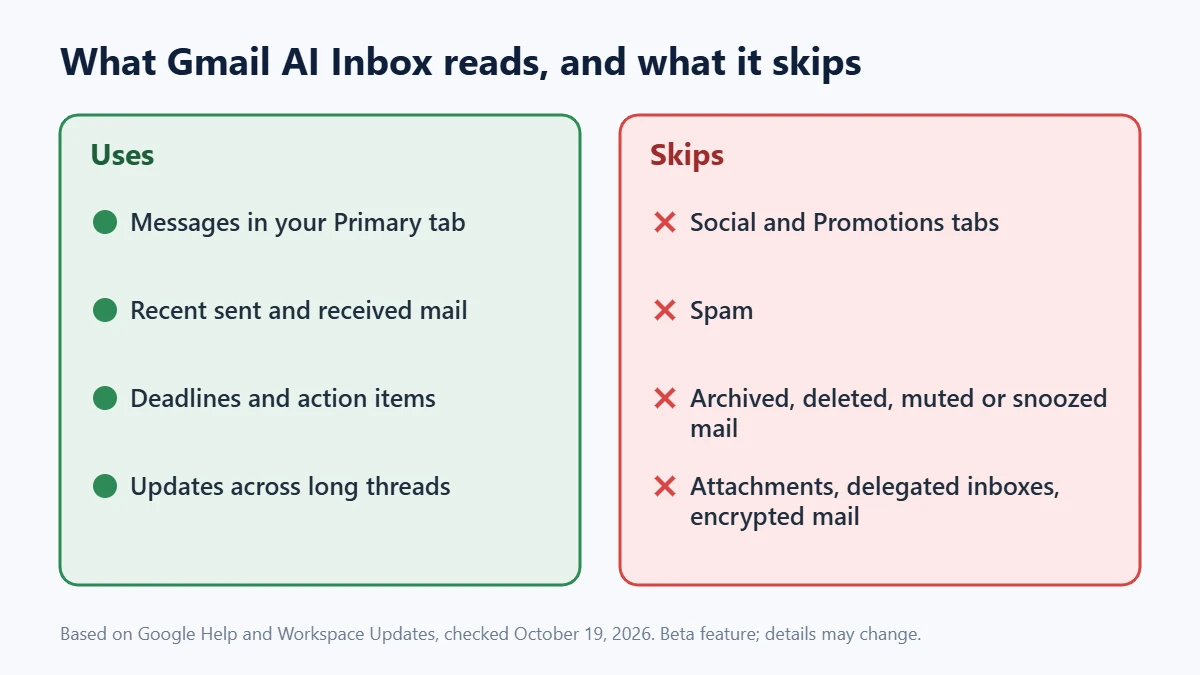
AI Inbox only uses messages in your Primary tab. It filters out spam and anything you’ve archived, deleted, muted or snoozed, and it doesn’t support attachments, delegated inboxes or encrypted email. That has practical consequences:
- If a client’s emails keep landing in Promotions, they won’t show up as to-dos. Drag one into Primary and choose to do this for future messages.
- A deadline that only exists in an attached PDF won’t be picked up.
- If you manage a shared or delegated mailbox, AI Inbox won’t cover it.
- It may look empty if you haven’t sent or received much email recently.
One trap to know about: Google’s help page notes that Mark all as read in AI Inbox also marks those emails as read in your regular inbox. If you use unread status as your to-do list, skip that button.
How to hide AI Inbox
- Open Gmail on your computer.
- Select Settings > See all settings.
- Open the Inbox tab.
- Next to Show AI Inbox, uncheck the box, then save your changes. Check it again any time to bring it back.
Hiding AI Inbox removes it from the menu. If your concern is AI processing of your email rather than clutter, the broader control is the smart features settings above. Be aware that turning those off also disables other conveniences, such as automatic inbox categories and some writing suggestions, so weigh that before you switch them off.
Should a solo business use it?
For a one-person business, AI Inbox can work as a free daily brief: invoices due, files clients asked for, and threads that moved while you were busy. The trade-offs are that it’s a beta, it only sees the Primary tab, and it can miss items in attachments, so treat it as a reminder layer, not your system of record. If you share client data under confidentiality terms, check what those terms say about AI tools; Google says use of AI Inbox on work accounts falls under the Google Cloud terms for your Workspace account. For a wider look at how AI assistants handle your data, see our guide to keeping client data out of AI training.
What about Gmail Live?
Google also started rolling out Gmail Live on October 15, 2026: a beta voice feature in the Gmail mobile app that answers spoken questions about your inbox and shows the source email with each answer. It’s a separate feature with its own eligibility, so having one doesn’t mean you’ll get the other.
FAQ
Why don’t I see AI Inbox in Gmail?
The most common reasons: your domain hasn’t reached the rollout yet (Scheduled Release starts October 26 and can take 15 days), your account isn’t set to English (US) or you’re outside the US, your plan isn’t eligible yet, or smart features are off.
Can my Workspace admin turn AI Inbox off?
Not specifically. Google’s announcement says there’s no admin control for this feature. Each user can hide it with the Show AI Inbox setting.
Does AI Inbox send replies or act on my email?
No. Based on Google’s documentation, it summarizes and lists items; it doesn’t reply on your behalf. The only change it makes to your mail is marking messages as read if you use Mark all as read.
Next step
Before you rely on AI Inbox, make sure the mail that matters reaches your Primary tab. Our guide to getting a professional email address on your own domain covers the Workspace setup basics, and if you’re heading off for a while, here’s how to set up an out-of-office reply in Gmail.
Related guides
Sources
- Google Workspace Updates: Gmail’s AI Inbox is rolling out to paid Workspace users (October 15, 2026)
- Gmail Help: AI Inbox
- Gmail Help: Gmail Live
- Google: Gmail is entering the Gemini era (January 2026)