Windows 11 24H2 no longer gets updates: how to check your version and move to 25H2 or 26H2

If your PC runs Windows 11 Home or Pro, version 24H2, it stopped getting monthly security updates after October 13, 2026. Microsoft’s October update, KB5127648, was the last one for those editions. The fix is free and usually quick: open Settings > Windows Update, install Windows 11 version 25H2 or 26H2 when it’s offered, and restart. This guide shows how to check which version you have, how to move to a supported one, and what to do if the update doesn’t appear.
Before you start
- You’ll need: a Windows 11 PC you can sign in to as an administrator, and an internet connection.
- Applies to: Windows 11 Home and Pro, version 24H2. Enterprise and Education editions of 24H2 are supported until October 12, 2027.
- Time: a minute to check your version; the update itself usually needs one restart.
- How we checked this: dates and steps come from Microsoft’s release health, lifecycle and update pages, checked October 19, 2026, and re-checked October 20, 2026.
What “end of updates” means for 24H2
Microsoft’s Windows 11 24H2 release health page says that as of October 13, 2026, 24H2 Home and Pro “have reached end of updates” and will no longer receive monthly security and non-security preview updates. Your PC won’t stop working, and your apps and files are unaffected. What changes is that new security flaws found from November onward won’t be fixed on 24H2.
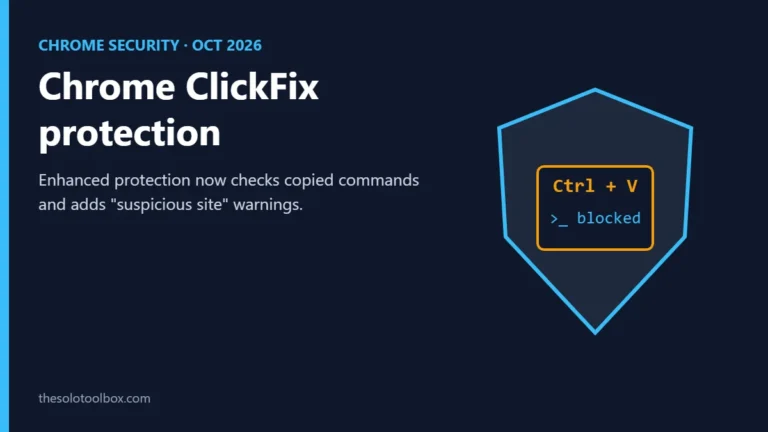
That matters more than it sounds. October’s update alone fixed a Windows Shell flaw, CVE-2026-96951, that attackers were already exploiting to get around Mark of the Web, the warning Windows shows before you open files downloaded from the internet. The US Cybersecurity and Infrastructure Security Agency added it to its list of known exploited vulnerabilities the same day, Computerworld reported. A 24H2 PC that stays put won’t get fixes for the next flaw like it.
Check which version of Windows 11 you have
There are two quick ways:
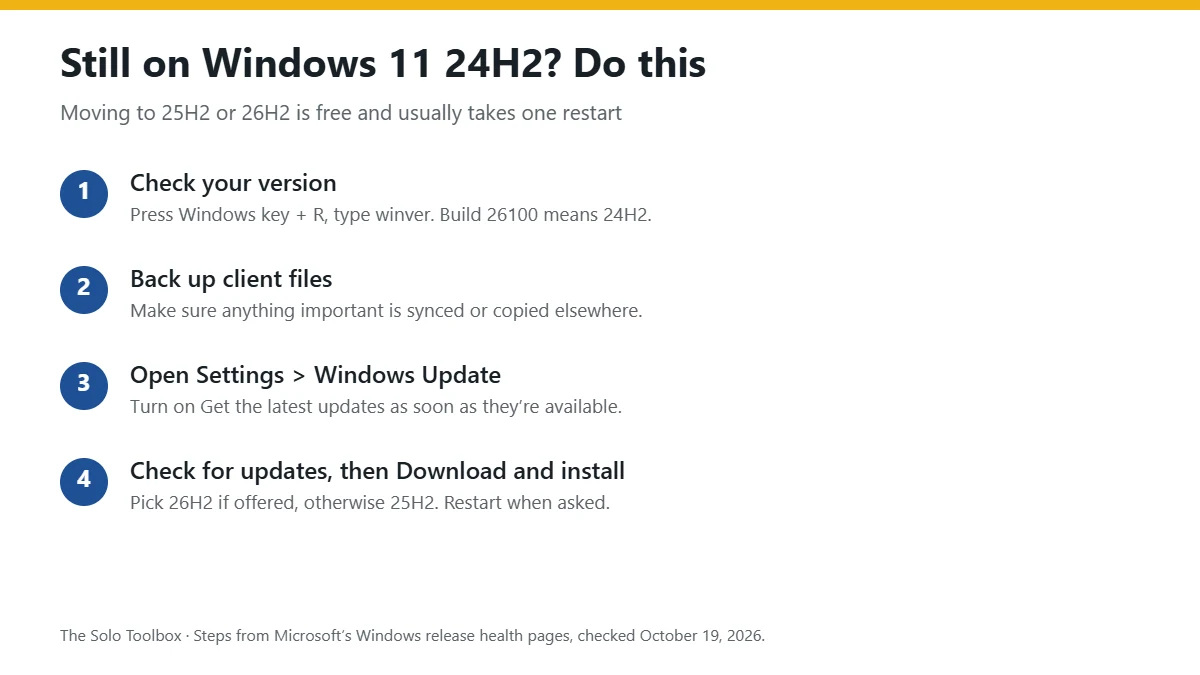
- Press Windows key + R, type winver and press Enter. The window shows the version (for example, Version 24H2) and the OS build.
- Or open Settings > System > About and look under Windows specifications for Edition, Version and OS build.
The first part of the build number tells you the version, and Microsoft’s lifecycle page lists how long each one is supported for Home and Pro:
| Version | OS build starts with | Home and Pro updates until |
|---|---|---|
| 24H2 | 26100 | Ended October 13, 2026 |
| 25H2 | 26200 | October 2027 |
| 26H2 | 26300 | October 2028 |
If your edition says Enterprise or Education, you have until October 12, 2027 on 24H2, though moving earlier does no harm. If it says version 23H2 (build 22631), that version already stopped getting updates for Home and Pro in November 2025, so updating is more urgent.
How to move from 24H2 to 25H2 or 26H2
Because 24H2, 25H2 and 26H2 share the same core code, Microsoft delivers the newer versions as a small update that switches on features already on your PC, rather than a full reinstall. In most cases it takes one restart.
- Back up anything you can’t afford to lose, such as client files that aren’t already synced to OneDrive, Google Drive or Dropbox. Updates rarely go wrong, but a backup costs little.
- Plug in your laptop and make sure you have a few gigabytes of free disk space.
- Open Settings > Windows Update.
- Turn on Get the latest updates as soon as they’re available. Microsoft uses this switch to offer 26H2 to eligible PCs during its phased rollout.
- Select Check for updates.
- When you see the option for Windows 11, version 26H2 or 25H2, select Download and install.
- Restart when prompted, then run winver again to confirm the new version.
You may not have to do much at all. Microsoft is moving unmanaged 24H2 Home and Pro PCs to 25H2 automatically, gHacks reported, citing a Microsoft message center notice; you can still choose when to restart. Checking now simply means you aren’t left waiting.
Avoid the Installation Assistant, Media Creation Tool or an ISO for this. Windows Central notes those tools are meant for PCs on 23H2 or Windows 10, and on 24H2 they can trigger an unnecessary full reinstall.
25H2 or 26H2: which should you pick?
Either keeps you protected. 26H2 is the newest release and is supported for Home and Pro until October 2028, a year longer than 25H2. If Windows Update offers 26H2, take it. If it only offers 25H2, install that now; you can move to 26H2 later the same way.
After the update: a five-minute check
Once your PC has restarted on the new version, a few quick checks catch most problems while they’re still easy to fix:
- Run winver and confirm the version reads 25H2 or 26H2.
- Go back to Settings > Windows Update and select Check for updates again. The version change and the latest monthly fixes don’t always arrive together, so there may be one more to install.
- Open the apps you use for client work, and try your printer, VPN and any USB headset or microphone you rely on for calls.
- Check that Wi-Fi connects at every place you work, including any office or coworking space that asks you to sign in with a username and password.
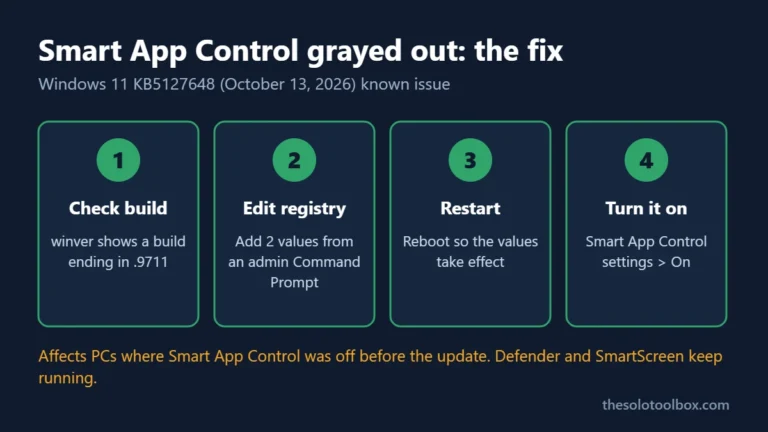
Two problems from this month’s update have their own guides: if Smart App Control is grayed out after October’s update, or a USB headset shows Code 10 or has no sound, start there.
If the update doesn’t show up
- Your PC may be on hold. Microsoft sometimes blocks a version on PCs with a known compatibility problem until it’s fixed. Check the release health page for your version, and don’t force the update with third-party tools.
- Updates are paused. In Settings > Windows Update, select Resume updates if you see it.
- Pending updates need a restart first. Restart, then select Check for updates again.
- Low disk space. Free up a few gigabytes and try again.
- Something is stuck. Go to Settings > System > Troubleshoot > Other troubleshooters and run the Windows Update troubleshooter. On newer builds this opens in the Get Help app.
What else October’s update changed
KB5127648, released October 13, 2026 for versions 24H2, 25H2 and 26H2, also fixed a problem where some PCs in multi-user setups showed a black screen after sign-in, and continued Microsoft’s rollout of updated Secure Boot certificates, according to Microsoft’s release notes. Two known issues are listed as mitigated on the release health page: some USB audio devices may not start or produce no sound, and some non-admin users can’t make Remote Desktop connections to PCs with Administrator protection turned on (error 0xC000000D).
There are also reports, not yet acknowledged by Microsoft as a bug, that some PCs can’t connect to WPA2-Enterprise (802.1X/PEAP) Wi-Fi after this update, the kind used by offices and some coworking spaces. Commenters in a Microsoft Q&A thread link it to a planned security change in how Windows handles older NTLMv1 sign-ins. If your home or office Wi-Fi stops working after updating, talk to whoever manages that network before uninstalling security updates.
Update, October 20, 2026: Neowin reports that Microsoft has now acknowledged the Wi-Fi sign-in problem and shared a fix. When we checked on October 20, the release health pages for 24H2 and 25H2 didn’t yet list it as a known issue, so check those pages, or ask your network administrator, before changing any settings. For step-by-step fixes, see our guide to Wi-Fi or VPN not connecting after the October update.
Still on Windows 10?
If winver says Windows 10, this guide isn’t for you yet. Windows 10 reached end of support on October 14, 2025. Microsoft’s consumer Extended Security Updates page says home users can still get security fixes through October 12, 2027 by enrolling: free if you sync your PC settings to a Microsoft account, by redeeming 1,000 Microsoft Rewards points, or for a one-time $30. Enrolling buys time; it doesn’t add features, and you’ll still need to move to Windows 11 or a new PC before that date.
Keep updates from interrupting your work
Once you’re on a supported version, the monthly updates will keep coming, and so will the restarts. Set your active hours so Windows doesn’t restart in the middle of a client call; our guide to stopping Windows 11 restarting for updates during work hours walks through it.
Related guides
Sources
- Microsoft: Windows 11, version 24H2 known issues and notifications
- Microsoft Lifecycle: Windows 11 Home and Pro
- Microsoft Support: KB5127648 (October 13, 2026)
- Computerworld: October Patch Tuesday coverage
- gHacks: Windows 11 24H2 Home and Pro reach end of support on October 13
- Windows Central: How to get Windows 11 version 26H2
- Microsoft Q&A: KB5127648 and WPA2-Enterprise Wi-Fi reports
- Neowin: Microsoft acknowledges KB5127648 802.1X Wi-Fi problem
- Microsoft: Windows 11, version 25H2 known issues and notifications
- Microsoft: Windows 10 Consumer Extended Security Updates
Next step: run winver now. If it says 24H2 and Home or Pro, go to Settings > Windows Update, check for updates, and install 25H2 or 26H2 before you start your next big project.