Secure Boot certificate expired? How to check your Windows PC
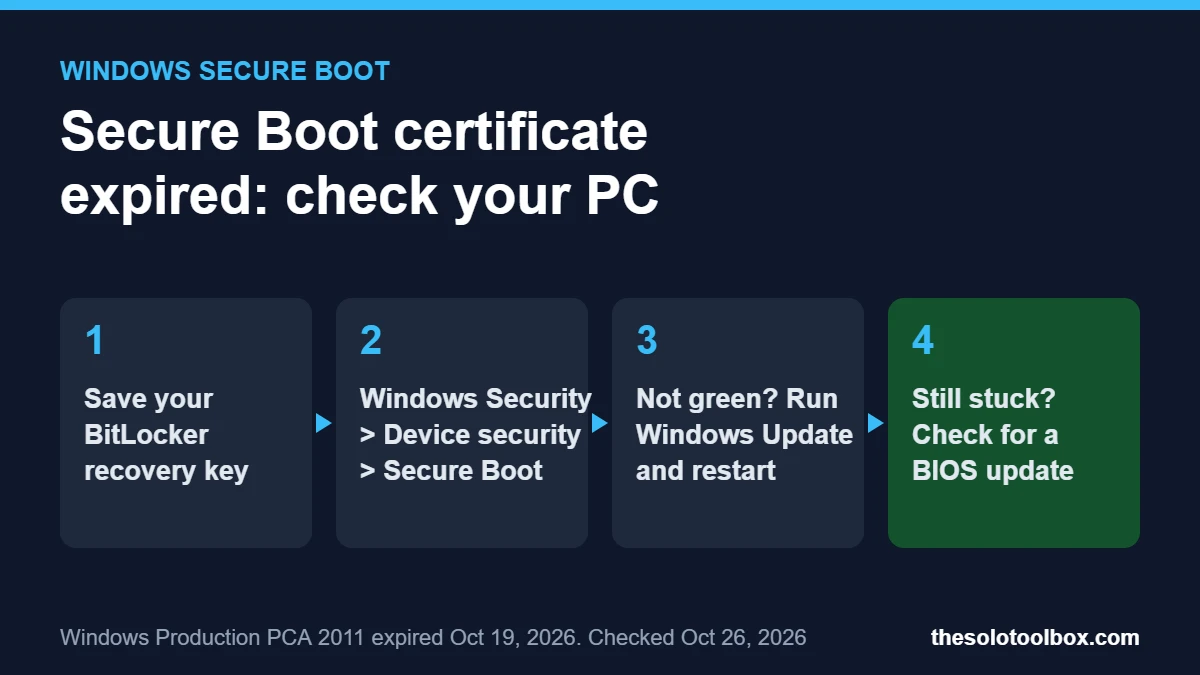
The Secure Boot certificate that signs the Windows Boot Manager, Microsoft’s Windows Production PCA 2011, expired on October 19, 2026. Your PC still starts and still gets normal Windows updates, but unless it has the replacement Windows UEFI CA 2023 certificate, it can no longer receive fixes for the boot process itself. You can check in about a minute in Windows Security under Device security > Secure Boot. For home PCs that install updates automatically, Microsoft says Windows Update manages the switch, so most people only need to confirm it happened.
Below: what each status message means, how to confirm the new certificate with one PowerShell command, and what to do if your PC is stuck. We checked it on October 27, 2026 against Microsoft’s support articles on the expiration (KB5132953) and the Windows Security status page, plus Dell’s certificate-check guide.
Before you start
- You’ll need: Windows 11 or Windows 10 with Extended Security Updates, an administrator account and 5 to 15 minutes
- Before any fix: Save your BitLocker recovery key. Boot and firmware updates can trigger a recovery prompt
- Don’t: Turn off Secure Boot to make a warning go away. Microsoft advises against disabling it to work around the expiration
Secure Boot certificate expired: what it means for your PC
Secure Boot checks that a trusted certificate has signed the code that loads before Windows. Microsoft issued the original certificates in 2011 with a 15-year lifespan, and October 19 was the last of those expiry dates. Microsoft no longer signs anything with the 2011 Windows certificate; it now signs new boot manager releases only with the Windows UEFI CA 2023 chain.
| Question | Answer (per Microsoft) |
|---|---|
| Will my PC stop booting? | No. Microsoft says the expiration does not stop PCs from turning on or Windows from starting. |
| Will Windows Update keep working? | Yes. Regular Windows updates continue to install. |
| What do I lose without the 2023 certificate? | New Windows Boot Manager fixes, Secure Boot database and revocation list updates, and fixes for future boot-level flaws. |
| Anything else? | Microsoft says future major Windows releases will require the 2023 certificate for installation media and Setup. |
However, the risk is not theoretical. On October 24, BleepingComputer reported Kaspersky’s analysis of BlackX, a UEFI bootkit that abuses an old boot manager flaw known as Baton Drop (CVE-2022-21894) to get around Secure Boot. Kaspersky notes the certificate’s expiry alone doesn’t stop old, vulnerable boot managers from loading; revoking them does, and a PC can only safely revoke the old boot managers once it starts from one signed with the 2023 certificate.
Check whether your PC replaced the expired Secure Boot certificate
Method 1: Windows Security
- Open Start, type Windows Security and open it.
- Select Device security.
- Find the Secure Boot section and read the status line.
Microsoft uses three badges. A green check (Fully updated) means Secure Boot is on and Windows has applied every required certificate update. Similarly, a yellow caution (Not yet updated) means the update hasn’t arrived. A red stop (Requires action) means Windows can’t deliver a boot security update to your current setup. Finally, if there’s no Secure Boot section at all, the PC is probably using legacy BIOS mode or has Secure Boot turned off.
Method 2: PowerShell
Right-click Start, choose Terminal (Admin) (Windows PowerShell (Admin) on Windows 10), and run the command Dell publishes in its certificate guide:
([System.Text.Encoding]::ASCII.GetString((Get-SecureBootUEFI db).bytes) -match 'Windows UEFI CA 2023')In other words, the command searches the firmware’s allowed-signature database for the 2023 certificate. True means your PC has it; False means it doesn’t yet. If you get an error saying your PC doesn’t support the cmdlet, it isn’t booting in UEFI mode. Alternatively, for a quick look at whether Secure Boot is on at all, run msinfo32 and check Secure Boot State.
What each status message means and what to do
| Status message (shortened) | What to do |
|---|---|
| All required certificate updates have been applied | Nothing. |
| Using an older boot trust configuration | Install pending updates in Settings > Windows Update and restart. |
| Affected by a known issue | Wait. Microsoft has paused the update for your hardware and resumes it automatically. |
| Not yet enough data to classify your device | Keep updating; Microsoft points to aka.ms/getsecureboot for manual guidance. |
| Does not support the automated certificate update | Check your PC maker for a BIOS/UEFI update. |
| Can no longer receive required updates | Your PC is still on the expired certificate. Follow aka.ms/getsecureboot and check for a firmware update. |
How to replace the expired Secure Boot certificate
- Save your BitLocker key. If BitLocker encrypts your drive, find the recovery key at account.microsoft.com/devices/recoverykey or print it from Control Panel > BitLocker Drive Encryption > Back up your recovery key.
- Unpause updates. In Settings > Windows Update, resume updates if they’re paused, then select Check for updates. That’s because Microsoft delivers the certificates through Windows Update and rolls them out in waves, starting with hardware that has already updated cleanly.
- Restart when asked, possibly more than once. Windows Latest reports the process can take several restarts and creates a new
C:\Windows\SecureBootfolder. That’s normal. If restarts are getting in your way, our guide to controlling Windows 11 update restarts shows how to pick the time. - Update your firmware. Next, if Windows Security still points to hardware or firmware limits, check the Secure Boot page from your PC or motherboard maker. For example, Dell, HP, Lenovo, Asus and Acer all publish one.
- Check again. Then reopen Windows Security or rerun the PowerShell command.
If a cumulative update fails along the way, the steps in our KB5127648 install failure guide apply to most update errors.
PCs that can’t replace the expired Secure Boot certificate
- Windows 10 PCs without Extended Security Updates. Windows Latest reports the certificates reach Windows 10 only on ESU-enrolled machines. See our explainer on Windows versions losing updates for what an unsupported version means.
- PCs with Secure Boot off or in legacy BIOS mode. As a result, there’s nothing for the update to install into.
- Older hardware with no firmware support. Dell says it won’t release BIOS updates for platforms that reached end of service before January 1, 2026. In addition, some ASUS, MSI and ASRock boards had trouble with the 2023 updates earlier this year.
Even so, these PCs keep working. The trade-off is that Microsoft won’t patch new boot-level attacks on them.
FAQ
Should I turn off Secure Boot because the certificate expired?
No. Turning it off removes protection against bootkits like BlackX, and it doesn’t fix the certificate either. Likewise, resetting firmware to factory defaults carries a similar risk unless those defaults include the 2023 certificates.
Can I dismiss the warning in Windows Security?
Yes, but Microsoft advises against it until the certificates arrive. In practice, yellow warnings have a Dismiss option; red ones need an administrator to select I accept the risks, don’t remind me.
Do I need to do anything to my Windows install USB?
For now, older installation media still boots on PCs that trust the 2011 certificate. Microsoft provides a script, Make2023BootableMedia.ps1, to switch existing media to the 2023 boot manager, which future Windows releases will need. Microsoft also says a future media release will boot with the 2023 boot manager by default.
Check your PC now
Open Windows Security > Device security now. A green check means you’re finished. Otherwise, start with the BitLocker key and Windows Update steps above.
Related guides
Sources
- Microsoft Support: KB5132953, Windows Production CA 2011 expiration and bootloader updates (Oct 2026)
- Microsoft Support: Secure Boot certificate update status in the Windows Security app
- Dell: How to check Secure Boot certificates
- Windows Latest: Windows 11’s last Secure Boot deadline hits Monday (Oct 17, 2026)
- BleepingComputer: BlackX UEFI bootkit exploits Baton Drop flaw to bypass Secure Boot (Oct 24, 2026)