Windows 11 clock wrong after daylight saving time: 6 fixes
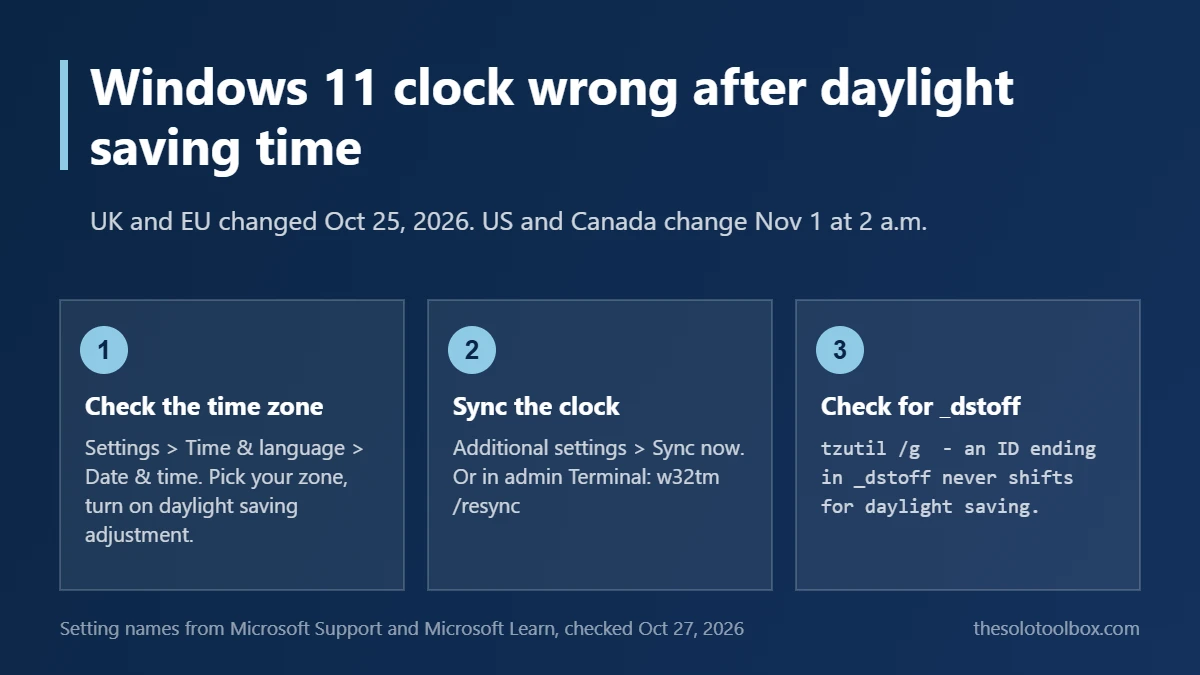
If your Windows 11 clock is an hour off after the clocks change, open Settings > Time & language > Date & time, turn on Set time zone automatically (or pick the correct Time zone and turn on Adjust for daylight saving time automatically), then select Sync now. A wrong time zone, a switched-off daylight saving toggle or a failed time sync causes most of these errors, and those three settings cover all of them.
The UK and most of Europe turned their clocks back on Sunday, October 25, 2026. The US and Canada follow on Sunday, November 1, at 2 a.m. local time. This guide walks through six fixes, from the Settings app to the command line, plus what to check when the clock resets after every restart. Setting names come from Microsoft’s support and command reference pages, checked on October 27, 2026.
Before you start
- Works on: Windows 11; Windows 10 has the same settings under Settings > Time & Language > Date & time
- Clock change dates: UK and EU on October 25, 2026; US and Canada on November 1, 2026 (Hawaii and most of Arizona don’t change)
- You’ll need: an administrator account for the command-line fixes
- Watch out: on a work or school PC, these settings may be locked by your IT department; ask them before changing anything
Why Windows shows the wrong time after a clock change
Windows keeps time in two parts: the underlying time it syncs from an internet time server, and the time zone rules it applies on top. An error of exactly one hour around a clock change almost always means the time zone side is wrong, not the sync. Match your symptom to the fix:
| What you see | Likely cause | Go to |
|---|---|---|
| Exactly one hour off since the clock change | Daylight saving adjustment turned off, or wrong time zone | Fix 1 |
| Time zone toggle is greyed out | Location services turned off | Fix 2 |
| Off by a few minutes or seconds | Time sync failed or hasn’t run | Fix 3 or Fix 4 |
| Correct in Settings, wrong after reboot, or off by several hours | Dual-boot or failing motherboard battery | Fix 6 |
| Settings look right but the hour never shifts | Time zone ID has DST switched off | Fix 5 |
Fix 1: Check the time zone and daylight saving toggle
- Open Start > Settings > Time & language > Date & time.
- If Set time zone automatically is on, Windows also handles daylight saving time for you. Skip to Fix 3 if the time is still wrong.
- If it’s off, open the Time zone drop-down and pick your actual zone, such as “(UTC-05:00) Eastern Time (US & Canada)” or “(UTC+00:00) Dublin, Edinburgh, Lisbon, London”. Picking a plain UTC offset or a neighbouring zone that doesn’t observe daylight saving time gives you a clock that’s an hour off for half the year.
- Turn on Adjust for daylight saving time automatically. Microsoft notes this toggle only appears when automatic time zone is off.
Fix 2: Turn on automatic time zone (and location)
If Set time zone automatically is greyed out or won’t stay on, Windows usually can’t use your location. Go to Settings > Privacy & security > Location, turn on Location services and Let apps access your location, then go back to the Date & time page. If you’d rather keep location off, leave the automatic option off and use Fix 1 instead; a manually chosen zone with the daylight saving toggle on handles the change just as well.
Fix 3: Sync the clock now
On the same Date & time page, scroll to Additional settings and select Sync now. Windows shows the time of the last successful sync and the server it used, which is time.windows.com by default. If sync fails, check that you’re online and that a VPN or firewall isn’t blocking it, then try again. Make sure Set time automatically is on, or Windows won’t keep syncing on its own.
Fix 4: Restart the Windows Time service from Terminal
When Sync now errors out, restart the service that does the syncing. Right-click Start, choose Terminal (Admin), and run:
net stop w32time
net start w32time
w32tm /resync
w32tm /query /status
The last command shows the time source and when it last synced. If w32tm /resync reports “The computer did not resync because no time data was available,” point Windows at Microsoft’s time server and try again:
w32tm /config /manualpeerlist:time.windows.com /syncfromflags:manual /update
w32tm /resync
Fix 5: Check the time zone ID with tzutil
The Settings app can hide one cause: a time zone that has daylight saving time switched off at the system level. In the same admin Terminal, run tzutil /g. It prints the current time zone ID. If the ID ends in _dstoff, as in Pacific Standard Time_dstoff, Windows will never shift the clock for that zone.
Set it back with the plain ID, in quotes. Microsoft’s command reference uses this format:
tzutil /s "Eastern Standard Time"The ID names don’t change with the season: “Eastern Standard Time” covers both EST and EDT, and “GMT Standard Time” covers UK time in winter and summer. Run tzutil /l to list every valid ID.
Fix 6: If the clock resets after every restart
Two causes show up here rather than in Settings:
- Dual-booting with Linux. Windows stores local time in the PC’s hardware clock, while most Linux distributions store UTC. After booting Linux, Windows can be off by your full UTC offset (five hours in New York in winter, for example) until it syncs. Sync now fixes it each time; the permanent fix is telling one system to match the other, usually on the Linux side.
- A failing motherboard battery. If the date and time jump back every time the PC is fully powered off, the small coin-cell battery that keeps the hardware clock running is likely dying. On a desktop it’s a cheap part to replace; on a laptop, check the manufacturer’s service guide first.
If Windows Update restarts are also catching you at bad times this week, our guide to stopping Windows 11 from restarting for updates during work hours sets active hours in the same Settings app.
Why a wrong clock causes other problems
A one-hour time zone error mostly causes missed meetings and wrongly timestamped files. If the underlying time is wrong too (the sync side, not the zone), more breaks: browsers show certificate date errors on HTTPS sites, and authenticator app codes can be rejected because they’re calculated from the current time. If sign-in codes suddenly stop working, fix the clock before resetting two-step verification on your Google or Microsoft account.
FAQ
Will Windows change the clock automatically on November 1?
Yes, if your time zone observes daylight saving time and either Set time zone automatically or Adjust for daylight saving time automatically is on. The change happens at 2 a.m. local time even if the PC is asleep; it shows the new time when it wakes.
Why is “Set time zone automatically” greyed out?
Usually because location services are off (Fix 2). On a work PC, a management policy can also lock it.
Does this apply to Windows 10?
Yes. The same toggles are under Settings > Time & Language > Date & time, and the w32tm and tzutil commands work the same way.
My clock is right but Outlook or Teams meetings are an hour off. Why?
Calendar apps can store their own time zone setting. Check the app’s own time zone option, and confirm that whoever sent the invite set the right zone when they created it.
Your next step
Open Settings > Time & language > Date & time now, confirm your time zone and the daylight saving toggle, and select Sync now. If you’re in the US, take a quick look again on the morning of Sunday, November 1.
Sources
- Microsoft Support: Set time, date, and time zone settings in Windows (checked October 27, 2026)
- Microsoft Learn: tzutil command reference (checked October 27, 2026)
- Windows Central: How to manage date and time settings on Windows 11 (updated December 23, 2024)
- Winhelponline: Time zone settings greyed out in Windows 11 (checked October 27, 2026)
- FOX 5 New York: When daylight saving time ends in 2026 (checked October 27, 2026)