Apple Watch wrong time after daylight saving? How to fix it
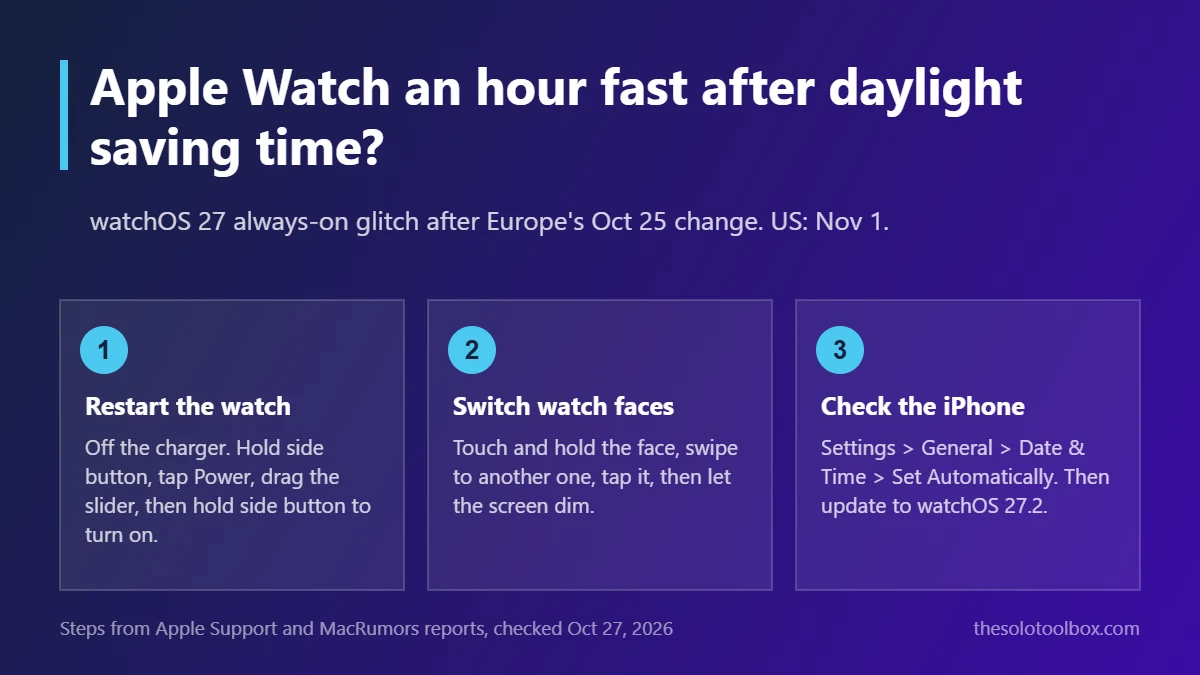
If your Apple Watch shows the right time when you raise your wrist but runs an hour fast on the always-on display or in standby, restart the watch. That cleared the problem for most of the owners who reported it after clocks went back in the UK and Europe on Sunday, October 25. Clocks in the US and Canada fall back on Sunday, November 1, at 2 a.m., so American owners on watchOS 27 may see the same glitch this weekend.
Below: what owners are reporting, four fixes in the order to try them, how to tell this bug apart from an ordinary time zone problem, and a short checklist for November 1. We checked MacRumors’ report and forum thread, Apple’s Apple Watch and iPhone time support pages, and the watchOS 27.2 release notes on October 27, 2026.
Before you start
- Who’s affected: some Apple Watch owners on watchOS 27, so far mainly in the UK and central Europe
- Symptom: the always-on or standby face stays on summer time, one hour fast; the time is correct when the watch is awake
- Fix that worked most often: turning the watch off and on again
- Latest update: watchOS 27.2, released October 26; Apple hasn’t said whether it fixes this
- Watch out: you can’t restart an Apple Watch while it’s on the charger
What owners are reporting
MacRumors reported on October 26 that a handful of readers in its forums, roughly five or six, saw their watch’s always-on display stick to summer time after the clocks changed on October 25. Raising the wrist or tapping the screen showed the correct time; once the screen dimmed again, it jumped back an hour ahead. The same thing showed up in standby mode.
What isn’t known yet: which watchOS 27 builds and which Apple Watch models are affected (one report came from a Series 12 owner), and how widespread the problem is. Apple had not commented when we checked on October 27. Treat this as a small, unconfirmed bug rather than a widespread failure, but one that’s easy to rule out.
This glitch is different from a watch that’s simply on the wrong time. Your Apple Watch takes its time and time zone from the paired iPhone, so if the iPhone is also an hour off, the cause is on the phone. Use this table to work out which problem you have:
| What you see | Likely cause | Fix |
|---|---|---|
| Correct when awake, one hour fast on always-on or standby | watchOS 27 daylight saving glitch | Restart the watch, or switch faces |
| Watch and iPhone both an hour off | iPhone time zone or automatic time is off | iPhone Settings > General > Date & Time |
| Face is a few minutes ahead, alarms are on time | Clock offset set on the watch | Watch Settings > Clock |
| Wrong time after travelling | iPhone can’t use location to set the time zone | Turn on Setting Time Zone in Location Services |
Fix 1: Restart your Apple Watch
Three of the owners in the MacRumors report said a restart fixed it. Take the watch off its charger first. Then, following Apple’s steps:
- Press and hold the side button until the power sliders appear.
- Tap the Power button.
- Drag the Power Off slider to the right.
- Once the screen is dark, press and hold the side button until the Apple logo appears.
When the watch is back on, lower your wrist and let the screen dim. If the always-on time now matches your iPhone, you’re done. Only use a force restart if the watch won’t turn off normally: hold the side button and the Digital Crown together for at least 10 seconds, until the Apple logo appears.
Fix 2: Switch to a different watch face
One owner said changing faces fixed the dimmed time without a restart. Touch and hold the current face, swipe to another one, and tap it. Wait for the screen to dim and check the time. You can switch back to your usual face afterwards; if the wrong time returns on that face, restart the watch instead.
Fix 3: Check your iPhone’s date and time settings
If the watch is wrong even when awake, check the phone it gets its time from. Apple’s steps:
- On your iPhone, open Settings > General > Date & Time and turn on Set Automatically.
- If you see a message that updated time zone information is available, restart your iPhone and your paired Apple Watch.
- Go to Settings > Privacy & Security > Location Services > System Services and turn on Setting Time Zone, so the iPhone can use your location to pick the right zone.
If Set Automatically is dimmed, Apple says a Screen Time passcode or a work device profile may be blocking it. To check the result against an independent clock, US readers can compare with time.gov.
Fix 4: Rule out the watch’s clock offset
watchOS lets you show the face ahead of the real time while alarms and notifications stay accurate. On the watch, open Settings > Clock. If the setting reads anything other than +0 min, tap it, turn the Digital Crown back to zero and tap Done. The offset maxes out at 59 minutes, so it can’t by itself cause a full one-hour error, but it can stack with one and make the time look stranger than it is.
Should you install watchOS 27.2?
Apple released watchOS 27.2 on October 26. The release notes cover Siri AI changes, such as remembering past conversations and new languages, plus unspecified “bug fixes and security updates.” They don’t mention the clock or daylight saving time, and the reports came in before most watches had installed it, so we can’t say whether it fixes this glitch.
It’s still worth installing for the security fixes. On the watch, open Settings > General > Software Update, or use the Watch app on your iPhone. The watch needs to be on its charger with at least 50% battery. If you’re also deciding which iPhone update to take this week, our guide to iOS 26.7.2 vs iOS 27.2 covers that choice. The same week, Apple started adding hidden watermarks to AI-edited iPhone photos; see how to check an iPhone photo for a SynthID watermark.
Before clocks change in the US on November 1
- Update midweek, not Saturday night. Install watchOS 27.2 a few days ahead so you aren’t troubleshooting an update and a time change at the same time.
- Check your alarms on Saturday evening. Open the Alarms app and confirm the times you need for Sunday.
- Check the dimmed face on Sunday morning. Raise your wrist, lower it, and compare the always-on time with your iPhone’s lock screen. If they differ, restart the watch.
- Skip it if you don’t change clocks. Hawaii and most of Arizona stay on standard time all year.
FAQ
Will my alarms go off at the wrong time?
The reports describe only the dimmed display; none we found mention alarms firing late or early. Apple says alarms and notifications follow the actual time even when you set the face ahead, but it hasn’t commented on this specific bug, so check your Sunday alarms anyway.
Can I set the time on my Apple Watch manually?
No. Apple’s watch time settings cover 24-hour time and showing the face ahead. The actual time and time zone come from the paired iPhone, which is why Fix 3 happens on the phone.
Has Apple fixed the daylight saving bug?
Apple hadn’t acknowledged it as of October 27, 2026, and the watchOS 27.2 release notes don’t mention it.
Does it affect older watchOS versions?
All the reports we found came from watches on watchOS 27.
Your next step
Tonight, take your watch off the charger, restart it, and update to watchOS 27.2. On Sunday, November 1, glance at the dimmed face once after you wake up; if it’s an hour fast, a restart is the quickest fix.
Sources
- MacRumors: Apple Watch users in Europe report daylight saving glitch (October 26, 2026)
- Apple Watch User Guide: Turn on, turn off or restart Apple Watch (checked October 27, 2026)
- Apple Support: Change the time settings on your Apple Watch (checked October 27, 2026)
- Apple Support: If you can’t change the time or time zone on your Apple device (checked October 27, 2026)
- MacRumors: Apple releases watchOS 27.2 (October 26, 2026)
- FOX 5 New York: When daylight saving time ends in 2026 (checked October 27, 2026)