How to take a screenshot of part of the screen on Windows 11
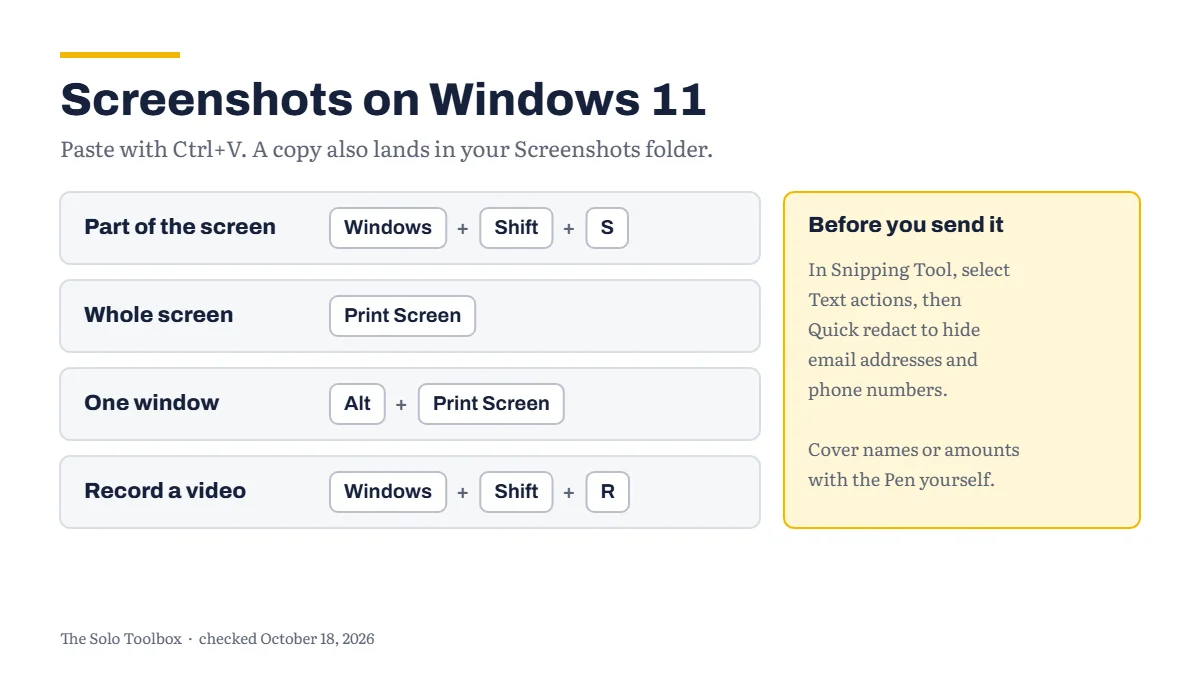
The fastest way to capture part of the screen on Windows 11 is Windows logo key + Shift + S. Drag a box around what you want, and the screenshot is copied so you can paste it into an email or document with Ctrl+V. Windows also saves it to your Screenshots folder. Before you send a screenshot to a client or a support team, open it in Snipping Tool and hide anything private: Microsoft’s Quick redact can black out email addresses and phone numbers in one click.
Before you start
- You’ll need: a Windows 11 PC. Snipping Tool is built in, so there’s nothing to install.
- Applies to: Windows 11 with the current Snipping Tool app.
- Time: a few seconds per screenshot, plus a minute if you redact or annotate.
- How we checked this: based on Microsoft’s own support pages, checked October 18, 2026. Snipping Tool is updated through the Microsoft Store, so some buttons may look slightly different on your PC.
Capture part of the screen
- Press Windows logo key + Shift + S. Windows opens the snipping overlay with its capture modes.
- Choose a mode from the toolbar (see below), then make your selection.
- The screenshot is copied, ready to paste with Ctrl+V.
The four modes:
- Rectangle: drag a box around an area. This is the one you’ll use most.
- Window: click a single window or dialog box.
- Full screen: captures everything straight away.
- Freeform: draw any shape around what you want.
Microsoft says snips are also saved automatically to your Screenshots folder, so you can find them later even if you’ve copied something else since.
Capture the whole screen or one window without Snipping Tool
Two older shortcuts still work and copy the image straight to the clipboard:
- Print Screen (sometimes labelled PrtSc or PrtScn) copies the entire screen.
- Alt + Print Screen copies only the window you’re working in.
Paste the result with Ctrl+V. These shortcuts don’t give you a chance to crop or redact first, so for anything you’re sending outside your business, the Snipping Tool route is safer.
Hide private details before you send it
Screenshots often show more than you meant to: an email address in a sidebar, a client’s phone number, an invoice total. Snipping Tool can read the text in a screenshot and hide some of it for you.
- Open Snipping Tool from the Start menu and select New to take the screenshot there, so it opens in the editor.
- Select Text actions. Microsoft says the text recognition runs locally on your PC.
- Select Quick redact to hide email addresses and phone numbers.
- For anything else, such as names or amounts, draw over it with the Pen before you copy or save.
Check the result before sending. Automatic redaction looks for email addresses and phone numbers, not every kind of private information.
Mark up a screenshot
The same Snipping Tool window has simple annotation tools:
- Pen and Highlighter to circle or underline something.
- Shapes to add shapes or emoji.
- Image crop to trim the edges.
- Undo and Redo if you change your mind.
For resizing or more editing, select Edit, then Edit with Paint. Press Ctrl+C to copy the finished image, or use Save as to keep a separate copy.
Capture a menu that disappears
Some menus close as soon as you press a key. Use the timer instead:
- Open Snipping Tool from the Start menu.
- Select Delay and choose a time, such as 5 seconds.
- Choose a snipping mode, select New, then open the menu you want to capture before the countdown ends.
Record the screen instead
To show a client how to do something, a short video can be clearer than a series of screenshots. Press Windows logo key + Shift + R, select the area, select Start, and select Stop when you’re done. Microsoft says you can then save the recording or edit it in Clipchamp.
If it doesn’t work
- You can’t find a screenshot you took: look in your Screenshots folder. To change where Snipping Tool saves, open it and select See More, then Settings.
- Pasting gives you something else: you copied something after taking the screenshot. Open the Screenshots folder and use the saved copy instead.
- Print Screen does nothing visible: that’s expected. It copies the screen silently; paste with Ctrl+V to see it.
If you paste screenshots into an AI assistant to ask for help, the same privacy rule applies. Our guide to keeping client data out of AI training explains the settings to check first. For more step-by-step guides like this one, browse our how-to guides.
Sources
Last checked: October 18, 2026. Microsoft updates Snipping Tool regularly. If something here no longer matches what you see, let us know.