How to Stop Android Auto From Playing Music Automatically

To stop Android Auto from playing music automatically, open your phone’s Settings, go to Connected devices > Android Auto, and turn off Start music automatically under Startup. If audio still starts when you plug in, the play command is usually coming from your car’s head unit, a Bluetooth connection or the music app itself, and the fixes below deal with each of those.
Google also started rolling out a fix in early October 2026 for a bug that played music for a moment at startup even with autoplay turned off. This guide covers the setting, what that fix changes, and what to try when music keeps starting anyway.
Before you start
- Steps were checked on October 21, 2026 against Engadget’s October 19 how-to and Google’s October announcement as reported by 9to5Google and Android Headlines. Sources are at the end.
- Menu names can differ slightly between phone makers and Android Auto versions. If you can’t find a path, use the search bar at the top of your phone’s Settings app and type “Android Auto”.
- Make these changes while parked. You don’t need the car switched on for the phone settings.
Turn off autoplay in Android Auto settings
On phones running Android 10 or later, Android Auto lives inside the system Settings app rather than as a separate app in your app drawer.
- Open Settings on your phone.
- Tap Connected devices, then Android Auto. On some phones it’s under Connected devices > Connection preferences, or you can search for it.
- Scroll to the Startup section.
- Turn off Start music automatically.
The setting is tied to your phone, not the car, so it applies in every vehicle you connect to. It’s a good first step, but it only controls what Android Auto itself does at startup. A car stereo or app that sends its own “play” command can still start audio.
What Google’s October 2026 autoplay fix changes
Google acknowledged in an October 2026 Reddit post, reported by 9to5Google on October 7, that Android Auto briefly played music when the car started even with autoplay disabled. Google said a fix is rolling out so that “unsolicited play commands” are no longer sent at startup when autoplay is off. Two related changes came with it:
- Apps you haven’t used recently, or have never used, will no longer be picked for autoplay.
- If Android Auto notices you often pause playback right after it starts, it will show a one-tap prompt to turn autoplay off.
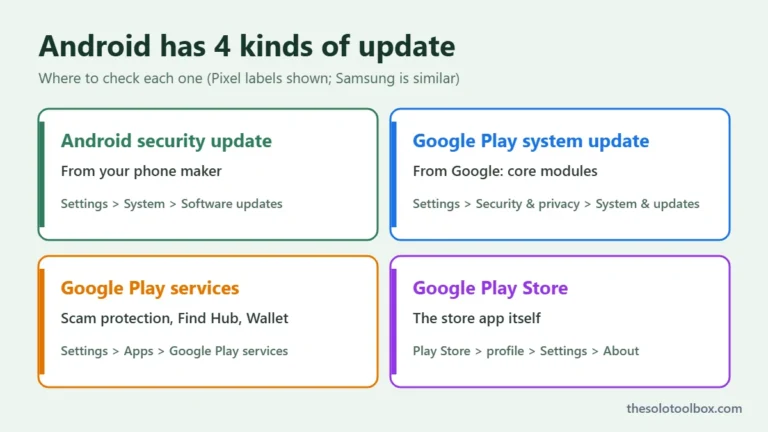
Google didn’t name the Android Auto version that carries the fix, so there’s no version number to check against. Updating Android Auto from the Play Store gives you the best chance of having it. Open the Play Store, search for Android Auto and tap Update if the button appears. While you’re there, our guide to checking for a Google Play system update shows how to install the other background updates Android Auto depends on.
If music still starts on its own
When the toggle is off and audio still plays, work through these in order. Each one rules out a different source of the play command.
| What you notice | Likely source | What to try |
|---|---|---|
| Music starts the moment the phone connects, before Android Auto loads | Car head unit or Bluetooth | Remove the phone from the car’s Bluetooth list and reconnect with USB only, if your car supports it |
| Music starts only in one car | That car’s media settings | Check the head unit for an auto-play or “resume media” option in its own settings |
| Spotify starts but other apps don’t | Spotify or a paired accessory | Test with headphones and speakers unpaired, then check Spotify’s settings and permissions |
| An app you never use starts playing | Android Auto’s app choice | Update Android Auto; Google’s October fix stops unused apps being picked |
Reconnect with USB only
Engadget suggests removing your phone from the car’s Bluetooth memory and connecting with a cable only. In some cars, the Bluetooth audio profile sends a play request as soon as it links, separate from Android Auto. This doesn’t work everywhere: many cars need Bluetooth for calls or for wireless Android Auto, so you may lose hands-free calling until you pair again.
Check other Bluetooth devices
A pair of earbuds or a speaker that’s still paired to your phone can send a play command when it reconnects or wakes up. Turn those devices off, or unpair them in Settings > Connected devices, and see if the problem stops on your next drive.
Look at Spotify specifically
Spotify users have reported Android Auto autoplay problems on Spotify’s community forums since at least 2022, and Engadget notes there’s no guaranteed fix. Spotify’s own Autoplay option in the app’s Settings controls whether similar music plays after your album or playlist ends. It doesn’t control what happens when you start the car, so turning it off won’t stop startup playback on its own. If you also use Spotify for podcasts, our guide to Spotify podcast memberships covers the newer playback options there.
Remove the app from Android Auto as a last resort
If one app keeps starting no matter what, you can hide it from Android Auto. Engadget lists this as the last option because you won’t be able to use that app from the car screen at all. In the Android Auto settings on your phone, open the launcher customization option and untick the app.
FAQ
Why does Android Auto start playing music when I connect?
By default, Android Auto resumes the last media app you used so audio is ready when you start driving. The Start music automatically toggle turns that off. Before Google’s October 2026 fix, a bug could still send a short play command at startup even with the toggle off.
Does turning off autoplay affect navigation or calls?
No. The setting only controls whether media starts on its own. Maps, calls and voice commands work as before, and you can still start music with a tap or a voice command.
Is there a version number for the autoplay fix?
Google hasn’t published one. It described the fix as rolling out, which usually means it reaches phones gradually through Play Store updates over several weeks.
Can I stop autoplay from the car’s screen instead of my phone?
Engadget’s guide and Google’s announcement both point to the phone settings. Some cars also have their own auto-play option in the head unit’s media menu, which you’ll find in your car’s manual.
Next step
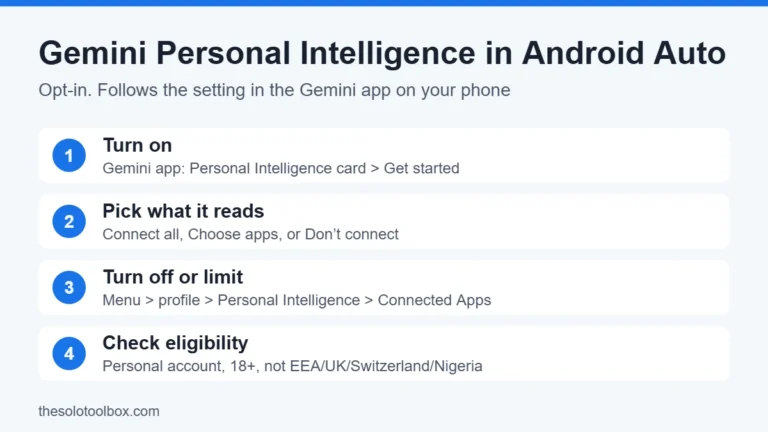
Turn off Start music automatically now, update Android Auto in the Play Store, and drive once before changing anything else. If music still plays, remove the phone from the car’s Bluetooth list and test with USB alone. For another recent change in the car, see our guide to Gemini Personal Intelligence on Android Auto.
Related guides
Sources
- Engadget: How to stop audio from auto-playing on Android Auto (October 19, 2026)
- 9to5Google: Android Auto rolling out fix for autoplay settings (October 7, 2026)
- Android Headlines: Android Auto gets a fix for annoying autoplay bug (October 8, 2026)
- Spotify Community: Disable autoplay on Android Auto (user thread)