One UI 9 update stuck on “Access Denied”? How to fix it

If your Galaxy phone shows an “Access Denied” screen or a page of XML code after the One UI 9 update, force restart it by holding Volume Down and the Side key for more than 7 seconds. A Samsung support moderator said on the Samsung Members forum that the error came from server maintenance during first setup, and that the maintenance has finished. If a restart doesn’t clear it, users report that starting in Safe Mode with the phone offline gets them past the screen without losing data.
This guide covers both One UI 9 setup problems reported this month, the order of fixes to try, what to do on a Galaxy S26 Ultra stuck on the last setup step, and how to update safely if your phone hasn’t installed One UI 9 yet.
Before you start
- Facts and steps were checked on October 21, 2026 against Samsung’s support pages, a Samsung Members moderator reply and reports from SamMobile and Sammy Fans. Sources are listed at the end.
- None of these steps erase your data. Do not factory reset the phone to get past the error screen.
- Charge the phone or plug it in first. Samsung’s force-restart page says to make sure there is enough battery before you start.
What’s happening with One UI 9
One UI 9 is Samsung’s Android 17 update. It started on the Galaxy S26 series in South Korea on September 16, 2026, and has since reached the S25, S24 and S23 families, recent foldables and several A-series phones. The Galaxy S23 global rollout began on October 19, and the Galaxy A36 and A37 got the stable update in the US on October 20, so a lot of phones are installing it this week.
Two separate problems have been reported:
| Problem | What you see | Phones in reports | Status |
|---|---|---|---|
| “Access Denied” screen | An error page or raw XML text after the update restarts the phone, where the welcome or changelog screen should be | Galaxy S24, S25 and S26 series, some foldables, Galaxy A57 | A Samsung moderator blamed server maintenance and said it is complete |
| Setup screen freeze | Setup screens work, but the final step won’t finish | Galaxy S26 Ultra, reports so far from South Korea | Samsung has acknowledged it; a fix is expected in the next update |
Both happen at the end of the update, during the short setup flow One UI shows after a major upgrade. Your files are still on the phone. The problem is that you can’t reach the home screen.
How to fix the “Access Denied” screen after the One UI 9 update
Try these in order and stop as soon as the phone reaches the home screen.
1. Force restart the phone
Hold Volume Down and the Side key together for more than 7 seconds, until the screen goes dark and the Samsung logo appears. This is the restart method on Samsung’s own support page, and it’s what the Samsung moderator recommended to owners who still saw the error after the maintenance ended. The S25 Ultra owner who started that thread later wrote that the phone was working, without saying which step did it.
2. Start in Safe Mode
If the error comes back, boot into Safe Mode. Safe Mode loads only the apps that came with the phone, and users on Reddit and the Samsung Members forum report that it gets them past the error screen.
- Hold Volume Down and the Side key for more than 7 seconds to force a restart.
- When the Samsung logo appears, let go of the Side key but keep holding Volume Down.
- Keep holding until the phone finishes starting. You should see “Safe Mode” in the bottom-left corner of the screen.
3. Take the phone offline
The common thread in user reports is the network connection during that first setup screen. While in Safe Mode, swipe down from the top of the screen and turn on Airplane mode. If you can’t reach Quick settings, take the phone out of range: switch off your Wi-Fi router for a few minutes or remove the SIM tray. Finish any setup screens while the phone has no connection.
4. Restart normally and reconnect
Hold the Side key and tap Restart, or hold Volume Down and the Side key for at least 5 seconds. The phone leaves Safe Mode after a full restart. Once you reach the home screen, turn off Airplane mode and put the SIM back if you removed it.
Steps 2 to 4 are a community workaround, not an official Samsung fix. SamMobile and Sammy Fans both reported it from user posts, and it may not work on every phone.
Galaxy S26 Ultra stuck on the last setup step
This is a different bug. On some S26 Ultra units, the setup screens after One UI 9 respond normally, but the final step won’t complete. Sammy Fans reported on October 20 that Samsung has acknowledged it and plans to fix it in the next over-the-air update. The reports so far come from South Korea and seem to be linked to signing in to a Samsung Account on certain mobile carriers. That link is not confirmed.
The workaround from a Samsung Members moderator:
- Switch the phone from mobile data to Wi-Fi, then try the final setup step again.
- If that fails, sign in to your Samsung Account through Samsung’s official account website in a browser, then return to the phone.
- Don’t reset the phone while you wait for Samsung’s fix.
If none of this works
If the phone still won’t get past setup, stop before anything that wipes it. A factory reset from the recovery menu deletes everything that isn’t backed up. Take the phone to a Samsung service center or contact Samsung support, and tell them the phone shows the error after the One UI 9 update. Bring a note of your model number and any message on the screen.
Haven’t updated yet? Do this first
The update is still rolling out by region and carrier, so you may see it this week. You can lower the risk:
- Back up your phone first with Samsung Cloud, Google One or Smart Switch on a computer.
- Make sure the phone is well charged before you tap Download and install.
- Install it when you have time to deal with a problem, not right before you leave the house.
- If you’d rather wait a few days for more reports, open Settings > Software update and turn off Auto download over Wi-Fi so the phone doesn’t fetch the update on its own.
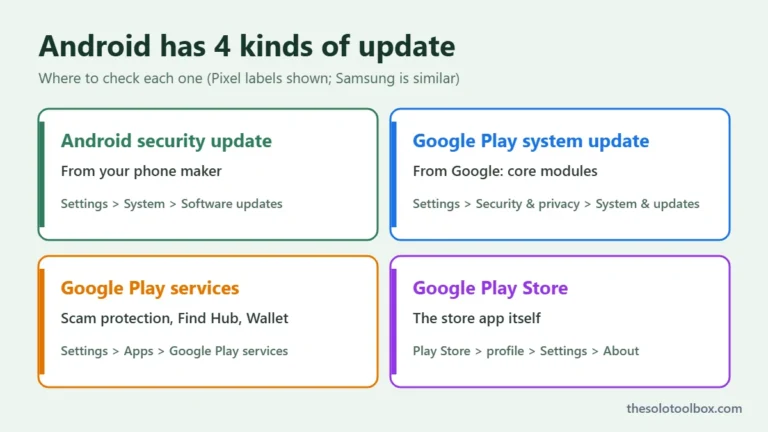
To install when you’re ready, go to Settings > Software update > Download and install. While you’re in Settings, also check your Google Play system update, which comes from Google rather than Samsung. Our guide to how to check for a Google Play system update shows where to find it.
FAQ
Will the One UI 9 “Access Denied” error delete my data?
No reports describe data loss from the error itself. Your files stay on the phone; you just can’t reach the home screen. The risk is a factory reset, which does delete data, so use the restart and Safe Mode steps first.
Which Samsung phones have the One UI 9 setup bug?
Reports of the “Access Denied” screen name the Galaxy S24, S25 and S26 series, some Galaxy Z foldables and the Galaxy A57. The separate setup freeze has only been reported on the Galaxy S26 Ultra. Samsung has not published a list of affected models.
Has Samsung fixed the One UI 9 update problem?
For the “Access Denied” screen, a Samsung support moderator said the cause was server maintenance and that it is complete. For the S26 Ultra setup freeze, Samsung has acknowledged the bug, and Sammy Fans reports the fix will come with the next update. No date has been given.
Should I install One UI 9 now?
Most phones have installed it without trouble, and the main error was tied to a temporary server problem. If you depend on your phone for work this week, waiting a few days and backing up first costs you little. If you install it, do it on Wi-Fi with the phone charged.
Next step
Before you tap Download and install, run a full backup with Smart Switch or Samsung Cloud. If the update does get stuck, restart first, use Safe Mode second, and avoid a reset. And if a message or pop-up offers to “fix” your update with an app, check it against our guide to spotting fake apps on Google Play before you install anything.
Related guides
Sources
- Samsung Members: S25 Ultra “access denied” error after updating to One UI 9 (Samsung moderator reply)
- Samsung Support: How to force reboot your Samsung Galaxy smartphone
- Samsung Support: Using Safe Mode on my Galaxy device
- Sammy Fans: Samsung confirms One UI 9.0 bug freezing Galaxy S26 Ultra (October 20, 2026)
- Sammy Fans: One UI 9.0 official update now rolling out to these Samsung phones (updated October 20, 2026)
- Sammy Fans: Galaxy A37 and A36 get One UI 9 stable update in the US (October 20, 2026)
- SamMobile: Samsung breaks One UI 9 updates, here’s the quick fix (October 12, 2026)
- ProPakistani: Samsung owners should avoid One UI 9.0 software update for now (October 14, 2026)