How to turn off ACR on your smart TV (no hacking needed)
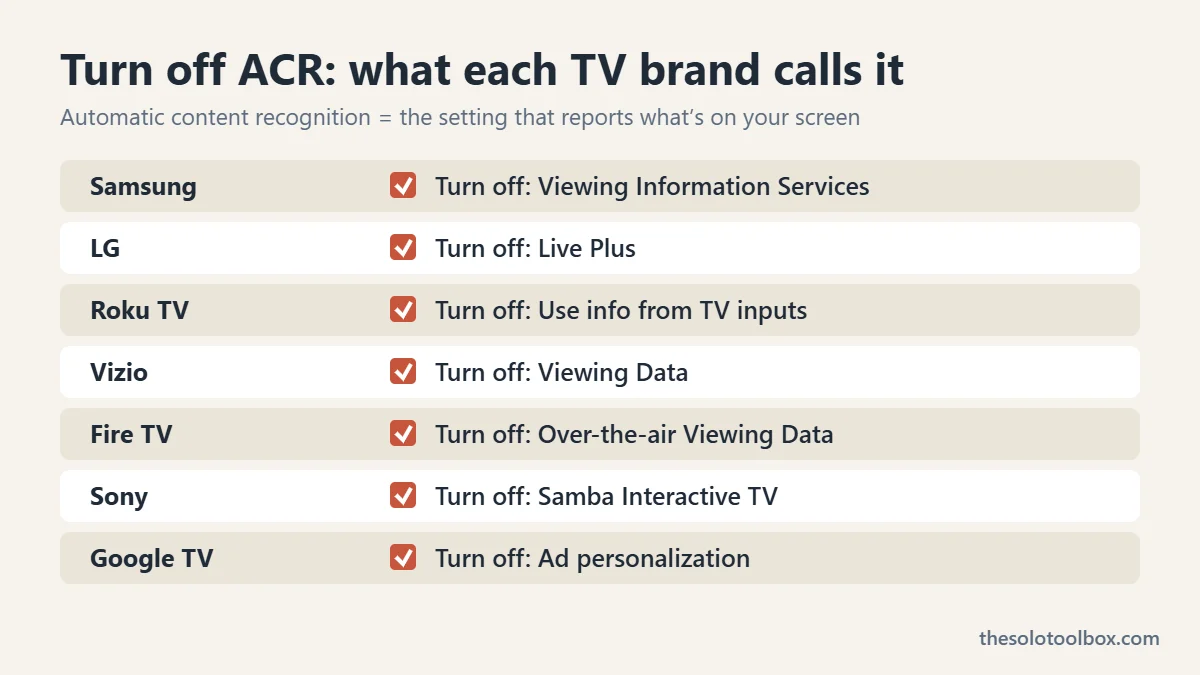
To turn off ACR (automatic content recognition) on your smart TV, open its privacy settings and switch off the viewing-data option. Samsung calls it Viewing Information Services, LG calls it Live Plus, Roku calls it Use info from TV inputs, and Vizio calls it Viewing Data. It takes about two minutes per TV and needs no extra software.
Over the past few days, a few thousand people pointed AI coding agents at their TVs to strip out ads and tracking, and at least one bricked a TV doing it. The built-in switches below stop the main tracking feature without that risk. This guide covers each major brand, what the settings do and don’t stop, and when the DIY route is worth it.
Before you start
- You’ll need: your TV remote and about 2 to 5 minutes per TV.
- Covers: Samsung (Tizen), LG (webOS), Roku TV, Vizio, Amazon Fire TV, Google TV and Android TV, and Sony.
- Heads-up: menu names vary by model year and region. If a label doesn’t match, search the TV’s settings for “privacy,” “viewing” or “ACR.”
What ACR is and why it’s in the news
ACR identifies what’s on your screen by taking frequent samples of the picture or sound and matching them against a database. It works on anything shown on the TV, including cable boxes, game consoles and antenna channels, not just the built-in apps. TV makers use the data for ad targeting and audience measurement.
On October 19, 2026, TechCrunch reported that developers and hobbyists were using AI agents such as Claude Code to “hack” their TVs. Two open-source projects, dumbtv and cleanyourtv, remove preinstalled apps, swap the home screen launcher and block tracking on Android TV, Google TV and Fire TV sets. The creator of cleanyourtv said a few thousand people ran it within two days. The same report notes that one user bricked an Android TV and another got stuck partway through a Fire TV hack.
Turn off ACR by brand
| Brand / platform | Setting to turn off | Where to find it |
|---|---|---|
| Samsung | Viewing Information Services | Settings > Support > Terms & Privacy > Privacy Choices |
| LG (webOS) | Live Plus | Settings > General > System > Additional Settings |
| Roku TV (incl. many TCL, Hisense, Sharp) | Use info from TV inputs | Settings > Privacy > Smart TV Experience |
| Vizio | Viewing Data | Settings > Privacy & Legal (older: Admin & Privacy) |
| Amazon Fire TV | Over-the-air Viewing Data, Collect App Usage Data | Settings > Preferences > Privacy Settings |
| Google TV / Android TV | Ad personalization | Settings > Privacy > Ads |
| Sony (Google TV) | Samba Interactive TV | Settings > System or Settings > Privacy |
Samsung
- Open Settings and go to Support > Terms & Privacy > Privacy Choices. On some models, press Home, move left to the menu and choose Privacy Choices directly.
- Uncheck Viewing Information Services. This is Samsung’s ACR.
- Uncheck Interest-Based Advertisements as well to stop ad targeting.
- Turn off Voice Recognition Services if you don’t use voice commands.
LG
- Press Home, then the Settings button on the remote, and choose All Settings.
- Go to General > System > Additional Settings and turn off Live Plus. On some models, Live Plus is directly under General or System.
- In User Agreements (under General or Support, depending on the model), you can also withdraw consent for viewing information and interest-based advertising.
Roku TV
- From the home screen, go to Settings > Privacy > Smart TV Experience.
- Uncheck Use info from TV inputs.
- Under Settings > Privacy > Advertising, turn on the option to limit ad tracking.
Vizio
- Go to Settings > Privacy & Legal > Viewing Data. On older models, the path is Settings > Admin & Privacy > Viewing Data.
- Switch Viewing Data off. Vizio says this deletes your TV’s stored viewing data logs from its database and doesn’t affect picture or performance.
Amazon Fire TV
- Go to Settings > Preferences > Privacy Settings.
- Turn off Device Usage Data and Collect App Usage Data.
- On TVs with Fire TV built in, turn off Over-the-air Viewing Data. It covers channels received through an antenna.
- Turn off Interest-based Ads.
Google TV, Android TV and Sony
- Go to Settings > Privacy > Ads and turn off Ad personalization. Some models put this under Settings > Accounts instead.
- On Sony TVs, also turn off Samba Interactive TV, a third-party ACR service. Look under Settings > System or Settings > Privacy.
- TCL and Hisense TVs that run Google TV follow the same paths. Their Roku TV models follow the Roku steps above.
What these settings don’t stop
These switches stop the TV from identifying what you watch. Several other things keep running:
- Home screen ads. Banner ads and sponsored rows stay. The settings stop them from being targeted with viewing data.
- App-level tracking. Netflix, YouTube, Prime Video and other apps keep their own watch history under your account with them.
- Diagnostics. Tom’s Guide notes that some TVs still collect limited diagnostic data after you opt out.
- Settings resets. A factory reset or some firmware updates can bring back the default consent screens. Check again after any major update.
The most thorough option is to leave the TV offline and plug in a streaming stick or box whose privacy settings you control. An offline TV can’t send ACR data. It also can’t get security updates, so this only makes sense if a separate device handles all your streaming.
Should you try the AI “dumb TV” hacks?
The dumbtv and cleanyourtv projects connect to the TV over your home Wi-Fi and remove or disable system apps. According to the cleanyourtv creator, no rooting is needed and a factory reset undoes the changes. That makes them lower risk than flashing firmware. They still disable system packages. An AI agent that removes the wrong one can leave the TV stuck in a boot loop, as one person reported.
If you want to try it, do it on a spare or out-of-warranty TV, read the project’s supported-device list first, and make sure you know how to reach your TV’s recovery or factory reset menu. For most people, the built-in settings above plus an alternative launcher app from the Google Play Store (TechCrunch’s report names Projectivity Launcher, FLauncher and ATV Launcher) get most of the benefit.
Giving an AI agent network access to a device also deserves the same care as giving it your API keys. Our coverage of the OpenCode breach shows how AI tool accounts become targets. Your router matters too. Check whether yours is affected by the Broadcom WPS flaw.
FAQ
Does turning off ACR make my TV slower or break features?
No core features depend on it. You may lose “recommended for you” rows that are based on what you watched through other inputs. Vizio states that turning off Viewing Data doesn’t affect performance.
Is my TV listening to me through the microphone for ACR?
ACR, as TV makers describe it, works from samples of the picture or sound the TV itself is playing, not from a room microphone. Voice features are a separate setting, so turn off voice recognition too if your remote or TV has a mic you don’t use.
Do I need to do this on every TV in the house?
Yes. The settings are per device, and some brands also have account-level ad settings. Amazon lets you manage privacy settings for some Fire TV smart TVs at amazon.com/mycd under Privacy Settings.
Can I just decline the privacy terms when I set up a new TV?
Usually yes. Most brands let you skip optional agreements during setup, and the TV keeps working. If you already accepted them, the steps above withdraw that consent.
How we checked: menu paths come from Vizio’s and Amazon’s official privacy pages and from The Markup’s and Tom’s Guide’s brand-by-brand guides, cross-checked on October 20, 2026. We did not test every model year, so your labels may differ slightly.
Related guides
Sources
- TechCrunch: People are using AI to make their smart TVs dumb again (Oct 19, 2026)
- VIZIO: Viewing Data overview and how to turn it off
- Amazon: Privacy settings FAQs for Fire TV devices
- The Markup: Your smart TV knows what you’re watching
- Tom’s Guide: How to turn off data collection on LG, Samsung, Roku and more (Jan 2026)
Next step: grab the remote, open your TV’s privacy menu using the table above, and turn off the ACR setting. Then do the same on any other TVs in the house.