How to Turn Off Chrome Enhanced Autofill and Its Gmail Access
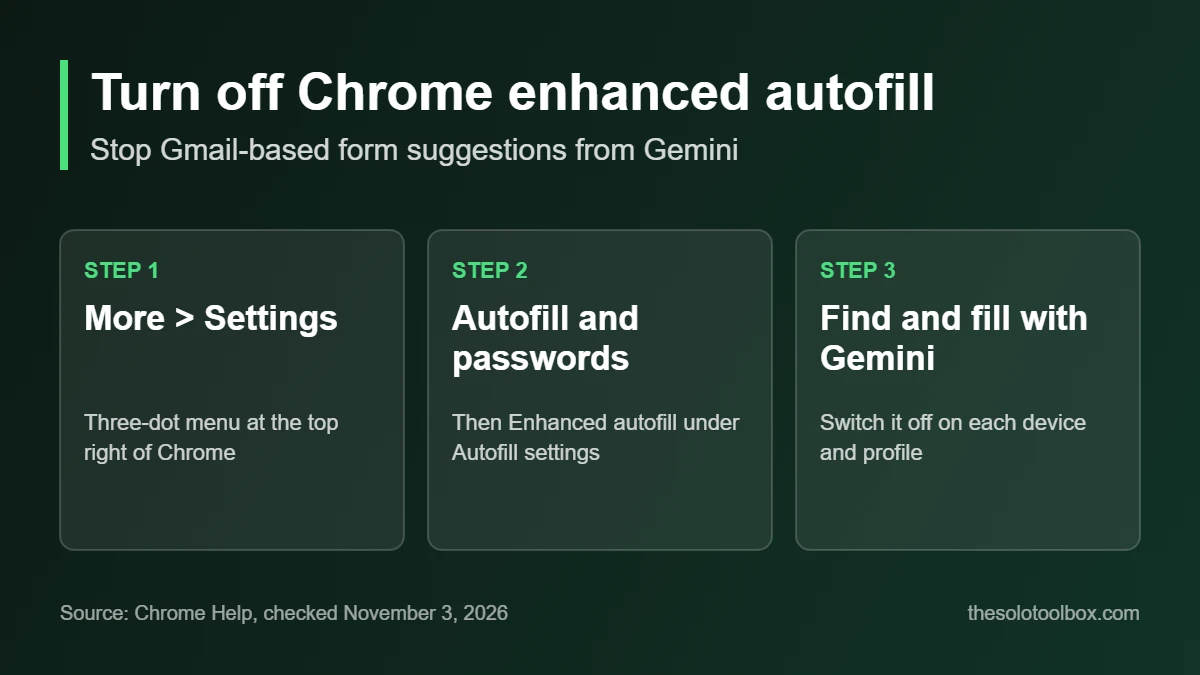
To turn off Chrome enhanced autofill, open Chrome’s menu (the three dots at the top right), go to Settings > Autofill and passwords, select Enhanced autofill under “Autofill settings”, and switch off Find and fill with Gemini. That stops Chrome from suggesting order numbers, tracking details and flight bookings it finds in your Gmail when you fill out forms.
This guide covers who has the feature, the steps on desktop and Android, how to remove a single Gmail-sourced suggestion without turning everything off, and how it differs from Chrome’s regular autofill.
Before you start
- You’ll need: Chrome on a computer or Android phone, signed in to the Google Account that uses Gemini in Chrome
- Time: about 2 minutes per device
- Key fact: the setting is called Find and fill with Gemini, under Settings > Autofill and passwords > Enhanced autofill
What changed in Chrome autofill
Google announced on October 28, 2026 that Chrome’s enhanced autofill can now pull information from Gmail. Using Gemini with Personal Intelligence, it suggests details such as order numbers, tracking information and flight bookings while you fill in a web form. Chrome’s help page adds vehicles to the list of Gmail data it can use.
Gmail-based suggestions show up in the autofill dropdown with the Gemini spark icon next to them, which is how you tell them apart from your saved addresses and cards.
According to Google’s Chrome Help page, the feature is available on desktop, Android and iOS for Gemini in Chrome users in the US who are 18 or older and have opted into Gemini Personal Intelligence. If you never turned on Personal Intelligence, you should not see these suggestions.
How to turn off Chrome enhanced autofill on a computer
- Open Chrome and select More (the three-dot icon) at the top right.
- Select Settings, then Autofill and passwords.
- Under Autofill settings, select Enhanced autofill.
- Turn off Find and fill with Gemini.
The setting applies to the Chrome profile you are in. If you use several Chrome profiles, repeat the steps in each one.
How to turn it off on Android
- Open Chrome and tap More (three dots) at the top right.
- Tap Settings, then Autofill and passwords.
- Under Autofill settings, tap Enhanced autofill.
- Turn off Find and fill with Gemini.
What about iPhone and iPad?
Google says the Gmail suggestions are rolling out on iOS too, but when we checked Chrome’s iPhone and iPad help page on November 3, 2026, it did not yet describe an Enhanced autofill section or the toggle’s location. Look under More > Settings > Autofill and passwords in Chrome for iOS. If the option is not there, the feature has likely not reached your device yet.
Remove one Gmail suggestion instead
If you like the feature but one suggestion is wrong or too personal, you can drop just that item:
- Desktop: open the autofill dropdown, hover over the suggestion with the Gemini icon and select Remove from Chrome. You can also select the source link to open the original email in a new Gmail tab.
- Android: long-press the Gemini suggestion chip above the keyboard and tap Remove suggestion. Tap View sources to see which email it came from.
Chrome’s help page notes two limits: you cannot edit information pulled from Gmail inside Chrome, and removing a suggestion does not delete the original email. Deleting the email in Gmail does remove the suggestion.
Enhanced autofill vs regular Chrome autofill
Turning off Find and fill with Gemini does not touch the addresses, cards and passwords you saved in Chrome. Here is how the related settings compare:
| Setting | What it uses | Where to find it |
|---|---|---|
| Find and fill with Gemini (enhanced autofill) | Details Gemini finds in your Gmail: orders, tracking, flights, vehicles | Settings > Autofill and passwords > Enhanced autofill |
| Save and fill [category] | Contact info, payments, passwords, identity docs and travel info you saved in Chrome | Settings > Autofill and passwords, then the category |
| Smarter form understanding | A separate setting that does not use Gmail; on by default | Settings > Autofill and passwords, under Autofill settings |
To stop Chrome autofilling a type of saved data, open that category and turn off its Save and fill switch. Chrome’s help page warns that on Android, turning off autofill stops saving and filling for that data across your devices.
For work and school accounts
Admins control this through the Chrome Enterprise policy AutofillPredictionSettings, in the Google Admin console under Devices > Chrome > Settings, in the Generative AI section. Google’s admin help lists the default for Workspace for Education and cloud-managed Chrome Enterprise browsers as “Allow feature without improving AI models”, while consumer and third-party managed browsers default to “Allow feature and improve AI models”. If the toggle is greyed out on a work device, your admin has set it.
FAQ
Does Chrome read my whole Gmail inbox?
Google’s announcement says the feature surfaces details like order numbers, tracking information and flight bookings, and that sensitive data is encrypted. It does not say exactly what Chrome scans to find them. If that is a concern, turn the feature off and review your Personal Intelligence connections in Gemini.
Will turning this off disable Gemini in Chrome?
No. The toggle only controls Gmail-sourced autofill suggestions. Gemini in Chrome and your Personal Intelligence settings in the Gemini app are separate.
Is enhanced autofill available outside the US?
Not yet. Google’s help page limits it to US users aged 18 and over.
Does this affect Google’s use of Gmail for ads?
No, that is a separate setting. Our guide to keeping Gmail out of your Google ads covers it.
Next step
Turn off Find and fill with Gemini on each device where you use Chrome, then check where else Personal Intelligence is connected. Our guides to turning Gemini Personal Intelligence on or off in Android Auto and keeping your data out of AI training cover the other places your inbox and chats feed into AI features.
Sources
Steps checked on November 3, 2026 against Google’s Chrome Help and Chrome Enterprise help pages. We did not test the feature on a device because it requires a US account enrolled in Personal Intelligence; labels may differ slightly as Google updates Chrome.