How to make a GIF in ChatGPT with Images 2.6
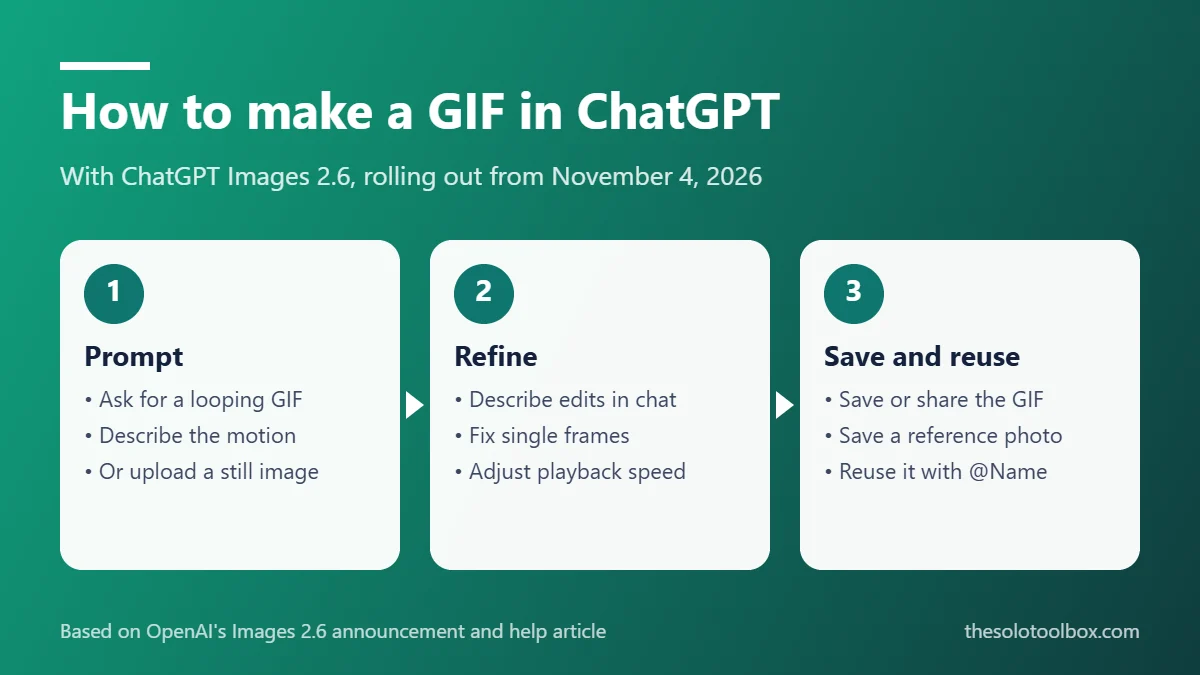
To make a GIF in ChatGPT, ask for a looping GIF and say what should move, for example “Make a looping GIF of a paper boat bobbing on the water.” You can also upload a still photo and ask ChatGPT to animate it. The feature arrived with Images 2.6 on November 4, 2026, and OpenAI says it is rolling out to every ChatGPT plan, including Free, on web, desktop and mobile.
This guide walks through creating a GIF, editing its speed and frames, saving it, reusing reference photos with @ mentions, and what is still unclear about limits.
Before you start
- Applies to: ChatGPT on web, desktop, iOS and Android, all subscription tiers (rolling out from November 4, 2026)
- Model: ChatGPT Images 2.6
- You’ll need: a ChatGPT account and, optionally, a still image to animate
- How we checked this: OpenAI’s Images 2.6 announcement and its “Images in ChatGPT” help article, both read on November 4, 2026, plus The Verge’s launch coverage. We haven’t measured GIF length, frame count or file size, and OpenAI hasn’t published them.
What’s new in ChatGPT Images 2.6
| Feature | What it does | Where |
|---|---|---|
| Animated GIFs | Turns a prompt or a still image into a looping GIF | ChatGPT (rolling out) |
| GIF editing | Change playback speed, view and edit individual frames | ChatGPT |
| Reference photos | Save a photo once and reuse it with @Name in later chats | ChatGPT |
| Faster generation | OpenAI says images generate 50% faster than before | ChatGPT, Codex, API |
| GPT-Image-2.6 Flare and Sunburst | Two API models: Flare for speed (as little as six seconds at low quality), Sunburst for quality and consistency across edits | API only |
OpenAI’s announcement also says people now create about 4 billion images a week across ChatGPT, Codex and the API.
How to make a GIF in ChatGPT from a prompt
- Open a new chat in ChatGPT. You can type the request directly, or select More > Images first.
- Ask for a looping GIF and describe the motion, not just the subject. “A looping GIF of a cat stretching, then curling back into a ball” works better than “a cat GIF.”
- Send the prompt and wait. OpenAI’s help article says image generation can take a few minutes for complex requests, and you can keep chatting while it runs.
- Open the finished GIF to play it, change the playback speed, save it to your device, or share it.
Prompt details that help
OpenAI’s own example prompts for Images 2.6 follow a pattern you can borrow:
- Spell out the sequence. List the beats in order: “notices the chart rising, eyes widen, jumps up cheering.”
- Fix the camera and setting. Ask for the same character, background and angle in every frame so the loop doesn’t flicker.
- Close the loop. Say the last frame should lead back into the first.
- Rule out clutter. Add “no captions, no words, no logos” if you want a clean reaction GIF.
How to animate a photo or sketch
- Tap the + or attachment button and upload a still image.
- Ask ChatGPT to animate it and describe the movement, for example “Make this logo bounce once and settle, as a looping GIF.”
- Refine with follow-ups such as “slower,” “less bounce,” or “keep the background still.”
On the mobile app you can also type @, choose Sketch, draw a rough shape, and send it with a request for a looping GIF. OpenAI’s announcement shows a hand-drawn owl sketch turned into an animated character. One limit from the help article: ChatGPT can’t edit an animated GIF you upload; it only edits GIFs it created.
How to edit a ChatGPT GIF
- Change the motion or style: describe the edit in the same conversation (“make the boat rock more,” “switch to pixel art”).
- Change the speed: open the GIF and adjust its playback speed.
- Fix one frame: OpenAI and The Verge both say you can view and edit individual frames, which is useful when a single frame has an extra finger or a glitch.
To remove a GIF from your My images library later, you have to delete the conversation that created it. On web, hover over the chat title, select the ••• menu and choose Delete; on iOS and Android, press and hold the chat title and choose Delete.
How to save and reuse a reference photo
Reference photos are the other big addition. Instead of uploading the same picture of your dog or your product every time:
- Upload the photo and ask ChatGPT to save it as a reference. ChatGPT may also offer to save one when you describe it.
- Give it a name, for example Pepper, and save it.
- In any later chat, type @ followed by the name: “Make a watercolor portrait of @Pepper,” or “Make a looping GIF of @Pepper chasing a ball.”
Saved photos of yourself or family members are personal data. Before saving them, check your AI training settings, and if other people use your device, lock your ChatGPT chats.
What we don’t know yet
- Usage limits: OpenAI lists GIFs for all tiers but hasn’t published how many Free users can make or whether they count against image limits.
- Length and size: no official maximum frame count, duration or resolution.
- Rollout timing: the help article says GIF creation “is rolling out,” so it may not show up on every account on day one.
Frequently asked questions
Is ChatGPT GIF creation free?
OpenAI says Images 2.6 is available on all subscription tiers, which includes Free. Limits per plan haven’t been published.
Why doesn’t ChatGPT make a GIF when I ask?
The feature is still rolling out. Update the mobile app, refresh the web page, and ask explicitly for a “looping GIF.” If you get a still image, your account may not have the feature yet.
Can I make GIFs with the OpenAI API?
The API gets the GPT-Image-2.6 Flare and Sunburst models. OpenAI’s announcement shows partners such as OpenArt and Town producing animated GIFs and characters with them, but the help article describes GIF creation as a ChatGPT feature. Check the API pricing page before building on it.
Can I turn a ChatGPT GIF into a slide or presentation?
Yes, save it and insert it like any GIF. If you build decks in ChatGPT, our guide to exporting ChatGPT slides to PowerPoint covers the rest.
Next step: try one short prompt with a clear start and end pose, then use frame editing to clean up the loop before you share it.
Sources
- OpenAI: Introducing Images 2.6 (November 4, 2026)
- OpenAI Help Center: Images in ChatGPT
- OpenAI Developer Community: Images, upgraded, introducing ChatGPT Images 2.6
- The Verge: ChatGPT will now make you animated GIFs (November 4, 2026)