Signal Blocking Screenshots on iOS 27? Why, and How to Turn It Off
The Solo Toolbox · Software Help for One-Person Businesses
If Signal on iOS 27 suddenly won’t let you take a screenshot, that is deliberate. On November 20, 2026, Signal announced it is blocking screenshots inside the app on iOS 27 so on-screen AI features such as Siri AI’s Onscreen Awareness can’t read your chats. You can turn the protection off in Signal’s settings, but Signal warns that doing so can expose your messages, and your contacts’ messages, to those AI agents.
Below: what changed on each platform, how to switch the protection off or back on, what it still doesn’t stop, and what to do on a Mac, where Signal can’t block anything.
Before you start
- You’ll need: the latest Signal app from the App Store, Google Play or signal.org.
- Applies to: Signal on iOS 27 and on Android phones where Signal can detect an AI assistant reading the screen. macOS and Windows notes are below.
- How we checked this: on November 22, 2026 we read Signal’s blog post “Signal is Serious About Protecting Your Privacy” by Meredith Whittaker (dated November 20, 2026) and coverage by Gizmodo and Fast Company from the same day. Signal’s support article on screen security did not load for us, and Signal has not published written menu paths for the new iOS toggle, so setting locations below are based on Signal’s screenshots and may differ slightly in your version.
Why Signal is blocking screenshots now
Phone makers are adding assistants that look at whatever is on your screen. Signal names Google’s Gemini Intelligence on Android and Siri AI’s Onscreen Awareness on Apple devices, and it mentions Meta’s Muse as a third-party agent it wants to be able to block. These features work by capturing the screen, which bypasses Signal’s end-to-end encryption: the message is decrypted on your phone, then read by the assistant.
Whittaker calls this “an existential threat to Signal.” Screenshot blocking is the tool the operating systems give apps to stop screen capture, so Signal is using it. The company did the same in 2025 on Windows 11 to keep Microsoft Recall from capturing Signal Desktop.
What changed on each platform
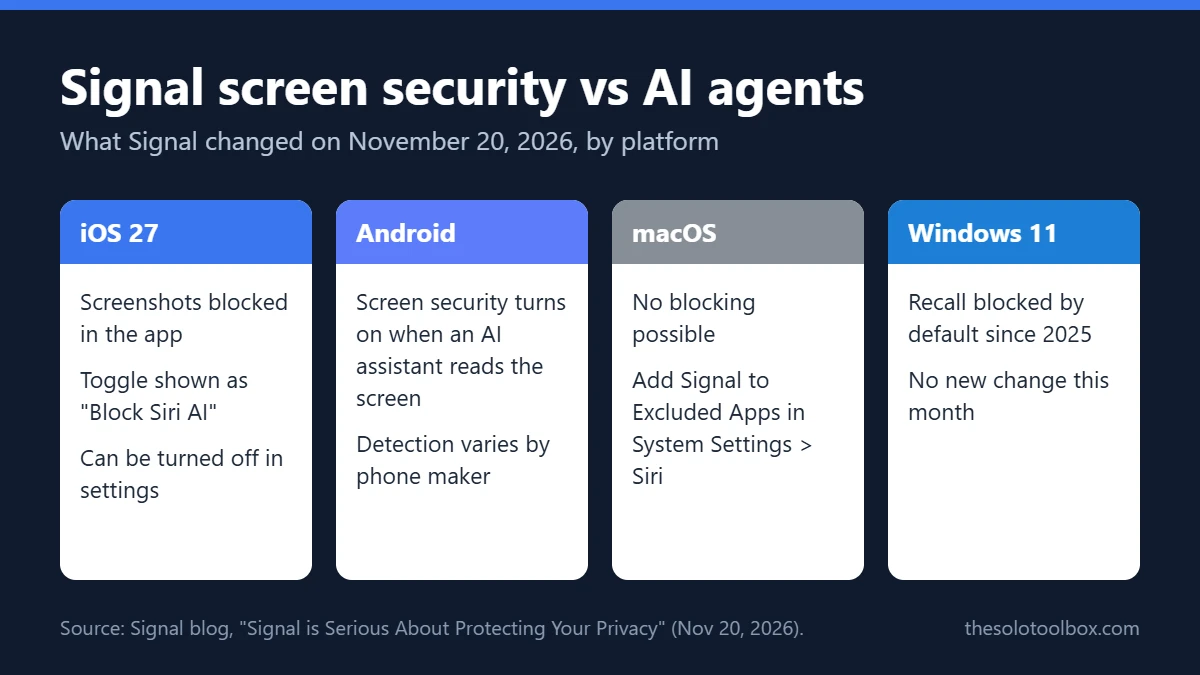
| Platform | What Signal does | Can you turn it off? |
|---|---|---|
| iOS 27 | Blocks screenshots inside the Signal app. Signal’s screenshot shows the toggle labeled “Block Siri AI” | Yes, in Signal’s settings |
| Android | Turns on the existing “Screen security” setting when it detects an AI assistant trying to read the screen | Yes, Screen security can be switched off |
| macOS | Nothing. Signal says it cannot reliably block screenshots on macOS | Not applicable |
| Windows 11 | No new change. Signal Desktop has blocked screen capture for Recall by default since 2025 | Yes, in Signal Desktop settings |
Signal’s post gives no app version number for the change. On Android, it says detection depends on the phone: for many manufacturers it has no reliable way to tell when an assistant is trying to capture the screen.
How to turn Signal’s screenshot block off or on
Think about who is in the chat before you do this. Turning the block off affects what an AI assistant can see of their messages too.
On iPhone (iOS 27)
- Open Signal and tap your profile picture in the top-left corner to open Settings.
- Tap Privacy.
- Find the toggle Signal labels Block Siri AI and switch it off to allow screenshots, or on to block them again.
If you don’t see the toggle under Privacy, update Signal first. We could not confirm the exact section from Signal’s written material.
On Android
- Open Signal, tap your profile picture, then Settings.
- Tap Privacy.
- Switch Screen security off to allow screenshots, or on to block screenshots and hide Signal’s preview in the recent apps screen.
Signal says it switches Screen security on automatically when it detects an assistant reading the screen, so you may find it on again later.
What the block doesn’t protect
Signal calls its own fix “incomplete.” Blocking screenshots does nothing about an agent that reads data already stored on the device, for example through the file system. It also can’t stop someone photographing your screen with another phone, and it only covers Android phones where Signal’s detection works.
On macOS, Signal can’t block capture at all. Its advice for macOS 27 is to open System Settings > Siri and add Signal to Excluded Apps, which tells Siri AI not to look at the app.
How to keep AI assistants out of your other chats
- Check each assistant’s screen access. On-screen features are usually controlled in the assistant’s own settings or the phone’s AI settings. Turning them off is the only way to protect apps that don’t block screenshots.
- Use disappearing messages in Signal for sensitive threads, so less history sits on the device for any tool to read.
- Keep messaging apps updated. WhatsApp patched a security flaw this month; see how to check your WhatsApp version.
- Clear AI chat histories you don’t need. Our guide to deleting your Google AI Mode history covers one of them.
Frequently asked questions
Why can’t I screenshot in Signal on my iPhone?
Because Signal now blocks screenshots in the app on iOS 27 to keep Siri AI’s on-screen features from reading your chats. You can switch it off in Signal’s privacy settings.
Will the other person know if I turn it off?
Signal’s post doesn’t say that contacts are notified. It does say that turning it off can expose their messages to AI agents on your device.
Does this stop screen recording or mirroring?
Signal’s announcement only talks about screenshots and AI assistants. We could not confirm how it handles screen recording on iOS 27.
Is Signal blocking screenshots on Android for everyone?
No. It turns on Screen security when it detects an AI assistant trying to read the screen, and that detection doesn’t work on every brand of phone.
What to do next
Update Signal on every device you use, then decide per device whether you need screenshots more than you need the block. If you were sent a security warning inside an app and aren’t sure it’s genuine, our guide to checking whether an Apple threat notification is real walks through how to verify one.
Related guides
Sources
- Signal blog: Signal is Serious About Protecting Your Privacy (November 20, 2026)
- Signal blog: Signal Doesn’t Recall (2025)
- Gizmodo: Signal Is Fighting to Keep AI Agents Out of Your Private Messages (November 20, 2026)
- Fast Company: Signal is blocking screenshots (November 20, 2026)
Last checked: November 22, 2026. If something here is out of date, let us know.