How to Check Chrome Extension Permissions and Remove Risky Ones
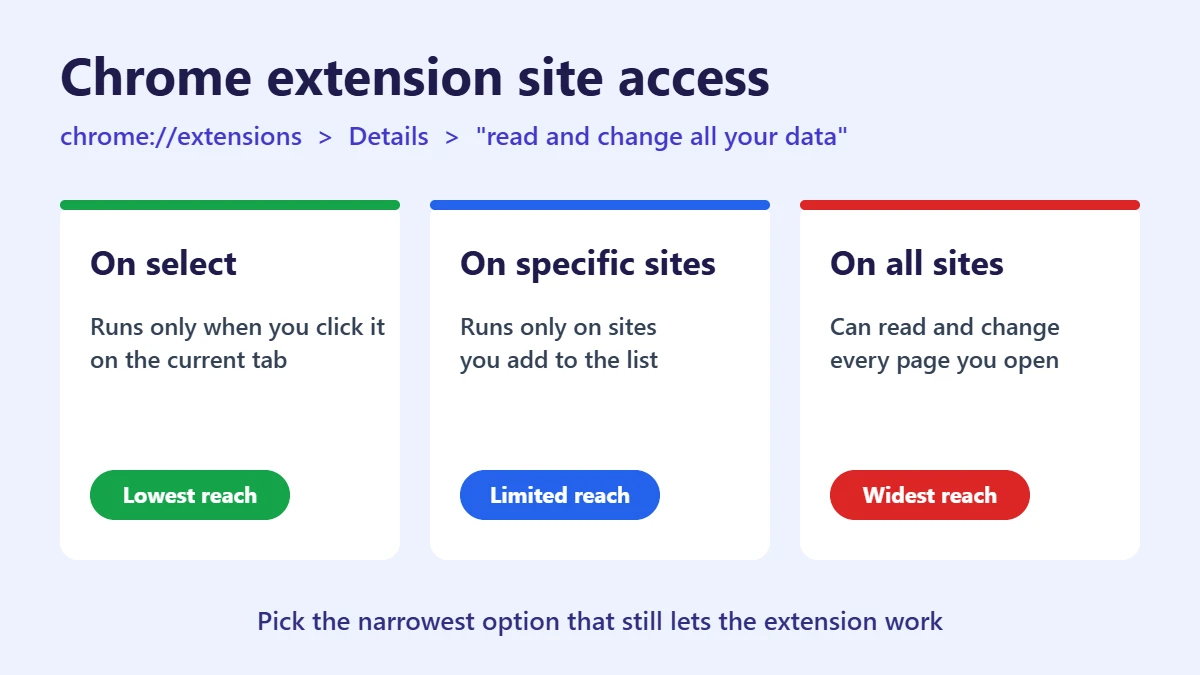
To check what a Chrome extension can access, open chrome://extensions, select Details on the extension, and look at the setting labelled “Allow this extension to read and change all your data on websites you visit.” If it says On all sites and the extension doesn’t need that, change it to On specific sites or On select, or remove the extension.
This guide walks through a full extension audit in about ten minutes: where to find each permission, which ones deserve a second look, how to limit an extension to one site, and how to use Safety Check to catch extensions Google has flagged.
Before you start
- Applies to: Chrome on Windows, Mac, Linux and ChromeOS
- You need: nothing extra; work or school computers may block some changes
- Time: about 10 minutes for 10 to 15 extensions
- Good moment to do it: right after a Chrome update, such as the Chrome 157 release on November 3, 2026, when you’re restarting the browser anyway
Why extension permissions matter
An extension with access to all sites can read the pages you open, including webmail, banking and admin dashboards, and change what they show. Most extensions use that power for their actual job. The risk comes from extensions that ask for more than they need, extensions that get sold to a new owner, and extensions whose update quietly adds new code. You can’t see an extension’s code from settings, but you can control how far it reaches.
How to see every extension you have installed
- Open Chrome on your computer.
- Select More (⋮) > Extensions > Manage extensions, or type
chrome://extensionsin the address bar. - Go through the list. For anything you don’t recognize or haven’t used in months, select Remove. Turning the toggle off disables it without deleting it.
Extensions marked as installed by your administrator are controlled by your employer or school and can’t be removed from this page.
How to check and change an extension’s site access
- On
chrome://extensions, select Details under the extension. - Find “Allow this extension to read and change all your data on websites you visit.”
- Pick one of the three options Google lists: On select (the extension only works on the current tab when you click its icon), On specific sites (only sites you add), or On all sites.
- For On specific sites, go to Permissions, select Add next to “Allowed sites,” and enter the site. To remove one, select More (⋮) > Remove next to it.
There’s a quicker route for the site you’re on: select the puzzle-piece Extensions icon in the toolbar, then More (⋮) next to an extension, and point to “This can read and change site data.” The choices there are “When you select the extension,” “On [current site]” and “On all sites.”
Which permissions deserve a second look
| What you see | Why it matters | What to do |
|---|---|---|
| Site access set to “On all sites” for a single-purpose tool (a color picker, a coupon finder) | It can read every page, including logged-in accounts | Switch to On select or On specific sites |
| An extension you didn’t install yourself | Software bundles and fake “player” downloads often add extensions | Remove it, then run Safety Check |
| Chrome disabled an extension and asks you to accept new permissions | The latest update wants more access than before | Read the new permissions; decline if they don’t fit what the extension does |
| “Allow in Incognito” turned on | The extension also runs in private windows | Turn it off unless you need it there |
| A Web Store listing with a new developer name or a sudden flood of complaints | Extensions are sometimes sold and repurposed | Check the listing’s recent reviews before keeping it |
On the Chrome Web Store listing, the Privacy practices section shows what data the developer says the extension collects. It’s a self-declaration, not an audit, but a mismatch with what the extension does is a red flag.
Use Safety Check to catch harmful extensions
Google says Safety Check can warn you about “potentially harmful extensions,” along with compromised passwords and pending Chrome updates. To run it:
- Select More (⋮) > Settings.
- On the left, select Privacy and security.
- Under “Safety Check,” select Go to Safety Check.
- Select any item with an issue and follow the instructions.
Safety Check only knows about extensions Google has already flagged. An extension that just went bad won’t show up yet, which is why the manual review above still matters.
Extensions for work tools need extra care
Extensions that connect to AI assistants, code editors or password managers often need wide access to do their job, which makes them attractive targets. Our check of fake Cursor and Claude Code extensions shows how copycat listings imitate popular tools. Install these only from the developer’s own link, and limit them to the sites they work with.
Frequently asked questions
Does removing an extension delete my data?
It deletes the extension and its local settings in Chrome. Any account or data the extension kept on its own servers stays there; delete it from the developer’s site if you want it gone.
Will limiting site access break the extension?
It can, on sites you haven’t allowed. With “On select,” the extension stays idle until you click its icon on a page. That’s a good fit for tools you use occasionally.
Can I check extensions on my phone?
Chrome on iPhone and the standard Chrome app for Android haven’t supported Chrome Web Store extensions, so most phones have nothing to review. On a Chromebook, use the same steps as on a computer.
What to do next
Open chrome://extensions now, remove what you don’t use, and switch the rest to the narrowest site access that works. Then run Safety Check. If you want to cut what Chrome itself reads, our guide to turning off Chrome Enhanced Autofill and its Gmail access covers the setting most people miss.
How we checked: menu names and option labels come from Google’s Chrome Web Store Help and Chrome Help pages, read on November 4, 2026. Labels can change between Chrome versions; if yours differ, the Details page for each extension is still the place to look.