How to Check Third-Party Scripts on Your Website (DebugBear Hack)
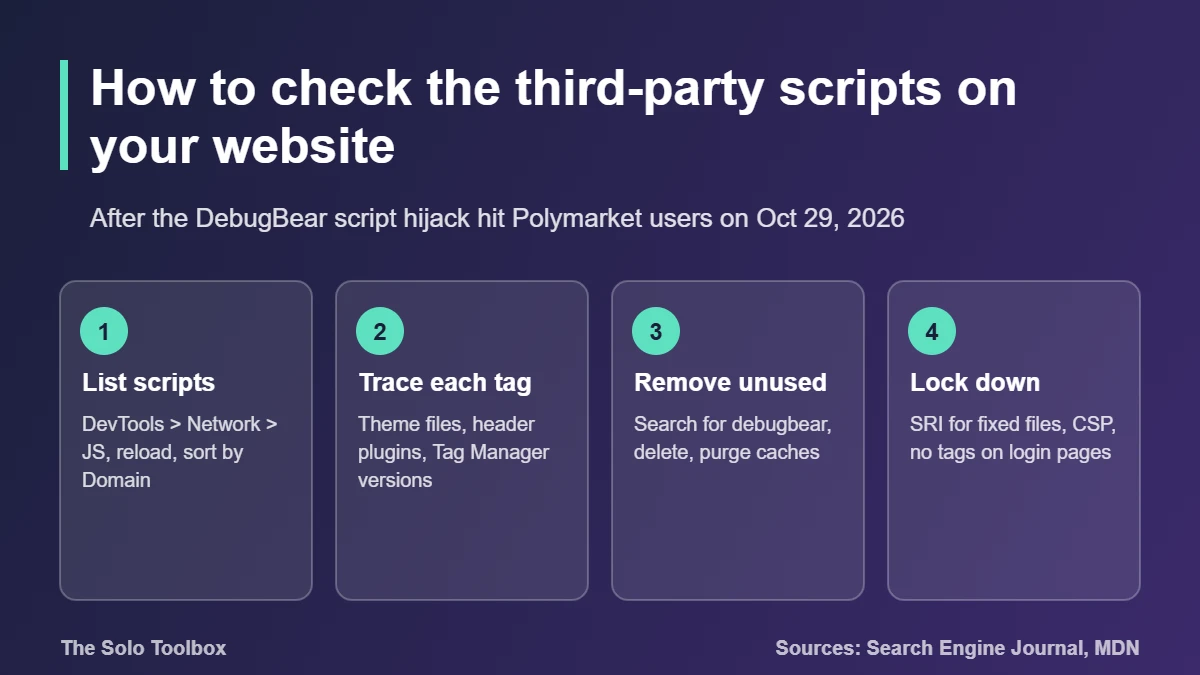
To check the third-party scripts on your website, open it in Chrome, press F12, go to the Network tab, filter by JS and reload. Every script loaded from a domain that isn’t yours is code that runs with the same access as your own, including on pages where visitors are signed in. The DebugBear incident on October 29, 2026, showed what happens when one of those files changes: a monitoring script on Polymarket was swapped for code that sold users’ positions and moved their funds.
This guide covers what happened with DebugBear, how to list every external script on your site, how to trace where each one is added, and the protections (Subresource Integrity, Content Security Policy, self-hosting) that would or would not have stopped this kind of attack. Facts were checked on November 2, 2026, against Search Engine Journal and Cyber Kendra reporting.
Before you start
- Who this is for: anyone who runs a website, especially WordPress sites with analytics, chat widgets, ad tags or tag managers.
- Urgent if: your site loads a file from
cdn.debugbear.com. DebugBear told customers to remove its Real User Monitoring (RUM) script. - What you need: desktop Chrome, Edge or Firefox, and admin access to your site and tag manager.
- Time: about 20 minutes for a small site.
What happened with the DebugBear script
DebugBear sells Core Web Vitals monitoring. Its RUM product works by having site owners paste a script tag that loads a file from cdn.debugbear.com. On October 29, 2026, security firm Hudson Rock found malicious JavaScript at a DebugBear script URL used by the prediction market Polymarket.
The code looked for the trading client already available in a signed-in visitor’s browser. It didn’t need anyone’s password. Polymarket froze trading the same day, removed the script, and said affected users “will be made whole.” Search Engine Journal reports that DebugBear later said attackers had compromised its DNS records through its domain registrar, that the attack appears to have targeted one customer’s website, and that it saw no sign its internal systems were breached.
The lesson for every site owner: a script tag is a standing permission. If the file behind it changes, the new code runs on your pages with your visitors’ sessions.
Step 1: List every script your site loads
- Open your homepage in Chrome or Edge and press F12 (Mac: Cmd+Option+I).
- Select the Network tab, then the JS filter.
- Reload the page with Ctrl+Shift+R (Mac: Cmd+Shift+R) so nothing comes from cache.
- Right-click a column header and turn on Domain. Sort by it.
- Write down every domain that isn’t your own.
Scripts can load other scripts after the page opens, so also paste this into the Console tab after the page has been open for a few seconds:
[...new Set(performance.getEntriesByType('resource').filter(e => e.initiatorType === 'script').map(e => new URL(e.name).hostname))]It returns a list of every domain a script was fetched from. Repeat the check on the pages that matter most: login, checkout, account and contact forms.
Step 2: Find where each script is added
For every outside domain on your list, work out who added it and why:
- Theme files: search
header.php,footer.phpand the theme’s custom code settings. - Header and footer plugins: tools like WPCode or Insert Headers and Footers often hold forgotten tags.
- Google Tag Manager: open your container, check Tags, and review Versions to see who added what and when.
- Plugins: chat widgets, cookie banners, review widgets and form tools add their own scripts.
If you can’t name a reason for a script, it’s a candidate for removal. A tool you trialed two years ago still runs on every page view until someone deletes the tag.
Step 3: Remove what you don’t need
Delete unused tags first. It’s the only fix that removes the risk entirely. For DebugBear specifically, search your theme, plugins and tag manager for debugbear, remove every match, purge your page cache and any CDN cache, then repeat Step 1 to confirm the file no longer loads.
Step 4: Lock down the scripts you keep
| Protection | Stops a changed file on a trusted domain? | Works with scripts the vendor updates? | Effort |
|---|---|---|---|
| Remove the script | Yes | Not applicable | Low |
| Subresource Integrity (SRI) | Yes, the browser refuses a file whose hash changed | No, a vendor update also breaks it | Medium |
| Self-host a pinned copy | Yes | Partly, you update by hand | Medium |
| Content Security Policy allowlist | No, the domain is still allowed | Yes | Medium to high |
| Keep tags off login and checkout pages | Limits the damage | Yes | Low to medium |
Subresource Integrity adds a hash to the tag, for example integrity="sha384-..." with crossorigin="anonymous". If one byte of the file changes, the browser won’t run it. That would have blocked a swapped file, but it only suits versioned files that never change, which rules out most analytics and RUM scripts.
Content Security Policy tells browsers which domains may serve scripts. It blocks scripts from unknown domains, which helps against injected code, but it would not have stopped the DebugBear case because the malicious file came from an allowed domain. Start with the Content-Security-Policy-Report-Only header so you can see what would break before you enforce it.
The practical middle ground for small sites: remove what you can, pin or self-host what never changes, and keep marketing and monitoring tags off pages where people log in or pay.
Step 5: If your site used DebugBear RUM
Search Engine Journal’s checklist for affected site owners, condensed:
- Remove the embed from templates, plugins and tag managers and confirm it no longer loads.
- Sign out active sessions and reset passwords, starting with administrators. Changing a password doesn’t always end existing sessions, so check that old ones are rejected.
- Revoke and reissue API keys that a signed-in browser could reach.
- Look for new admin users, changed permissions, edited templates and new plugins.
- If you find a compromise, put the site in maintenance mode and restore a known clean backup.
Removing the tag stops new loads. It doesn’t undo anything an attacker already did.
FAQ
Would a WordPress security plugin have caught this?
Probably not. File scanners check files on your server. A script served from a vendor’s CDN changes on their server, so the file in your theme stays the same.
Is Google Analytics or Tag Manager a risk too?
Any external script runs with the same access as your own code. Large vendors are harder targets, but the same rule applies: keep only what you use, and review your Tag Manager versions regularly. Tag Manager is also where other people’s tags get added without code changes.
How often should I audit third-party scripts?
Every quarter, after removing any tool, and whenever a vendor reports a security incident.
What we could not verify
DebugBear has not said how long the malicious file was served or whether other customers received it. We did not read DebugBear’s own statements directly; the details above come from Search Engine Journal and Cyber Kendra.
Next step
Run the Network tab check on your login or checkout page today and remove one script you can’t justify. For related checks, see how AI agents hacked 100+ online stores and how to check yours, our UpdraftCentral key compromise check, and how to confirm your WordPress site is patched for PHP2Shell.
Related guides
- Rank Math PRO 3.0.123 malware: how to check and clean your site
- How to check if a website is down for everyone
- Stop & Shop and Food Lion websites are back: what to check after the outage
If your app uses Better Auth for sign-in, upgrade to Better Auth 1.7.16, which bundles 12 security fixes.
Sources
- Search Engine Journal: Hackers hijacked DebugBear’s DNS to serve malicious JavaScript (October 31, 2026)
- Cyber Kendra: Polymarket hacked via DebugBear script (October 29–30, 2026)
- Relevant Audience: DebugBear DNS hijack, remove the RUM script now (November 2, 2026)
- MDN: Subresource Integrity
- MDN: Content Security Policy