Office Blank Dialog Fix: Word, Excel or Outlook Shows an Empty Box
The Solo Toolbox · Software Help for One-Person Businesses
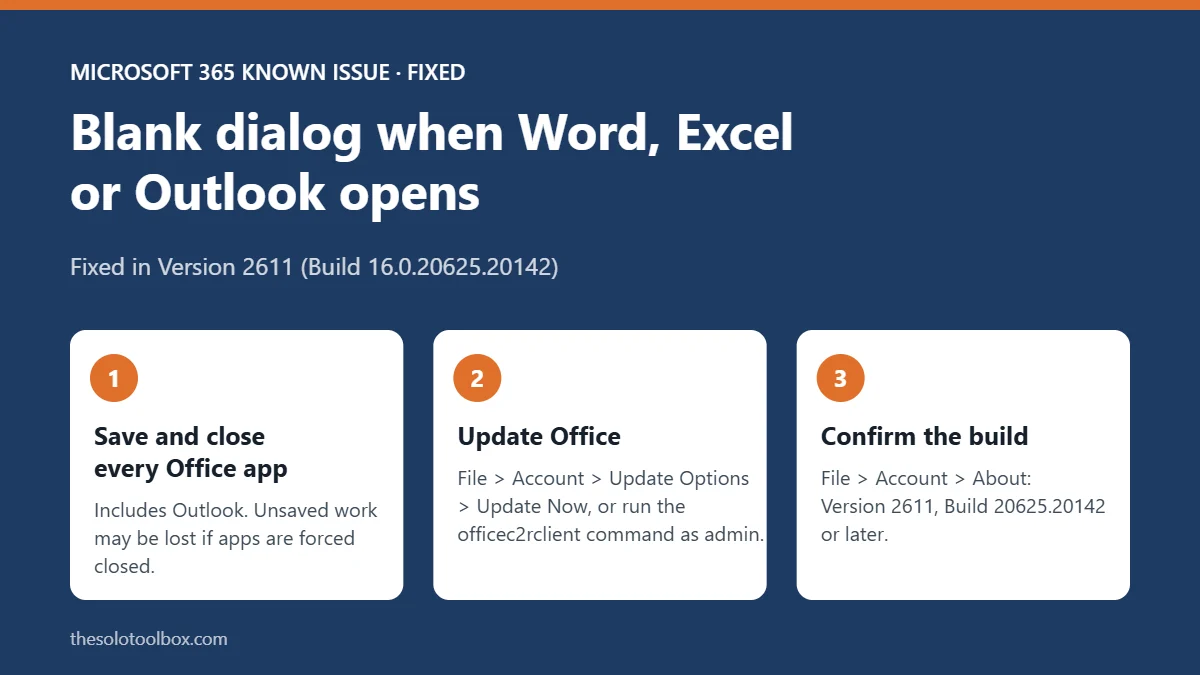
If Word, Excel, Outlook or another Microsoft 365 app opens a blank white dialog box with no text and no buttons, you have hit a known Office bug, not a problem with your files. Microsoft says it is fixed in Version 2611 (Build 16.0.20625.20142), so the fix is to update Office to that build. If the empty box stops you reaching the update menu, a single Command Prompt command installs the fixed build.
This guide covers both routes, how to confirm you are on the fixed build, and what to do on a work PC where you cannot update Office yourself.
Before you start
- Who this affects: Microsoft 365 apps for Windows (the Click-to-Run version most people get from a Microsoft 365 subscription).
- What you need: an internet connection and, for the Command Prompt route, an account that can run programs as administrator.
- Save first: the command route closes and updates Office, so save anything open in other Office apps.
- How we checked this: on November 25, 2026 we read Microsoft’s known-issue notice (last updated November 23, 2026), Microsoft’s guide to updating Office for Windows, and Cyber Security News’ report from November 25. Microsoft has not said what caused the dialog or how many people were hit.
What the blank dialog bug looks like
You start Word, Excel or Outlook and a small window appears in front of it. The window is empty: no message, no OK button, no close option that does anything. Microsoft’s notice says that if you can’t dismiss it, you may not be able to keep using the app behind it.
That is different from a blank document or an empty workbook. Your files are not damaged; the dialog is a startup problem in Office itself. Users began reporting it on Microsoft’s Q&A forum on November 22, 2026, starting with Word, and Microsoft posted the known issue the next day with the status Fixed.
It is also unrelated to the November 12–13 Microsoft 365 outage, which was a server-side failure that took down Outlook, Teams and Copilot for nearly a day. Our coverage of that outage explains what happened there. The blank dialog happens on your own PC, so service status pages will show everything as healthy.
Fix 1: Update Office from inside the app
Use this route if at least one Office app still opens far enough to reach the File menu. Updating any one app updates them all, because Microsoft 365 apps share a single installation.
- Open Word, Excel or PowerPoint (whichever one lets you past the dialog, if any).
- Select File > Account. In classic Outlook, it is File > Office Account.
- Under Product Information, select Update Options > Update Now.
- If Update Now isn’t listed, select Update Options > Enable Updates first, then Update Now.
- Close Office apps when the updater asks, wait for the “You’re up to date” message, then reopen the app.
If Update Options is missing and only an About button shows, Microsoft says you either have a volume-licensed install or your organization manages Office updates through Group Policy. Skip to the section on work PCs below.
Fix 2: Install the fixed build with Command Prompt
If the blank box blocks every Office app, Microsoft’s notice gives a command that tells the Office updater to jump straight to the fixed build.
- Save your work and close every Office app, including Outlook.
- Select Start, type cmd, right-click Command Prompt and choose Run as administrator. Approve the User Account Control prompt.
- Paste the command below and press Enter.
- The Office update window opens and downloads the build. Leave the PC on until it finishes.
- Reopen Word, Excel or Outlook and check the build (next section).
"%programfiles%\Common Files\Microsoft Shared\ClickToRun\officec2rclient.exe" /update user updatetoversion=16.0.20625.20142Type it exactly as shown, quotation marks included, because the path contains spaces. If Command Prompt says the system cannot find the path, your copy of Office is not a Click-to-Run installation. Volume-licensed (MSI) editions and the Microsoft Store version update through different channels, and Microsoft’s notice does not cover them.
How to check you are on the fixed build
- Open any Office app and go to File > Account (or Office Account in classic Outlook).
- Look under About Word (or About Excel, About Outlook). The version and build number appear on that line.
- You want Version 2611 with Build 20625.20142 or a higher build. Office shows the build without the leading “16.0.”, so it reads something like “Version 2611 (Build 20625.20142 Click-to-Run)”.
| What you see | What it means | What to do |
|---|---|---|
| Version 2611, Build 20625.20142 or later | You have the fix | Nothing more; if the box still appears, restart the PC once |
| An earlier build number | Update hasn’t landed yet | Run Update Now or the Command Prompt route |
| No Update Options button | Updates are managed by your organization | Ask IT to deploy the fixed build |
| “Cannot find the path” in Command Prompt | Not a Click-to-Run install | Update through the channel your Office came from |
On a work or school PC
Businesses often hold Office updates back and push them on their own schedule, which is why the Update Options button can be missing or greyed out. Running the command yourself may be blocked by policy or may be overwritten by the next managed update.
Send your IT team the details they need in one message: the Microsoft known issue is titled “A blank dialog window appears when you open an Office application”, and the fix is Version 2611 (Build 16.0.20625.20142). That lets them check whether your update channel has the build yet instead of troubleshooting your PC from scratch.
What this update does not fix
Cyber Security News notes that this build does not address a separate problem in the new Outlook for Windows where attachments fail to upload. If Outlook opens normally but attachments stall, that is a different issue and still needs its own fix from Microsoft.
Microsoft also hasn’t published which earlier builds triggered the dialog. If you held off updating Office for weeks, you may never have seen it, and updating now simply moves you past the affected range.
FAQ
Is the blank white box a virus or a sign my PC is compromised?
Nothing Microsoft or the reports we read suggests that. Microsoft lists it as a known Office issue with a published fix. If the box keeps appearing after you are on build 16.0.20625.20142 or later, treat it as a new problem and contact Microsoft support.
Will I lose my documents?
The bug affects the app window, not your saved files. Anything you had open but unsaved when you force-closed an app may be in Word or Excel’s recovery pane the next time it opens.
Will Office fix itself if I wait?
If automatic updates are on, Office installs new builds on its own, but Microsoft doesn’t give a timetable. Updating manually takes a few minutes and gets you working now.
Does this affect Office on a Mac?
The fix and command in Microsoft’s notice are for Windows. Microsoft hasn’t reported the same bug for Office on macOS.
What to do next
Once you are on the fixed build, leave automatic updates switched on so the next fix reaches you without a support ticket; our guide on how to update Microsoft Office covers the settings and update channels. If you run Outlook with older add-ins or a third-party mail app that talks to Exchange, also check our note on the Exchange Web Services retirement, which will break some of those connections in 2027.
Related guides
Sources
- Microsoft Support: A blank dialog window appears when you open an Office application (last updated November 23, 2026)
- Microsoft Support: How to update Microsoft 365 or Office for Windows
- Microsoft Q&A: White screen (user reports, November 22, 2026)
- Cyber Security News: Microsoft 365 bug blocked users from opening Word, Excel and Outlook with blank white screen (November 25, 2026)
Last checked: November 25, 2026. If something here is out of date, let us know.