How to edit files in Gemini chat: PDFs, Docs and Sheets

You can now edit files that Gemini creates without leaving the chat: ask Gemini for a PDF, Google Doc, spreadsheet, slide deck, Markdown or TXT file, then open the preview to type changes, highlight a passage to ask about it, or tell Gemini to revise the whole file. PDF editing works on the web and in the Gemini mobile app; every other format is web-only for now. Google announced the feature on October 29, 2026, for all users in every language the Gemini app supports.
Below: which formats you can edit where, the three ways to make changes, how to get the finished file out of Gemini, and the limits we found. We checked Google’s announcement and the Gemini Help Center on November 2, 2026.
Before you start
- Works on: gemini.google.com for all formats; the Android and iOS apps for PDFs only
- Plans: available to all Gemini app users, according to Google
- Editable: files Gemini generates in the chat (PDF, Google Docs, Google Sheets, slide decks, Markdown, TXT, code)
- Not editable in chat: Word (.docx) and Excel (.xlsx) files
What’s new in Gemini file editing
Gemini could already generate files you can download before this update. Until now, changing one meant asking for a new version and hoping the rest stayed the same. Google’s October 29 announcement adds a preview and editor in the conversation itself. Google describes three methods: expand the file to full screen and type edits directly, highlight text to ask questions about it, or have Gemini refine the file for you.
This is separate from Canvas. Canvas is a workspace you launch as a tool; the new editor opens on finished files that appear in a normal chat.
Which files you can edit, and where
| Format | Web (gemini.google.com) | Gemini mobile app |
|---|---|---|
| Yes | Yes | |
| Google Docs | Yes | No |
| Google Sheets | Yes | No |
| Slide decks | Yes | No |
| Markdown, TXT | Yes | No |
| Code files | Yes | No |
| Word (.docx), Excel (.xlsx) | No | No |
Google gave no date for bringing Docs, Sheets or slide editing to the phone apps. If you work mostly on a phone, plan on generating PDFs, or finish the edit later on a computer.
How to create and edit a file in Gemini
- Open gemini.google.com and sign in. For a PDF, the Android or iOS app also works.
- Ask for the file by format and content, for example: “Create a one-page PDF price sheet for my three consulting packages, with a table of prices.”
- When the file appears in the chat, open its preview and expand it to full screen.
- To fix a typo, a price or a name, type the change directly in the preview.
- To rework one section, highlight it and ask Gemini about it, such as “make this paragraph shorter” or “turn this table into a chart.” Highlighting also works on visual elements like tables.
- For changes across the whole file, describe them in the chat, for example “switch all prices to euros and add a footer with my email address.”
- Check the preview again before exporting. Rewrites of one section can change wording elsewhere, so reread figures and dates.
Google has not yet published a Help Center article with the exact button names for the editor, so the labels on your screen may differ slightly from the descriptions above.
How to get the finished file out of Gemini
What you can do next depends on the format. Based on Google’s Workspace announcement as summarized by Basic Tutorials, PDFs can be downloaded or saved to Google Drive, Google Sheets open directly in Sheets, and slide decks open in Google Slides or download as PPTX or PDF. Docs, Markdown and TXT files save to Google Drive.
If you need a Word file, ask Gemini for a Google Doc instead of a .docx, edit it in the chat, then open it in Google Docs and use File > Download > Microsoft Word (.docx). The same route works for Excel: create a Google Sheet, then download it from Sheets as .xlsx.
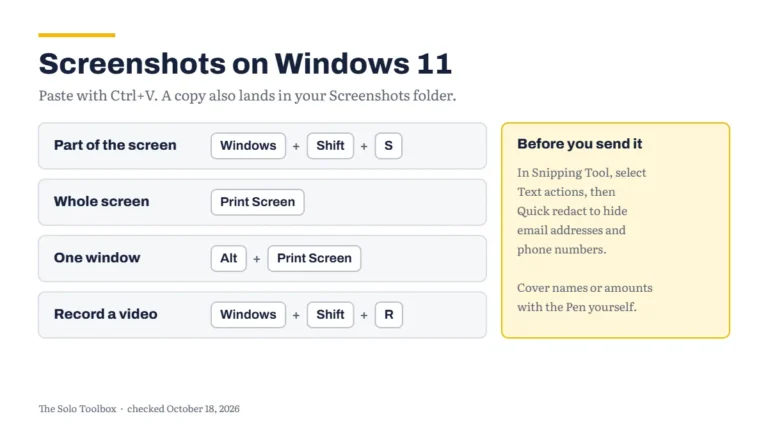
For a contract or invoice that needs a signature after editing, export the PDF and follow our guide to signing a PDF on iPhone or Mac.
Limits to know before you rely on it
- Generated files only: Basic Tutorials reports that the editor works on files Gemini made in the chat, not on any PDF you upload. Google’s post does not say either way, so test with your own file before building a workflow around it.
- Context window: the Gemini Help Center lists 32,000 tokens without an AI plan, 128,000 on AI Plus, and 1 million on AI Pro and AI Ultra. Long documents on a free account may lose earlier content during heavy revisions.
- Uploads: you can add up to 10 files per prompt, and most file types can be up to 100 MB, per the Help Center’s upload article.
- Work and school accounts: Google’s announcement doesn’t mention Workspace accounts. Drive access in Gemini depends on your administrator.
- Syncing: Google hasn’t said whether edits sync to a copy already saved in Drive. Save again after editing.
Is it safe to put client documents in Gemini?
Anything you type or upload goes into your Gemini activity under your Google account settings. Before you paste client names, rates or contract terms, check the activity setting in Gemini’s settings menu and decide whether you want those chats kept and used to improve Google’s models. Our guide on stopping AI training on your chats explains how AI training settings work and where to find them.
FAQ
Is Gemini file editing free?
Google says the feature is available to all users in all languages where the Gemini app is available. It does not tie it to a paid plan, though free accounts have a smaller context window.
Can I edit a Word document in Gemini?
Not directly. Word and Excel files aren’t on Google’s list of editable formats. Create a Google Doc or Sheet in Gemini, edit it there, and download it as .docx or .xlsx from Google Docs or Sheets.
Why can’t I edit a spreadsheet in the Gemini app on my phone?
Only PDFs are editable in the mobile app. Spreadsheets, Docs, slides, Markdown, TXT and code are web-only for now.
Is this the same as Gemini Canvas?
No. Canvas is a separate tool you start on purpose. The new editor appears on files Gemini generates during a regular chat.
Try Gemini file editing on a low-stakes file first
Try it on a low-stakes file first: ask Gemini for a one-page PDF you’d otherwise build by hand, make two edits in the preview, then export it and check the result on another device. If you also use Gemini in the car, see what Gemini’s Personal Intelligence means on Android Auto.
Related guides
- How to use ChatGPT Slides and export decks to PowerPoint
- Gmail AI Inbox: who gets it and how to show or hide it
- Claude Ultra plan: what the no 5-hour limit really means
Sources
- Google: generate, preview and edit files directly in Gemini (October 29, 2026; checked November 2, 2026)
- Gemini Help Center: Gemini Apps limits and feature availability (checked November 2, 2026)
- Gemini Help Center: Upload and analyze files in Gemini Apps (checked November 2, 2026)
- Basic Tutorials: Gemini now edits PDFs, Docs and spreadsheets in chat (November 2, 2026)