Google storage full? How to find what’s using it and clear space
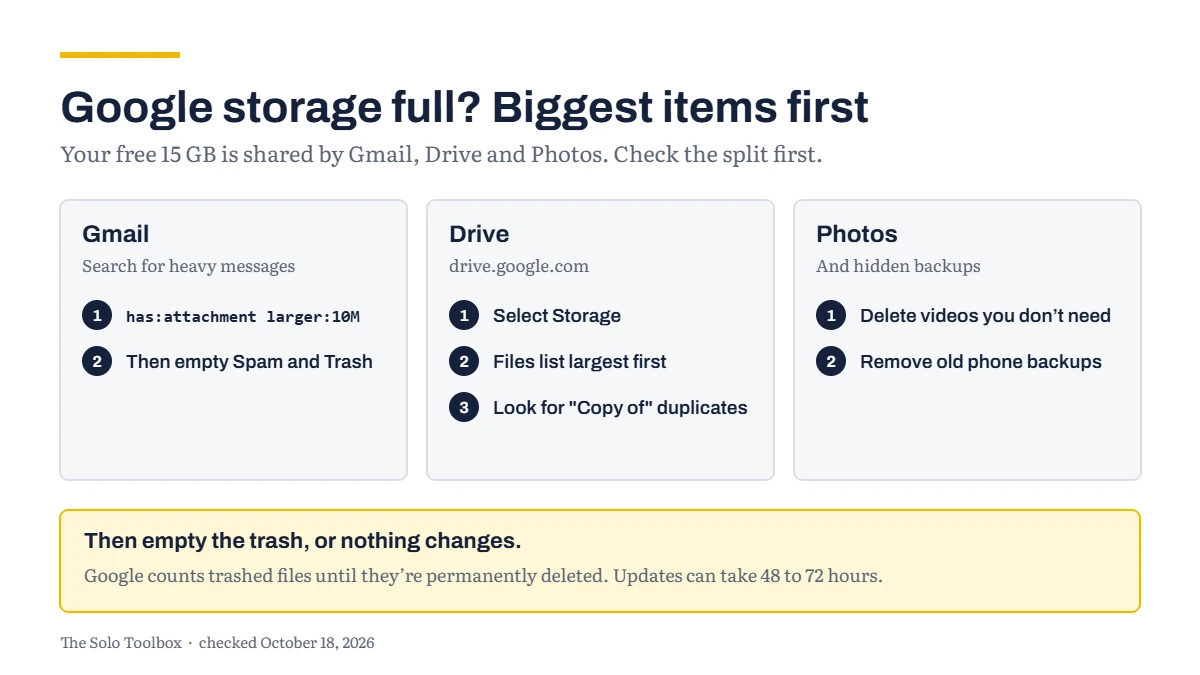
When Google says your storage is full, the space isn’t just Drive. A free Google account’s 15 GB is shared across Gmail, Google Drive and Google Photos, and the usual culprits are large email attachments, old videos and photos, and files sitting in the trash. Start at Google’s storage manager to see which of the three is using the most, clear the biggest items there first, then empty the trash, because Google counts trashed items until they’re permanently deleted. If clearing space isn’t enough, the alternative is paying for more storage.
Before you start
- You’ll need: your Google account, and a computer for the Gmail search steps.
- Applies to: personal Google accounts. On a Google Workspace work account, storage is set by your organization’s plan, so ask whoever manages it.
- Time: 15 to 30 minutes. Google says storage can take up to 48 to 72 hours to update after you delete many files at once.
- How we checked this: based on Google’s own help pages, checked October 18, 2026.
What happens when storage is full
Google lists what stops working:
- You can’t upload new files to Drive or back up photos and videos to Google Photos.
- You can’t create new files in Google Docs, Sheets and Slides.
- Sending and receiving Gmail “can be impacted”, in Google’s words. If your business email runs through Gmail, that’s the reason to fix this quickly.
You can still sign in. If you stay over your limit for two years or longer, Google says your content may be deleted, after at least three months’ notice.
Find out what’s using the space
Go to drive.google.com/settings/storage to see how your storage is split between Gmail, Drive and Photos. On a phone, open the Drive, Photos or Gmail app, tap Clean up space or Manage storage, then Usage details.
Work on whichever service is largest first. Deleting a hundred small emails won’t help if one folder of videos is using 10 GB.
Clear Gmail: search for large attachments
Gmail’s search box can find the heavy messages. On a computer, paste one of these searches, which come from Google’s own help page:
has:attachment larger:10Mfinds messages with attachments over 10 MB.filename:.pdf larger:5Mfinds PDFs over 5 MB.older_than:2y has:attachmentfinds attachments older than two years.
Before deleting, save any attachment you need for your records, such as a signed contract, to your computer. Then check the boxes next to the messages and select Delete.
Google counts both your Spam and Trash folders against your storage, so empty both afterwards.
Clear Drive: sort by size
- Go to drive.google.com and select Storage in the left-hand menu. Google lists your files from largest to smallest.
- Delete or download the large files you don’t need in Drive.
- Look for duplicates. Google says Drive has no built-in duplicate finder; switch to the list layout, sort by Name, and look for names ending in “(1)” or starting with “Copy of”.
Old Google Docs, Sheets and Slides files may not be the problem. Google says those only count if they were created or edited after June 1, 2021.
Files shared with you, and files you share
A detail that matters if you work with clients: files in a shared folder use their owner’s storage. Files in Shared with me don’t use your space, unless you copy them or add your own files to the shared folder.
So when you upload a large deliverable to a client’s folder, it counts against your storage, not theirs. Once the client has made their own copy of a finished deliverable, you can delete yours to get the space back. Our guide to sharing a Google Drive folder with a client safely covers the sharing settings to check.
Clear Photos and hidden backups
In Google Photos, original-quality uploads count toward your storage, and so do lower-quality ones backed up after June 1, 2021. Delete the videos and photos you don’t need, then empty the Photos trash at photos.google.com.
Google also counts phone backups and some hidden app data. At one.google.com/storage/management, look under Backups for old phones you no longer use. To remove hidden data from apps connected to Drive, open Drive’s settings and select Manage apps.
Empty the trash, or nothing changes
Deleting a file moves it to the trash, and Google says files in the trash still count towards your storage until they’re permanently deleted. Drive deletes trashed files for good after 30 days, but you don’t need to wait:
- In Drive, select Trash in the left panel.
- Check nothing in the list needs keeping.
- Select Empty trash, then Delete forever.
Do the same for Gmail’s Trash and Spam and for the Photos trash. Permanently deleted means gone, so check twice.
If it doesn’t work
- Your storage number hasn’t moved: Google says it can take up to 48 to 72 hours to update after deleting many files. Check you emptied all three trash folders.
- You’ve cleared everything you can and are still full: you’ll need more storage. Google sells extra storage through Google One; check current plans on its site, as prices change.
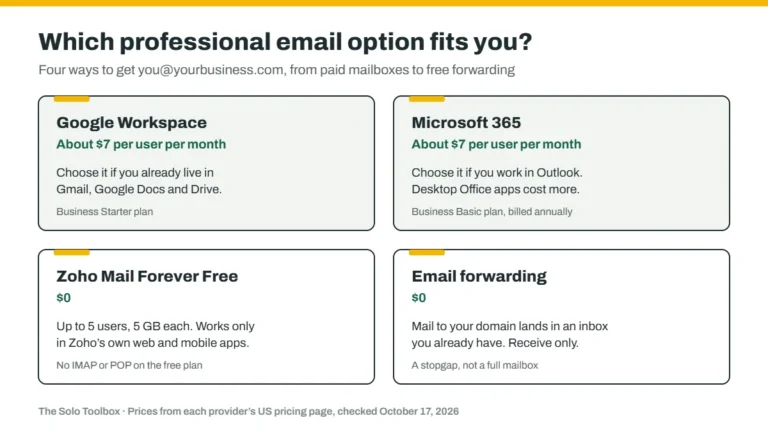
- Your business email lives in a personal Gmail account: a full mailbox can affect client email. Our guide to getting a professional email address on your own domain explains the options.
For more fixes like this one, see our troubleshooting guides.
Related guides
- How to back up your Google account with Google Takeout
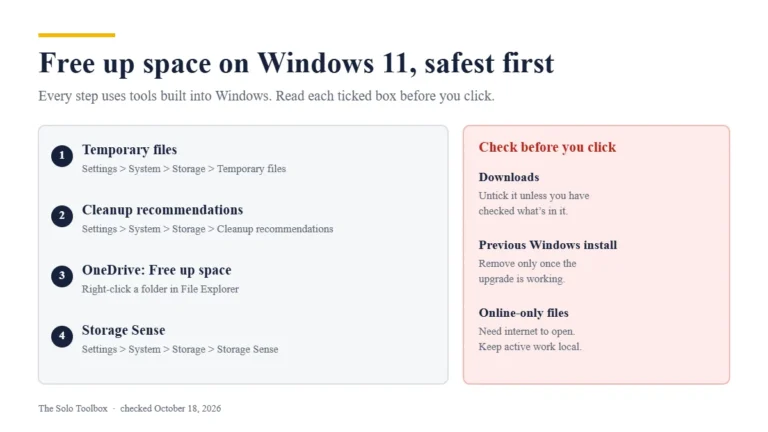
- How to free up disk space on Windows 11 without deleting your work
- How to recover an unsaved or overwritten Word document
Sources
- Google One: How your Google storage works
- Google: Manage your storage in Drive, Gmail and Photos
- Google Drive: Delete files in Google Drive
Last checked: October 18, 2026. Google changes its storage rules and plans from time to time. If something here no longer matches what you see, let us know.