How to Check Which Mac Apps Have Full Disk Access
The Solo Toolbox · Software Help for One-Person Businesses
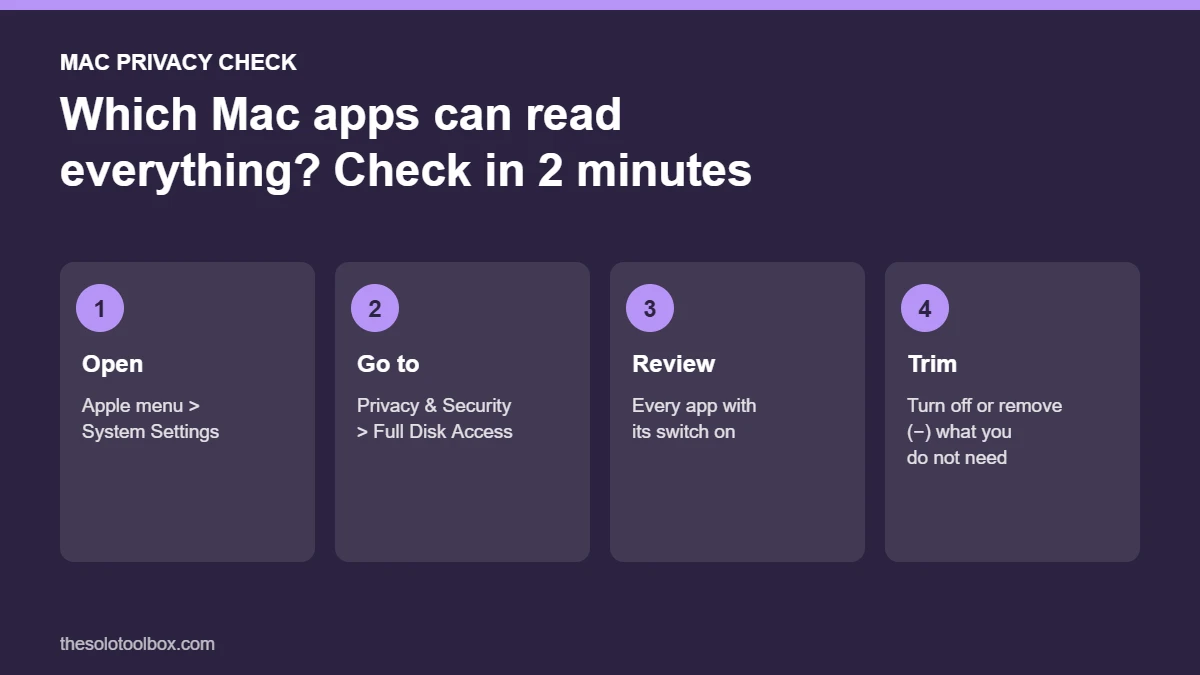
To see which apps have Full Disk Access on a Mac, open the Apple menu, choose System Settings, click Privacy & Security in the sidebar, then click Full Disk Access. Every app with its switch on can read, change, delete and export almost everything on your Mac. Turn off the ones that don’t need it, or select an app and click the remove button (−).
The check takes about two minutes. Apple is reworking this screen in macOS 27.3, currently in beta, but the update keeps every permission you have already granted, so cleaning up the list is still on you. Below: the exact steps, which kinds of apps really need this access, the related settings to check, and what changes in 27.3.
Before you start
- Who this is for: anyone with a Mac, especially if you have installed an AI assistant or agent, a backup tool, a disk cleaner or a security app.
- Time needed: 2 to 5 minutes. You need your Mac login password or Touch ID to change settings.
- How we checked this: on November 24, 2026 we read Apple’s support article on Full Disk Access (published November 16, 2026), Apple’s developer news post from the same day, and coverage from MacStories and eSecurity Planet. We did not install the macOS 27.3 beta; 27.3 details come from Apple’s documentation.
Why Full Disk Access is worth checking now
macOS walls off sensitive locations such as Mail, Messages, Safari data, Time Machine backups and other users’ files. Full Disk Access lets an app step over that wall. Apple’s support article spells out the result: the app can reach your messages, emails, photos, videos and data from other user accounts, and read, change, delete or export it without asking you again.
That used to matter mostly for backup and antivirus tools. AI agents changed the picture: they read files and act on your behalf, and they inherit whatever access you granted. After reports that Meta’s Muse app read private messages, Meta said the app could read message content only if Full Disk Access had been granted and its Messages connector was turned on. Our guide on whether Meta Muse is safe covers that app’s settings in detail.
How to check Full Disk Access on your Mac
- Click the Apple menu in the top-left corner and choose System Settings.
- Click Privacy & Security in the sidebar.
- Click Full Disk Access. You may need to scroll down in the right-hand pane to see it.
- Read the list. Any app with its switch turned on currently has Full Disk Access.
- To pause an app’s access, turn its switch off and confirm with your password or Touch ID.
- To remove an app from the list entirely, select it and click the remove button (−). If asked, enter your password and click Modify Settings.
- Quit and reopen any app you changed so it picks up the new permission.
On macOS Monterey and earlier, the same list is under System Preferences > Security & Privacy > Privacy > Full Disk Access, and you click the lock icon before making changes.
Which apps actually need Full Disk Access
| Type of app | Needs it? | What to do |
|---|---|---|
| Full-disk backup tools | Usually yes | Keep it on if you rely on the backup. Apple lets these apps keep their current setup flow in 27.3. |
| Antivirus and security scanners | Often | Keep it on for tools you trust and actively use. |
| Disk cleaners and file indexers | Sometimes | Check the developer’s documentation for why it needs full access. |
| Terminal and developer tools | Only for specific tasks | Turn it on when a command needs protected folders, then off again. |
| AI assistants and agents | Rarely for everything | Prefer folder-level access. Turn off unless a feature you use needs it. |
| Apps you no longer use | No | Remove them with the (−) button. |
If you can’t tell why an app is on the list, turn it off and use the app normally for a day. If something breaks, the app will usually ask again and tell you which feature needs the access.
Three neighboring settings to check
Full Disk Access isn’t the only powerful permission. While you are in Privacy & Security, also open:
- Accessibility (shown as Device Control and Data Access on recent releases): lets an app control your Mac, click buttons and read what’s on screen.
- Automation: shows which apps can control other specific apps, such as an assistant sending commands to Mail or Finder.
- Screen & System Audio Recording: lets an app capture what you see and hear.
Apply the same rule: if you don’t recognize the app or no longer use it, switch it off. Browser extensions can hold similar reach inside Chrome; see how to check Chrome extension permissions.
What changes in macOS 27.3
Apple released macOS 27.3 beta 2 on November 16, 2026 with a new permission flow. Apple has not announced a public release date. According to Apple’s developer post and support article:
- The control permission splits into two settings: System & App Protection Override and Accessibility.
- When an app asks for Full Disk Access, some apps let you click Choose Folder to grant only specific protected folders instead.
- For System & App Protection Override, you can click Choose Apps and set each one to Ask First or At Any Time.
- Granting full access means clicking Bypass System Protections and confirming each capability, including “Read, Change, Delete, and Export All Your Data”, “View Hidden and Recently Deleted Photos” and “Browse As You on Websites”.
- A menu bar indicator shows when one app is controlling another.
- Permissions you granted before 27.3 stay in effect.
Once 27.3 is installed, Apple’s documented way to narrow an existing app is to remove it from the Full Disk Access list, click the add button (+) to add it again, and choose specific folders if your Mac prompts you. For apps already in Files & Folders, click the Info button (i) next to the app to change its folders.
FAQ
Is it safe to give an AI app Full Disk Access?
Only if you trust the developer and the app genuinely needs to read protected data such as Mail or Messages. Apple’s guidance is to grant access to specific folders instead whenever the app supports it, which becomes a built-in option in macOS 27.3.
Will turning off Full Disk Access break an app?
It can. Apple warns that an app may not work as expected after you remove its access. Backup and security apps are the most likely to complain; most other apps keep working and ask again if they need something.
Does macOS 27.3 remove Full Disk Access I already granted?
No. Apple says all permissions users previously granted remain in effect, so the new warnings only appear for new requests. That is why it is worth reviewing the list yourself.
What to do next
Open Privacy & Security > Full Disk Access now and switch off anything you can’t justify, then repeat the check after you install macOS 27.3 or add a new AI app. If you have connected AI assistants to your accounts on several devices, also log out of ChatGPT and Claude on devices you no longer use.
Related guides
Sources
- Apple Support: If an app asks for Full Disk Access or System & App Protection Override on your Mac (November 16, 2026)
- Apple Developer: Updates to Device Control and Data Access, and Full Disk Access in macOS (November 16, 2026)
- Apple Mac User Guide: Change Privacy & Security settings on Mac
- MacStories: macOS 27.3’s Full Disk Access Changes Are Better Than I Feared (November 17, 2026)
- eSecurity Planet: Apple Tightens Mac Permissions (November 17, 2026)
Last checked: November 24, 2026. If something here is out of date, let us know.