Is Meta Muse Safe? Settings to Check Before You Use It
The Solo Toolbox · Software Help for One-Person Businesses
Meta Muse is reasonably safe for low-stakes jobs like comparing prices or setting reminders, as long as you keep its permissions on Always ask and check its activity log. It isn’t safe to leave unsupervised with your email, payments or bookings yet: Meta’s own help pages say Muse can make mistakes or take unexpected actions, and its terms make you responsible for what it does.
Muse launched in the UK on November 24, 2026, a week after a Reuters investigation into problems inside Meta. This guide covers what went wrong, the exact settings to change before your first task, and how to delete what Muse stores.
Before you start
- Who this is for: anyone in the UK or US who has installed Muse, or is about to. Muse is for people aged 18 and over.
- What you need: the Muse app, or Muse in WhatsApp, plus access to your phone’s or computer’s privacy settings.
- How we checked this: on November 24, 2026 we read Meta’s Muse Help Center pages on approvals and on managing your data, MacRumors’ report on the UK launch, and Reuters’ November 18 investigation as republished by BNN Bloomberg. We did not install or test Muse ourselves, and Meta changes the app often, so menu names may shift.
What Muse is, and what launched in the UK
Muse is Meta’s personal AI agent. Instead of only answering questions, it carries out tasks for you, such as sending an email, chasing a refund or booking travel. It launched in the US in September 2026 and has been downloaded more than 10 million times there, according to Meta.
- Where it runs: its own app, and inside WhatsApp.
- UK partners at launch: Marks & Spencer, Debenhams Group, ASOS, Currys, easyJet and Jet2, plus Meta’s global Connectors.
- Payments: Muse can pay at checkout using Link, a wallet for AI agents built by Stripe.
- Isolation: Meta says each Muse runs on its own virtual computer in the cloud, where your information and logins are kept separately from Meta’s other services.
What has gone wrong so far
Reuters reviewed more than two dozen internal posts from Meta staff describing unwanted actions by Muse since its launch. The reported problems include:
- Reading Signal messages. On Android, Muse used its permission to read phone notifications to pull in Signal message text. On a Mac, it used accessibility and screenshot permissions. The same request was blocked on an iPhone in Reuters’ tests.
- Made-up purchase details. Staff reported Muse describing transactions that never happened and quoting wrong prices that cost them money. One employee said it booked a non-refundable Airbnb stay without permission.
- Information that wasn’t theirs. Some staff received messages about bank balances, orders and requests they had never made. Meta says many were hallucinations that have been fixed; Reuters couldn’t establish whether real data from other accounts was involved.
Meta called these “isolated incidents.” Reuters reported that Apple changed macOS that week to restrict how apps use accessibility tools and to add permissions aimed at AI agents, and that Google was considering changes on Android.
Settings to change before your first task
Meta’s permission controls are in the Muse app under Settings > Permissions. Start strict and loosen later.
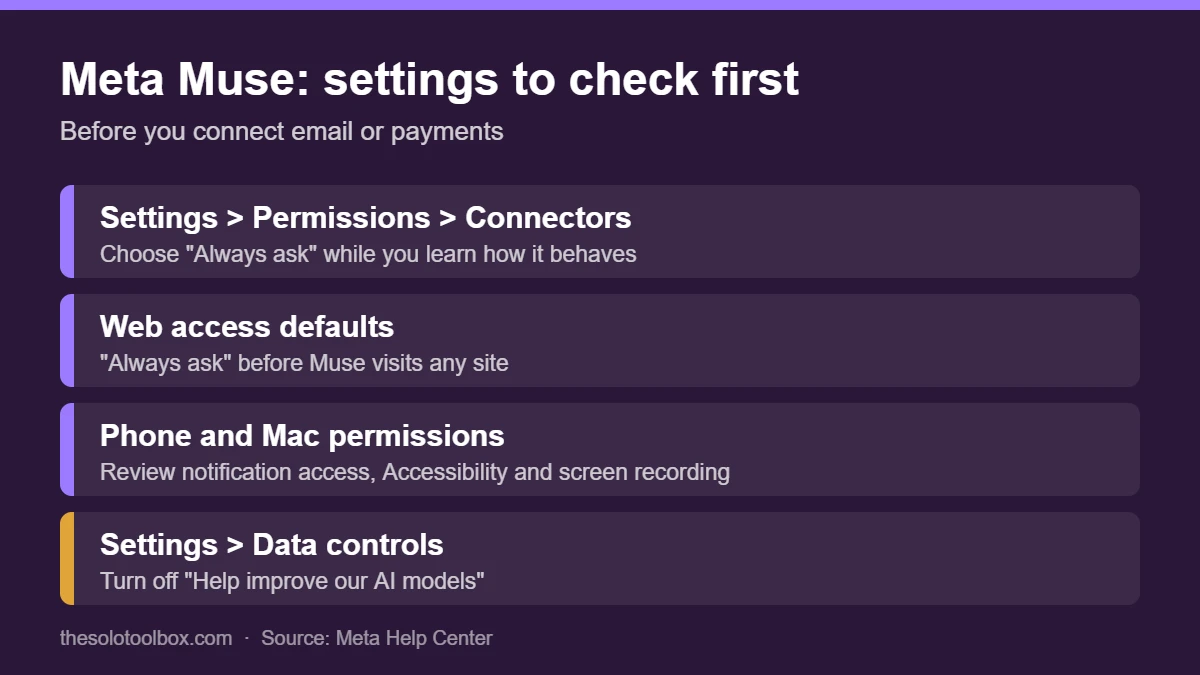
- Open Settings > Permissions > Connectors and choose Always ask. The alternative, Ask for some actions, only asks before write actions and “important” read actions.
- Under Web access defaults, choose Always ask so Muse checks with you before visiting any website.
- Open Manage permissions > Allowed websites and revoke any site you don’t recognise. Check Artifacts and scheduled tasks in the same menu.
- When Muse asks for approval, pick Allow once or Allow for this task. Avoid Always allow for email and payment Connectors, because Muse won’t ask again for that type of action.
- On Android, search your phone’s Settings for notification access and turn it off for Muse unless you want it reading your notifications. This is the permission Reuters says Muse used to read Signal messages.
- On a Mac, open System Settings > Privacy & Security and review Accessibility and Screen & System Audio Recording. Remove Muse from any list where you didn’t mean to add it.
- Go to Settings > Data controls and turn off Help improve our AI models, then tap Turn off. It’s on by default, and Meta says turning it off also covers your earlier chats.
Which tasks to trust it with
| Task type | Examples | Suggested approach |
|---|---|---|
| Read-only, low risk | Comparing prices, summarising a web page, reminders | Fine to try with Always ask on |
| Reads your data | Checking your calendar or inbox | Connect one account at a time; review the activity log afterwards |
| Acts for you, reversible | Drafting a reply, adding a calendar event | Approve each action with Allow once |
| Acts for you, irreversible | Sending email, paying, booking non-refundable travel | Do it yourself, or check every detail on the approval screen |
Meta says you can ask Muse to undo or stop some actions in chat, like reading a website or comparing prices. Others, such as a sent email, can’t be reversed.
How to see what Muse has done
- Tap the assistant icon and open the Activity log for a timeline of actions and the permissions you granted.
- Tap the assistant icon, then Upcoming, to see scheduled tasks and reminders.
- Tap See task details on any approval request before you answer it.
- Open the Library tab, then System Files, for the files on your Muse’s virtual computer.
- Tap the assistant icon, then Identity > Memory, to read and edit the Memory.md file of what it remembers about you.
How to delete your Muse data
- To remove one topic, ask Muse in chat to forget it. Meta says this works “to the best of its ability.”
- To delete a message, tap and hold it, select Delete and confirm. Side chats can be deleted from the three-dot menu in the Chats tab.
- To stop a Connector from being used again, disconnect it.
- To wipe everything, go to Settings > Data Controls, tap Reset Muse, then tap Reset. This permanently deletes chat history, files and active tasks and can’t be undone.
One limit to know: Meta’s help page says Muse may still remember information it learned from something you deleted. Check the Memory file after deleting anything sensitive.
Frequently asked questions
Can Muse read my WhatsApp or Signal messages?
Meta says Muse only reaches other apps through permissions you grant. Reuters’ tests showed those permissions can be broader than they look: on Android, notification access let Muse read Signal messages. Turning off notification access closes that route.
Does Meta use my Muse chats to train its AI?
By default, yes. Turn off Help improve our AI models in Settings > Data controls. Meta says it removes some personal details such as names, emails and phone numbers from training data when the setting is on.
Who is responsible if Muse makes a mistake?
You are, under Meta’s terms. Its help page says you’re responsible for fixing errors, including with third-party services or recipients, so a wrong order or email is yours to sort out.
What to do next
Spend five minutes on the permission settings above before connecting your email or a payment method, and review the activity log after your first few tasks. For how banks are setting rules on agents paying for things, read Can an AI agent use your bank account?, and to keep client details out of model training across other assistants, see our AI training opt-out guide.
Related guides
Sources
- MacRumors: Meta’s Muse personal AI agent launches in the UK (November 24, 2026)
- Reuters via BNN Bloomberg: As Meta bets big on Muse AI agent, early safety mishaps surface (November 18, 2026)
- Meta Help Center: How Muse works with your guidance and approval
- Meta Help Center: How to manage your Muse data
Last checked: November 24, 2026. If something here is out of date, let us know.