Android Auto Not Working After One UI 9? Fixes to Try
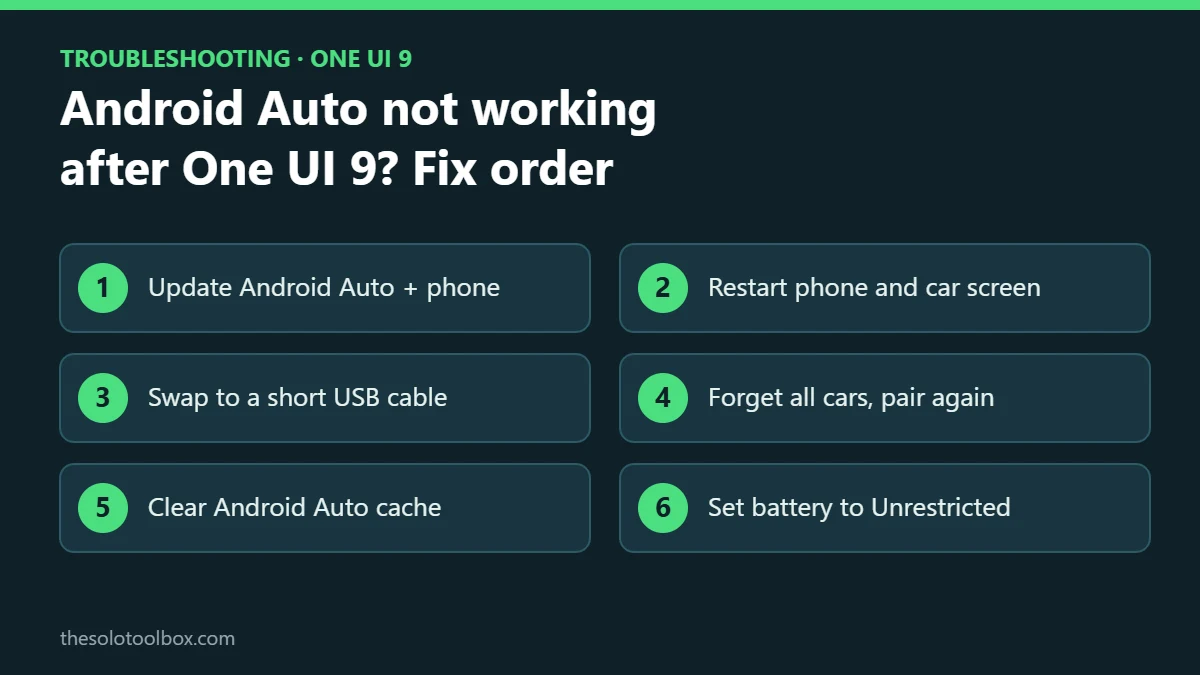
If Android Auto started stuttering or dropping its connection right after your Galaxy phone installed One UI 9, it isn’t just you. Since Samsung’s Android 17-based update began rolling out more widely, owners have reported laggy screens and failed connections on Reddit and on Samsung’s and Google’s forums, and as of November 2, 2026, neither company has announced a fix.
The checks below rule out the causes you can control: the cable, a stale car profile, cached data and battery limits. They’re in order from quickest to most involved, followed by what to do if only wireless Android Auto fails and where to report the bug.
Before you start
- Applies to: Samsung Galaxy phones updated to One UI 9 (Android 17)
- Check your version: Settings > About phone > Software information > One UI version
- Time needed: 10 to 20 minutes, with the car parked
- Status: no official fix announced as of November 2, 2026
What owners are reporting
- 9to5Google reported on November 2 that complaints describe stuttering performance, a connection that fails entirely, or both. Its read is that the problem isn’t massively widespread but shows a clear pattern.
- 9to5Google also points to a user test found by Android Authority: a Galaxy S25 Edge on One UI 8.5 worked normally, while a Galaxy S24 Ultra on One UI 9 reproduced the problem straight away. That’s one comparison, not a controlled test, but it points at the update.
- There’s no word yet from Samsung or Google on a cause or a patch.
Match your symptom to a fix
| What you see | Likely cause | Start with |
|---|---|---|
| Car shows no connection or says the device isn’t supported | Cable or USB mode | Steps 3 and 4 |
| Connects, then drops after a few minutes | Battery limits or a worn cable | Steps 6 and 3 |
| Maps, audio or touch input stutter | Software, likely the update | Steps 1 and 5 |
| Works in one car but not another | Stale car profile | Step 4 |
Fixes to try, in order
1. Update Android Auto and the rest of the phone
- Open the Play Store, search for Android Auto and tap Update if it appears.
- Go to Settings > Software update > Download and install to pick up any One UI 9 follow-up patch.
- Check Google’s own components too; our guide to the Google Play system update shows where that setting lives.
2. Restart the phone and the car’s screen
Restart the phone, then restart the car’s infotainment system, which Google lists among its first checks. While you’re in the car’s settings, confirm Android Auto is still turned on there; some head units switch it off after a failed connection.
3. Swap the USB cable
Google’s Android Auto troubleshooting page says that if Android Auto worked before and suddenly stopped, replacing the cable will likely fix it. Use a cable under 3 feet (1 meter), skip USB hubs and extensions, and try the cable that came with your Galaxy. Because these failures line up with the update, the cable may not be the cause, but it’s the cheapest thing to rule out.
Samsung’s Android Auto support page adds two checks: clear any lint from the phone’s USB-C port, and after plugging in, pull down the notification shade, tap the Android System USB notification and choose the file transfer option.
4. Forget the car and connect again
- Unplug the phone.
- Open Settings > Connected devices > Android Auto.
- Tap Previously connected cars, open the three-dot menu at the top right and tap Forget all cars.
- In Settings > Connections > Bluetooth, remove the car, and delete the phone from the car’s Bluetooth list too.
- Plug in again and go through the setup prompts on the phone and the car screen.
5. Clear Android Auto’s cache
Go to Settings > Apps, find Android Auto (if it’s missing, tap the filter icon and turn on Show system apps), then tap Storage > Clear cache. If that doesn’t help, Clear data goes further: it resets Android Auto’s settings and the car list, so you’ll repeat the setup from step 4.
6. Remove battery limits on Android Auto
One UI can restrict apps running in the background, which can cut a session mid-drive. Open Settings > Apps > Android Auto > Battery and choose Unrestricted. Then check Settings > Battery > Background usage limits and make sure Android Auto isn’t in the sleeping or deep sleeping lists. The exact menu names can differ slightly between models.
If only wireless Android Auto fails
Wireless Android Auto uses Bluetooth to start the session and Wi-Fi to carry it, so both must be on. If wireless fails but a cable works, the cable connection is your fallback until a patch lands. If you use an aftermarket head unit, Google recommends checking the manufacturer’s site for a firmware update, and the same check is worth doing for a plug-in wireless adapter.
Once you’re connected again, you may want to stop music starting the moment you plug in; our guide to stopping Android Auto autoplay covers that.
Should you roll back One UI 9?
Samsung doesn’t offer a downgrade option in Settings. Unofficial methods that flash older firmware erase the phone and aren’t supported by Samsung. Waiting for a patch while using the fixes above is the safer route. If the update itself is stuck rather than finished, see our One UI 9 update stuck fix.
Report the bug
Reports help both companies spot a pattern. Send an error report from the Samsung Members app (look under Support or Get help, depending on your version) right after a failed connection, and post your phone model, One UI version and car model in the Android Auto Help Community.
What we could not verify
- We didn’t reproduce the problem on our own devices; the symptoms come from the reports linked above.
- No one has published which Galaxy models are affected or how many users are hit.
- We don’t know whether the fix will come through a One UI patch, an Android Auto update or both.
FAQ
Is Samsung fixing the One UI 9 Android Auto problem?
Neither Samsung nor Google had announced a fix as of November 2, 2026. Check Settings > Software update and the Play Store listing for Android Auto every few days, since a fix could arrive through either.
Will clearing Android Auto’s data delete my messages or music?
No. Clearing Android Auto’s storage resets its own settings and the list of cars it knows. Your messages, contacts, photos and media apps aren’t touched, but you’ll set up the car connection again.
Does this affect Pixel phones too?
The reports from this week center on Galaxy phones running One UI 9. A separate connection problem in March 2026 hit both Pixel and Samsung phones, per Android Authority, so a failure on a Pixel today may have a different cause.
What does Android Auto need to work at all?
Google lists an Android phone running Android 11 or later with an active data plan, plus a compatible car or aftermarket head unit. Android Auto is built into the phone, so there’s no separate app to install for the car display.
Next step
Try a different short cable and the Forget all cars step first; together they take about five minutes. If the stutter remains after steps 1 to 6, keep using a wired connection and check Settings > Software update again in a few days.
Related guides
- Gemini Personal Intelligence on Android Auto: how to turn it on or off
- Android “SMS of Death” bug: how to check your phone is patched
Sources
- 9to5Google: Some Samsung Galaxy phones are having Android Auto issues with One UI 9 (November 2, 2026)
- Google Android Auto Help: My Android Auto app isn’t working (checked November 2, 2026)
- Samsung UK: I’m having difficulty connecting to or using Android Auto (checked November 2, 2026)
- Android Authority: Android Auto connection issues hit Pixel and Samsung phones (March 2026, background)