How to Share Your Wi-Fi Password on iPhone, Android and PC
The Solo Toolbox · Software Help for One-Person Businesses
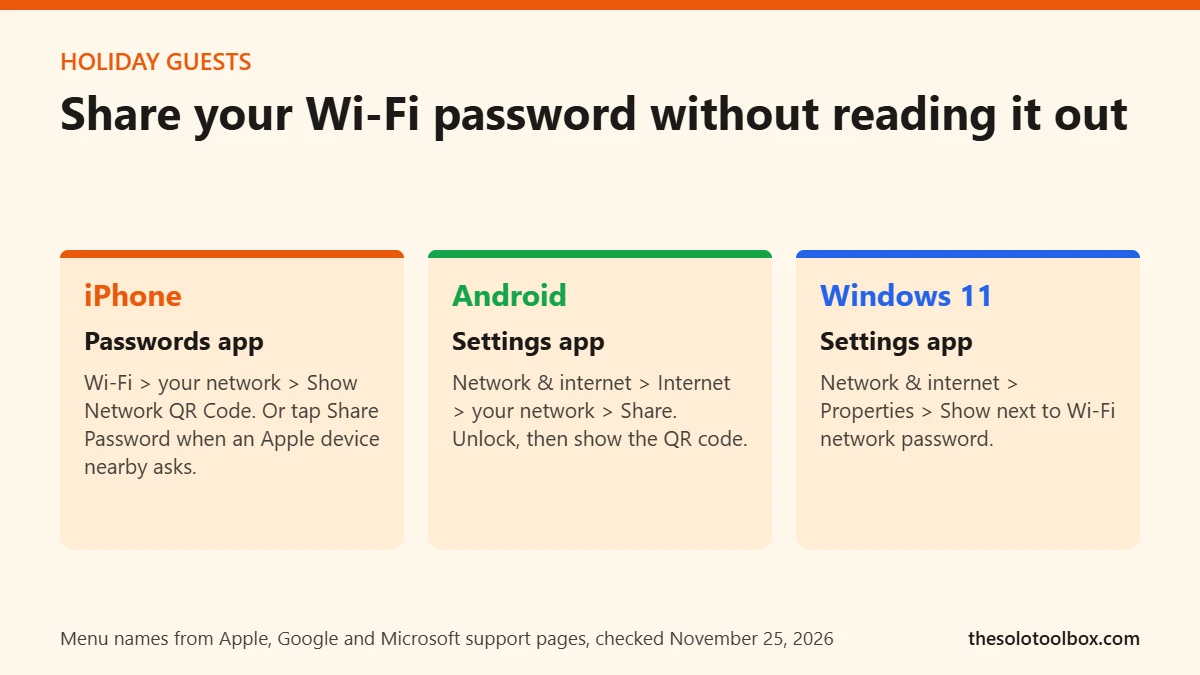
To share your Wi-Fi password without reading it out, show a QR code. On iPhone, open the Passwords app, tap Wi-Fi, pick your network and tap Show Network QR Code. On Android, go to Settings > Network & internet > Internet, tap your network and tap Share. On Windows 11, open Settings > Network & internet > Properties and select Show next to Wi-Fi network password. Guests scan the code with their phone camera and join.
If a guest has an iPhone, iPad or Mac and you’re both Apple users, there’s an even quicker tap-to-share option. Below are the exact steps for each device, a table for mixed households, and what to try when the share prompt doesn’t appear.
Before you start
- Who this is for: anyone hosting family or friends this Thanksgiving weekend, or anyone who has to dig out the router sticker every time someone visits.
- What you need: a phone or PC that is already connected to your Wi-Fi network.
- How we checked this: on November 25, 2026 we read Apple’s iPhone and Mac Passwords guides, Apple’s Wi-Fi sharing article, Google’s Android Help page on Wi-Fi networks and Microsoft’s Windows Wi-Fi support page. Menu names below come from those pages. Phones from Samsung and other makers can use different labels.
Which method to use
| Your device | Guest’s device | Fastest method |
|---|---|---|
| iPhone, iPad or Mac | iPhone, iPad or Mac | Nearby Share Password prompt |
| iPhone, iPad or Mac | Android or Windows | QR code from the Passwords app |
| Android | Any phone | QR code from Settings |
| Windows 11 PC | Any phone or PC | Show the password or QR code in Settings |
| Any | Smart TV, console or printer | Read the password and type it in |
Share Wi-Fi from iPhone to another Apple device
This sends the password to the other device without either of you seeing it. Apple’s requirements:
- Both devices have Wi-Fi and Bluetooth turned on and are close together.
- Each person is signed in to their own Apple Account.
- Each of you has the other’s Apple Account email address or phone number saved in Contacts.
- Personal Hotspot is off on both devices.
- Make sure your iPhone is unlocked and connected to the Wi-Fi network.
- Ask your guest to open Wi-Fi settings and tap your network name.
- On your iPhone, tap Share Password when the prompt appears, then tap Done.
The same prompt works from a Mac: click Share Password when it appears.
Share Wi-Fi from iPhone to Android with a QR code
The Contacts requirement above rules out most guests, and the nearby prompt doesn’t work with Android at all. The Passwords app’s QR code works with anyone:
- Open the Passwords app and unlock it with Face ID, Touch ID or your passcode.
- Tap Wi-Fi. The network you’re connected to appears at the top.
- Tap the network.
- Tap Show Network QR Code.
- Have your guest point their camera at your screen and tap the prompt to join.
On a Mac, the steps are the same in the Passwords app: click Wi-Fi in the sidebar, select the network, then click Show Network QR Code.
If you just need to see the password
Go to Settings > Wi-Fi, tap the Info button next to your network, then tap the Password field and authenticate. For a network you joined before but aren’t on now, tap Edit in the top-right corner of the Wi-Fi screen first. Apple says this works on iOS 16, iPadOS 16.1 and later.
Share Wi-Fi from an Android phone
Google’s steps for Android:
- Open the Settings app.
- Tap Network & internet > Internet.
- Tap your Wi-Fi network, then tap Share. You may be asked to confirm with your PIN, pattern or fingerprint.
- Your phone shows a QR code. Your guest scans it to join.
On phones with a different Settings layout, such as Samsung Galaxy models, open the settings for your current Wi-Fi network and look for a QR code or Share option. Some Android versions also print the password in plain text under the QR code, which helps if your guest needs to type it into a laptop.
Find and share the Wi-Fi password on Windows
Windows 11
- Open Settings.
- Select Network & internet, then Properties for your Wi-Fi connection.
- Next to Wi-Fi network password, select Show.
Microsoft says the other device can then join by scanning the QR code or by typing the password. For networks you’ve used before, go to Manage known networks, select the network, then select Show next to the password.
Windows 10
- Open Settings > Network & Internet > Status > Network and Sharing Center.
- Next to Connections, select your Wi-Fi network name.
- Select Wireless Properties, open the Security tab and check Show characters.
The password appears in the Network security key box.
Joining from a Windows PC with a QR code
A guest with a Windows laptop that has a camera can scan your code: open the Camera app, switch to barcode mode, point it at the QR code, select the link that appears, and confirm in Settings.
Before guests arrive: two small changes
- Use a guest network if your router has one. Most current routers and mesh systems can run a separate guest Wi-Fi network from their app. Visitors get internet access without sharing a network with your laptops, smart-home devices or network storage. Share that network’s code instead of your main one.
- Treat a printed QR code like the password itself. A Wi-Fi QR code stores the network name and password as plain text, and any QR reader can show them. A code taped to the fridge is fine; a photo of it posted online is not.
If you’re already in the router settings, it’s a good time to install firmware updates. If you own a GL.iNet model, our guide on checking a GL.iNet router and updating it walks through the firmware check.
Share Password prompt not showing up?
Try these in order, testing after each one:
- Unlock your iPhone. The prompt only appears on an unlocked device that’s already on the network.
- Check that each person’s Apple Account email or phone number is saved in the other’s Contacts. This is the step most people miss.
- Turn off Personal Hotspot on both devices.
- Ask your guest to tap the network name again.
- Restart both devices, as Apple suggests, then try again.
- Fall back to the QR code from the Passwords app.
Frequently asked questions
Can I share Wi-Fi from an iPhone to an Android phone?
Yes, with the QR code from the Passwords app. The nearby tap-to-share prompt only works between Apple devices.
Does sharing Wi-Fi this way reveal my password?
The Apple-to-Apple prompt fills in the password without showing it. A QR code contains the password as text, so a guest with a QR reader app can see it. If that matters, share a guest network rather than your main one.
Can I share a Wi-Fi password I don’t know?
Yes. As long as your phone or PC is connected to the network, all of the methods above work without you knowing the password.
How do I connect a smart TV or game console?
Most TVs and consoles can’t scan QR codes. Use one of the “see the password” steps above and type it in with the remote or controller.
What to do next
Open the Passwords app or your Android Wi-Fi settings now and take a screenshot of your network’s QR code, so it’s ready when the doorbell rings. If you’re setting up new devices for family over the holiday, our guides to fake package delivery texts and Black Friday scam emails and texts are worth sending to relatives too.
Related guides
Sources
- Apple Support: How to share your Wi-Fi password from your iPhone or iPad
- Apple iPhone User Guide: Find and share your Wi-Fi password on iPhone
- Apple Passwords User Guide: Find and share your Wi-Fi password on Mac
- Apple Support: Find your saved Wi-Fi passwords on iPhone or iPad
- Android Help: Connect to Wi-Fi networks on your Android device
- Microsoft Support: Connect to a Wi-Fi network in Windows
Last checked: November 25, 2026. If something here is out of date, let us know.