GL.iNet Router Hack: How to Check Your Device and Update It
The Solo Toolbox · Software Help for One-Person Businesses
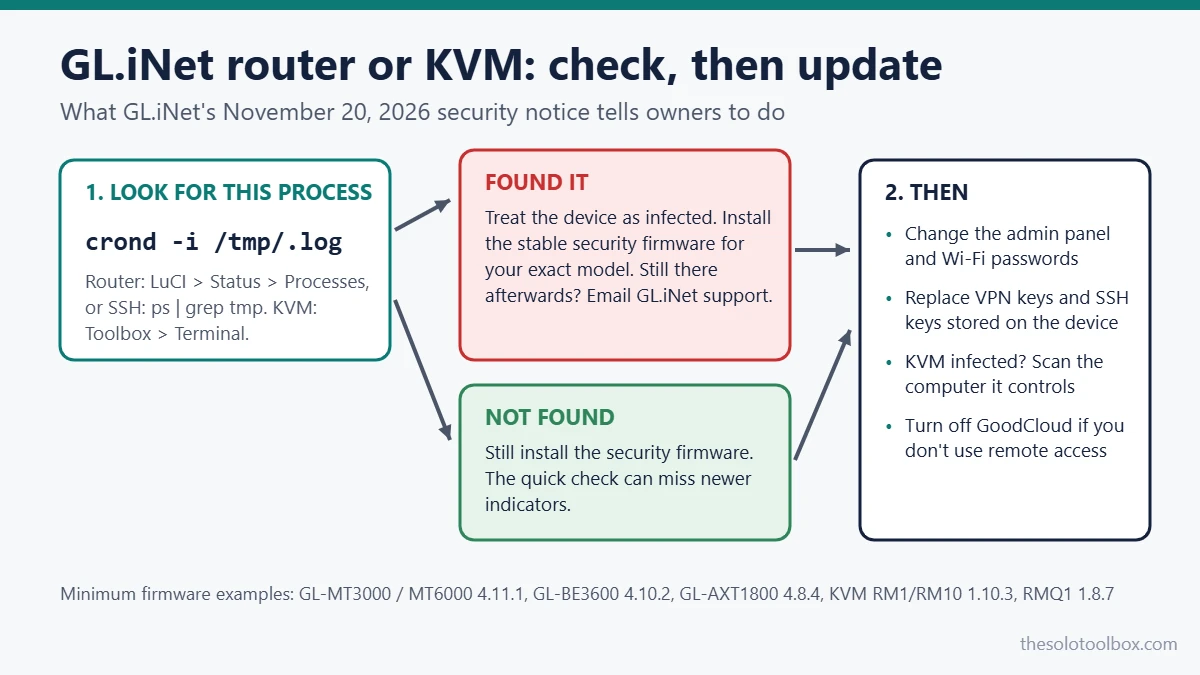
GL.iNet confirmed on November 20, 2026 that attackers exploited a vulnerability in its cloud remote management service to install malware on some of its routers and KVM devices. The cloud hole is closed, but that doesn’t clean devices that were already infected. To find out if yours was hit, look for a running process called crond -i /tmp/.log, then install the security firmware for your model whatever the result. GL.iNet says the firmware removes the malware without a factory reset.
This guide covers which devices are listed, how to run the check on a router and on a KVM, the minimum firmware versions, and what to change afterwards.
Before you start
- Applies to: GL.iNet travel and home routers (GL-MT3000 Beryl AX, GL-MT6000 Flint 2, GL-BE3600 Slate 7 and others) and GL.iNet remote KVMs (Comet RM1, RM10, RMQ1 and others).
- You’ll need: access to the router’s admin panel or the KVM web interface, and its admin password.
- Time: about 5 minutes to check, plus 3 to 5 minutes for a firmware update and reboot.
- How we checked this: on November 23, 2026 we read GL.iNet’s security notice (last updated November 23 UTC) and BleepingComputer’s November 22 report. GL.iNet has not said how many devices were infected or whether data was taken from them.
What happened in the GL.iNet router hack
GL.iNet’s GoodCloud service lets owners manage routers and KVMs over the internet, including controlling the computers plugged into a KVM. According to the company’s notice, an unauthorized party used a vulnerability in that cloud service to reach some devices and install malicious software. GL.iNet says it fixed the cloud flaw and blocked the access path, so devices can’t be newly infected the same way.
BleepingComputer examined malware recovered from affected devices and reported that it:
- disguises itself as the process
crond -i /tmp/.log, the same indicator GL.iNet tells owners to look for; - downloads programs named
gl-helperandgb, and restarts itself after a reboot through startup scripts and scheduled tasks; - can add SSH keys for remote access and replaces the
netstattool with a version that hides its own connections; - in other cases opened root-level reverse shells, giving an attacker a command line on the device.
Consultancy RemoteToHome reported suspicious activity on 152 of 183 GL.iNet routers it owns or manages, including 24 with reverse shells. It cautioned that its fleet may not be typical and that some older backdoors it found may be unrelated to this incident. Some malicious files carried timestamps from December 2025, which BleepingComputer said could mean some devices were compromised for months, though the link to the November attack is unclear.
How to check a GL.iNet router
GL.iNet gives two ways. Either one works; you’re looking for the exact text crond -i /tmp/.log.
Option 1: the web admin panel
- Open the router’s Admin Panel (usually
192.168.8.1) and sign in. - Go to System > Advanced Settings and sign in to LuCI.
- In LuCI, open Status > Processes.
- Press Ctrl+F (Command+F on a Mac) and search for
tmp/.log. - If a process shows
crond -i /tmp/.log, treat the router as infected.
Option 2: SSH
Sign in to the router over SSH and run ps | grep tmp. A line containing crond -i /tmp/.log is a match. A line that only shows your own grep command is not.
How to check a GL.iNet KVM
- Open the KVM’s web interface.
- Go to Toolbox > Terminal > Access. This opens a terminal on the KVM itself, not on the computer connected to it.
- On a Comet Q (RMQ1), run
ps -a | grep tmp. On every other KVM model, runps -aux | grep tmp. - Look for
crond -i /tmp/.login the output.
If the KVM is infected, check the computer it controls too. GL.iNet is still investigating whether those computers were affected. It suggests looking for unfamiliar programs, browser extensions and user accounts, new startup items or scheduled tasks, and then running a full scan with up-to-date security software.
Which firmware fixes it
Install the latest stable security firmware for your exact model, even if the check came back clean. GL.iNet says you can keep your settings during the upgrade. Don’t install firmware made for a different model.
| Device | Minimum security firmware |
|---|---|
| GL-MG1300, GL-MT3000, GL-MT6000 | 4.11.1 |
| GL-E5800 | 4.10.3 |
| GL-BE3600, GL-BE9300 | 4.10.2 |
| GL-BE14000 | 4.9.3 |
| GL-BE6500, GL-MT3600BE, GL-MT5000 | 4.9.1 |
| GL-BE10000 | 4.8.7 |
| GL-AX1800, GL-AXT1800, GL-SFT1200, GL-X3000, GL-XE3000 | 4.8.4 |
| GL-MT2500 / GL-MT2500A, GL-X2000 | 4.7.14 |
| KVM: RM1, RM1V2, RM10, RM10RC, RM1PE, RM4PE | 1.10.3 |
| KVM: RMQ1 | 1.8.7 |
Download it from the links in GL.iNet’s notice or the GL.iNet Download Center. If your model isn’t in the table, GL.iNet says that doesn’t mean it’s unaffected; check the Download Center or email support@gl-inet.com. If you installed a security beta earlier, move to the stable release.
If you found the malware
- Install the security firmware first. Then run the check again. If the process is still there, or the upgrade fails, contact GL.iNet support for recovery steps.
- Change the passwords stored on the device. That means the admin panel password and your Wi-Fi passwords. The malware had root access, so assume anything saved on the router could have been read.
- Replace keys the router held. If it ran a WireGuard or OpenVPN client or server, generate new keys and update the other end. Remove any SSH keys on the device that you didn’t add.
- Check accounts reached through the KVM. If you signed in to anything on the computer behind an infected KVM, change those passwords from a different, clean device.
- Don’t restore an old configuration backup from before the update if you later reset the device. BleepingComputer notes that malicious files kept in configuration folders could survive.
An unofficial community scanner linked from GL.iNet’s notice looks for more indicators than the quick check. GL.iNet stresses that it doesn’t develop or support that tool and that a clean result is no guarantee. Read its instructions before running it, because it can run with admin rights and has optional cleanup and reporting features.
Should you keep GoodCloud on?
This attack came through GL.iNet’s cloud management, not through anything owners did. If you don’t manage the device remotely, turning GoodCloud off removes that route entirely; on 4.x router firmware the switch is on the GoodCloud page under Applications in the admin panel. If you rely on it for a KVM or a router at another site, update the firmware first and keep an eye on the notice, which GL.iNet says it will update as the investigation continues. The same habit helps with other router bugs, like the Broadcom WPS flaw: switch off remote and convenience features you don’t use.
GL.iNet says it will email customers it identifies as affected, using the address on their GoodCloud account. You don’t need to wait for that email to check your device. Treat any message asking you to download firmware from somewhere other than gl-inet.com with suspicion.
FAQ
Was my GL.iNet router hacked if I never used GoodCloud?
GL.iNet says the attack used its cloud remote management service, and it hasn’t said whether devices that never connected to GoodCloud were affected. The check takes a few minutes, so run it anyway and install the security firmware.
Do I need to factory reset my GL.iNet router?
Not according to GL.iNet. It says the security firmware removes the malware it identified and that you can keep your settings. If the indicator is still present after the update, contact GL.iNet support.
Which GL.iNet devices are affected?
GL.iNet lists security firmware for more than a dozen router models, including the GL-MT3000, GL-MT6000 and GL-BE3600, and for its RM-series KVMs. It says a model missing from the list isn’t necessarily safe.
Is the computer connected to my GL.iNet KVM infected?
Unknown. GL.iNet is still investigating whether computers behind infected KVMs were compromised. If your KVM showed the indicator, scan that computer and change passwords you used on it.
What to do next
Sign in to your GL.iNet device now, run the process check, and install the security firmware from the table above. If you also own a smart TV box or other always-on gadget, our guide to checking an Android TV box for malware uses similar steps, and if an infected device could have seen your logins, start with what to change first after a password theft.
Related guides
Sources
- GL.iNet: Security Notice 2026-11-20 (last updated November 23, 2026)
- BleepingComputer: Hackers exploit GL.iNet cloud flaw to infect routers, KVM devices (November 22, 2026)
- RemoteToHome: GL.iNet security incident analysis on GitHub
- GL.iNet: Router SSH login guide
Last checked: November 23, 2026. If something here is out of date, let us know.