New ChatGPT App Design: Where Projects Went and How to Switch Back
The Solo Toolbox · Software Help for One-Person Businesses
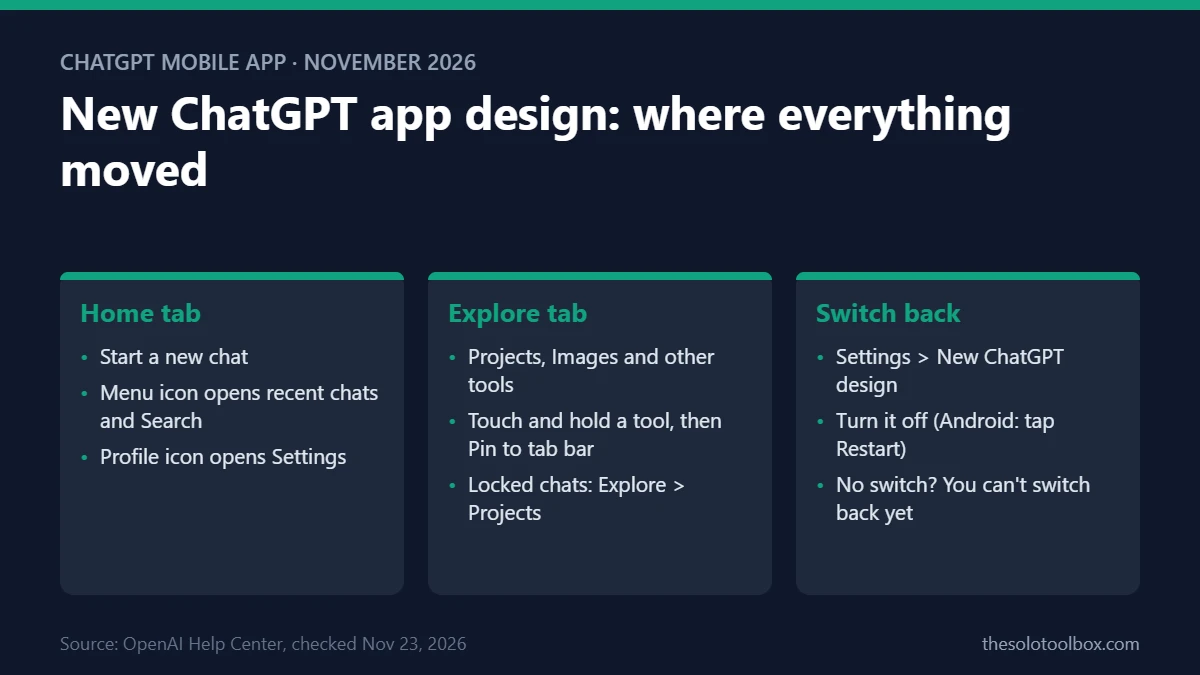
The new ChatGPT app design replaces the old sidebar-first layout with two tabs at the bottom of the screen: Home (a house icon) for chats and Explore (four circles) for tools like Projects and Images. Your chats and projects are still there. Projects now live under Explore, and you can pin them back to the tab bar or, if the New ChatGPT design switch appears in Settings, go back to the classic layout.
OpenAI began rolling the redesign out on November 19, 2026. This guide shows where each feature moved, how to pin shortcuts, how to switch back, and why some accounts don’t have it.
Before you start
- You’ll need: the latest ChatGPT app from the App Store or Google Play, signed in to a Pro or Plus account.
- Applies to: ChatGPT for iPhone and Android. Not iPad, iPhone SE or iPhone Duo yet, and not the web or desktop apps.
- How we checked this: on November 23, 2026 we read OpenAI’s ChatGPT release notes entry dated November 19 and its help article on the new mobile experience. We haven’t used the redesign on every device, and OpenAI hasn’t said when Free users or excluded regions will get it.
What changed in the ChatGPT app
According to OpenAI’s November 19 release note, the redesign gives quicker access to features you use often. The main changes:
- Home and Explore tabs. Home starts a chat or reopens a past one. Explore lists tools such as Projects and Images.
- A tab for your dot. If you have a dot (OpenAI’s agent feature, currently for Pro users), it gets its own tab.
- Pinnable shortcuts. You can pin features like Codex, Projects and Images to the tab bar.
- Chat or Work picker. The model name inside the message box now opens a picker where you choose Chat or Work for a new conversation.
You’re in the new experience if you see Home and Explore at the bottom of the app. If you don’t, you’re still on the classic layout.
Where your chats, projects and settings went
| What you’re looking for | Old location | New location |
|---|---|---|
| Recent chats | Sidebar | Home, then the menu icon (two lines) to open the sidebar |
| Projects | Sidebar | Explore, then Projects (or pin it to the tab bar) |
| Images | Sidebar | Explore, then Images |
| Locked chats | Sidebar | Explore, then Projects, then Locked chats |
| Settings | Profile icon in the sidebar | Home, open the sidebar, then your profile icon |
| Model choice | Model menu at the top | Tap the model name inside the message box, then Chat or Work |
If a chat seems missing, check you’re in the right account and workspace first. Then open Search in the sidebar and type words from the title or the messages. Archived chats still show up in search, so a chat that’s gone from the sidebar isn’t necessarily deleted. If you use more than one account, our guide on switching ChatGPT accounts on iPhone and Android explains how each account keeps its own history.
How to pin Projects or Images to the tab bar
- Tap Explore (the four-circle icon).
- Touch and hold the tool you want, for example Projects.
- Tap Pin to tab bar. If the bar is full, pick which shortcut to replace.
- For Projects, tap the folder icon in the tab bar to open your project list.
To remove a shortcut, touch and hold its icon in the tab bar and tap Unpin from tab bar. The tool stays available in Explore.
How to switch back to the classic ChatGPT design
- Finish any active chat, dictation or upload and save drafts. OpenAI recommends this before switching.
- Tap Home, open the sidebar, then tap your profile icon to open Settings.
- Turn off New ChatGPT design.
- On Android, tap Restart when prompted.
If New ChatGPT design isn’t in Settings, OpenAI says you can’t switch back in that app. Some Pro users got the new layout by default, and the switch is the only official way out.
The reverse also works: Pro users whose app still opens in the classic layout can turn New ChatGPT design on in Settings after updating.
Why you don’t have the new design yet
- Your plan. The rollout covers adults on ChatGPT Pro and a small group of Plus users. Free and Go aren’t included.
- Your region. It excludes the European Economic Area (including the EU), the UK, Switzerland and Korea.
- Your device. It isn’t available on iPhone SE, iPhone Duo or iPad yet.
- Your app version. Update from the App Store or Google Play. On iOS the version is near the bottom of Settings; on Android it’s under About.
- Timing. The rollout is gradual. If the switch is missing after updating, the redesign isn’t on your account or device yet.
The redesign arrived a day before OpenAI replaced Library with Space on November 20. If you’re looking for saved images or files rather than projects, see where your Library files went in ChatGPT Space.
Other settings worth checking after the update
- Haptic feedback: Settings, then General, then Haptic feedback. On some layouts it sits directly in Settings (iOS) or under Personalization (Android).
- Chat history and privacy: the Data controls section in Settings decides whether your chats are used for training.
- Dictation: dictation changed to Live Dictation on November 18; our Live Dictation guide covers what changed.
- Locked chats: if you protect sensitive chats, see how to lock chats in ChatGPT and note the new path through Explore.
FAQ
Why don’t I have the new ChatGPT design?
The rollout started on November 19, 2026 with adult ChatGPT Pro users and a small group of Plus users. Free accounts, the EEA, UK, Switzerland and Korea are excluded, and it isn’t on iPhone SE, iPhone Duo or iPad yet. Updating the app is required but doesn’t guarantee you get it.
Did the redesign delete my chats or projects?
No. OpenAI’s help article says chat history syncs across devices on the same account. Projects moved from the sidebar to Explore, and recent chats are still in the sidebar under Home.
Can I switch back to the old ChatGPT app?
Only if New ChatGPT design appears in Settings. Turn it off there; on Android, tap Restart when asked. If the switch isn’t listed, OpenAI says you can’t switch back in your app.
Where are locked chats in the new design?
Go to Explore, then Projects, then Locked chats. Locked chats don’t appear in regular history or search.
What to do next
Update the app, then check Settings for New ChatGPT design. If you rely on Projects, pin it to the tab bar right away so it’s one tap from Home. If the new layout slows you down and the switch is there, turn it off; you can turn it back on later.
Related guides
Sources
- OpenAI Help Center: ChatGPT release notes (entry dated November 19, 2026)
- OpenAI Help Center: Using the new experience in the ChatGPT mobile app (accessed November 23, 2026)
Last checked: November 23, 2026. If something here is out of date, let us know.