ChatGPT Library Is Now Space: Where to Find Your Files and Images

The Solo Toolbox · Software Help for One-Person Businesses
If Library has disappeared from your ChatGPT sidebar, it has been replaced by Space. Your images and uploaded files now live there: open Space in the sidebar, then choose Images to see Your creations (images ChatGPT made) and Uploads (images you added). OpenAI started rolling Space out to Plus users worldwide on November 20, 2026, about seven weeks after it reached Pro, Business and Enterprise.
Below: where each kind of file went, what pages and spaces are, who can open what you share, and the privacy settings to check before you invite anyone.
Before you start
- You’ll need: a ChatGPT Plus, Pro, Business or Enterprise account, and you must be 18 or older to start using Space.
- Applies to: ChatGPT on the web, the desktop app, iOS and Android. Pages can be created and edited on the web and desktop, and also edited on mobile.
- Time: about 5 minutes to find your files and check sharing settings.
- How we checked this: based on OpenAI’s ChatGPT release notes and its help article “Getting started with Space in ChatGPT”, both checked November 22, 2026. The rollout is gradual, so some Plus accounts won’t see Space yet.
What changed on November 20
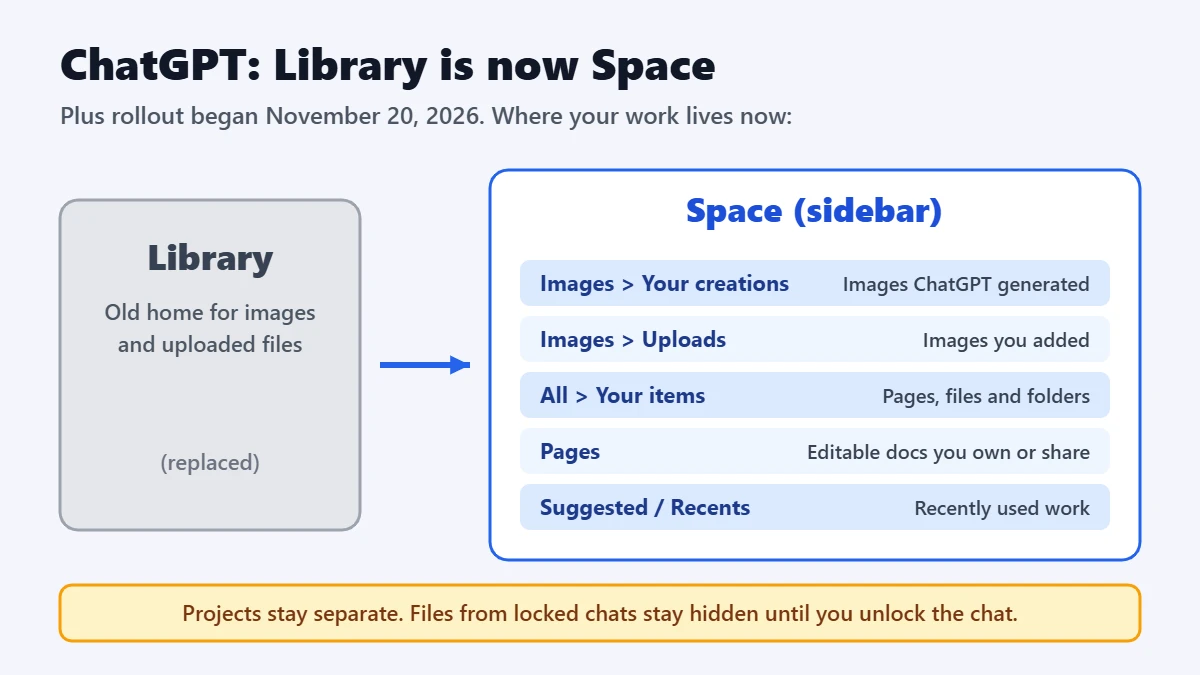
OpenAI’s release notes for November 20, 2026 say Space is rolling out globally to Plus users aged 18 and older, and that it replaces Library as the home for pages, slides, images and uploaded files. Space first launched for eligible Pro, Business and Enterprise users on September 29, 2026.
| Before (Library) | Now (Space) | |
|---|---|---|
| Images ChatGPT made | Library | Space > Images > Your creations |
| Images and files you uploaded | Library | Space > Images > Uploads, or All > Your items |
| Documents | Not part of Library | Pages you can edit yourself or with ChatGPT |
| Sharing | Not available from Library | Share a page or a whole space, as view or edit |
| Projects | Separate | Still separate and unchanged |
Space also adds things Library never had: pages and presentations you can build with ChatGPT, folders, and pages that update from connected apps. OpenAI’s examples include a to-do list that updates itself and a project plan that pulls in decisions from Slack.
Where your Library files are now
- Open ChatGPT on the web or in the desktop app. If you use the desktop app, update it to the latest version first.
- Select Space in the sidebar. It sits where Library used to be.
- To find images, select Images. Your creations holds images ChatGPT generated; Uploads holds images you added.
- To see everything in your personal space, including pages, files and folders, select All > Your items.
- To get back to something you opened recently, check Suggested and Recents.
On iPhone and Android, use Space search or the app’s main search. Pages you viewed recently also appear under Suggested.
Some files are missing? Check locked chats
Files uploaded or created in a locked chat are hidden from Space while that chat is locked, and they open only inside that chat. To reach them, go to Projects > Locked chats and enter your account PIN or use Face ID or another supported device check. If you permanently unlock the chat, its files show up in Space again if they were saved there. Our guide to locking chats in ChatGPT explains how the lock works.
Pages, spaces and Projects: what each one is for
| Item | What it is | Good for |
|---|---|---|
| Page | An editable document. It can contain subpages, charts, trackers and small interactive tools made by ChatGPT. | A client brief, meeting notes, a research summary |
| Space | A group of related content. Everyone has a personal space; you can add more for a topic or a team. | Keeping one client’s or one launch’s pages and files together |
| Project | Organizes chats, files and project instructions, as before. | Ongoing conversations that share the same instructions |
You create spaces and pages by asking. For example, “Create a space named Website launch,” then “Create a project overview page in Website launch with our goals, timeline, and next steps.” To nest a page, ask ChatGPT to create a subpage and name its parent. If you hit your Plus message limit, you can still edit a page by hand.
Slides are rolling out to accounts with Space access, and OpenAI says Sheets are coming later. If you already build decks in ChatGPT, see how ChatGPT Slides export to PowerPoint.
Who can open what you share
Open a page and select Share, then choose people and whether they can view or edit. Before you send a link to a client, check these limits from OpenAI’s help article:
- The other person must be signed in to a Plus, Pro, Business or Enterprise account with Space access. People on the Free plan can’t open shared pages or presentations.
- Public links aren’t available.
- Subpages inherit access from their parent page or space. Removing someone’s direct invitation doesn’t remove access they get through a parent, so change the parent’s sharing too.
- Moving a page under a different parent can change who can see it.
- Deleting a page moves it and all its subpages to Trash, including subpages that other people own.
If your client uses free ChatGPT or no ChatGPT at all, a shared page won’t work for them. Send the content in a format they can open, such as a Google Doc or a PDF.
Privacy settings to check before you share
- Memory: if Memory is on, ChatGPT may use personal context while writing a page. Anything it writes onto the page is visible to everyone who can view it.
- Training: each collaborator’s settings apply when their ChatGPT reads or creates shared content. If you turn training off but a collaborator has it on, your contributions may still be used for training through their use. OpenAI does not train on Business or Enterprise data by default.
- Files: files uploaded into a page follow the page’s permissions. Links to files stored elsewhere, including Google Drive or other connected services, keep the original service’s permissions. Anything ChatGPT copies or summarizes onto the page is readable by everyone with access.
For client work on a Plus plan, review how to keep client data out of AI training before you start sharing pages.
Space is not showing up
- Update the ChatGPT desktop app. OpenAI’s first troubleshooting step is installing the latest version.
- Wait a few days. The Plus rollout is gradual, and OpenAI says Space may not be on your account yet.
- Check your age on the account. You must be 18 or older to start using Space.
- On a work account, ask your admin. Sharing follows your organization’s settings, and Enterprise admins may need to turn on sharing. Business and Enterprise workspaces with data residency in Canada or the United Arab Emirates don’t have Space yet.
FAQ
Did OpenAI delete my Library images?
OpenAI’s documentation describes Space as the new home for images and uploaded files and does not mention deleting anything. Generated images are under Images > Your creations. If one is missing, check whether it came from a locked chat.
Can Free users use Space?
No. Creating and editing in Space requires Plus, Pro, Business or Enterprise, and Free accounts can’t open pages that others share.
Are Projects going away?
No. OpenAI says Projects remain separate and creating a space does not replace them.
Can I share a page with a public link?
Not at the moment. Every viewer needs permission and a paid account with Space access.
What to do next
Open Space > Images today and confirm the images and uploads you rely on are there. Then open any page you plan to share and check its sharing settings and its parent’s settings before you invite anyone.
Related guides
Sources
- OpenAI: ChatGPT release notes (November 20 and September 29, 2026 entries)
- OpenAI Help Center: Getting started with Space in ChatGPT
Last checked: November 22, 2026. Features and menus change often. If something here no longer matches what you see, let us know.