How to stop OneDrive backing up your Desktop and Documents (without losing files)
The Solo Toolbox · Software Help for One-Person Businesses
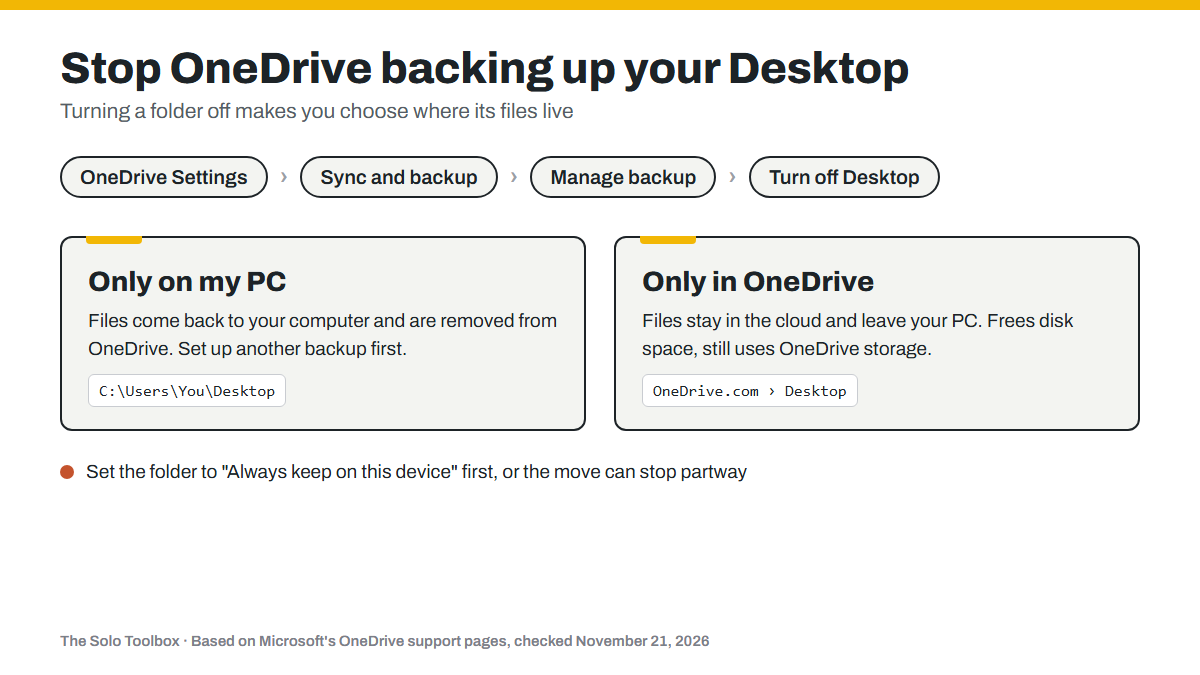
To stop OneDrive backing up your Desktop, Documents or Pictures, open OneDrive’s settings, go to Sync and backup > Manage backup, and turn off the folder. Current versions then ask where the files should live: only on your PC, or only in OneDrive. Before you do it, make sure every file is downloaded to your PC, or the switch can fail partway through.
Before you start
- You’ll need: a Windows 11 or Windows 10 PC with the OneDrive app signed in, and enough free disk space to hold the files you bring back.
- Applies to: OneDrive’s folder backup on Windows, for personal Microsoft accounts. On a work or school PC, your IT administrator may control this setting.
- Time: about 5 minutes, plus download time if many files are online-only.
- How we checked this: based on Microsoft’s OneDrive support pages, checked November 21, 2026. Older OneDrive versions behave differently; that case is covered below.
Why your files are in OneDrive
OneDrive’s folder backup moves your Desktop, Documents and Pictures folders into OneDrive so they sync to the cloud. Depending on the Windows version, setup may turn this on for you or offer it as a choice, which is why many people don’t remember enabling it.
It usually gets noticed when OneDrive fills up. A free Microsoft account currently comes with 5 GB of cloud storage, shared with Outlook.com attachments, and a busy Desktop and Documents folder can pass that quickly.
To confirm backup is on, open File Explorer, right-click Desktop, select Properties and open the Location tab. If the path includes OneDrive, such as C:\Users\YourName\OneDrive\Desktop, the folder is being backed up.
Decide where the files should live
When you turn backup off, OneDrive asks you to choose one of two options:
| Option | What happens | Choose it if |
|---|---|---|
| Only on my PC | The files are removed from OneDrive and kept on your computer | You want your files local and plan to back them up another way |
| Only in OneDrive | The files are removed from your computer and kept in OneDrive | You mainly wanted to free up disk space, or you use the files from other devices |
Neither option keeps a copy in both places. If you choose Only on my PC, OneDrive stops being your backup for those folders, so set up another one first, such as an external drive with File History.
Download everything first
If some files are online-only, which shows as a cloud icon in File Explorer’s Status column, the switch can stop with “Some files couldn’t be moved.”
- Open File Explorer and go to OneDrive > Desktop.
- Right-click an empty area of the folder, or the folder itself, and select Always keep on this device.
- Wait until every file shows a solid green tick instead of a cloud.
- Repeat for Documents and Pictures if you’re turning those off too.
- Save and close any open files from these folders.
Turn off folder backup
- Select the OneDrive cloud icon in the notification area, near the clock. If it isn’t there, open OneDrive from the Start menu.
- Select the Help & Settings icon (the gear), then Settings.
- Open the Sync and backup tab and select Manage backup.
- Turn off the switch for Desktop.
- Choose Only on my PC or Only in OneDrive.
- Repeat for Documents, Pictures or any other folder you want to stop backing up.
To check it worked, open the Desktop folder’s Properties > Location tab again. With Only on my PC, the path should no longer include OneDrive, for example C:\Users\YourName\Desktop.
If OneDrive doesn’t ask where to keep the files
Older OneDrive versions didn’t offer the choice. They stopped the backup but left the files in OneDrive, and put a shortcut called “Where are my files” in the now-empty folder on your PC. Microsoft still documents this behavior for the Mac app.
If that happens, move the files back yourself:
- Open the “Where are my files” shortcut, or go to OneDrive > Desktop in File Explorer.
- Make sure everything is downloaded (Always keep on this device, as above).
- Select all files (Ctrl+A), cut them (Ctrl+X), open your local Desktop folder and paste (Ctrl+V).
- Open a few files from their new location before deleting anything from OneDrive.
Stop OneDrive syncing completely
If you don’t want OneDrive on this PC at all, turn off folder backup first using the steps above, so your Desktop and Documents aren’t left pointing at a folder that’s no longer syncing. Then:
- Open OneDrive Settings and go to the Account tab.
- Select Unlink this PC, then Unlink account.
Microsoft says unlinking doesn’t delete your files and that you can still reach them at OneDrive.com. You can also uninstall OneDrive from Settings > Apps, though on some Windows versions Microsoft says it can’t be uninstalled, only hidden.
For other ways to keep Windows from getting in the way of your workday, see our guide to stopping Windows 11 restarting for updates during work hours.
If it doesn’t work
- “Some files couldn’t be moved”: some files are still online-only. Set the folder to Always keep on this device, wait for the downloads to finish, then try again.
- “OneNote notebooks can’t be moved”: OneNote notebooks are stored in the cloud, so OneDrive won’t move them. Microsoft lists this error, with its fix, in the “Fix problems with folder backup” section of its folder backup page (linked below).
- The switch is greyed out, or you see error 0x80070005: a policy on the PC controls folder backup. On a work PC, ask your administrator.
- The files seem to be in two places: check the Location tab of each folder. Windows can show both a local Desktop folder and OneDrive > Desktop. Only the one in the Location tab is the folder Windows actually uses.
- OneDrive still says it’s full: stopping backup with Only on my PC removes those files from OneDrive. If you chose Only in OneDrive, they still count toward your storage.
Related guides
Sources
- Microsoft: Back up your folders with OneDrive
- Microsoft: Turn off, disable, or uninstall OneDrive
- Microsoft: Windows Backup
- Microsoft: Compare OneDrive plans
- Thurrott: Windows 11 Field Guide, OneDrive (24H2)
Last checked: November 21, 2026. Microsoft updates OneDrive regularly. If something here no longer matches what you see, let us know.