Bluetooth Headphones Sound Bad When Mic Is On? Windows 11 Fix
The Solo Toolbox · Software Help for One-Person Businesses
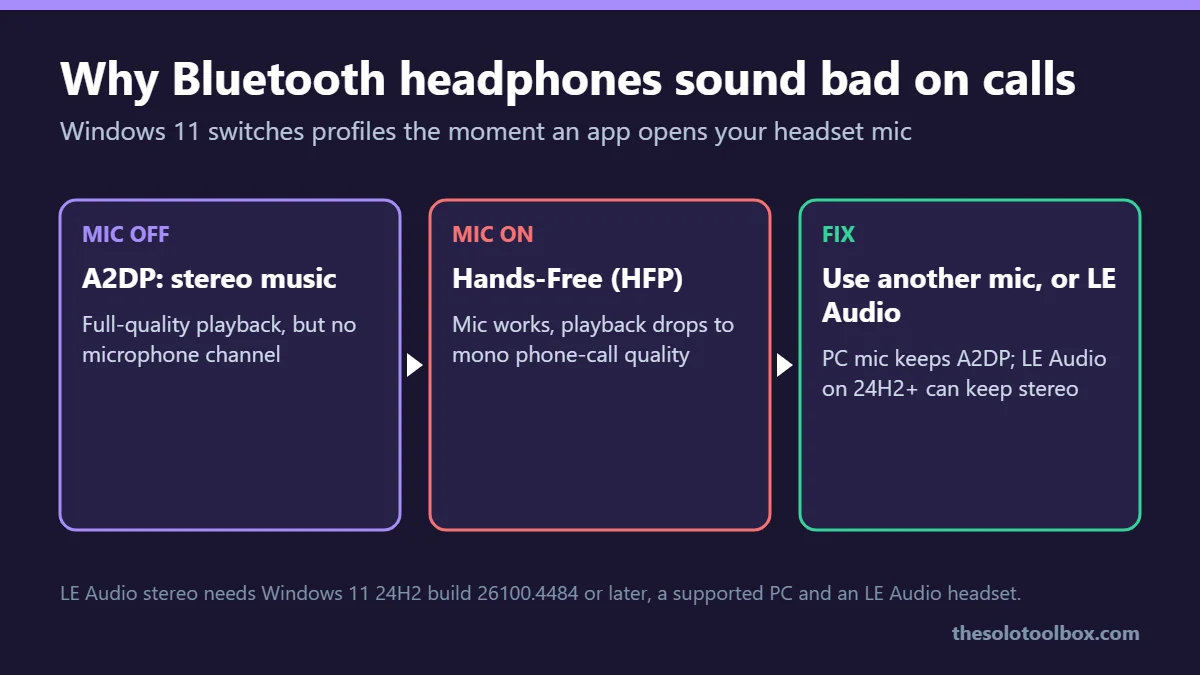
Bluetooth headphones sound bad when the mic is on because Windows 11 switches them from the stereo music profile (A2DP) to the Hands-Free profile, which carries your voice but plays everything back in low-quality mono. The quickest fix is to use a different microphone, such as your laptop’s built-in mic, so the headphones stay in stereo. If both your PC and headset support Bluetooth LE Audio, Windows 11 24H2 and later can keep stereo playback while the headset mic is on.
This guide shows how to confirm that’s what’s happening, four fixes in order of effort, and what Microsoft is changing next.
Before you start
- Applies to: Windows 11 with any Bluetooth headset or earbuds that have a microphone, in Teams, Zoom, Discord, Google Meet or games with voice chat.
- Not this problem: sound that crackles or cuts out with the mic off, or a wired USB headset that stopped working after an update.
- For the LE Audio fix: Windows 11 version 24H2 or later, build 26100.4484 or newer, a PC with Bluetooth LE Audio support and updated drivers, and LE Audio earbuds or headphones.
- How we checked this: on November 23, 2026 we read Microsoft’s support article on Bluetooth LE Audio quality settings (updated September 2026) and Windows Latest’s November 22, 2026 report on a new preview option. We didn’t test specific headset models.
Why your Bluetooth headphones sound bad when the mic is on
Classic Bluetooth audio uses two profiles. A2DP plays high-quality stereo but has no channel for a microphone. When an app opens the headset mic, Windows switches to the Hands-Free Profile (HFP), which sends your voice and plays audio back in mono at phone-call quality. Music, game sound and the other people on the call all get the same downgrade.
Signs this is your problem:
- Audio sounds fine until you join a call or open voice chat, then turns thin and muffled.
- It happens even when you’re muted, because the app still has the microphone open.
- Quality comes back a few seconds after you leave the call or close the app.
- In the Sound settings your headphones appear twice, once with a name like Headset or Hands-Free.
Fix 1: use a different microphone
If the headset mic isn’t in use, Windows has no reason to switch profiles. Your laptop’s built-in mic, a webcam mic or a USB microphone all work.
- Open Settings > System > Sound.
- Under Input, choose your laptop or USB microphone.
- Under Output, choose your Bluetooth headphones, making sure it’s the entry without Headset or Hands-Free in the name if there are two.
- In your call or chat app, set the microphone to the same non-Bluetooth device. Apps such as Discord, Teams and Zoom keep their own device choice and can ignore the Windows default. In Discord it’s User Settings > Voice & Video > Input Device.
Join a test call to check. The trade-off is that a laptop mic picks up more room noise than a headset mic.
Fix 2: stop apps from grabbing the headset mic
Some apps switch to the headset mic on their own every time it reconnects. You can hide that mic from them.
- Open Settings > System > Sound > More sound settings.
- On the Recording tab, right-click the microphone that belongs to your headphones and choose Disable.
- On the Playback tab, right-click the stereo entry for your headphones and choose Set as Default Device, then Set as Default Communication Device.
- Click OK and reconnect the headphones.
Entry names depend on the headset and driver, so look for the pair that share your headphones’ name. To use the headset mic again, go back to the Recording tab, right-click in the list, tick Show Disabled Devices and enable it.
Fix 3: turn off the headset’s Hands-Free service
This removes the Hands-Free connection completely, so the headset can only play stereo audio and its mic won’t work on this PC at all.
- Open Control Panel > Hardware and Sound > Devices and Printers.
- Right-click your headphones and choose Properties.
- On the Services tab, untick Handsfree Telephony and click OK.
We couldn’t confirm that every Windows 11 build still opens the classic Devices and Printers window; on some PCs it redirects to Settings, which has no Services tab. If yours does, use Fix 2 instead. Tick the same box again to undo this.
Fix 4: keep stereo with Bluetooth LE Audio
Bluetooth LE Audio is the newer standard. On supported hardware, Windows 11 can play stereo through the headset while its mic is on, which Microsoft calls super wideband stereo. Microsoft says it needs Windows 11 version 24H2 or later with build 26100.4484 or newer, Bluetooth LE support built into the PC, updated Bluetooth drivers from the PC maker, and LE Audio headphones or earbuds.
- Go to Settings > Bluetooth & devices > Devices and turn on Use LE Audio when available. If the toggle isn’t there, your PC doesn’t support LE Audio.
- Pair and connect your LE Audio headset.
- Go to Settings > System > Sound and click the arrow next to your headset under Output.
- Under Output settings, expand Format. Under Format when microphone is active, choose Stereo (2 channels).
- If you get a warning about mono audio, turn off Mono audio in Settings > Accessibility > Audio.
If Format when microphone is active doesn’t appear, Microsoft says your system doesn’t support stereo while the mic is in use. Install the latest Windows updates and Bluetooth driver from your PC maker, then check again. If audio drops out or glitches in stereo, switch that setting back to Mono (1 channel).
Many popular earbuds don’t support LE Audio yet, and some only add it through a firmware update. Check the maker’s support page for your exact model before buying new hardware for this.
Which fix should you use?
| Fix | Keeps stereo on calls | Headset mic works | What you need |
|---|---|---|---|
| Different microphone | Yes | No (another mic is used) | Built-in, webcam or USB mic |
| Disable headset mic | Yes | No, until you re-enable it | Nothing extra |
| Turn off Handsfree Telephony | Yes | No | Classic Devices and Printers window |
| LE Audio stereo | Yes | Yes | LE Audio PC and headset, 24H2 build 26100.4484+ |
| Wired or USB headset | Yes | Yes | A cable, or a USB headset |
A wired or USB headset avoids the profile switch altogether. If a USB headset stopped working after a recent update, see our guide to USB audio Code 10 after a Windows 11 update.
What Microsoft is changing next
Windows Latest reported on November 22, 2026 that a recent Windows 11 preview build adds a higher-quality option, 2 channels, 16 bit, 48000Hz, under the same Format when microphone is active setting. It’s limited to Windows Insiders for now and needs LE Audio headsets that support 48 kHz playback. The article estimates a wider release around March 2027; Microsoft hasn’t confirmed a date. Older headsets that only support classic Bluetooth will keep switching to Hands-Free.
If you’re deciding whether to install the latest Windows version to get these audio options, our Windows 11 26H2 known issues guide lists what Microsoft has confirmed so far.
FAQ
Why do my AirPods sound bad on calls in Windows 11?
AirPods connect to Windows over classic Bluetooth, so when an app uses their microphone Windows switches them to the mono Hands-Free profile. Using your PC’s microphone instead keeps them in stereo.
Does muting myself stop the quality drop?
Usually not. Most apps keep the microphone open while you’re muted, so the headset stays in Hands-Free mode until you leave the call.
How do I know if my PC supports Bluetooth LE Audio?
Open Settings > Bluetooth & devices > Devices. If you see a Use LE Audio when available toggle, the PC supports it. If not, it doesn’t, at least with its current drivers.
Will a Bluetooth driver update fix the mono sound?
Only on PCs and headsets that support LE Audio, where the PC maker’s updated driver can enable stereo while the mic is on. With classic Bluetooth headsets, the switch to Hands-Free is how the standard works.
What to do next
Start with Fix 1: set your laptop or USB mic as the input in Windows and in your call app, then join a test call. If an app keeps switching back to the headset mic, disable it as in Fix 2. If you have newer earbuds, check for the Use LE Audio when available toggle; if it’s there, Fix 4 gives you stereo and a working headset mic.
Sources
- Microsoft Support: Configuring Bluetooth LE Audio quality settings on Windows 11
- Microsoft Windows OS Platform Blog: Announcing super wideband stereo for Bluetooth LE Audio on Windows 11 (August 2025)
- Windows Latest: Windows 11 will stop making your headphones sound like a phone call when you use the mic (November 22, 2026)
Last checked: November 23, 2026. If something here is out of date, let us know.