Outlook Meetings Wrong After the B.C., Alberta and Manitoba Time Change
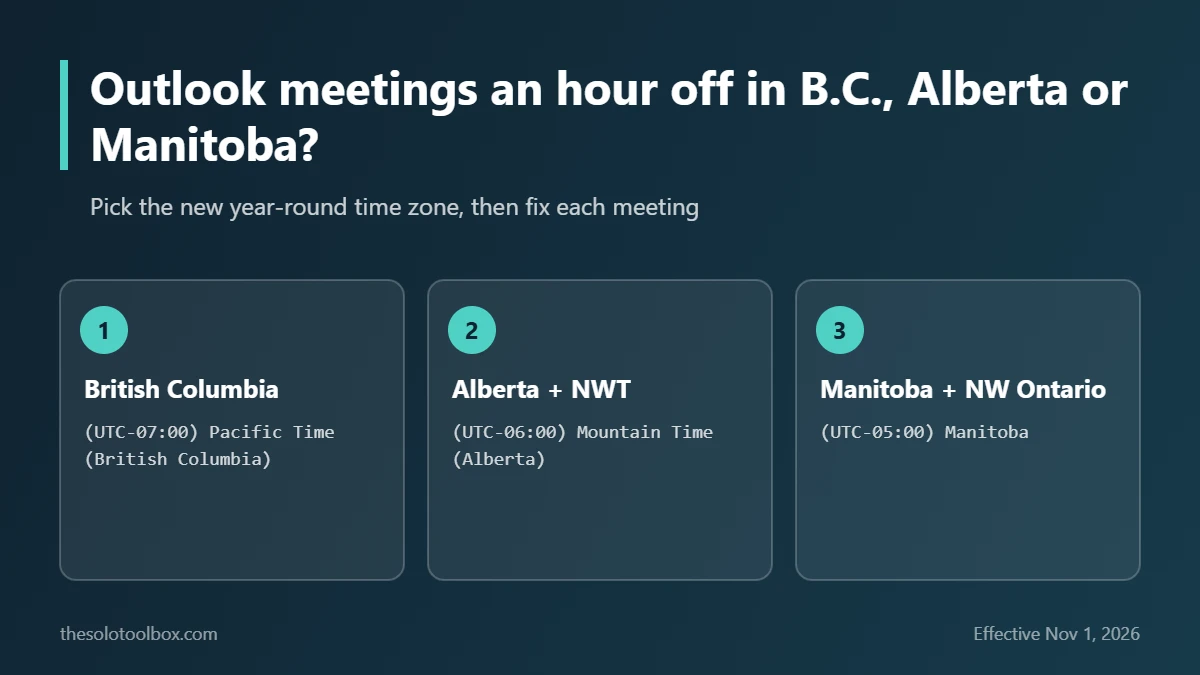
If your Outlook meetings are an hour off since November 1, 2026 and you’re in British Columbia, Alberta or Manitoba, the cause is the province’s new permanent time, not your PC clock. Install the latest Windows update, switch Windows and Outlook to the new zone, (UTC-07:00) Pacific Time (British Columbia), (UTC-06:00) Mountain Time (Alberta) or (UTC-05:00) Manitoba, then have the organizer of each wrong meeting change that meeting’s time zone. Existing calendar events do not move on their own, Microsoft says.
This guide covers which regions changed, the exact settings in Windows and Outlook, how organizers fix single and recurring meetings, and what Microsoft is still working on. Steps were checked on November 4, 2026 against Microsoft’s support pages, last updated November 2, 2026.
Before you start
- Applies to: Windows 11 and 10, new Outlook for Windows, Outlook on the web, classic Outlook, Microsoft 365 / Exchange Online calendars
- Who’s affected: most of B.C., Alberta, Manitoba, the Northwest Territories and northwestern Ontario
- You’ll need: the meeting organizer to fix shared meetings; attendees can’t change them
- Watch out: changing a recurring series’ time zone wipes its exceptions, so note any moved or cancelled dates first
What changed on November 1, 2026
On Sunday, November 1, 2026, most of Canada fell back an hour. B.C., Alberta and Manitoba did not. They stayed on their summer offsets year-round:
| Region | New year-round offset | New Windows zone |
|---|---|---|
| Most of British Columbia | UTC-7 | (UTC-07:00) Pacific Time (British Columbia) |
| Alberta and the Northwest Territories | UTC-6 | (UTC-06:00) Mountain Time (Alberta) |
| Manitoba and northwestern Ontario | UTC-5 | (UTC-05:00) Manitoba |
Not every community follows the provincial rule. Creston and Kootenay Bay in B.C. were already on permanent UTC-7, and the East Kootenay and other B.C. Mountain Time areas still change clocks. Ontario (outside the northwest), Quebec and the Atlantic provinces still change clocks.
The calendar problem comes from the old zones. “(UTC-08:00) Pacific Time (US & Canada)” now falls back to UTC-8 for the winter, so a 10 a.m. meeting saved in that zone shows at 11 a.m. for anyone on B.C.’s new time.
Step 1: Install the Windows time zone update
Microsoft shipped the new zones in Windows updates. For Windows 11 24H2 and 25H2, the change arrived in KB5124010 (September 22, 2026); Windows 11 23H2 got KB5126653. Other supported versions received it in the October 13, 2026 monthly update. Microsoft’s guidance page for all products is KB5134344.
- Open Settings > Windows Update.
- Select Check for updates and install everything offered.
- Restart the PC.
Step 2: Set the new zone in Windows
- Open Settings > Time & language > Date & time.
- Turn off Set time zone automatically if it keeps choosing the old zone.
- Under Time zone, pick the new zone for your province from the table above.
- Select Sync now.
If the new zone isn’t in the list, the update from Step 1 hasn’t installed. Microsoft’s temporary workaround for B.C. is (UTC-07:00) Yukon, which is already on permanent UTC-7. Microsoft calls it temporary only, so switch to the B.C. zone once the update lands. If the clock itself is wrong too, see our Windows 11 clock fixes.
Step 3: Set the new zone in Outlook
Classic Outlook reads the zone from Windows. You can check it under File > Options > Calendar > Time zones.
In new Outlook for Windows and Outlook on the web:
- Open Settings > Calendar > View.
- Under Time zones, select Display my calendar in time zone and choose the new zone.
- Add a label if you like, then select Save.
This changes how your calendar is displayed. It does not fix meetings already saved with the old zone.
Step 4: Fix meetings that are still an hour off
Only the organizer can change a meeting with attendees. In new Outlook or Outlook on the web:
- Open the meeting. For a recurring meeting, choose Edit Series.
- Select the time block, then select the Time zone button (the globe icon).
- Change the zone to the new one and confirm the start time.
- Select Send (or Save for events with no attendees). Everyone gets an updated invitation.
Changing the time zone of a recurring series resets its exceptions. Any single meetings you’d moved or cancelled return to the original pattern, so re-apply them afterward.
If you’re an attendee, ask the organizer to make the change. Accepting a corrected invite is all you need to do.
What Microsoft is still fixing
Microsoft’s guidance, updated November 2, 2026, lists several open items:
- Exchange Online: a PowerShell cmdlet for admins to fix non-recurring meetings in bulk was planned for November 4, 2026. A fix for recurring meetings had no date.
- Free/busy and Work hours and location: under investigation.
- Outlook for Mac, iOS and Android, and Teams apps: still being validated. User reports say Outlook for Mac lists a British Columbia option marked UTC-8. Office Watch advises not to pick it and to fix meetings in Outlook on the web.
- Teams Events: temporary choices are (UTC-06:00) Saskatchewan for Alberta, (UTC-07:00) Yukon for B.C., and (UTC-05:00) Eastern Time (US & Canada) for Manitoba.
- Teams Auto Attendant: business hours must be updated by hand.
Admins can report problems by opening a Microsoft support case with “#CanadaTimeZone” in the title.
Phones and other calendars
On a Mac, install the latest macOS from System Settings > General > Software Update and confirm the zone in General > Date & Time. iPhones and Android phones set the time from the carrier or location; if the clock is right but meetings aren’t, the problem is in the meeting, not the phone. Our Apple Watch wrong time guide covers watch-specific fixes.
Microsoft’s pages don’t cover Google Calendar. If you use it, check Settings > General > Time zone and look for meetings created by colleagues whose calendars still use the old zone.
FAQ
Why is only some of my calendar wrong?
Events created in the new zone, or by people already on it, show correctly. Events saved with “(UTC-08:00) Pacific Time (US & Canada)”, “Mountain Time (US & Canada)” or “Central Time (US & Canada)” moved by an hour when those zones fell back.
Will meetings with people in the US be wrong now?
The meeting is stored once, in the organizer’s zone. Each attendee’s Outlook converts it. Meetings set up in a US zone will look an hour later to B.C., Alberta and Manitoba attendees until March 14, 2027, when the US springs forward and the offsets match again.
Can I just use Arizona or Saskatchewan time?
They have the same offsets as B.C. and Alberta for now, and Microsoft lists them as stopgaps in some products. The new provincial zones are the long-term fix because they’ll follow any future rule changes for those provinces.
Do I need to do anything if I live in Ontario?
Only if you’re in northwestern Ontario, which now aligns with Manitoba. The rest of Ontario changes clocks as before.
Next step
Install the update, set the new zone, then go through the next two weeks of your calendar and flag anything off by an hour to its organizer. If you book clients across provinces, add your time zone to booking pages and invites until everyone’s calendars are updated.
Sources
- Microsoft Support: Outlook time zone changes for British Columbia, Alberta and Manitoba (updated November 2, 2026)
- Microsoft Support: Canada 2026 time zone changes, guidance for Microsoft products (KB5134344) (published October 26, updated November 2, 2026)
- Microsoft Tech Community: British Columbia 2026 time zone update available now (updated November 2, 2026)
- Office Watch: Canada time zone change 2026, fixing Windows, Mac and Outlook (November 4, 2026)
- Moving2Canada: B.C., Alberta and Manitoba won’t turn clocks back (October 7, 2026)
- Wikipedia: Time in British Columbia (checked November 4, 2026)