Windows 11 26H2 Automatic Update: How to Delay or Allow It
The Solo Toolbox · Software Help for One-Person Businesses
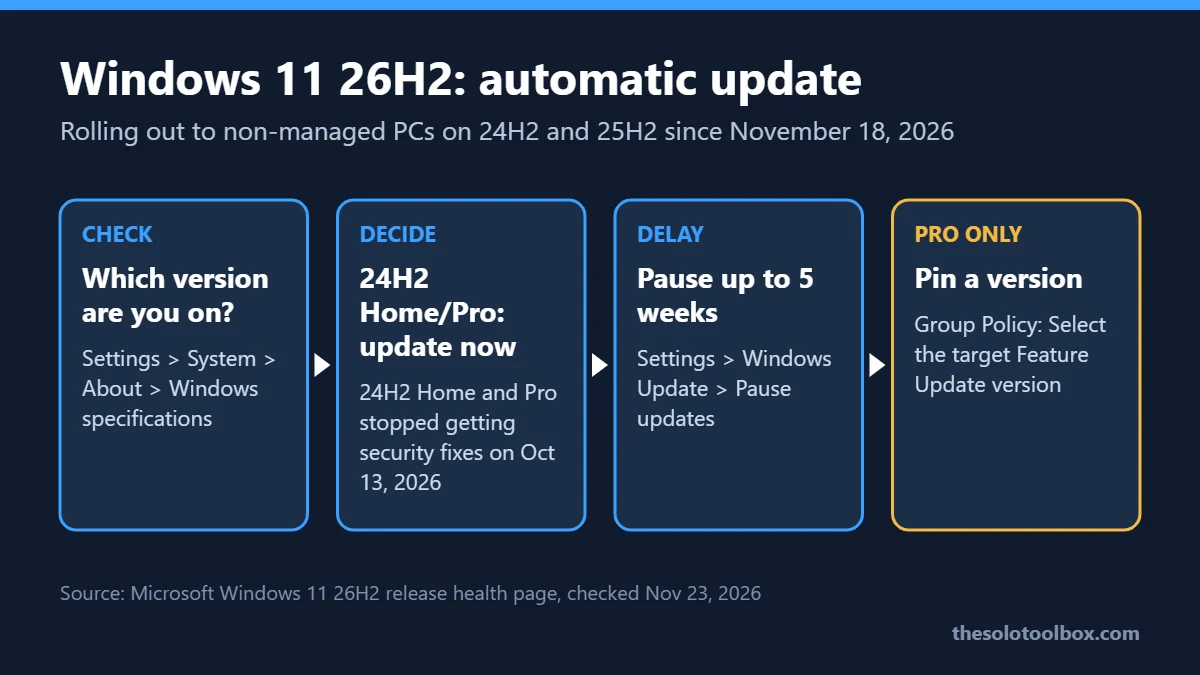
Since November 18, 2026, Microsoft has been installing Windows 11 version 26H2 automatically on personal and non-managed business PCs that run version 24H2 or 25H2. You can delay it for up to five weeks with Pause updates in Settings, and Windows 11 Pro can stay on 25H2 longer with a Group Policy setting. If your PC is on 24H2 Home or Pro, don’t delay: that version stopped getting security fixes on October 13, 2026.
This guide covers who gets the automatic update, how to check your version, the two ways to hold it back, and when it makes sense to let it install.
Before you start
- Applies to: Windows 11 Home and Pro PCs on version 24H2 or 25H2 that aren’t managed by a company IT department.
- Not affected: PCs already on 26H2, PCs on 23H2, and work devices managed through Intune, Windows Update for Business or WSUS. Those follow their IT team’s rules.
- Check your version: Settings > System > About, under Windows specifications.
- How we checked this: on November 23, 2026 we read Microsoft’s Windows 11 26H2 release health page (status dated November 18, last updated November 19), Microsoft’s documentation for the target feature update policy, and BleepingComputer’s November 20 report.
What changed on November 18
Windows 11 26H2 has been available since late October 2026 to anyone who went to Windows Update and asked for it. On November 18, Microsoft updated its release health page to say it is “gradually expanding automatic delivery” to devices on 24H2 and 25H2 that IT departments don’t manage. In practice, the update now shows up and installs like a monthly update, without you clicking Download & install.
Microsoft says the timing depends on your Windows Update settings, and the rollout is gradual, so two PCs in the same house can get it weeks apart. BleepingComputer reports that 26H2 arrives as an enablement package, so on a PC that’s already up to date the download and restart are closer to a monthly update than to the old full upgrades.
Check which version of Windows 11 you have
- Open Settings (Windows key + I).
- Go to System > About.
- Under Windows specifications, read the Edition (Home or Pro) and Version lines.
You can also press Windows key + R, type winver and press Enter. The window shows the version and OS build.
Should you delay Windows 11 26H2?
| Your PC | What we suggest | Why |
|---|---|---|
| 24H2 Home or Pro | Let 26H2 install now | 24H2 Home and Pro got their last security update on October 13, 2026. November’s fixes didn’t reach them. |
| 25H2 Home or Pro | Delay a few weeks only if you have a deadline or a fussy app | 25H2 still gets monthly security updates, so a short pause costs you little. |
| Already on 26H2 | Nothing to do | You’re on the current version. |
| Work PC managed by IT | Leave it to IT | Managed devices aren’t part of this rollout. |
The main reasons to wait are practical: you’re mid-project and can’t afford a restart that runs long, or you rely on older hardware or software and want to see other people’s reports first. Our Windows 11 26H2 known issues guide tracks the problems Microsoft has confirmed. As of November 19, Microsoft’s page lists a SQL Server linked-server bug that mostly affects servers, and marks the USB audio Code 10 bug as fixed by the November 10 update, KB5132061.
How to delay the 26H2 update with Pause updates
This works on Home and Pro and is the method Microsoft supports for personal PCs.
- Open Settings > Windows Update.
- Next to Pause updates, open the drop-down and pick how long to pause. Windows offers one week at a time, up to five weeks.
- Check that the top of the page now says updates are paused and shows a resume date.
Three things to know before you rely on it:
- Pausing stops all updates, including monthly security fixes, not just 26H2.
- When the pause ends, Windows installs the pending updates before it lets you pause again.
- If 26H2 has already downloaded and is waiting for a restart, pausing may not cancel it. Choose Schedule the restart on the Windows Update page instead of Restart now, and pick a time that suits you.
To keep restarts out of your working day once you do update, set active hours. Our guide to stopping Windows 11 from restarting for updates walks through that.
Windows 11 Pro: stay on 25H2 with Group Policy
Windows 11 Pro includes a Group Policy setting that tells Windows Update which version to stay on. Microsoft documents it for Pro, Enterprise and Education editions. It doesn’t block security updates for the version you choose.
- Press Windows key + R, type
gpedit.mscand press Enter. - Go to Computer Configuration > Administrative Templates > Windows Components > Windows Update > Manage updates offered from Windows Update.
- Double-click Select the target Feature Update version and choose Enabled.
- In the product version box type
Windows 11. In the target version box, type25H2. - Click OK, then restart, or run
gpupdate /forcein an administrator Terminal.
After this, Settings may show a note that some settings are managed by your organization. That’s expected when a policy is set locally. Write yourself a reminder to change the value to 26H2, or set the policy back to Not configured, before 25H2 reaches its end of updates, or the PC will stop getting security fixes. Don’t type 24H2 here: that version is already out of support for Pro.
Windows 11 Home doesn’t include the Group Policy editor. Registry edits that copy this policy circulate online, but we couldn’t confirm that Microsoft supports them on Home, so we don’t recommend them. Use Pause updates instead.
Before you let 26H2 install
- Back up anything you can’t lose. Our guide to backing up Windows 11 for free covers the built-in options.
- Make sure drive C has free space. If Windows Update complains, see how to free up disk space on Windows 11.
- Plug in a laptop and leave time for one or two restarts.
- After it finishes, check Settings > System > About. The Version line should read 26H2.
If something breaks, open Settings > System > Recovery and look for Go back. Windows keeps that option for a limited time after a version change, normally 10 days. If it isn’t there, fix the specific app or driver that broke rather than trying to remove the version update.
FAQ
Will Windows 11 26H2 install without asking me?
On personal PCs running 24H2 or 25H2, yes. Since November 18, 2026 Microsoft has been delivering it automatically in stages. Windows still needs a restart to finish, and you can schedule that restart from the Windows Update page.
Can I stop the 26H2 update on Windows 11 Home?
You can delay it for up to five weeks with Pause updates in Settings > Windows Update. Home has no supported way to block it permanently.
Does pausing updates also stop security updates?
Yes. Pause updates holds back every update, including the monthly security fixes, until the pause ends.
Is it safe to update to Windows 11 26H2 now?
For most PCs, yes. Microsoft’s release health page, last updated November 19, 2026, lists no open issue that affects typical home PCs. If you’re on 24H2 Home or Pro, updating also brings back monthly security fixes.
What to do next
Check your version in Settings > System > About. On 24H2 Home or Pro, go to Settings > Windows Update, click Check for updates and install 26H2. On 25H2, pause for a week or two if the timing is bad, then let it install. On Pro, use the Group Policy setting only if you have a specific reason to stay on 25H2, and set a reminder to undo it.
Sources
- Microsoft: Windows 11, version 26H2 known issues and notifications (status as of November 18, 2026)
- Microsoft Learn: Update Policy CSP, TargetReleaseVersion (Select the target Feature Update version)
- Microsoft Support: Get Windows updates as soon as they’re available for your device
- BleepingComputer: Microsoft now automatically installs Windows 11 26H2 on unmanaged devices (November 20, 2026)
- BleepingComputer: Windows 11 24H2 Home and Pro reached end of support (October 13, 2026)
Last checked: November 23, 2026. If something here is out of date, let us know.