How to Back Up Your Android Phone Before a Factory Reset
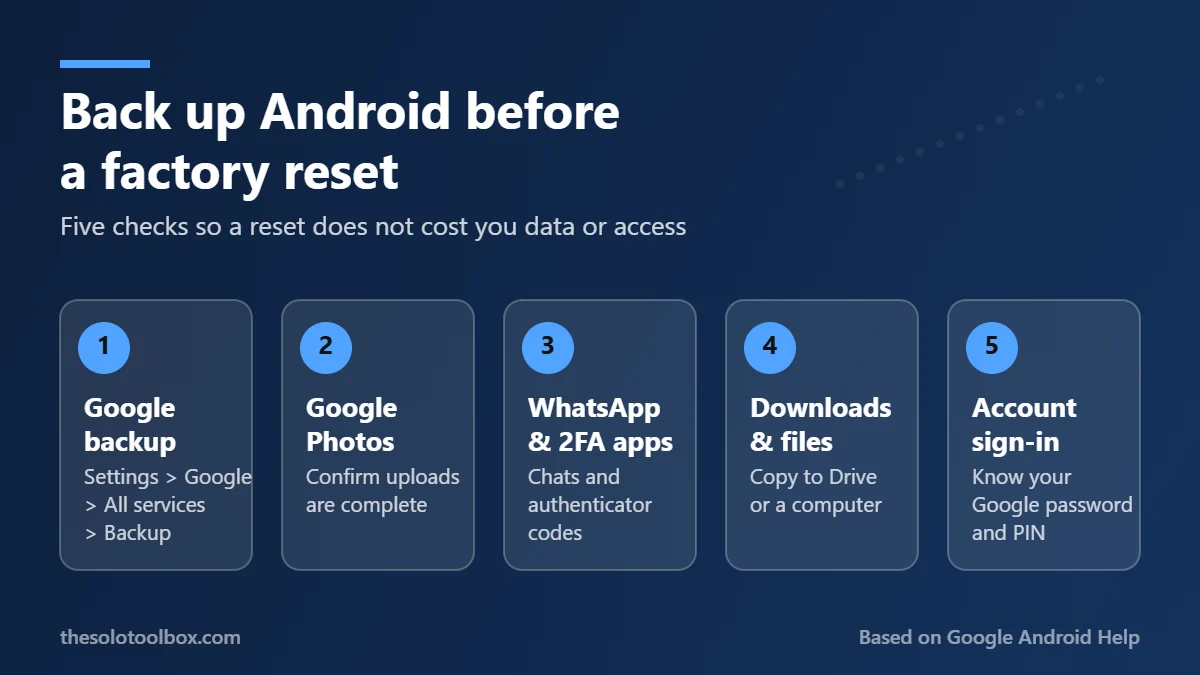
To back up an Android phone before a factory reset, open Settings > Google > All services > Backup, tap Back up now, and wait until each item under Backup details shows a recent time. Then back up the things Google’s backup skips: WhatsApp chats, two-factor authenticator codes and files in your Downloads folder. A reset deletes every app and file stored only on the phone, so anything not in one of those backups is gone.
This matters this week because of GhostMap, an unpatched Android bug disclosed by Bitdefender on November 5, 2026 that can leave a phone in a crash loop only a factory reset clears. The steps below work for that situation and for any planned reset, trade-in or repair.
Before you start
- Works on: most Android phones on Android 9 and later; menu names vary by brand
- You need: your Google account password, your screen lock PIN and Wi-Fi
- Free storage: 15 GB shared across Google Drive, Gmail and Google Photos
- Time needed: 15 to 30 minutes, plus up to 24 hours for a first full backup
What Google backs up automatically
Google’s built-in backup (called Backup by Google One on many phones) saves this to your Google account, according to Google’s Android help page:
- Apps and app data, for apps that support Android backup
- Call history
- Contacts
- Device settings
- SMS and MMS messages
- RCS messages, if you use Google Messages
- Call settings and blocked numbers, if you use the Phone by Google app
- Photos and videos, if Google Photos backup is turned on
Google also notes that not every app can back up or restore its data. Banking apps, authenticator apps and many games either keep data on their own servers or don’t back it up at all.
Step 1: Run a manual Google backup
- Open the Settings app.
- Tap Google (called Google services on some phones), then All services.
- Under Backup and restore, tap Backup.
- Make sure backup is turned on, then tap Back up now.
- Under Backup details, check that each category shows today’s date.
Google says a first backup can take up to 24 hours. Plug the phone in and stay on Wi-Fi until it finishes. Google also recommends a PIN, pattern or password screen lock, because part of the backup is encrypted with it. You’ll need that same screen lock to restore the backup later.
Step 2: Confirm your photos are in Google Photos
Device backup doesn’t include photos unless Google Photos backup is on. In the Google Photos app, tap your profile picture and check the backup status at the top of the menu. If it says backup is off, turn it on in Photos settings > Backup and wait for the upload to finish.
Two things to watch: photos are stored at the quality you chose in backup settings, and they count against your 15 GB of free Google storage. If you’re near the limit, our guide to freeing up Google Drive storage shows what to clear first.
Step 3: Back up what Google misses
| Data | Backed up by Google? | What to do |
|---|---|---|
| — | — | — |
| WhatsApp chats | Separate backup | WhatsApp Settings > Chats > Chat backup > Back up |
| Google Authenticator codes | Only if synced | Sign in to Authenticator with your Google account so codes sync |
| Microsoft Authenticator | Separate backup | Turn on cloud backup in the app |
| Downloads and documents | No | Upload to Google Drive or copy to a computer |
| Signal, banking and game data | Usually no | Use each app’s own backup or transfer option |
| Samsung-only data | Partly | Use Samsung’s backup or Smart Switch as well |
WhatsApp runs its own backup, separate from Android’s. Depending on your account, it saves to your Google account or to WhatsApp’s own cloud storage, which WhatsApp is still rolling out. Open WhatsApp, go to Settings > Chats > Chat backup and tap Back up. If you use an end-to-end encrypted backup, make sure you know its password, passkey or 64-digit key: WhatsApp says it’s the only way to restore it.
Two-factor authenticator apps
This is the step people regret skipping. If your authenticator codes exist only on the phone, a reset can lock you out of every account that uses them. In Google Authenticator, sign in with your Google account so codes sync to it. For Microsoft Authenticator, follow our guide to turning on Microsoft Authenticator backup on Android. Also save the backup codes each service offers.
Files in Downloads and other folders
PDFs, voice recordings and files you saved from chats usually live only on the phone. Upload the ones you need to Google Drive, or connect the phone to a computer with a USB cable, choose File transfer on the phone and copy the folders over.
Samsung Galaxy phones
Samsung phones use Google backup plus Samsung’s own. Check Settings > Accounts and backup for Samsung Cloud backup, or use Samsung Smart Switch on a computer for a full local copy.
Step 4: Check you can sign back in
Android’s factory reset protection asks for the Google account that was on the phone before it will finish setup. Before resetting, Google’s checklist says to:
- Go to Settings > Accounts and note which Google account is on the phone.
- Sign in to that account on another device to confirm you know the password.
- Make sure you know the phone’s PIN, pattern or password.
Google also warns: if you recently changed your Google account password, wait 24 hours before a factory reset. Our guide to setting up two-step verification covers backup sign-in options.
Step 5: Reset and restore
Google says a factory reset can take up to an hour. Charge the phone to at least 70% and connect to Wi-Fi or mobile data, because you’ll need a connection to sign in afterward.
On most phones, the reset is in Settings > System > Reset options > Erase all data (factory reset); Samsung puts it under Settings > General management > Reset. If the phone won’t start, you can reset it from the recovery menu with the power and volume buttons. The exact combination depends on the manufacturer.
During setup after the reset, sign in with the same Google account and choose the backup to restore. Google says restoring can take up to 24 hours to finish, and you can’t restore a backup from a newer Android version onto a phone running an older one.
FAQ
Does a factory reset delete my Google Photos?
No. Photos that finished backing up to Google Photos stay in your Google account. Photos that hadn’t uploaded yet, and anything stored only in the phone’s gallery, are deleted.
How do I check when my Android phone last backed up?
Open Settings > Google > All services > Backup and look under Backup details. Each category shows when it was last backed up.
Will my apps come back after a reset?
Google’s backup reinstalls apps from Google Play and restores data for apps that support Android backup. You’ll need to sign in to most apps again, and some won’t restore their data.
Can I back up a phone that’s stuck in a boot loop?
Usually not from the phone itself. Whatever was already backed up can be restored after a reset, which is why it’s worth backing up before something goes wrong.
What to do next
Run Back up now today and check the dates, even if you aren’t planning a reset. A boot loop, a lost phone or a cracked screen won’t wait for you to prepare. For a separate copy of your Gmail, Drive and Photos data outside your phone, see our guide to backing up your Google account with Takeout.
How we checked this: menu paths and limits come from Google’s Android Help pages on backup and factory reset, checked on November 5, 2026. Menu names differ between phone makers and Android versions, and we did not test every model.
Sources
- Android Help: Back up or restore data on your Android device
- Android Help: Reset your Android device to factory settings
- WhatsApp Help Center: How to back up your chat history
- Bitdefender Labs: GhostMap Android research (November 5, 2026)