How to stop Windows 11 restarting for updates during work hours

You can’t switch Windows 11 updates off for good, and you wouldn’t want to: many of them are security fixes. But you can stop restarts from interrupting your working day. Set active hours so Windows won’t restart automatically while you work, pause updates for up to 35 days when a deadline is close, and restart on your own schedule when an update is waiting.

Before you start
- You’ll need: a Windows 11 PC you manage yourself. Work or school PCs controlled by an IT department may have these options locked.
- Applies to: Windows 11 Home and Pro, using the Settings app.
- Time: about 5 minutes.
- How we checked this: based on Microsoft’s own support and documentation pages, checked October 18, 2026. Screenshots taken on a Windows 11 PC on October 19, 2026. Windows Update’s screens change between versions, so yours may look slightly different.
How Windows decides when to restart
Knowing the rules explains most surprise restarts. According to Microsoft’s documentation on device restarts:
- After installing an update, Windows tries to restart automatically outside your active hours, usually when you’re not using the PC.
- If it can’t manage that for seven days, for example because your PC is always asleep or off overnight, it stops trying quietly and asks you to schedule the restart yourself.
- If you’ve never set active hours, the default is 8 AM to 5 PM. Anyone who works early mornings, evenings or weekends is outside that window for much of their working week.
That last point is the most common cause of the “it restarted while I was working” complaint. A PC left on at 7 PM with an update waiting is, as far as Windows knows, idle and outside working hours. Setting your real hours fixes it.
Set your active hours
Active hours tell Windows when you normally use your PC. According to Microsoft, Windows won’t restart automatically to finish installing updates during that window; automatic restarts happen outside it.
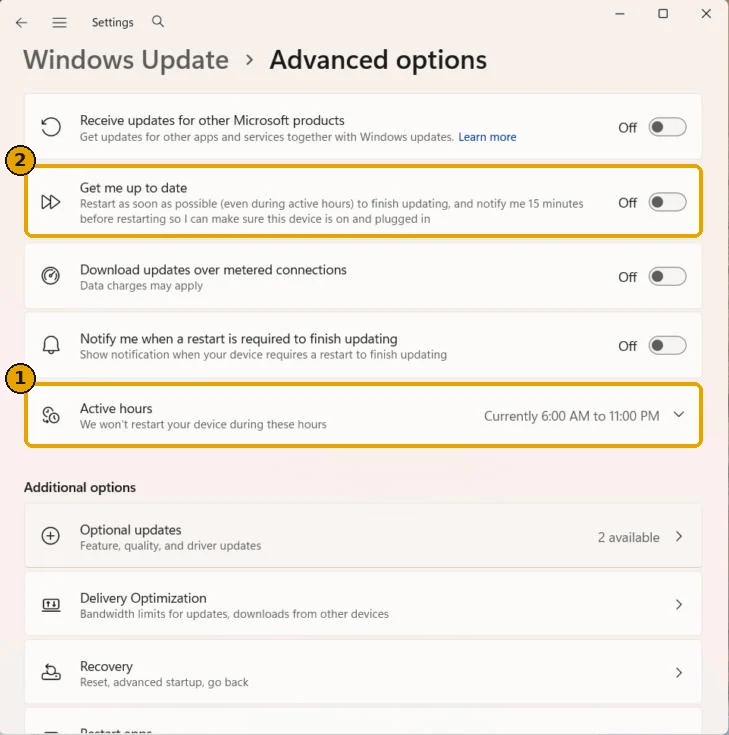
- Select Start > Settings > Windows Update > Advanced options.
- Select Active hours.
- In the Adjust active hours list, choose Manually and set the start and end of your working day, or choose Automatically to let Windows set them from your activity.

For a one-person business, Manually is usually the better choice: you know your hours, including early starts and late finishes that Windows may not have learned yet. Microsoft’s documentation for IT administrators lists 18 hours as the longest active-hours window on current versions of Windows, so you can’t mark the whole day as active.
Pause updates before a deadline
If you’re in the middle of a big project, you can hold updates back entirely for a while. While updates are paused, Microsoft says updates that might need a restart won’t install, and your PC won’t restart automatically to finish them.
- Select Start > Settings > Windows Update.
- Next to Pause updates, choose Pick a date.
- Pick the day you want updates to resume. You can choose any date up to 35 days from today.

To pause for longer, return before the pause ends and pick a new date. The new date can again be up to 35 days from that day; unused time from the earlier pause isn’t added on. You can select Resume updates at any time.
Use pausing for genuine crunch periods, not as a permanent setting. Security fixes wait too while updates are paused, so plan to let them install, and restart, as soon as the deadline has passed.
If your Windows Update page doesn’t show Pick a date, your PC may be on an older version of Windows 11 with different pause options. Install pending updates when you have time, and the newer controls should appear.
Restart on your own schedule
When an update needs a restart to finish, Windows tells you and lets you choose a time that suits you, according to Microsoft. The simplest habit is to take that restart yourself at a convenient moment, such as at lunch or at the end of the day, instead of leaving it for Windows to do outside your active hours.
To pick a time, go to Start > Settings > Windows Update, select the arrow next to Restart now, then choose Schedule restart.

Restarting yourself has a second benefit: you close your files first. If you leave your PC on overnight with unsaved work and an update waiting, an automatic restart outside your active hours can close apps you meant to come back to.
When an update causes a problem
Sometimes the restart isn’t the problem; the update is. If something broke right after an update, such as a printer, a headset or an app you rely on, check which updates installed recently before you change anything else:
- Go to Start > Settings > Windows Update > Update history to see what installed and when.
- Search the update’s KB number online, or check Microsoft’s release health page for your Windows version, to see whether it’s a known issue with a workaround.
- Only if you need to, go to Update history > Uninstall updates, select the update and choose Uninstall. Then pause updates for a week or two so it doesn’t reinstall straight away.
Microsoft’s Windows Update FAQ advises against removing updates unless necessary, and not every update can be removed. Removing a security update leaves your PC exposed, so treat it as a short-term fix while you wait for Microsoft’s correction. Two recent examples have their own guides: USB headsets showing Code 10 and Smart App Control grayed out after October’s update.
One more check while you’re in Settings: if your PC is still on Windows 11 version 24H2 Home or Pro, it no longer gets monthly fixes at all. Our guide to moving off 24H2 shows how to switch to a supported version.
What about Group Policy and registry tweaks?
Many older guides recommend Group Policy settings or registry edits to block automatic restarts. Be careful with them:
- The Group Policy editor isn’t included in Windows 11 Home.
- Microsoft lists some older restart policies, such as setting a deadline before an automatic restart, as legacy policies that don’t apply to Windows 11.
- Microsoft says the policy “No auto-restart with logged on users for scheduled automatic updates installations” doesn’t work exactly as described and can result in no restarts for quality updates at all. In practice, that can leave security fixes waiting indefinitely.
For a single PC, the Settings options above give you control without those side effects.
If it doesn’t work
- The options are greyed out: if Windows Update says some settings are managed by your organization, the PC is controlled by an IT administrator or a management tool. Ask whoever manages it to change the policy.
- Windows restarted during your active hours: check that your active hours are set to Manually with the right times. If they’re set to Automatically, Windows may have chosen a window that doesn’t match your day. Also check Get me up to date in Advanced options: when it’s on, Windows restarts as soon as possible to finish updating, even during active hours, after a 15-minute warning.
- Updates aren’t downloading at all: Microsoft notes that updates won’t download automatically on a metered connection, such as some mobile hotspots, until you choose to get them.
For more fixes to everyday problems like this, browse our troubleshooting guides.
Related guides
Sources
- Microsoft: Keep your PC up to date with active hours
- Microsoft: Pause updates in Windows
- Microsoft: Get the latest Windows update
- Microsoft Learn: Manage device restarts after updates
- Windows Insider Blog: Your Windows update experience just got updated (April 24, 2026)
- Microsoft: Windows Update FAQ
Update, October 20, 2026: added how Windows decides when to restart and what to do when an update causes a problem.
Last checked: October 20, 2026. Microsoft changes Windows Update regularly. If something here no longer matches what you see, let us know.