How to spot a fake app on Google Play before you install it
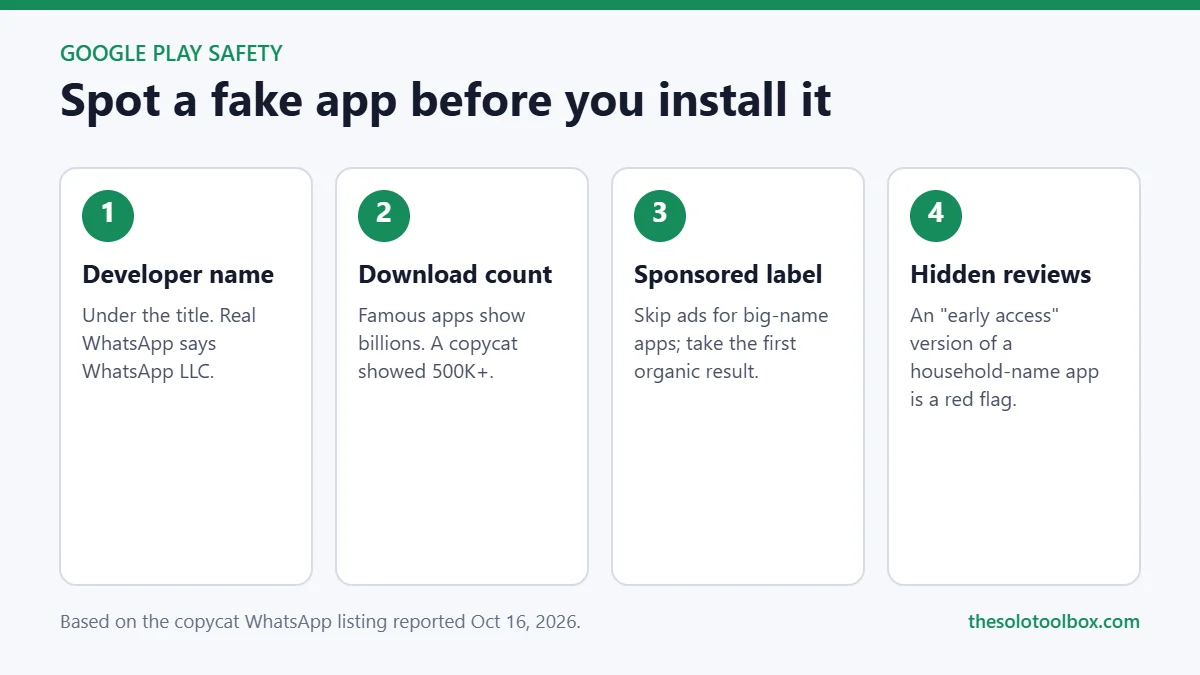
To spot a fake app on Google Play, check three things on the listing before you tap Install: the developer name under the app title, the download count, and whether the result is marked Sponsored. A copycat “WhatsApp Messenger” listing that passed 500,000 downloads this month got through on exactly those gaps: it reused the real app’s name, icon and screenshots, but its developer was “Agment Assets sallu” instead of WhatsApp LLC.
This guide walks through each check, explains the Early Access trick that hid the fake app’s reviews, and covers what to do if you already installed something suspicious.
Before you start
- You’ll need: an Android phone or tablet with the Google Play Store app.
- Applies to: any app, but the checks matter most for popular names that copycats imitate: messaging, banking, VPN and AI chat apps.
- Time: under a minute per app; about 5 minutes to audit apps you already have.
- Heads-up: menu labels can differ slightly between Play Store versions and phone makers.
What happened with the fake WhatsApp listing
Android Authority reported on October 16, 2026 that a listing titled “WhatsApp Messenger” had been on Google Play since September and had passed 500,000 downloads. A Reddit user first spotted it showing as a sponsored result when searching for WhatsApp. It wasn’t shown to everyone: when Android Authority searched, the official app came first.
The listing copied the official app’s screenshots and most of its description. It was the only app from its developer account, and it appeared to use Google Play’s Early Access programme, which hides public reviews. Digit noted the listing claimed to be in development and to collect no data. Nobody has published an analysis of what the app does after installation, and we found no statement from Google or Meta as of October 19.
6 checks before you install an app
- Read the developer name. It’s shown directly under the app title. WhatsApp’s is WhatsApp LLC; Google’s apps say Google LLC. Tap the name to see the developer’s other apps. A brand-new account with a single big-name app is a red flag.
- Compare download counts. The official WhatsApp shows 10B+ downloads. The copycat showed 500K+. If a famous app’s listing shows a small number, you’re on the wrong page.
- Look for the Sponsored label. Ads appear above the regular results with a “Sponsored” tag. Scroll past them to the first unlabelled result, or search the developer name instead of the app name.
- Be wary of missing reviews. Apps in Early Access or still in development can’t receive public reviews. An established app never needs that, so an “early access” version of a household-name app is suspicious.
- Open “About this app”. Check the release date and the last update. WhatsApp has been on Google Play for more than a decade, so a “WhatsApp” released last month is not the real one.
- Start from the official website. Go to the company’s own site (for example whatsapp.com/download) and follow its Google Play link. For WhatsApp, the correct listing’s web address ends in
id=com.whatsapp.
| Signal | Real WhatsApp | Fake listing (Oct 2026) |
|---|---|---|
| Developer | WhatsApp LLC | Agment Assets sallu |
| Downloads | 10B+ | 500K+ |
| Other apps from developer | WhatsApp Business | None |
| Public reviews | Visible | Hidden (Early Access) |
| How it appeared | Top organic result | Sponsored result for some users |
The same habit, checking who actually sent something before you act on it, protects you outside the Play Store too. Our guide to stopping fake meeting invites applies it to Google Calendar and Outlook.
Read the Data safety section
Every Google Play listing has a Data safety section; tap See details for the full version. It says what data the app collects and why, whether it shares data with other companies, whether data is encrypted in transit, and how to ask for your data to be deleted.
Treat it as a claim, not proof. Google says the section is based on information the developer declares, and even an independent security review doesn’t confirm those declarations are complete. Its value is in mismatches: a simple utility that says it collects your contacts, location and financial info is telling you something, and so is a copy of a well-known app whose data section looks nothing like the original’s.
How to check apps you already installed
A fake app can sit next to the real one on your home screen with an identical icon. To see who published what you have:
- Open the Play Store and tap your profile icon at the top right.
- Tap Manage apps & device, then the Manage tab.
- Tap each app you rely on, especially messaging and finance apps, and check the developer name on its listing.
- If the developer isn’t the company you expected, go back, tick the app, and tap the bin icon to uninstall it. You can also long-press the icon on your home screen and choose Uninstall.
Make sure Play Protect is on
Google Play Protect scans apps on your device and can warn about, disable or remove harmful ones. It’s on by default, but it’s worth confirming. According to Google’s Play Protect help page:
- Open the Play Store and tap your profile icon.
- Tap Play Protect, then the Settings icon.
- Make sure Scan apps with Play Protect is turned on.
Google Play’s own checks didn’t catch the copycat WhatsApp listing for more than a month, so treat Play Protect as a backstop, not a substitute for the checks above.
Review what your apps are allowed to do
A fake or badly behaved app does most of its damage through permissions you granted it. Android lets you check them two ways, according to Google’s Android help:
- One app at a time: open Settings > Apps, pick the app (tap See all apps if it isn’t listed), then Permissions. Tap any permission to change it to Allow or Don’t allow; for location, camera and microphone you can also choose Allow only while using the app or Ask every time.
- One permission at a time: open Settings > Security & Privacy > Privacy > Permission manager, then pick a permission such as SMS or Contacts to see every app that has it.
Menu names vary a little between phone makers, but both views exist on current Android phones. Look for permissions that don’t match what the app does. A calculator has no reason to read your text messages, and a wallpaper app doesn’t need your contacts. Be especially wary of any app you don’t recognize that has access to SMS, which can include the one-time codes banks and email providers send you.
While you’re in an app’s settings, turn on Pause app activity if unused. Android then removes permissions from apps you haven’t opened in a while, which quietly cleans up the apps you installed once and forgot.
Apps from outside Google Play
Installing an app from a website or a file someone sends you, often called sideloading, skips Google Play’s review entirely. Android asks you to allow installs from that source first. If a message, email or caller asks you to install an app this way, especially one claiming to be your bank, a delivery company or a well-known messaging app, stop: that request is one of the most common ways phones get infected.
Google has started tightening this. Android Authority reported that from September 30, 2026, certified Android phones in Brazil, Indonesia, Singapore and Thailand require apps from participating app stores to come from verified developers, with a global rollout planned for 2027. Nothing has changed yet for users in the US or elsewhere, so for now the checks in this guide are still your main protection.
If you installed a fake app
- Uninstall it using the steps above, then install the genuine app from its official listing.
- Change any password you typed into it, and turn on two-step verification for that account.
- For WhatsApp specifically, turn on two-step verification in the real app: open Settings > Account > Two-step verification and follow the prompts to set a six-digit PIN (WhatsApp Help Center). That stops someone registering your number on another phone with only an SMS code.
- Watch for unusual activity over the next few weeks: login alerts, messages you didn’t send, or unexpected charges. If the same phone signs in to your work email, also review which third-party apps can reach that account; our Microsoft 365 app access check shows where to look.
Report the fake listing
Reporting a copycat helps Google take it down for everyone. In the Play Store app, per Google’s help page:
- Open the app’s listing.
- Tap More (the three dots), then Flag as inappropriate.
- Choose a reason and tap Submit.
Google’s page also links a separate policy violation form for apps that break its developer rules, such as one impersonating another company. If the fake app copies your own business’s name or logo, Google points to a legal troubleshooter instead.
FAQ
Is the fake WhatsApp app still on Google Play?
Reports from October 16–17, 2026 said the listing was still live. On October 20, Brit Brief reported that Google had removed it, without citing a source, and we haven’t found a statement from Google or Meta. If you installed it while it was listed, it stays on your phone until you uninstall it, so run the check above either way.
Are sponsored apps on Google Play safe?
Many are legitimate advertisers, but a Sponsored label only means someone paid for the placement. It isn’t an endorsement. For well-known apps, skip the ad and install the first organic result from the expected developer.
Can a fake app read my WhatsApp messages?
Android keeps each app’s data separate, so another app can’t open WhatsApp’s chat database. It can read message previews if you grant it notification access, though, and the bigger risks are that a fake app asks you to register your phone number or enter a verification code, shows ads, or requests permissions it doesn’t need. Don’t enter codes or passwords into an app you aren’t sure about.
Does this happen on the iPhone App Store too?
Copycat apps have appeared on Apple’s App Store as well. The same checks work there: look at the developer name under the app title, the number of ratings, and whether the result is marked as an ad.
How we checked: we read Android Authority’s original report and follow-ups from Digit and Android Pure (October 16–17, 2026), and took the Play Protect steps from Google’s help page and the WhatsApp two-step verification path from Malwarebytes’ walkthrough, with WhatsApp’s own help page linked above. We didn’t install the fake app. Updated October 20, 2026 with the reported removal, the Data safety section, app permissions and Google’s developer verification rollout.
Related guides
Sources
- Android Authority: Fake WhatsApp app on the Play Store (Oct 16, 2026)
- Digit: Downloaded WhatsApp Messenger from Google Play recently? (Oct 16, 2026)
- Android Pure: Copycat WhatsApp listing passes 500K downloads (Oct 17, 2026)
- Google Play Help: Use Google Play Protect
- WhatsApp Help Center: About two-step verification
- Brit Brief: WhatsApp users urged to check app after fake version found (Oct 20, 2026)
- Google Play Help: Data safety section
- Android Help: Change app permissions on your phone
- Android Authority: Developer verification first wave rollout (Oct 1, 2026)
- Google Play Help: Report inappropriate apps
Next step: open Manage apps & device now and check the developer names on your messaging and banking apps. It takes two minutes.