KB5132057: How to Get Windows 11’s New Search and Run Dialog

The Solo Toolbox · Software Help for One-Person Businesses
KB5132057 is the optional Windows 11 preview update Microsoft released on November 19, 2026, for versions 25H2 (build 26200.10075) and 26H2 (build 26300.10075). It starts rolling out a redesigned Windows Search that can change settings directly, a new Run dialog, and a dozen smaller features. To get it, go to Settings > Windows Update > Advanced options > Optional updates; most new features then arrive gradually, so installing it doesn’t guarantee you see them right away.
Below: what changed, how to install it and turn on the opt-in features, what it fixes, and when it makes sense to wait for the December security update instead.
Before you start
- Applies to: Windows 11, versions 25H2 and 26H2, all editions. PCs still on 24H2 don’t get it.
- You’ll need: an admin account and a restart. Back up anything important first, as with any update.
- How we checked this: on November 23, 2026 we read Microsoft’s KB5132057 release notes (published November 19) and gHacks’ November 21 coverage. Feature availability varies by device, and the new Search starts in English only.
What KB5132057 changes
Microsoft splits the release into a “gradual rollout” of new features and a “normal rollout” of fixes that every PC gets on install. The headline additions are in the gradual part.
A new Windows Search
- One list of results. Search now shows results in a single, simpler list. Microsoft says it also uses less memory.
- Inline actions. You can turn on dark mode or Bluetooth, change screen brightness, mute the PC or arrange open windows straight from the search box, without opening Settings.
- Phone actions. With an Android phone connected through Phone Link, you can call or text contacts and use “Find my phone” and “Do Not Disturb” from Search.
- Richer results. File previews show when a file was modified, where it’s saved and who created it. Quick answers cover weather, stocks and facts, and Search handles typos and synonyms better.
The new Search is available in English first. Microsoft hasn’t given dates for other languages.
A new Run dialog
The Win+R box gets a modern design. It is off by default: turn it on in Settings > System > Advanced with the New Run dialog toggle.
Smaller additions
| Feature | What it does | Where to find it |
|---|---|---|
| Windows Hello brightness | Brightens the screen briefly so face sign-in works in a dark room | Settings > Accounts > Sign-in options > Facial recognition (Windows Hello) > Automatically adjust screen brightness during face recognition |
| Pointer indicator | Helps low-vision users find the mouse pointer | Settings > Accessibility > Mouse pointer; toggle with Windows logo key + Ctrl + Shift + X |
| Magnifier shortcut | Lets you stop Windows logo key + Plus (+) from starting Magnifier | Settings > Accessibility > Magnifier |
| Live captions | Caption system audio, microphone audio or both | Live captions settings |
| Screen capture border | Changes from yellow to red while a capture is active | Automatic |
| File Explorer search | Searching from This PC now uses the index, so it’s faster | Automatic |
| XBOX mode | Full Quick settings in the Gaming Task View bar | XBOX mode |
| Web sign-in | Passwordless sign-in on Microsoft Entra hybrid joined PCs | Work devices managed by IT |
If you take screenshots for work, the red border is the change you’ll notice first. Our guide to capturing part of the screen on Windows 11 covers the Snipping Tool shortcuts that trigger it.
How to install KB5132057
- Open Settings > Windows Update and select Check for updates.
- Select Advanced options > Optional updates.
- Under Optional updates available, tick the 2026-11 cumulative update preview (KB5132057) and select Download & install.
- Restart when asked. To confirm, press Win+R, type
winverand check for build 26200.10075 or 26300.10075.
Microsoft notes that KB5132057 includes servicing stack update KB5132056. IT admins can also get the package from the Microsoft Update Catalog or WSUS.
How to get the new features sooner
Features in the gradual rollout reach PCs in waves. To join earlier waves, go to Settings > Windows Update and turn on Get the latest updates as soon as they’re available. Even then, Microsoft decides when each PC gets each feature, and there is no supported switch to force the new Search on. The Run dialog is the exception: once the toggle appears under System > Advanced, you can turn it on yourself.
What it fixes
These fixes apply to every PC that installs the update:
- Sage 50 Accounting closing unexpectedly when you select options.
- Miracast connections dropping to a lower resolution on some wireless display receivers.
- A “Something went wrong” error during cross-device passkey sign-in with Android phones.
- A false “Someone else is using this PC” warning when restarting or shutting down.
- File History restore not finding backups on a selected drive.
- Windows Fax and Scan failing to connect to a fax server, and extra characters in Japanese text in RemoteApp.
- Activation problems for Windows IoT Enterprise LTSC devices using KMS or Token-Based Activation.
Should you install it or wait?
Install it now if one of the fixes above affects you, especially the Sage 50 crash or the passkey error. Otherwise, waiting is reasonable: optional previews are meant for people who want changes early, and Microsoft normally folds the same changes into the next month’s security update. Microsoft also says there will be no non-security preview in the second half of December because of the holidays, so this is the last one of 2026.
The only known issue Microsoft lists affects servers: since the October 13, 2026 updates, SQL Server linked server queries using OLE DB providers (Oracle and PostgreSQL among them) can leave connections open. Home and small-office PCs aren’t affected. If you manage a SQL Server box, hold off and see Microsoft’s note.
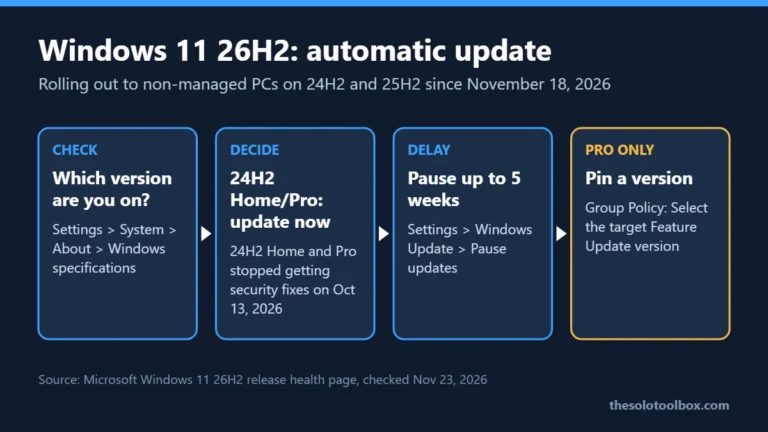
If you’re still on 24H2, this update won’t appear. Our guide to moving off Windows 11 24H2 explains how to check your version, and our 26H2 known issues roundup covers whether to make the jump.
How to uninstall KB5132057
- Go to Settings > Windows Update > Update history.
- Scroll down and select Uninstall updates.
- Find the update listed as KB5132057 and select Uninstall, then restart.
The servicing stack part (KB5132056) can’t be removed, which is normal.
FAQ
Is KB5132057 a security update?
No. It is an optional non-security preview. It doesn’t add security fixes beyond the November security update, and Windows won’t install it unless you choose to.
Why don’t I see the new Windows Search after installing it?
The new Search is part of a gradual rollout and starts in English only. Installing KB5132057 makes your PC eligible; Microsoft turns the feature on for devices in phases.
Can I turn the new Run dialog off again?
Yes. Go to Settings > System > Advanced and turn off New Run dialog.
Will these features come in the December security update?
Microsoft usually includes a month’s preview changes in the following Patch Tuesday update, which is scheduled for December 8, 2026. Gradual features still roll out in phases after that.
What to do next
If a listed fix applies to you, install KB5132057 from Optional updates today and turn on the New Run dialog toggle to try it. If not, skip it and let the December 8 security update bring the same changes. Either way, check Settings > Windows Update > Update history afterwards so you know which build you’re on if something breaks. If restarts keep interrupting work, see our guide to stopping Windows 11 restarts during work hours.
Related guides
Sources
- Microsoft Support: November 19, 2026—KB5132057 (OS Builds 26300.10075 and 26200.10075) Preview
- gHacks: Windows 11 KB5132057 brings a new Search that can change settings (November 21, 2026)
Last checked: November 23, 2026. If something here is out of date, let us know.