SPF PermError “too many DNS lookups”: how to fix it without a paid tool

The Solo Toolbox · Software Help for One-Person Businesses
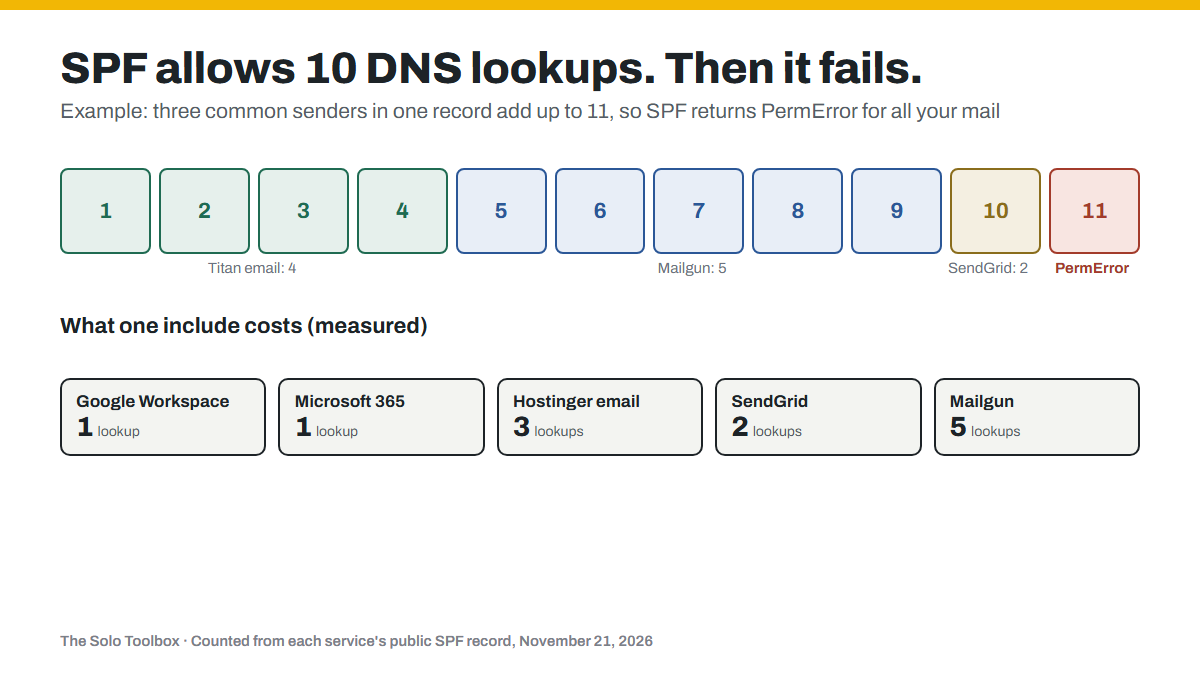
An SPF record can trigger at most 10 DNS lookups. Go over that and SPF fails for every message from your domain, which receiving servers report as a PermError, and which DMARC treats as a fail. The fix is usually free: count where your lookups go, remove services you no longer use, and drop the includes for services that don’t need to be in your SPF record at all.
Before you start
- You’ll need: access to your domain’s DNS settings, and a list of the apps and services that send email for your business.
- Applies to: any domain with a TXT record starting v=spf1, whatever your email provider.
- Time: about 30 minutes, plus time for DNS changes to take effect.
- How we checked this: lookup rules from the SPF standard (RFC 7208); lookup counts measured by querying each service’s public SPF record on November 21, 2026. Services change these records without notice, so recount yours before editing.
What counts toward the 10
Each of these in your record costs one lookup: include:, a, mx, ptr, exists: and redirect=. These cost nothing: ip4:, ip6: and all.
The catch is that lookups inside an include count too. One include: can cost several lookups if the record it points to contains more includes. Two related rules catch people out. An include: that points to a domain with no SPF record at all is a PermError by itself, as soon as a receiving server reaches it. And the standard tells receivers to allow at most two “void lookups”, meaning lookups for names that don’t exist or return nothing; a third is a PermError as well.
How much common services cost
We looked up the published SPF record for each of these, following every nested include. The cost is what one include adds to your total.
| Service | Include it asks you to add | Lookups it costs |
|---|---|---|
| Google Workspace | include:_spf.google.com | 1 |
| Microsoft 365 | include:spf.protection.outlook.com | 1 |
| Zoho Mail | include:zohomail.com | 2 |
| Hostinger email (Titan) | include:spf.titan.email | 4 |
| Hostinger email | include:_spf.mail.hostinger.com | 3 |
| Hostinger Reach (newsletters) | include:_spf.reach.hostinger.com | 2 |
| SendGrid | include:sendgrid.net | 2 |
| Mailgun | include:mailgun.org | 5 |
| Salesforce | include:_spf.salesforce.com | 2 |
| Amazon SES | include:amazonses.com | 1 |
| Mailchimp Transactional (Mandrill) | include:spf.mandrillapp.com | 1 |
Our own domain sends through Hostinger’s mail servers and its Hostinger Reach newsletter tool, and those two includes already cost 5 of the 10. Add a booking app that sends through Mailgun (5) and an invoicing app that sends through SendGrid (2), and you’re at 12: SPF fails for all your mail, including ordinary replies to clients.
Check your provider’s setup page for the exact include before copying one from this table. Some providers use different values by region.
Step 1: Count your lookups
- Look up your record with a free SPF checker, such as MxToolbox’s SPF Record Lookup. Enter your domain, not an email address.
- Note the total lookup count it reports, and which include contributes what.
- Write down every include: and what it belongs to. If you can’t tell, search the domain name; most belong to a sending service.
If the checker reports more than one SPF record, fix that first. A domain can publish only one TXT record that starts with v=spf1; with two, SPF fails whatever the lookup count. Merge them into one line.
Step 2: Remove services you don’t use anymore
Old newsletter tools, a previous email host, a trial of a CRM: includes tend to stay long after the service is gone. Remove each one you’ve stopped using. A forgotten include for a service that has since removed its SPF record is worse than wasted: receiving servers treat it as a PermError when they reach it.
Step 3: Check whether each service needs to be there at all
This is the step most guides skip. SPF doesn’t check the From address your clients see. It checks the hidden bounce address (the Return-Path), and many sending services use a bounce address on their own domain. When they do, SPF for those messages is checked against the service’s domain, and the include in your record does nothing for them. What makes those messages pass DMARC for your domain is DKIM.
To check a service:
- Have it send you a real message to a personal Gmail address: an invoice, a booking confirmation, a newsletter.
- In Gmail, open the message, select More (three dots), then Show original.
- In the headers, find the Authentication-Results line and look at smtp.mailfrom=, or find the Return-Path line.
- If the domain there is the service’s own (something like bounces.example-service.com), the service doesn’t use your SPF record. Make sure DKIM for your domain is set up in that service, then remove its include.
- If the domain is yours (yourbusiness.com), keep the include.
Many services’ “domain authentication” setup also asks you to add CNAME records for a subdomain, such as em123.yourbusiness.com. When it does, the bounce address sits on that subdomain and is handled there, so the include in your main record is usually unnecessary. Check the service’s own documentation before removing it.
Step 4: Remove terms you don’t need
- a and mx: each costs a lookup. They’re only needed if your website’s server or your mail server sends mail directly and isn’t already covered by your provider’s include. Most hosted email setups don’t need them.
- ptr: the SPF standard says this mechanism shouldn’t be used at all. It’s slow and unreliable, and it costs a lookup. Remove it.
- Duplicates: the same service included twice, often under an old and a new name.
For example, take this record, at 13 lookups:
v=spf1 a mx include:spf.titan.email include:mailgun.org include:sendgrid.net ~allSuppose the a and mx terms aren’t needed, and the Show original check from step 3 shows the app sending through Mailgun uses Mailgun’s own bounce domain. Removing those three terms leaves 6 lookups:
v=spf1 include:spf.titan.email include:sendgrid.net ~allStep 5: Give a heavy sender its own subdomain
If you still need more than 10, move the busiest sender’s bounce address to a subdomain such as mail.yourbusiness.com. A subdomain has its own SPF record with its own 10-lookup budget. Look for “custom return-path”, “custom MAIL FROM” or “domain authentication” in the service’s settings.
Your From address doesn’t have to change. Under DMARC’s default (relaxed) alignment, a bounce address on a subdomain of yourbusiness.com still counts as your domain, so messages from you@yourbusiness.com can still pass.
About flattening
Paid tools and some guides recommend “flattening”: replacing includes with the IP addresses they currently contain. It works because ip4 and ip6 cost no lookups. The risk is that providers change their IP ranges without telling you, and a flattened record silently goes out of date until mail starts failing. Follow every nested include of a large provider and you can end up copying dozens of IP ranges. Try steps 2 to 5 first. If you do flatten, use a service that updates the record automatically, and know that you’re now depending on it.
Test again
After your DNS change has taken effect:
- Run the SPF checker again. The total should be 10 or fewer, with no more than two empty lookups.
- Send a message from your main mailbox and from each remaining sending app to a Gmail address, then check Show original. SPF should say PASS for the messages that use your domain, and DMARC should say PASS for all of them.
For the full authentication setup, including DKIM and DMARC, see our guide to why your emails land in clients’ spam folders. Choosing a new email provider? Compare the lookup cost above with the options in our guide to getting a professional email address on your own domain.
If it doesn’t work
- Still over 10 after removing services: check for an include nested deep inside another, often a CRM or helpdesk that includes a separate email service. Ask that service whether it supports a sending subdomain.
- PermError with fewer than 10 lookups: you probably have two SPF records, or an include: for a domain that no longer publishes an SPF record. The SPF checker in step 1 flags both.
- Mail from a service started failing after you removed its include: its bounce address was on your domain after all. Put the include back, then move that service to a subdomain instead.
- DMARC fails even though SPF passes: SPF passed for the service’s domain, not yours. Set up DKIM for your domain in that service.
Related guides
Sources
- RFC 7208: Sender Policy Framework (SPF), section 4.6.4, DNS lookup limits
- RFC 7489: DMARC, section 3.1.2, relaxed and strict alignment
- Google Workspace: Set up SPF
- Microsoft: Set up SPF for Microsoft 365
- MxToolbox: SPF Record Lookup
Last checked: November 21, 2026. Sending services change their SPF records regularly. If something here no longer matches what you see, let us know.