What to do if your business email account is hacked
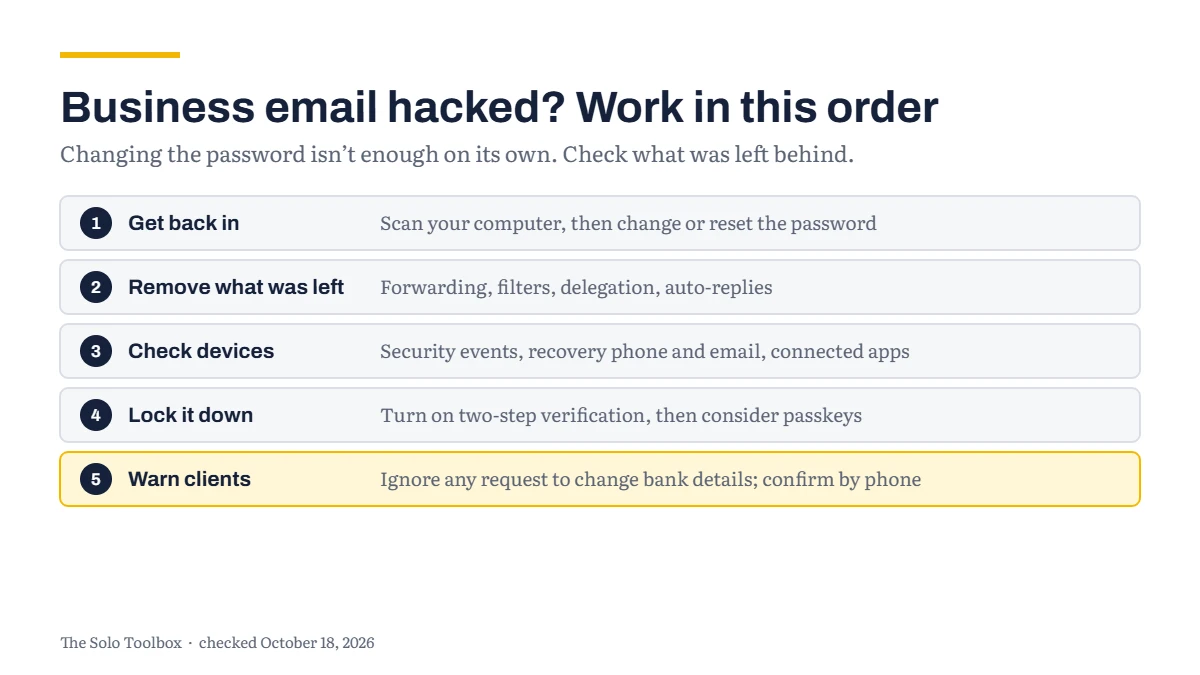
If someone has got into your business email, work in this order: get back in and change the password, then remove anything the attacker left behind, then lock the account down. The part people miss is the middle step. An attacker can set up forwarding, filters or an automatic reply that keep quietly working after you change your password, so check those settings even if everything looks normal. Then warn clients if any messages went out in your name, especially anything about payments.
Before you start
- You’ll need: a device you trust, ideally not the one you think was compromised, and access to your recovery phone or email.
- Applies to: Gmail and Google accounts, and Outlook.com and Microsoft accounts. On a Google Workspace or Microsoft 365 work account, also tell whoever manages it.
- Time: 30 minutes for the urgent steps.
- How we checked this: based on Google’s and Microsoft’s own help pages, checked October 18, 2026.
Signs the account isn’t just yours
- Clients or contacts reply to emails you didn’t send.
- Sent mail you don’t recognize, or emails missing from your inbox.
- Security alerts about sign-ins or devices you don’t recognize.
- Your password suddenly doesn’t work.
Any one of these is enough reason to work through the steps below.
Step 1: Get back in and change the password
Google: if you can still sign in, change your password straight away. If you can’t, use Google’s account recovery page and answer the questions as best you can.
Microsoft: Microsoft’s help page links to a page to change your password if you can sign in, and a separate page to reset it if you can’t.
Microsoft also says to run a full antivirus scan of your computer first. In Windows Security, go to Virus and threat protection > Scan options > Full scan > Scan now. Google gives the same advice: run trusted anti-virus software, and as a last resort reset the computer after backing up your files.
Then change the password anywhere else you used the same one. Google also says to change passwords on apps and sites that email you at that address, or that you sign in to with it.
Step 2: Remove what the attacker left behind
This is where the damage continues if you skip it. Google lists the Gmail settings to check and correct:
- Automatic forwarding, which sends copies of your mail elsewhere.
- Filters and labels, which can hide or redirect replies.
- Mail delegation, which gives someone else access to your inbox.
- Automatic reply, scheduled emails and the address on outgoing mail.
- Blocked addresses and IMAP/POP access.
For Outlook.com, Microsoft says to review your connected accounts, forwarding and automatic replies. It also notes it may have reset some of your account settings if someone else had access.
If you find an automatic reply you didn’t write, turn it off. Our guide to out-of-office replies in Gmail and Outlook shows where that setting lives.
Step 3: Check devices and recent activity
In your Google Account, open Security & sign-in and select Review security events. Choose No, it wasn’t me for anything you didn’t do. Under Your devices, select Manage devices and remove any you don’t recognize.
Google also says to check your recovery phone, recovery email, the apps with access to your account, and your two-step verification methods. Remove anything you didn’t add yourself.
Step 4: Lock the account down
Google says two-step verification “helps keep hackers out of your account”, because a stolen password alone is no longer enough. Turn it on for both accounts; our guide to turning on two-step verification for Google and Microsoft accounts walks through it. Once that’s done, consider setting up passkeys, which replace the password with your device’s screen lock.
Step 5: Warn your clients
This step is our advice rather than Google’s or Microsoft’s, but it matters for a business. If emails went out in your name, tell your clients, from the recovered account or by phone:
- that your account was accessed and is now secure;
- to ignore any recent request to change bank details or make an urgent payment, and to confirm any such request with you by phone.
Google also says to contact your bank or the authorities if someone may have given instructions in your name.
If it doesn’t work
- You can’t get back into a Google account: keep using the account recovery page. Google says to answer the questions as best you can, and to try recovering your username if you’re not sure you have the right account.
- You can’t get back into a Microsoft account: Microsoft’s help page links to the account recovery form and to its support team.
- The problem comes back after you change your password: recheck forwarding, filters and delegation, and the devices and apps signed in to your account, then scan your computer again.
- You don’t know which of your passwords leaked: our guide to checking whether your email was in a data breach helps you find out.
Sources
- Google: Secure a hacked or compromised Google Account
- Microsoft: My Outlook.com account has been hacked
Last checked: October 18, 2026. Google and Microsoft update their security settings regularly. If something here no longer matches what you see, let us know.