How to share your Google Calendar without showing every detail

The Solo Toolbox · Software Help for One-Person Businesses
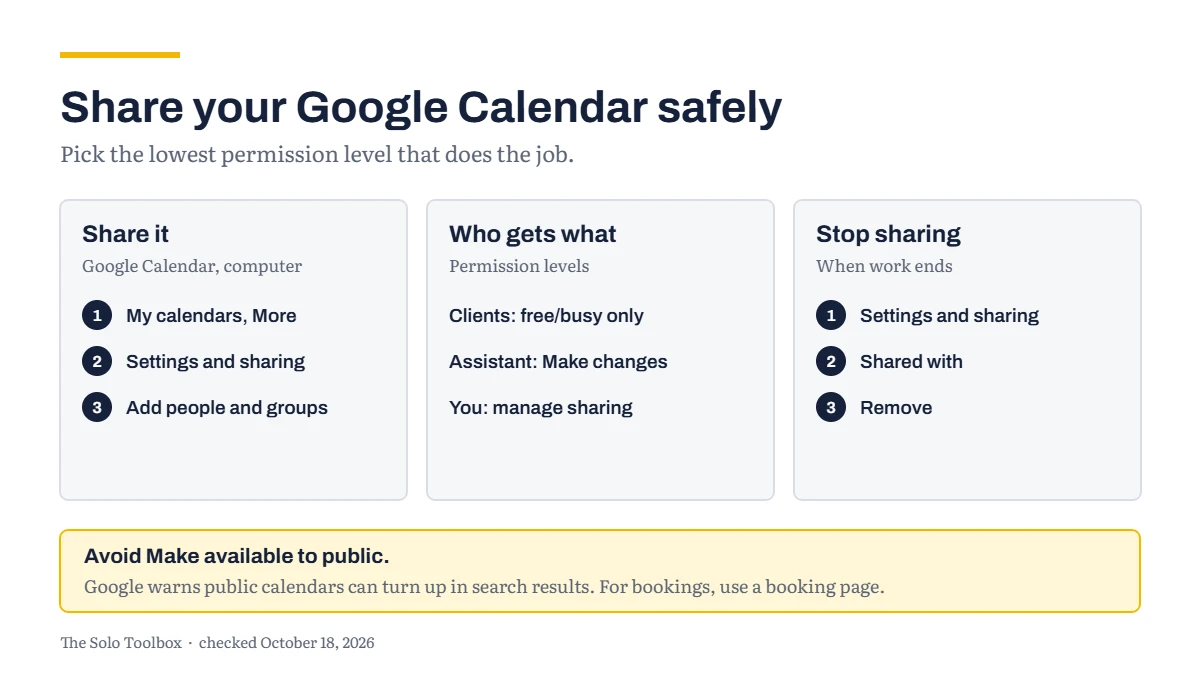
To share your Google Calendar with an assistant, a partner or a client, open Google Calendar on a computer, select the More icon next to the calendar under My calendars, choose Settings and sharing, then Shared with and Add people and groups. The important choice is the permission level. For most clients, See only free/busy (hide details) is enough: they can see when you’re busy without seeing what you’re doing. Give Make changes only to someone who manages your diary, and keep Make changes and manage sharing for yourself. If clients just need to book time, a booking page is usually a better fit than sharing your calendar at all.
Before you start
- You’ll need: Google Calendar on a computer, and the email address of the person you’re sharing with.
- Applies to: personal Google accounts and Google Workspace. On a work account, Google says your administrator may decide whether you can share calendars.
- Time: about 2 minutes.
- How we checked this: based on Google’s own Calendar help pages, checked October 18, 2026.
Pick the right permission level
Google offers five levels. In plain terms:
- See only free/busy (hide details): they see when you’re busy, not what the events are. Good for clients and collaborators who want to find a time.
- See event details: they see event names, times, places and descriptions. Fine for a business partner, risky for a client.
- Make changes (see private events as free/busy): they can edit your events, but not ones you’ve marked private. Suits an assistant.
- Make changes and see event details: they can edit events and see who the calendar is shared with.
- Make changes and manage sharing: full control, including sharing your calendar with others. Keep this for yourself.
Start with the lowest level that works. You can raise it later.
With See event details, people read your event titles, so write titles you’d be comfortable with a client seeing. With the Make changes level that hides private events, Google says those private events show only as free or busy.
Share your calendar with specific people
- In Google Calendar on a computer, find My calendars on the left.
- Next to the calendar, select the More icon, then Settings and sharing.
- Select Shared with, then Add people and groups.
- Enter the person’s email address.
- Choose the permission level.
- Select Send.
Google says the other person gets an email and must select the link in it to add your calendar. If they can’t find it, ask them to check spam, or remove and add them again.
Don’t make it public by accident
Calendar also lets you Make available to public, under Access permissions for events. Google warns that public calendars can be found on the internet and in search results. For a business calendar with client names in event titles, that’s almost never what you want. If you’ve turned it on, turn it off in the same place.
Stop sharing
- Open Settings and sharing for the calendar.
- Under Shared with, select Remove next to the person.
Do this when a contract ends or an assistant moves on, as part of your offboarding.
When a booking page is better
If the reason for sharing is so clients can pick a meeting time, sharing your whole calendar is more than they need. A booking page shows only the slots you’ve made available, and clients book directly. A free Google account gets one booking page; our guide to creating a booking page in Google Calendar shows how, and our comparison of Calendly and Google Calendar booking pages covers the paid options.
If it doesn’t work
- The person never got the invite: check the email address, and ask them to look in spam or trash. Google suggests removing and re-adding them.
- You can’t share at all on a work account: your administrator may have turned sharing off. Contact them.
- You want to share someone else’s calendar: Google says the owner must give you Make changes and manage sharing first.
- A calendar shared with you isn’t showing on your phone: Google’s recommended fix is the official Google Calendar app, which syncs everything in your Google account once you sign in. If you use the iPhone’s own Calendar app instead, follow Google’s separate instructions for Apple Calendar.
- The other person doesn’t use Google, for example they’re on Outlook: Google’s link for other calendar apps, the Public address in iCal format under Integrate calendar, only works if the calendar is public. Making it public lets anyone find it, so for a client it’s usually better to share free/busy times through a booking page instead.
- You’re on Google Workspace and worried about privacy: Google says administrators can have permissions to see your calendar and event details even if you don’t share it.
For more scheduling guides, browse our productivity guides.
Related guides
Sources
Last checked: October 18, 2026. Google changes Calendar from time to time. If something here no longer matches what you see, let us know.