How to set up free invoice reminders in Gmail
The Solo Toolbox · Software Help for One-Person Businesses
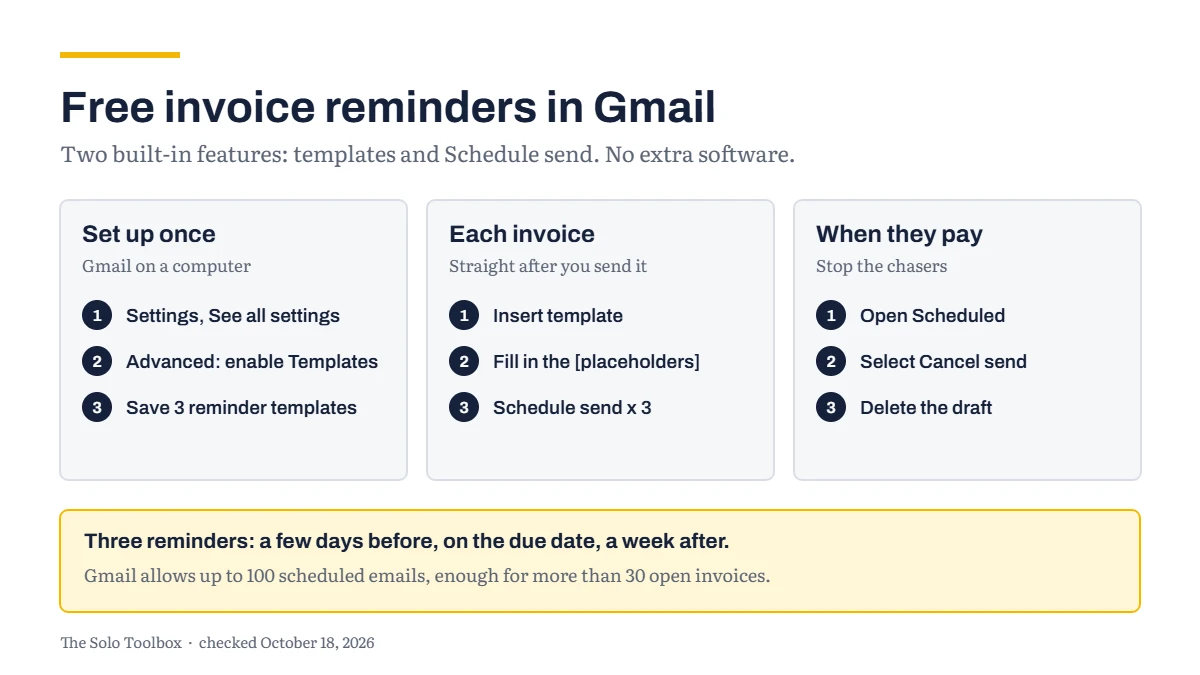
You can set up invoice reminders in Gmail without paying for software by combining two built-in features: templates, so each reminder takes seconds to write, and Schedule send, so you can queue the reminders the moment you send the invoice. When a client pays, you cancel the reminders that haven’t gone out. It takes about 15 minutes to set up once, works in a free Gmail account, and keeps the tone of each reminder consistent, which makes chasing money feel less personal.
Before you start
- You’ll need: Gmail on a computer. Google says templates can only be turned on and used from Gmail on a computer.
- Applies to: personal Gmail and Google Workspace accounts.
- Time: about 15 minutes to set up, then a minute per invoice.
- How we checked this: based on Google’s own Gmail help pages, checked October 18, 2026.
How the system works
For each invoice, you send the invoice as normal, then schedule up to three follow-ups:
- A friendly reminder a few days before the due date.
- A due-date reminder on the day payment is due.
- An overdue notice a week after the due date.
Each one is built from a saved template, so you only change the client’s name, the invoice number, the amount and the date. If the client pays early, you cancel what’s left in the queue.
Turn on templates
You need to turn templates on before you can use them.
- In Gmail on a computer, select Settings, then See all settings.
- Open the Advanced tab.
- Next to Templates, select Enable.
- Select Save Changes at the bottom of the page.
Create your three reminder templates
For each reminder:
- Select Compose and write the message.
- Select More options, then Templates.
- Select Save draft as template, then Save as new template, and give it a clear name such as “Invoice: due soon”.
Write templates with obvious placeholders in square brackets, so you can’t send one without filling it in. For example, a friendly reminder could read:
Hi [Name], a quick reminder that invoice [number] for [amount] is due on [date]. You’ll find it attached to my email of [date sent]. Thanks, and let me know if you have any questions.
Keep the overdue notice polite and specific: the invoice number, the amount, the original due date, and how to pay. Google warns that a deleted template can’t be recovered, so keep a copy of your wording somewhere else too.
Schedule the reminders when you send the invoice
Straight after you send an invoice:
- Select Compose, then More options, then Templates, and pick the template under Insert template.
- Fill in the placeholders and the client’s address.
- Select the down arrow next to Send, then Schedule send, and choose the date and time.
- Repeat for the other two reminders.
Google says Gmail sends scheduled emails based on the time zone you schedule them in, and they may go a few minutes after the scheduled time. If a client is in another time zone, pick a time that lands in their working hours.
When a client pays, cancel the rest
- Select Scheduled in Gmail’s left panel.
- Open the reminder you no longer need.
- Select Cancel send at the top right.
Google says a canceled scheduled email becomes a draft, so delete the draft afterwards to keep things tidy. Make checking Scheduled part of the routine whenever a payment lands; it’s the one step that stops a paid client getting a chaser.
Limits to know
- 100 scheduled emails at most. Google says that’s the limit. At three reminders per invoice, that covers more than 30 open invoices.
- No automatic stop. Gmail doesn’t know an invoice has been paid; cancelling is up to you.
- Templates are computer-only. You can’t create or insert them from the Gmail phone app, though the app can show and cancel scheduled emails.
If you regularly have more open invoices than this can handle, that’s the point where invoicing software with built-in reminders starts to earn its cost.
If it doesn’t work
- There’s no Templates option under More options: turn templates on under Settings > See all settings > Advanced, and save the change.
- A reminder went out after the client paid: apologize briefly and check Scheduled for any others still waiting.
- Clients reply to your personal address: check which address you’re sending from. Our guide to getting a professional email address on your own domain explains the options, and our guide to adding a professional email signature makes sure your payment details are on every message.
For more ways to save time on admin, see our productivity guides.
Related guides
Sources
Last checked: October 18, 2026. Google changes Gmail’s features from time to time. If something here no longer matches what you see, let us know.