How to create a booking page in Google Calendar
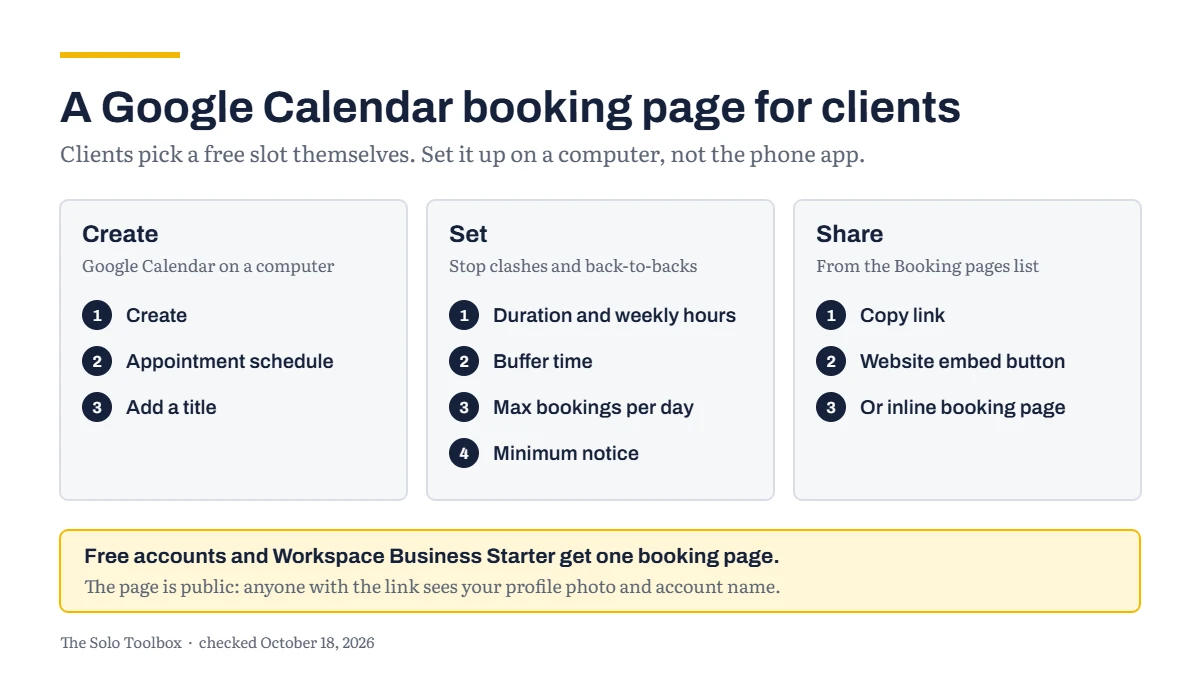
Google Calendar can give clients a booking page where they pick a free slot themselves. On a computer, select Create, then Appointment schedule, set your hours and appointment length, then share the link or add a button to your website. A free personal Google account gets one booking page, and so does Google Workspace Business Starter. Features such as automatic reminders and checking more than one calendar for conflicts need a paid plan. Before you share the link, check what clients will see: Google says your booking page is public and shows your profile photo and account name.
Before you start
- You’ll need: a Google account and Google Calendar in a web browser on a computer. Google says you can’t create appointment schedules in the Calendar app for phones.
- Applies to: personal Google accounts, Google One subscriptions, and Google Workspace. Some Workspace plans, including Essentials and Frontline, can’t create appointment schedules at all.
- Time: about 15 minutes.
- How we checked this: based on Google’s own Calendar help pages, checked October 18, 2026. Google updates Calendar regularly, so your screens may look slightly different.
What you get on a free account
Google’s comparison of plans is worth knowing before you start, because it decides how you set this up:
- Personal Google account, or Workspace Business Starter: one booking page.
- Google One Premium and Google’s AI plans: multiple booking pages, automatic email reminders, and checking availability across multiple calendars.
- Most other Workspace plans: the above, plus accepting payments and email verification to stop spam bookings.
If you’re on a free account, design your one page carefully: a single appointment type, such as a 30-minute intro call, usually works best.
Create the booking page
- Open Google Calendar on a computer, select Create at the top left, then Appointment schedule.
- Add a title. Clients see it, so describe the meeting, for example “Intro call”.
- Choose the Appointment duration.
- Under General availability, set the days and times you take bookings, and check the time zone.
- Select Next, fill in the booking page details, then select Save.
Settings that prevent problems
These are in the first panel, and each one heads off a common annoyance:
- Scheduling window: controls how far ahead people can book and the minimum notice you need. Google sets the minimum notice to 4 hours by default; raise it if you don’t want same-day bookings.
- Adjusted availability: blocks specific dates, such as holidays, without changing your weekly hours.
- Buffer time: adds a gap between appointments, so calls don’t run back to back.
- Maximum bookings per day: stops a busy day filling up with calls.
- Guest permissions: controls whether guests can invite other people.
- Check calendars for availability: looks at your calendar so clients can’t book over existing events. Google lists checking across multiple calendars as a paid feature.
Set up the page clients see
In the second panel, choose how you’ll meet: Google Meet video conferencing, In-person meeting, Phone call, or None / to be specified later if you use another video service.
Add a short Description saying who the call is for and what to prepare. Google shows it on the booking page, in confirmation emails and in the calendar event. The Booking form always asks for first name, last name and email address, and you can add your own questions.
Confirmation emails and reminders are set in the same panel. Google lets you send up to five reminders but doesn’t let you edit their wording.
Check what’s public before you share
Google says anyone with the link can see your booking page, your profile photo and your account name. If your Google account still shows a personal photo or a nickname, change them in your Google Account before sharing. The booking page uses your account’s photo and name, so you can’t set them separately.
Share the link or add it to your website
- Copy the link: in Google Calendar, hover over the booking page under Booking pages on the left, then select Copy link. Put it in your email signature, invoices or website.
- Add a button to your site: hover over the booking page, select Options > Sharing options > Website embed, choose Button with popup, set the text and colour, then select Copy code and paste it into your site. Google lists WordPress.org among the platforms this works with.
- Show the whole calendar on a page: in the same menu, choose Inline booking page instead.
If it doesn’t work
- There’s no Appointment schedule option: you’re probably on the Calendar phone app. Use a computer. On a work account, your plan may not include appointment schedules.
- You can’t create a second booking page: free accounts and Business Starter are limited to one.
- Clients booked over another commitment: turn on Check calendars for availability. If the clash was on a second calendar, checking more than one calendar needs a paid plan.
- You want to edit the reminder emails: Google doesn’t allow that. Put anything clients need to know in the Description instead.
If you send clients files after the call, our guide to sharing a Google Drive folder with a client safely covers the settings to check. For more setups like this one, browse our how-to guides.
Sources
- Google: Create an appointment schedule
- Google: Compare premium features for appointment schedules
- Google: Share your appointment schedule
Last checked: October 18, 2026. Google changes Calendar’s features and plan limits regularly. If something here no longer matches what you see, let us know.