Fake IT Support on Microsoft Teams: How to Spot and Block It
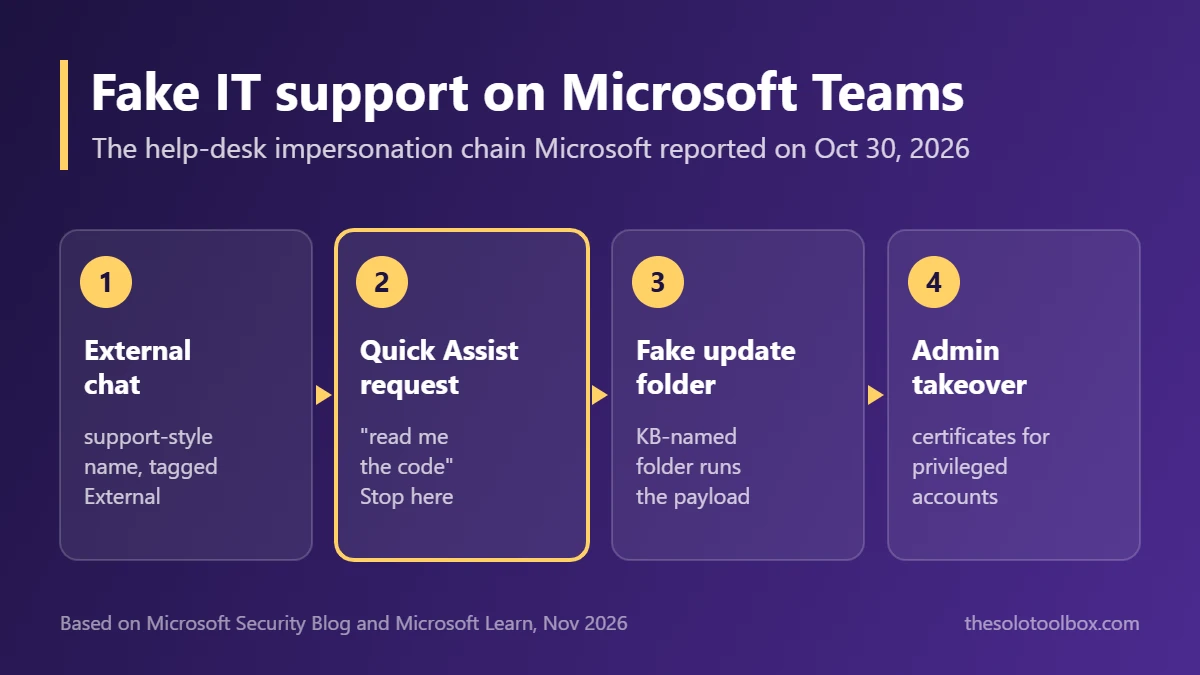
A fake IT support message on Microsoft Teams usually comes from an outside account with a help-desk name, is marked External, and quickly asks you to open Quick Assist and read out a code. Do not do it. Microsoft documented two intrusions in an October 30, 2026 security report that started exactly this way and ended with stolen administrator certificates and, in one case, company files copied to an outside server.
This guide shows the warning signs, what to do if you already gave someone access, and the Teams admin settings that stop outside accounts from messaging your staff.
Before you start
- You’ll need: for the admin steps, a Microsoft 365 account with Teams administrator rights
- Time: 2 minutes to check a message; about 10 minutes to change external access settings
- Key fact: Microsoft says no Teams vulnerability was used; the attacks relied on people accepting a remote-support session
How the Teams help-desk scam works
Microsoft’s report, covered by The Hacker News on November 2, describes the same opening in both cases:
- The attacker creates a Microsoft 365 tenant with an organization-themed
onmicrosoft.comname and a support-sounding display name. - They message and call employees on Teams as an outside contact, posing as the IT department or help desk.
- The target is talked into opening Quick Assist, Windows’ built-in remote help tool, and reading back the connection code.
- During the session, an archive is dropped into Downloads and unpacked into a folder named to look like a Windows update (a
KB-prefixed directory), then run with a portable Python, Java or Bun runtime. - From there, the attackers abused weak Active Directory Certificate Services settings to get certificates for privileged accounts.
In the first case, a renamed copy of the Rclone file-sync tool, disguised as SearchApp.exe, copied data from a file server to an external SFTP destination. In the second, the customer isolated the infected PC and the attack stopped. Microsoft did not attribute the activity to a known group.
Red flags in a Teams message or call
| Sign | Why it matters |
|---|---|
| External label next to the name | Your own IT team is inside your organization and should not show as external |
| A name like “IT Support” or “Help Desk” from an unfamiliar organization | Attackers chose support-themed display names and company-like tenant names |
| Unrequested contact about a problem you did not report | Both intrusions started with unsolicited outreach |
| A request to open Quick Assist, AnyDesk or another remote tool | Remote control is the step that hands over your PC |
| Pressure to act now | Urgency is meant to stop you from checking with anyone |
Microsoft’s blog also shows Teams adding an External tag and, in some calls, a Scam suspected warning. Treat either as a reason to stop.
How to check if the support request is real
- Do not reply with personal details and do not accept the call.
- Contact your IT team through a channel you already use, such as the help-desk number on your intranet or a coworker you know, and ask whether they reached out.
- If you work alone and have no IT department, there is no help desk that would message you on Teams. Block the contact.
- Report it: take a screenshot of the chat, including the sender name and the External label, and send it to whoever manages your Microsoft 365 account so they can block the domain.
The same verify-before-you-act rule applies to phone impersonators. Our guide to the fake FBI agent call scam covers the voice version of this trick.
What to do if you already let them connect
- Close the Quick Assist window to end the session, then disconnect the PC from Wi-Fi or unplug the network cable.
- Tell your IT team or Microsoft 365 admin right away. In Microsoft’s first case, the attacker moved from one PC to privileged accounts within about 90 minutes.
- From a different device, change your Microsoft 365 password and sign out of other sessions. Check that two-step verification on your Microsoft account is on and that no new methods were added.
- Do not delete files from Downloads or your user folder yet. An investigator will want the archive and any
KB-named folder. - Plan to have the PC reset or reimaged rather than cleaned by hand.
Admin fix: limit who can message your staff on Teams
All of these are under Teams admin center > Users > External access, according to Microsoft Learn. By default, Teams allows chat with all external domains.
Limit external organizations
Under Teams and Skype for Business users in external organizations, choose Allow only specific external domains and add the domains of the partners and clients you work with. If you choose Block only specific external domains instead, note that subdomains are not blocked unless you run Set-CsTenantFederationConfiguration -BlockAllSubdomains $True in Teams PowerShell.
Turn off unmanaged Teams accounts
Under Teams accounts not managed by an organization, turn off People in my organization can communicate with unmanaged Teams accounts, or at least clear External users with Teams accounts not managed by an organization can contact users in my organization. With that box cleared, personal Teams users cannot find your staff by email. These options are not available in GCC, GCC High or DoD tenants.
Restrict remote-support tools
Microsoft recommends allowing only approved remote-support products and workflows. If your business does not use Quick Assist, a user can remove it on Windows 11 from Settings > Apps > Installed apps, and admins can block it with App Control for Business or their device management tool.
Microsoft’s report also includes Active Directory Certificate Services hardening, such as removing unneeded Web Enrollment endpoints and enforcing Extended Protection for Authentication. That part applies to companies running on-premises Active Directory, not to cloud-only Microsoft 365 setups.
FAQ
Is Quick Assist malware?
No. It is a legitimate Microsoft app. Attackers use it because it is already installed and trusted, so the danger is who is on the other end.
Can Microsoft support message me on Teams?
Treat any unsolicited Teams message claiming to be Microsoft or IT support as suspect until you verify it through a contact you already trust. Your own IT team will appear without the External label.
Was this a Teams security flaw?
Microsoft says no Teams vulnerability was exploited. The attacks relied on social engineering and on overly permissive certificate settings inside the victims’ networks.
I use Teams for free with clients. Does this apply to me?
Yes. The warning signs and the rule about remote-control requests apply to any Teams account. The admin settings above need a Microsoft 365 business tenant.
Next step
If you manage a Microsoft 365 tenant, open Teams admin center > Users > External access today and switch to an allow list of the domains you actually work with. If you are a Teams user, decide now that you will never start a remote session from an unsolicited chat, whatever name it shows. For another way attackers are dressing malware up as trusted tools, see how to spot fake ChatGPT and Claude desktop apps.
If you use TeamViewer for remote access, update it to version 15.83 to close a recently disclosed vulnerability.
Sources
Checked on November 3, 2026. Attack details come from Microsoft’s report; menu paths and setting names come from Microsoft Learn. Microsoft did not publish the exact display names the attackers used.
- Microsoft Security Blog: Help desk impersonation and AD CS abuse, investigating ESC1 and ESC8 intrusion paths (October 30, 2026)
- The Hacker News: Attackers Pose as IT Support on Microsoft Teams, Abuse AD CS to Steal Company Data (November 2, 2026)
- Microsoft Learn: Teams external access settings for chat and meetings