WordPress CVE-2026-119977: Check Your Version and Logs
WordPress fixed a race condition in its core updater on October 28, 2026, in version 7.1.4, and backported the fix to every branch down to 4.7. The flaw, tracked as CVE-2026-119977, was added to CISA’s Known Exploited Vulnerabilities (KEV) catalog on November 3, according to Picus Security, whose researcher reported it. If your site already shows 7.1.4 (or the patched release for your branch), future updates are safe; the remaining job is to confirm the update itself wasn’t the moment someone got in.
This guide covers which versions are fixed, how to check yours, how to block the folder the attack uses before your next update, and what to look for in your logs.
Before you start
- Applies to: self-hosted WordPress sites on any version from 4.7 to 7.1.3, plus older unsupported versions
- Fixed versions: 7.1.4, 7.0.8, 6.9.11, 6.8.12 and the other branch releases in the table below
- Time: 5 minutes to check your version; 20 to 30 minutes for the log and file review
- You need: an administrator login, plus your host’s file manager, SSH or log viewer for the checks
What CVE-2026-119977 does
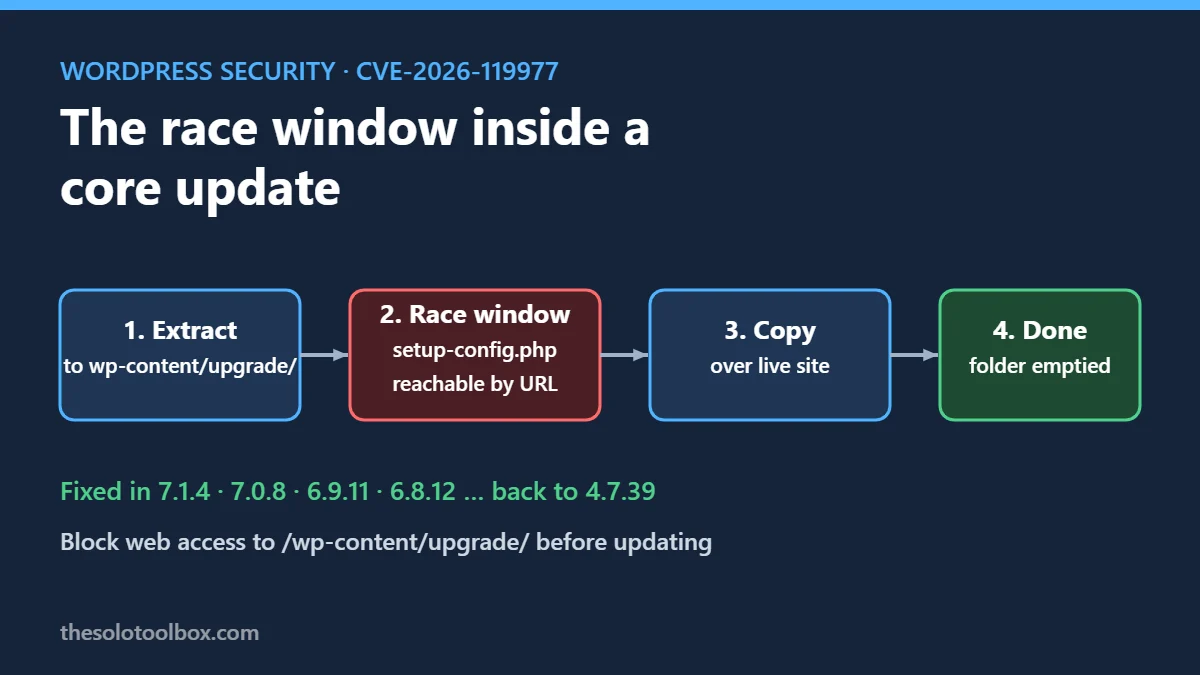
When WordPress installs a core update from a full package, older versions of the updater unzipped the new files into a predictable folder under wp-content/upgrade/ before copying them over the live site. That folder sits inside your public web root, so anything in it can be requested by URL for as long as it exists.
The unzipped copy includes WordPress’s own installer, wp-admin/setup-config.php. Picus’s write-up explains that this temporary installer only looked for a wp-config.php inside the staging folder, didn’t find one, and started the setup flow. An attacker who hit that URL during the few seconds between extraction and copy could enter database details of their choosing. The installer wrote a new wp-config.php into the staging folder, and the copy step then placed it over the live one.
With the site pointed at a database the attacker controls, the next steps are the standard installer screen, a new administrator account and a plugin upload, which on most hosts means running PHP on your server.
WordPress’s release post describes it as “a weakness in the WordPress upgrade process which can lead to remote code execution during the upgrade window.” The fix was credited to Umut Bayram of Picus.
Why the severity ratings disagree
WordPress’s GitHub advisory (GHSA-4w3m-c66w-69mg, published October 29) rates the issue Low, which reflects how narrow the timing window is. Picus cites a CVSS score of 8.1 (High). The KEV listing matters more than either number: CISA adds a flaw only when it has evidence of exploitation in the wild. No victims or attack counts have been published as of November 4.
Which WordPress versions are fixed
These numbers come from the GitHub advisory’s affected and patched ranges.
| Branch | Vulnerable | Fixed in |
|---|---|---|
| 7.1 | 7.1.0 to 7.1.3 | 7.1.4 |
| 7.0 | 7.0.0 to 7.0.7 | 7.0.8 |
| 6.9 | 6.9.0 to 6.9.10 | 6.9.11 |
| 6.8 | 6.8.0 to 6.8.11 | 6.8.12 |
| 6.7 | 6.7.0 to 6.7.10 | 6.7.11 |
| 6.6 | 6.6.0 to 6.6.10 | 6.6.11 |
| 6.5 | 6.5.0 to 6.5.13 | 6.5.14 |
| 6.0 | 6.0.0 to 6.0.17 | 6.0.18 |
| 5.9 | 5.9.0 to 5.9.19 | 5.9.20 |
| 4.7 | 4.7.0 to 4.7.38 | 4.7.39 |
| 2.7 to 4.6 | All | No fix; upgrade to a supported branch |
Branches 6.1 to 6.4 and 5.0 to 5.8 also received fixes; check the advisory for the exact number if you run one of them.
How to check your WordPress version
- Log in to wp-admin and go to Dashboard > Updates. The page states which version you’re running.
- Alternatively, look at the At a Glance box on the main Dashboard, which shows “WordPress 7.1.4 running [theme] theme.”
- With SSH and WP-CLI, run
wp core versionfrom the site folder.
If your version is at or above the “Fixed in” number for your branch, the updater no longer uses a predictable staging folder (Picus says patched versions use a random directory name), so future updates don’t reopen the hole. Skip to the log checks.
If you’re below it, block the upgrade folder first, then update. Picus points out that the jump from an unpatched version to 7.1.4 still runs the old updater code, so the very update that fixes the bug is the last exposed window.
Block wp-content/upgrade before updating
Nothing in wp-content/upgrade/ ever needs to be reached from a browser. WordPress writes to it through the file system, not over HTTP, so denying web access to it doesn’t interfere with updates. These rules come from the Picus write-up.
Nginx (inside your site’s server block, then reload Nginx):
location ^~ /wp-content/upgrade/ { deny all; }Apache with access to the server config:
<Directory "/var/www/html/wp-content/upgrade">
  Require all denied
</Directory>
Change the path to match your web root.
Apache on shared hosting: add this line to the .htaccess file in your WordPress root folder, above the # BEGIN WordPress block:
RedirectMatch 403 ^/wp-content/upgrade/Don’t put a separate .htaccess file inside wp-content/upgrade/. The unpatched updater cleans that folder and deletes it.
To test the rule, open https://yoursite.com/wp-content/upgrade/ in a private window. You want a 403 Forbidden page. On managed WordPress hosting where you can’t edit server rules, ask support whether that path is blocked and whether they applied 7.1.4 for you.
Check whether the update window was abused
Picus hasn’t published indicators of compromise, so the checks below are derived from how the attack works. They take about 20 minutes and are worth doing if your site updated between October 28 and now, which includes most sites with automatic minor updates turned on.
- Search your access logs for requests to the staging folder. On a host with SSH, run
grep -i "wp-content/upgrade" access.log*in your log folder. Any request containingwp-content/upgrade/andsetup-config.phpis a red flag, especially a POST. - Check wp-config.php. Open it and confirm that
DB_NAME,DB_USERandDB_HOSTmatch the database listed in your hosting panel. Note the file’s last-modified time in your file manager; a change at the same minute as the core update deserves a closer look. - Review administrator accounts. Go to Users > All Users, filter by Administrator, and look for accounts you don’t recognise.
- Review plugins. Under Plugins > Installed Plugins, look for anything you didn’t install, including inactive ones.
- Look for leftovers. A completed update empties
wp-content/upgrade/. Anywp-config.phpor unfamiliar PHP file inside it is suspicious.
If any of these turn something up, put the site in maintenance mode, restore from a backup taken before the update, then change your database password, regenerate the security keys in wp-config.php and reset every administrator password. Tell your host, since a compromised site can also affect other accounts on shared servers.
What it means for you
For a typical site with default automatic minor updates, the patch probably arrived within a day of October 28. The exposure was a window of seconds during that update, and an attacker had to be sending requests at that exact moment. That’s a narrow target, but automated scanners do exactly this kind of repeated probing, which is why a KEV listing matters.
The practical steps are short: confirm your version, add the upgrade-folder rule so this class of race can’t recur through that path, and spend 20 minutes on the log and account checks. If you run several sites, do the version check on all of them first; sites stuck on old branches because auto-updates were disabled are the most exposed.
The server underneath matters too: our guide to checking your WordPress site is patched for PHP2Shell covers the PHP side, and if you manage sites through UpdraftCentral, run the UpdraftCentral key compromise checks as well.
FAQ
Is WordPress 7.1.4 safe from CVE-2026-119977?
Yes, for updates made after 7.1.4 is installed. According to Picus, the patched updater extracts packages into a randomly named folder and no longer copies a staged wp-config.php over the live one.
My site runs WordPress 4.6 or older. Is there a patch?
No. Fixes go back only to 4.7. Versions 2.7 through 4.6 use the same updater and remain vulnerable, so the only fix is moving to a supported branch, ideally 7.1.
My host handles updates. Do I need to do anything?
Confirm the version in Dashboard > Updates, then ask your host two questions: whether wp-content/upgrade/ is blocked from web access, and whether they checked their logs for requests to it around the 7.1.4 rollout.
Can a security plugin block this?
Some web application firewalls may block requests to setup-config.php in unusual paths, but we haven’t seen any vendor confirm a rule for this specific CVE. The server rule above doesn’t depend on a plugin running.
Next step
Open Dashboard > Updates on each site you manage and write down the version. Any site below its branch’s fixed number gets the upgrade-folder rule and an update today. While you’re reviewing access, run through our checklist for third-party scripts on your website.
How we checked: version numbers come from WordPress’s GitHub security advisory and the WordPress 7.1.4 release post (October 28, 2026). The mechanism and the November 3 KEV date come from Picus Security’s November 4 write-up; we could not load CISA’s catalog page directly to confirm the entry or its due date. The log and file checks are our own suggestions based on the published mechanism, not vendor-issued indicators.
Sources
- WordPress 7.1.4 Security Release (WordPress.org, Oct 28, 2026)
- GHSA-4w3m-c66w-69mg: race condition during core updates (GitHub)
- CVE-2026-119977: When Updating WordPress Becomes the Vulnerability (Picus Security, Nov 4, 2026)
- CISA Known Exploited Vulnerabilities Catalog