How to Reset Netflix Recommendations (4 Methods That Work)
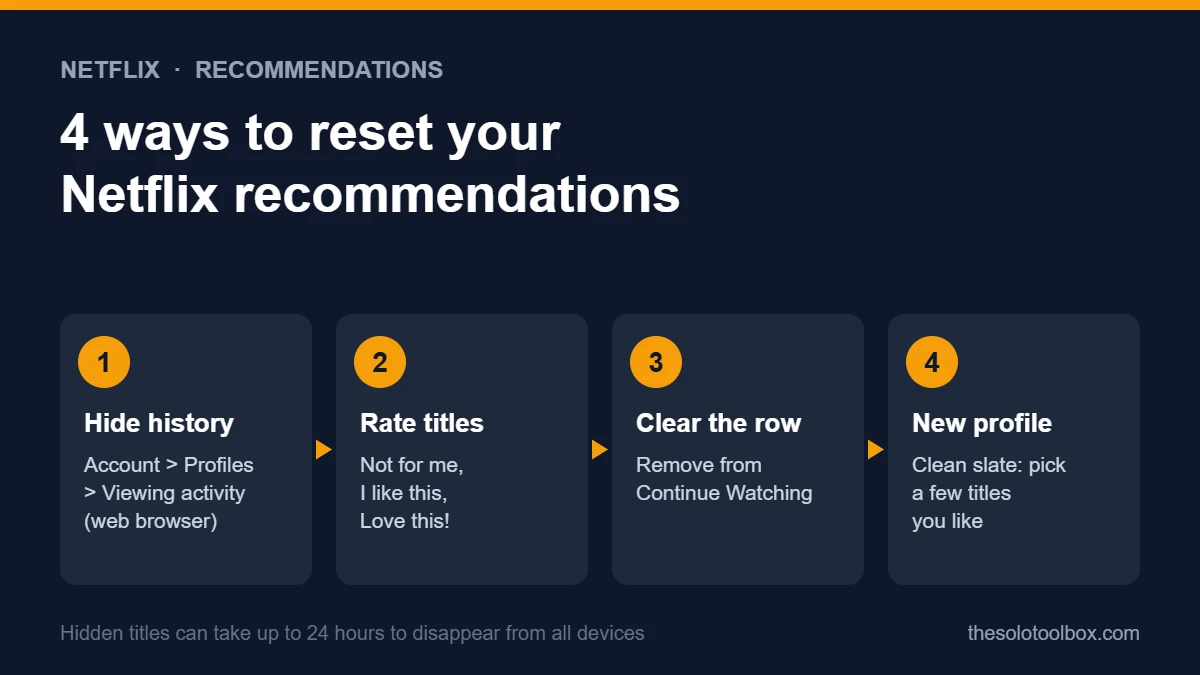
Netflix has no single button to reset recommendations, but you can get close. Hide titles (or your whole history) from Viewing activity in a web browser, rate a few titles you like, and remove stray shows from Continue Watching. If someone else has been watching on your profile, the cleanest fix is a separate profile for them, or a new one for you.
Below are the steps for each method, how long the changes take, and which ones work on a TV versus only in a browser.
Before you start
- Applies to: any Netflix plan, on standard (non-Kids) profiles
- You need: a web browser for hiding viewing history. Ratings and Continue Watching changes also work in the TV and mobile apps
- Heads-up: hidden titles can take up to 24 hours to disappear from all your devices
- Time needed: 5 to 15 minutes, depending on how much history you clean up
Why your Netflix recommendations go wrong
Netflix’s Help Center says its recommendations use your viewing history and ratings, what members with similar tastes watch, and details about each title such as genre, cast and release year. It also weighs the time of day you watch, the languages you prefer, the devices you use and how long you watched a title. Netflix says it doesn’t use demographic information such as age or gender.
That means the usual causes of bad picks are things you can change:
- A guest, child or partner watched on your profile
- You sampled a few minutes of shows you didn’t like
- Autoplay kept running episodes after you fell asleep
- You rarely rate anything, so history is the only signal
Method 1: Hide titles from your viewing history
This has the biggest effect. Netflix says hidden titles won’t show as watched, “won’t be used to make recommendations to you, unless you watch them again,” and are removed from the Continue Watching row.
- In a web browser, sign in to Netflix and open your Account page.
- Select Profiles, then choose the profile you want to clean up.
- Open Viewing activity.
- On the Watching page, click the hide icon next to any episode or movie you want gone. If you hide an episode, Netflix offers to hide the entire series.
- To wipe the slate completely, select Hide all at the bottom of the page and confirm.
Hiding everything is the closest thing to a full reset, but it also removes signals from shows you liked. If most of your history is fine, hide only the titles that don’t fit and keep the rest.
Netflix says titles can’t be hidden when you reach Viewing activity from a Kids profile.
Method 2: Rate what you have watched
Ratings give Netflix a direct signal instead of making it guess from viewing time. Netflix offers three options:
| Rating | When to use it |
|---|---|
| Not for me | Titles you started and didn’t enjoy |
| I like this | Titles you enjoyed |
| Love this! | Your favorites, the ones you want more of |
Open a title’s details page and pick a rating. Netflix says some older devices still show stars instead of thumbs, and that thumbs ratings can be saved on Netflix.com or in the Netflix app. Rating five to ten titles you liked, plus a few you didn’t, gives the system a clearer picture than history alone.
Method 3: Clean up the Continue Watching row
Removing a title from Continue Watching stops it from staring at you from the top of the home screen. Netflix lists these steps, which need the latest version of the app:
- Computer: hover over the title in the Continue Watching row and select Remove From Row.
- TV: open the title’s details page, then select Remove from Continue Watching from the menu.
- Phone or tablet: tap Menu on the title in the Continue Watching row, then tap Remove From Row.
Netflix’s help page notes that on older app versions without this option, hiding the title from Viewing activity also removes it from Continue Watching. For recommendations, Viewing activity is the stronger fix, since Netflix’s help page only confirms that hidden titles stop counting toward recommendations.
Method 4: Start a new profile for a clean slate
A new profile has no history and no ratings. When you add a profile, Netflix asks you to choose a few titles you like to get recommendations started. This is the fastest route when your current profile is a mix of several people’s tastes.
- Open Netflix and go to the profile picker, the screen where you choose who is watching.
- Add a new profile and give it a name.
- Pick the titles Netflix shows you during setup that you actually enjoy.
- Rate a few more titles in the first week.
If a household member was the cause, give them their own profile instead, then hide their titles from yours using Method 1.
How long the changes take
Netflix says it can take up to 24 hours for a hidden title to disappear from all devices. Netflix doesn’t say how fast ratings change your rows, so give it a day before judging the result.
If you are in Netflix’s new AI Discover test on a TV, each title in that tab also has a Tune Your Recommendations button. Netflix says it remembers those choices inside AI Discover. It hasn’t said whether they change your main home screen, so use the methods above for that.
Watch out for other viewing data
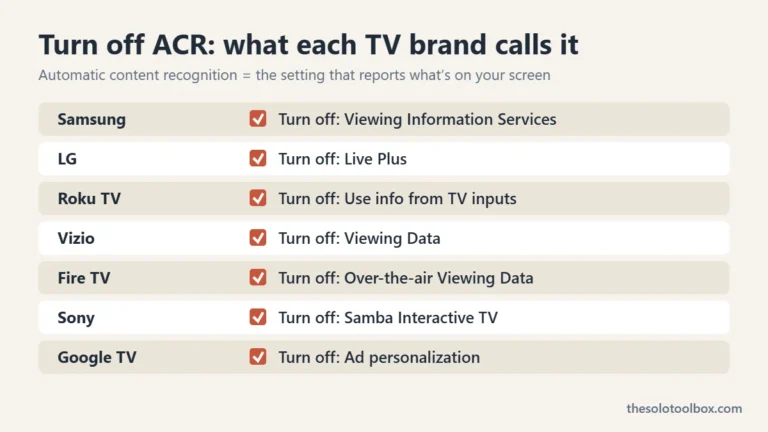
Netflix’s history only covers what you watch in Netflix. Many smart TVs also track what appears on screen through automatic content recognition, separately from any app. Our guide to turning off ACR on your smart TV shows where that setting lives on major TV brands. If you stream on a cheap Android box, also check it for malware, since an infected box is a bigger privacy problem than a messy watch history.
FAQ
Does deleting viewing history reset Netflix recommendations?
Mostly. Netflix calls it “hiding,” and hidden titles stop being used for recommendations unless you watch them again. Hide all clears the whole history for that profile, but other signals, such as your ratings, languages and devices, still count.
Can I hide viewing history on a TV or in the phone app?
Netflix’s instructions use a web browser. You can open Netflix.com in a phone browser if you don’t have a computer.
Why does Netflix keep recommending a show I already removed?
Changes can take up to 24 hours to reach all devices. If a title still appears after that, rate it Not for me, and check that you hid it from the right profile.
Will hiding titles affect other profiles on my account?
No. Viewing activity is per profile, so hiding titles on one profile doesn’t change another profile’s history.
What to do next
Start with Method 1 on your own profile: hide the titles you didn’t choose, then rate five things you liked. Check your home screen the next day. If the picks are still off and several people share the profile, set up separate profiles so each person’s history stays their own.
Sources
Checked on November 4, 2026, against Netflix’s Help Center. Menu names can differ slightly between TV models and app versions. Netflix doesn’t publish how quickly ratings change your rows, so we haven’t given a timeframe beyond the 24 hours Netflix states for hidden titles.
- Netflix Help Center: How to hide titles from viewing history
- Netflix Help Center: How to rate TV shows and movies
- Netflix Help Center: How to remove titles from the Continue Watching row
- Netflix Help Center: How Netflix’s recommendations system works
- Netflix: Introducing AI Discover (November 3, 2026)